
How to Password Lock Your Desktop with Fast User Log Out in Mac OS X
 A quick way to lock your Mac desktop is to hit Shift-Command-Option-Q to do a fast user log out. This logs the current user out of Mac OS X, which is one way to initiate a login screen when the Mac needs to be used again.
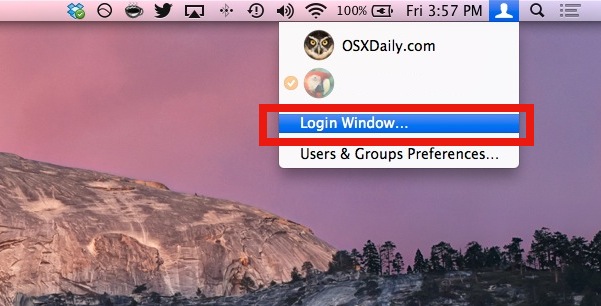
Another method is brought to us by inaminit who left the following in our comments: “If you have Fast User Switching enabled through the System Preferences/Accounts, you can just click on Login Window in the drop down menu from the menu bar to do the same thing.”
What inaminit is referring to is the Fast User Switching menu bar item, which is in the upper right corner of OS X if you use the feature. Pulling it down and finding “Login Window” is what immediately logs out and password protects the computer.
The obvious downside to this of course is that it requires fast user switching to be on, and it also closes all the windows, and if the Mac is a single-user workstation then that wouldn’t make much sense to use. For those cases, try using another approach to locking the desktop, like enabling a lock screen and activating it by keyboard strokes or hot corners:
- How to Lock the Mac Screen with a Keystroke
- Lock the Mac Desktop through a Menu bar item
- Lockdown a Mac OS X Workstation with a Screen Saver hot corner
Each method has it’s own strengths and weaknesses depending on the user skill level, read through each of them to determine what fits your needs the best. In all cases though, it is highly recommended to actually do this any time you leave a computer unattended. It’s a very simple and easy security precaution that can help to prevent unwanted access to your machine.






Mehh…. the closest to windows ctrl-alt-del when you are coming from windows is CTRL-SHIFT-EJECT : works as a charm.
I’m using a app from the apple website, works pretty well.
http://www.apple.com/downloads/macosx/automator/lockdesktop.html
[…] access. The uses for this are many, but I am still surprised Apple does not provide a simple way to lock your Mac outside of either a screensaver or fast user logout with Shift-Command-Option-Q. Anyway, check out […]
Logging out is not the same as locking. Seriously, what?
The original tip is as helpful as saying “to save power, turn off the computer.”
google locktight for a keycombo pref pane solution
With the others on hot corners in the screensaver. Keep in mind the easiest corner to hit with a mouse is bottom-left if you’re right handed. You may want to avoid the easy ones, the hardest to hit for right-handed is bottom right, try it. Reverse the two for left-handed mouse users.
With the others on hot corners in the screensaver. Keep in mind the easiest corner to hit with a mouse is bottom-left if you’re right handed. You may want to avoid the easy ones, the hardest to hit for right-handed is bottom right, try it. Reverse the two for left-handed mouse users.
I enabled the password thing in System Preferences/Security, yet that didn’t work when I came out of the screen saver.
Doing the whole Keychain thing didn’t work either.
The only thing that worked is the Apple Script download as stated in the original post :).
++ inaminit ; fast user switching is my saviour
I don’t know why anything more than hot corners is needed…. What could be easier or quicker than moving your mouse to the corner of the screen. I have been doing this for 5 years without any problems.
Simple: That way will ALWAYS activate the password, whenever the screensaver activates. And I don’t want that in a meeting, where I will talk or not use the computer for a while but then use it to find some material.
I’m looking for a way to cover over or lock a desktop space in Leopard Spaces. Examples of use: keep someone out of your work. Stop productivity-eating visits to social applications.
I’ve seen and tried the solutions listed here. In this case a simple one-trick pony worked best for me: try LockTight (free). LockTight give a system preferences pane where you can set a hotkey for locking the desktop. Yes, you can do similar with Sizzling, QuickSilver, etc, but it’s nice to have a dedicated icon for this in prefs so I don’t have to track down what tool I used to set it.
Here’s a link:
http://www.freemacware.com/locktight
For a keyboard shortcut solution for Terminal.app see:
http://codesnippets.joyent.com/tag/lock
I was looking for a script like this!
You don’t need to download anything – or enable Fast User Switching.
Gruhlke is on the right path – Open “Keychain Access”, select Preferences and then tick “Show status in menu bar”. You can then select “Lock Screen” anytime you need to.
Sizzling Keys has an option to create a keyboard shortcut to start up the screen saver, which works better then a screen corner or apple script.
http://www.yellowmug.com/sk4it/
You can also lock the screen by running the following in Terminal:
/System/Library/CoreServices/Menu\ Extras/User.menu/Contents/Resources/CGSession -suspend
I’m with John; very handy.
Except every once in awhile, it refuses to work until I reboot.
Like Cathi, I use Exposé’s hot corners to lock my Mac. Set the screen saver to lock when the screen saver starts then pick a corner to start the screen saver when the mouse is parked there. It’ll start the screen saver and lock the Mac within less than a second. No third-party scripts, no extra clicking, just move the mouse to the correct corner.
There’s also a preference pane app called Lock Tight that I use on all my Mac’s. It let’s you do a key command lock screen like doing a Windows-L on a M$ OS.
I have hot corners enabled in the Screen Saver Pref. Pane. Point the mouse in the corner of the screen and poof: screensaver activated with password protection
I use the Locker widget from apples website, it works just like windows switch user button. Hope that helps!
I use the Keychain Access method. Gives a nice little lock icon in the menu bar where I can lock the screen :)
As gruhlke said, start Keychain Access.app, Preferences -> Show Status in Menu Bar, and you get a nice “lock” icon that let’s you lock screen and keychains.
I knew there was a way! Thank you :)
If you have Fast User Switching enable through the System Preferences/Accounts, you can just click on Login Window in the drop down menu from the menu bar to do the same thing.
well, but there is an other more simple way…. Use the key-utility (in german its called Schlüsselbund) from Progams -> Utilitys. It gives you the ability to place an icon in the menu bar which do this yob as well without downloading anything… Please excuse my simple english…
Liebe Grüße
Gruhlke