Subscribe to OSXDaily

Subscribe to RSS Subscribe to Twitter Feed Follow on Facebook Subscribe to eMail Updates

Shared on Facebook

Shop at Amazon

Ad

OSXDaily on Facebook

Search

Archive for August, 2009

Limit Connection Bandwidth with SpeedLimit

Aug 19, 2009 - Leave a Comment

speedlimit bandwidth limit cap

Broadband internet really made the web what it is today, but if you’re a web or iphone developer it can be really useful to know how your application or website behaves at various bandwidth speeds. SpeedLimit is a nice little system preference pane that allows you to set bandwidth limits to test different internet connection speeds, 768k DSL, Edge, 3G, and Dialup. Of course if you wanted to play a prank on someone, you could install this app and set their bandwidth to dialup speeds for a painfully slow internet flashback to the 1990′s!

SpeedLimit developer home
Download SpeedLimit now

Run Internet Explorer 6 in Mac OS X

Aug 18, 2009 - 24 Comments

Internet Explorer for Mac Microsoft officially stopped developing Internet Explorer for Mac’s a few years ago, but you can still download and run Internet Explorer on your Mac using either an older version of the software or a few different tools. We’ll cover how to run Internet Explorer under Mac OS X using a tool called WineBottler, which allows you to run windows apps like IE6, IE7, or even IE8 on your Mac. Now I don’t know anyone that wants to run Internet Explorer 6 for personal use, but if you’re doing any kind of development work for the web, you likely are required to check for IE6 compatibility. Many Mac users install Windows in VMWare or Parallels to get the ability to check their work in IE, but that’s not needed thanks to WineBottler. WineBottler is dependent on Wine to be able to run Internet Explorer 6, IE7, or even IE8 on your Mac and it’s included in the WineBottler download package.

Run Internet Explorer 6 in Mac OS X with WineBottler

Developer home
Download the latest version of WineBottler

You may have noticed that WineBottler was previously named IEs4OSX, but its functionality remains the same: you can still run Internet Explorer 6, IE7, or even IE8 in Mac OS X by using it.

Update: You can also get Internet Explorer 7, IE 8, and IE9 running in Windows virtual machines for free that work in Mac OS X.

Move Windows around in the Background by holding down Command key

Aug 17, 2009 - 6 Comments

If you’re like me you tend to have 10,000 windows open at once on your Mac while you work and multitask, thanks to Expose this is not a particular problem in Mac OS X. But, there comes a time when you don’t want to use Expose to either clear the screen or select a specific window, you just want to move some of the background clutter around, to access the Desktop or something of that sort. Easily done! Hold the Command key and select a Window titlebar in the background to move it around elsewhere and clear up space, now you can access that JPG on your desktop easily without having to hide all windows!

Secure your Mac – How to set an Open Firmware / EFI Firmware Password on system boot

Aug 15, 2009 - Leave a Comment

If you really want to lock down your Mac from other users, you can set an Open Firmware (PPC) or EFI (Intel) password that will require a firmware level password immediately upon system boot, prior to Mac OS X being loaded. This is somewhat of an advanced trick and if you accidentally mess something up in OpenFirmware or EFI you could have some serious issues with your Mac. If you’re interested in pursuing the boot level password protection though, here’s a very clear walkthrough on Apple’s knowledge base site:

Apple: Setting up firmware password protection in Mac OS X

Preview not saving JPG rotation? Use Exif data to fix rotated image display

Aug 14, 2009 - 4 Comments

exif preview I was driving myself up the wall recently trying to figure out why Preview.app would not save my image rotations, so looking for a solution I stumbled onto our friend MurphyMac‘s site and found a solution! Basically after you have rotated the JPG image in preview, go to Save and click on “Use Exif Orientation Tag” and your image rotation will be preserved. As MurphyMac warns though, if you don’t use Exif Orientation, you may experience some loss of image quality since the pixels are being rearranged, so it might be best to use the images backup. Thanks a bunch MurphyMac!

via MurphyMac: Preview JPG Rotation

Mac OS X 10.6 Snow Leopard news: gone GM, pre-orders for $29, smarter installation, to be available early?

Aug 13, 2009 - 6 Comments

snow leopardThe Mac Rumor mill is churning out all sorts of juicy tidbits on Apple’s latest operating system update, known as Snow Leopard. MacRumors has said that 10.6 build 10a432 has gone Golden Master, and Daring Fireball has a short cryptic post saying that 10.6 Snow Leopard will be available as early as Friday, August 28! Also of interest is AppleInsider’s suggestion that OS X 10.6′s disc art will feature a Snow Leopard, literally (shown in accompanying image). And according to ArsTechnica, the install process for 10.6 has been dramatically improved over past versions as well, making for a more simplified, slimmer, and substantially faster upgrade.

Snow Leopard is coming to Mac users at a surprisingly cheap price, you can pre-order Mac OS X 10.6 Snow Leopard from Amazon.com for $29 and it will ship for free as soon as it arrives. Mac users rejoice, a fantastic system update awaits us all very soon!

Customize your Mac Desktop with GeekTool

Aug 13, 2009 - 1 Comment

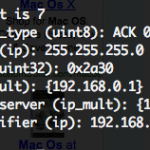
Mac GeekTool GeekTool is a fun system preference utility for Mac that allows you to really customize your desktop. You can dump log files, system status messages, graphs, CPU usage, and all sorts of things right onto your desktop background. Basically if you can run it in the Terminal, you can have it appear on your desktop. Check out the screenshot below, and if you’re a customization geek absolutely download GeekTool yourself. Be sure to read the excellent walkthrough on MacLife linked below that shows how to setup GeekTool to really make your mac desktop customized too. If you want weather information displayed on your desktop, LifeHacker has you covered, so read on.

GeekTool Screenshot

Download GeekTool
Developer home
Excellent GeekTool Walkthrough @ MacLife: Customize your desktop with GeekTool
LifeHacker: Put Weather Conditions on your Desktop Using GeekTool
MurphyMac: Get Google Calender on your Desktop using GeekTool

Disable Spotlight in Mac OS X 10.5

Aug 12, 2009 - 4 Comments

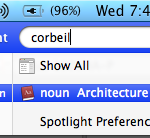
mac spotlightIt seems like people either love or hate Spotlight, if you love it then ignore this tip, but if you hate Spotlight and want to turn Spotlight off in 10.5 here’s your new favorite post. You can completely disable Spotlight in OS X 10.5 by moving a few system files (or you could delete them but that is strongly not recommended for various reasons). Here are the files you should move, be sure to place them in another location for backup in case you want to enable Spotlight again.

Disable Spotlight

Move these two files to another safe location and then reboot your mac

/System/Library/LaunchAgents/com.apple.Spotlight.plist
/System/Library/LaunchDaemons/com.apple.metadata.mds.plist

If you want to re-enable Spotlight just move those files back to their original location, reboot, and Spotlight will work again. Please backup the files, if you delete them you will not be able to re-enable Spotlight without a system reinstall!

Hide any File or Folder by making it Invisible to the Mac OS X Finder

Aug 11, 2009 - 13 Comments

This is a really cool tip that should be particularly useful to those who share their mac with other people.

I use this trick all the time to hide my personal files before my roommate uses my computer, and it’s easy to do if you know how but it’s unlikely that another user will even think to look in a directory via the Terminal to find the file.

Make a file or folder invisible in Mac OS X Finder

setfile -a V testfile.txt

Poof! Like magic, the file or folder is no longer visible via the Finder GUI, but don’t worry your files are still there and you can find them via the command line and will show with an ls command. If you want to make your files and folders visible again, use this command:

Make a file or folder visible again in Mac OS X Finder

setfile -a v testfile.txt

Now the file/folder will be visible again to the Finder, cool huh?

Note: setfile is a command line utility included in Apple’s Developer Tools, which is a highly recommended optional install included on any Mac OS X install/restore CD/DVD and also available as a rather large download from Apple’s Developer center. If you want to use setfile without installing Developer Tools you can try this trick on macosxhints.com. Thanks for pointing this out Albert!

Rearrange the Status Items in the Mac Menu Bar

Aug 11, 2009 - 3 Comments

mac os x menubar You can easily rearrange the status items in your Mac OS X Menu bar, simply hold Command and drag the icons to the desired location within the menubar. You can move just about anything, except for Spotlight and some third party apps, which will stay stubbornly in place.

This is a good alternative to just simply removing items, and is a nice minor customization for those of us who like to keep things as personalized as possible. Align all similar items by groups and functions, arrange by shape or color, get creative.