
6 Must-Know Power Function Keyboard Shortcuts for Mac
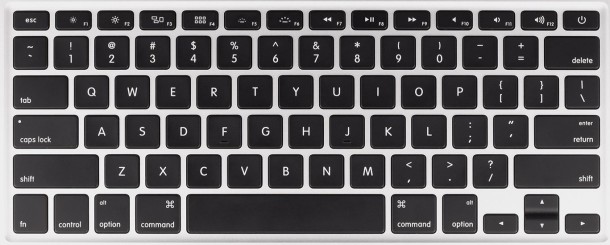
The next time you need to quickly reboot, shut down, log out, or sleep a Mac, all you need to do is hit the right keyboard shortcut. When we say quick we mean it here too, because these keyboard shortcuts will not prompt you to confirm, they are quite literally instantaneous in their results, and that means if you’ve got unsaved documents open you may lose them if you don’t have auto-save in the newest versions of OS X.
Here are the six keyboard shortcuts for all the power functions of a Mac, like quickly rebooting, shutting down, logging out, or sleeping. Again, these are pretty much instant, for example if you hit the reboot keystrokes below your Mac will instantly reboot without warning, so you probably won’t want to test these out unless you know you want to perform that action.
1: Immediately Reboot Mac OS X
Control + Command + Eject (or Power Button)
2: Immediately Shutdown Mac OS X
Command + Option + Control + Eject (or Power Button)
3: Immediately Log User Out of Mac OS X
Control + Option + Shift + Q
4: Immediately Put Your Mac to Sleep
Command + Option + Eject (hold the buttons down for 2 seconds, use Power button if no eject key)
5: Immediately Shut Off Your Mac Display *
Shift + Control + Eject (or Power Button)
6: Instant Shutdown of the Mac (Alternate Method)
Hold down the Power button until the Mac is turned off
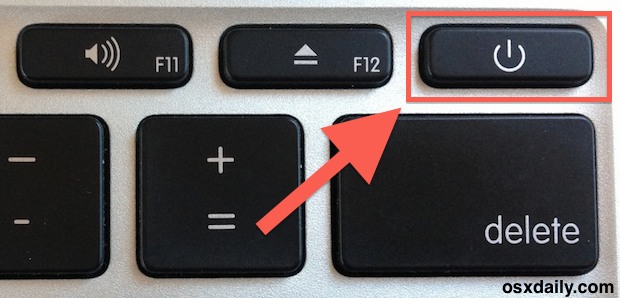
Because of the instant nature of these, they may be best for advanced users to use, and in fact they’re often used for troubleshooting purposes. Also, keep in mind that the usage of the Eject key and Power Button are going to depend on the Mac itself, and the latest Macs without SuperDrives won’t have Eject keys and instead will include a Power button in their place. Basically, use whichever key is in the upper right corner of the keyboard, whether thats power or eject for your particular Macs model. Below is a picture of the Power button placed on the keyboard of a MacBook Air, this is becoming increasingly common the latest Mac models as disc drives are no longer included, thus negating the function of an eject button:
* Instantly shutting off the Macs screen will also lock it with a password if that option has been enabled separately through the Security & Privacy preference panel
Updated: 4/9/2014






I knew this shortcuts, also published on Apple website. But, is there a shortcut when you are not logged in already?
I mean: how to shutdown from Login window?
Imagine you have an issue with your monitor and you don’t see a thing. You want to shutdown without forcing it by the power button.
The problem is I never remember which shortcut does what and after unwillingly rebooting the mac a couple of times it may be better not to know any of these :)
[…] longtime Mac users may know the handful of keyboard shortcuts to instantly reboot, shut down, and sleep Macs, but for those who haven’t memorized the […]
Correction:
Immediately Log User Out of Mac OS X
Command + Option + Shift + Q
NB: This is true for Snow Leopard
The above mentions ‘Control’ which doesn’t work.
I want a shortcut that puts the display to sleep (but doesn’t put my mac to sleep) similar to the expose’ hot corner. I use it to “lock my screen” when I step away from my desk…
Mac OS X keyboard shortcuts
http://support.apple.com/kb/HT1343
Command + Option + Control + Eject shuts down not reboot