Subscribe to OSXDaily

Subscribe to RSS Subscribe to Twitter Feed Follow on Facebook Subscribe to eMail Updates

Shared on Facebook

Shop at Amazon

Ad

OSXDaily on Facebook

Search

Archive for February, 2010

Facebook Chat in iChat

Feb 15, 2010 - 23 Comments

facebook chat Facebook recently announced that they opened Facebook Chat up to 3rd party instant message clients by using the Jabber protocol, which means you can now use Facebook Chat seamlessly from inside iChat and talk to your Facebook friends without being logged into the Facebook site.

How to setup iChat to use Facebook Chat:

* Launch iChat
* From iChat, select the iChat menu and scroll down to “Preferences”
* Click on the “Accounts” tab icon and click the “+” sign in the corner to add a new account
* In the “Account Type” menu, select “Jabber” to enter information relative to your Facebook account
* Enter your Facebook Username (your username is in your vanity url, facebook.com/your_name), you can find or set your Facebook username by going here on Facebook.com
* Enter the password to your Facebook account
* Now under the “Server Options” settings, enter the server as ‘chat.facebook.com’ and the port as ’5222′ (without quotes obviously)

facebook chat ichat

Facebook has an official Chat page on Facebook.com if you’re confused or need additional help setting up the Facebook IM clients, but the setup procedure is practically identical regardless of what IM client you are using.

Keep in mind you are not limited to iChat, with Jabber support you can actually use Facebook Chat with Adium, iChat, Pidgin, and just about any other multi-use instant messaging client that supports the Jabber XMPP protocol.

Disable the Crash Reporter Dialog in Mac OS X

Feb 15, 2010 - 1 Comment

If you’re a developer (or anyone else) you may quickly get fed up with the Crash Reporter Dialogue box that pops up when an app melts down and crashes in Mac OS X. You can disable the Crash Reporter dialog box by launching the Terminal and entering the following command:

defaults write com.apple.CrashReporter DialogType none

and you can show the Crash Reporter again by entering the following at the command line:

defaults write com.apple.CrashReporter DialogType crashreport

It’s generally best to leave this kind of thing set to the default settings, and sending in crash reports actually helps Apple debug and improve software, but if you have a compelling reason to disable it, now you know how to.

disable crash reporter

The Evolution of Mac OS

Feb 14, 2010 - 1 Comment

old mac os Mac OS has come a long ways since System 1.0, and there’s no better way to see just how far we’ve come than to look at screenshots. Francesco Mugnai has compiled quite a comprehensive collection of screenshots that chronicles the evolution of the Mac operating system, it’s a fun walk through time, so check it out if you like to reminisce about the good old days of SE/30′s and LCII’s!

Mac OS Evolution: System 1.0 to 10.6

Impressive to go from this:
mac evolution system 6

To this!
mac evolution snow leopard

How to tell if your Mac is 64 bit

Feb 13, 2010 - 8 Comments

check mac processor Basically any Mac released after late 2006 is 64-bit. If you’re unsure whether or not your Mac is 64 bit or not, the easiest way to check is to find out what kind of processor your Mac has in it, and the easiest way to do that is to pull down the Apple menu and click ‘About this Mac’ and then look at what is listed next to “Processor”

Intel Core Solo - 32 bit
Intel Core Duo - 32 bit
Intel Core 2 Duo – 64 bit
Intel Quad-Core Xeon – 64 bit
Intel Core i5 – 64 bit
Intel Core i7 – 64 bit

How to Quit the Finder

Feb 12, 2010 - 8 Comments

quit finder mac You can quit the Mac OS X Finder in a few different ways, the fastest way is to just launch the Terminal and type the following at the command line:

killall Finder

This will kill the Finder which will then automatically relaunch.

Force Quit the Finder

Another easy way to quit the Finder is to use Force Quit, which is accessible by hitting Command+Option+Escape to bring up a Force Quit dialog box. From here, just select Finder and then click ‘relaunch’ which will reload the Finder.

How do I get the Quit Finder menu?

Another way to Quit the Finder is to enable the hidden menu item within the Finder menu itself. To enable this menu feature you’ll want to launch the Terminal and enter the following commands:

defaults write com.apple.finder QuitMenuItem -bool YES

After that command is executed, you will want to kill the Finder so that it reloads with the new “Quit Finder” menu option enabled:

killall Finder

Now that you’re all done, you’ll have a “Quit Finder” menu item within the Finder menu itself.
force quit finder

Korean iPhone owners using mini-meat sausages as iPhone stylus in cold weather… seriously

Feb 11, 2010 - 3 Comments

iphone meat sausage stylus Have an iPhone? Like to use gloves to keep your hands warm in the winter? Annoyed that you have to take your gloves off to use the iPhone? Keep those gloves on! Korean iPhone users are driving a 40% increase in snack sausage sales because they’ve figured out the little meat sticks can be used as an iPhone stylus in cold weather… no really.

This is the most ridiculous and amusing thing I’ve seen all day.

[ Google Translate: ITNews via ClusterFlock.org ]

Disable access to System Preferences

Feb 11, 2010 - 6 Comments

In trying to lock down the machines in a small Mac lab, I came across an interesting piece of advice from John Mairs who was tasked with basically the same thing. He suggests disabling access to System Preferences because it “accomplishes (and halfway accomplishes) several things. First, it completely prevents students from changing all settings on the computer. This includes account changes, security settings, Apple Remote Desktop settings, and screen saver settings.” Valid points certainly, but what I think is much more interesting is the way that he chooses to disable the System Preferences access: changing the applications permissions using the command line. This is crafty thinking and it works:

Disable all access to System Preferences
sudo chmod 000 /Applications/System\ Preferences.app

Re-enable access to System Preferences:
sudo chmod 774 /Applications/System\ Preferences.app

Generally speaking, if you don’t know what you’re doing with permissions changes and chmod, you should leave them alone since it can cause all sorts of problems and unwanted behavior. With that in mind, this is certainly an effective technique at limiting access to certain applications within Mac OS X.

Note: thanks to Jasper for pointing out the syntax error and proper permissions.

[ via JohnMairs.com ]

Kill the Flash plugin with BashFlash

Feb 10, 2010 - 6 Comments

bashflash It’s no secret, I hate Flash. It’s the plastic pink flamingos of the web but worse, it’s crass, it’s loud, it’s obnoxious, it will crash your web browser, and on a Mac it is a literal drag on the machine, sucking up the CPU and memory as if there’s no tomorrow. Adobe really laid a pile of dung with Flash on the Mac, which is probably why Apple won’t allow Flash to run on the iPhone or the new iPad. Anyway, enough of my opinions and ranting about the Flash problem, here’s some solutions:

I am a huge fan of ClickToFlash, the Safari plugin that prevents all Flash from loading unless you approve it. But what if you allow a Flash object to load with ClickToFlash and it goes crazy? Now comes BashFlash, a perfect compliment to ClickToFlash. BashFlash is a little menubar extra that automatically warns you if Flash is taking up too many CPU cycles (usually is) and lets you kill the Flash culprit instantly. Hooray! Your web browsing experience is normal again!

The only bad thing about BashFlash is that it requires a 64 bit Mac, but this is because 64-bit Safari forces Flash to run within it’s own process ID on 64 bit systems (interesting, I learn something new every day!), allowing BashFlash to target the resource hogging process and end it instantly.

BashFlash developer home
Download BashFlash now

Change the delay when dragging windows within Spaces

Feb 10, 2010 - 6 Comments

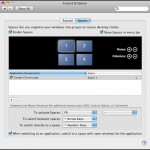
spaces mac Spaces is a really nice feature of Mac OS X that lets you place different windows and applications within their own workspace. Dragging a window to a new Space is just a matter of holding onto the window and pulling it towards the end of the screen. You may have noticed that there’s a delay when dragging a window to a new space, which is handy for not accidentally dragging windows into a new Space but kind of annoying if you are expecting it to enter a new workspace instantly. The instant switching of workspaces is a lot closer to how these workspace managers, or ‘virtual desktops’ work in the Unix world, and if you have a background of using a Linux desktop you may miss that instant desktop switching. You can change the timing of Spaces switching rather easily though, using the Terminal.

Change the delay when dragging windows or applications within Spaces

Launch the Terminal and enter the following at the command line:

defaults write com.apple.dock workspaces-edge-delay -float 0.1

The number on the end represents the wait time, the default is set to 0.75 (or 3/4 of a second), so 0.5 is half a second, 0.1 is a tenth of a second, and so on. If you use the above command and 0.1 you’ll get a near instant switching of spaces.

If you want to revert to the default setting, just specify it as so:

defaults write com.apple.dock workspaces-edge-delay -float 0.75

Mac Error 10810

Feb 9, 2010 - 26 Comments

The application Finder.app can’t be opened. -10810

I ran into the unpleasant 10810 error code recently and couldn’t find any workaround without a reboot. From what I’ve gathered by searching around on the web, Error 10810 occurs when the Launch Services framework has some sort of meltdown, causing the Mac OS X Kernel to run out of available threads for anymore processes to launch. In the event that some process has got errant and is in some infinite loop of launching and hoarding threads, this will cause a rather lovely barrage of error dialog boxes (see screenshot below).

If you start getting Error 10810, you likely won’t be able to launch any other application (Finder included) and so the best thing you can do is to reboot your Mac. If you are continuously plagued by this error, then you may be using some buggy software that is launching itself into a gazillion threads causing Mac OS X to freak out.

If anyone has additional information or troubleshooting tips regarding this error, feel free to chime in.

mac error 10810