Subscribe to OSXDaily

Subscribe to RSS Subscribe to Twitter Feed Follow on Facebook Subscribe to eMail Updates

Shared on Facebook

Shop at Amazon

Ad

OSXDaily on Facebook

Search

Archive for April, 2011

PwnageTool 4.3.2 Download Released

Apr 24, 2011 - 4 Comments

PwnageTool 4.3.2 PwnageTool 4.3.2 has been released, the app lets you jailbreak iOS 4.3.2 untethered using custom built firmware, custom firwmare is necessary for users with preserved baseband and unlockers who use ultrasn0w. Speaking of ultrasn0w, if you are going to use the new PwnageTool, be sure to get ultrasn0w 1.2.2 as well since it is updated to support old baseband on iOS 4.3.2.

Supported iOS 4.3.2 devices include: iPhone 4, iPhone 3GS, iPad 1, iPod Touch 3G and iPod Touch 4G.

Download PwnageTool 4.3.2

PwnageTool is for Mac OS X only, currently you must download via torrent:

If you are just looking for a jailbreak, you may want to use redsn0w since it is easier.

Quickly Connect to any Server from any App via the Dock

Apr 23, 2011 - 4 Comments

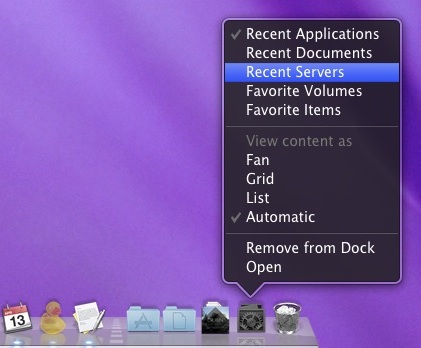
You can summon the Mac OS X server connection window from any app by right-clicking on the Finder icon in the Dock and selecting “Connect to Server.” From here you can connect to FTP, SMB, local, or remote servers as usual – and yes they will open in the Finder.

Here’s where I find this most useful: if you’re viewing IP addresses, logins, paths, etc, from a webpage you can still access the Connect to Server dialog without obstructing what you’re trying to read in the web browser, which makes for easy transcribing:

As you can see in that screenshot, the Connect window hovers over the web browser, despite being in the Finder. This is far better than using Command+Tab or clicking through to the Finder if you have a bunch of Finder windows open, since they will all cover the browser window.

If there are servers that you access frequently, mapping them as a network drive can be helpful so they auto-mount each time you login or reboot your Mac. This is particularly useful for media center servers and drives where sharing files is common.

Mac Setups: Ultraportable Workstation with iPad & MacBook Air

Apr 23, 2011 - 7 Comments

Apple Ultraportables

Everyone loves the iPad and everyone loves the MacBook Air 11.6″, making this a perfect Mac setup for the ultraportable road warrior. Another impressive fact; these two devices have a combined weight that is still less than the MacBook Pro 13″ model, if that’s not impressive I don’t know what is.

You could take this setup a step further and get DisplayPad for the iPad (App Store link), for $3 the app lets you turn an iPad into an external display for any Mac, as long as there’s WiFi around.

Mac Retina Display Resolution Possibilities

Apr 22, 2011 - 7 Comments

Mac retina display resolutions

If Macs get a retina display, what would the resolutions be? 3200×2000 like the default Lion wallpaper suggests? There is no definitive answer, but the above chart shows what may be the best guesses yet.

The resolutions are based on a simple idea from a great post on The Elaborated (via DaringFireball), double the existing screen resolutions, just like Apple did when they introduced the retina iPhone 4 and doubled the iPhone 3GS. Why double? The problem with a Mac (or any) retina display is that it would cause all UI elements to shrink dramatically, making everything tiny and causing a pain for developers to adapt. The solution is to take the same approach Apple chose with the iPhone 4, which as you may recall went over practically seamlessly in terms of apps and UI elements in iOS. Why wouldn’t they take the exact same approach to the Mac?

What gives further support to the doubling of existing resolutions is that TheElaborated’s hypothesized retina iPad display in the above chart is identical to what an analyst claims about iPad 3 resolution: 2048×1536. And the MacBook Pro 15″ resolution of 1650×1080? It doubles to 3300×1620, which is remarkably close to the 3200×2000 resolution of the Lion Fuji mountain wallpaper that started this whole string of retina Mac speculation.

There are some other clues too, such as the infinitely scalable Helvetica font appearing in Final Cut X as John Siracusa noticed, plus there’s a (rumored) presence of stronger resolution independent elements in Mac OS X Lion. Clues and speculation or not, doesn’t it make sense to bring retina to the Mac eventually? I think when costs allow for Apple to produce ultra high resolution Mac displays, they will come, and they’ll look amazing.

Monitor Mac OS X Filesystem Usage & Access with opensnoop

Apr 22, 2011 - 8 Comments

Monitor Mac OS X Filesystem Use and Access

The opensnoop utility is an amazing tool for tracking down specifics like what files specific applications are accessing, but you can also use opensnoop to monitor all filesystem access in Mac OS X. To do this, run the utility with no flags attached:

sudo opensnoop

You’ll be asked for your root password, and then you’ll immediately be presented with a firehose of data showing everything that is going on within Mac OS X.

Wondering what all this information you’re seeing is? The colorized guide below shows you what you’ll be most interested in following: Purple is the Process ID, Blue is the Process Name, and Red is the File Path:

reading opensnoop firehose data

Generally, the most useful information to follow is the process name and path to the file the given process is accessing. You’ll find a correspondence to what processes are shown in opensnoop with what is in the activity monitor / task manager.

You can also follow a specific file and discover what is accessing it with:

sudo opensnoop -f /path/to/file

Or you can track anything that relates to a specific file or app by using grep. For instance, I want to follow everything having to do with Terminal app or files related to it:

sudo opensnoop | grep Terminal

We’ve showed you this before, but you can also track specific applications with either their process id, or app name:

sudo opensnoop -n Terminal

Unless you’re troubleshooting very vague problems or you just want to see what’s going on behind the scenes of Mac OS X via the command line, it’s a good idea to use opensnoop with some specifics so you’re not inundated with information.

Sync Google Calendar with iCal

Apr 22, 2011 - 3 Comments

sync Google Calendar to iCal

I use Google Calendar for a myriad of reasons but since it picks up dates easily from Gmail it’s especially useful for me. Yet, somehow I never thought to sync it with iCal. If you use Google Calendar, why not sync it to your Mac? Setting this up is very simple:

  • Launch iCal
  • Open iCal Preferences from the iCal menu
  • Click the Accounts button
  • Click on the + icon in the lower left corner of the window to add an account
  • Enter your Google credentials and click on Create

You can keep the import settings on Automatic, although setting to Google seems to speed up the first time the calendars are synced. iCal will contact Google for you and grab all the information, there’s nothing else to do.

Now you can add events from iCal and the Mail app on your Mac, or Gmail and Google Calendar from anywhere else, and you’ll always have the same date and event information regardless of where or what you’re checking your calendar from. Don’t forget that you can add Google Calendar support to your iPhone or iPad too.

Profile of Mac vs PC Users [Infographic]

Apr 21, 2011 - 33 Comments

Ever wonder what self-described Mac vs PC users identify with? Demographics, favorite TV shows, personality traits, fashion and style, political leanings, even wines, this infographic has it all, provided by users themselves.

It might reinforce a few traditional Mac vs PC stereotypes, but it’s fun to read and interesting to look at, check it out below:
Read more »

Paranoid about iPhone & iPad Location Tracking? Encrypt your iOS Backups

Apr 21, 2011 - 4 Comments

Encrypt iOS Backups and Prevent Movement Tracking

This whole iPhone location tracker thing is getting a crazy amount of attention, and everyone seems surprised that a mobile device with a gazillion apps that ask for your location actually keeps track of your location. But, if you don’t want your location tracked, all you have to do is encrypt your iPhone & iOS backups. OSXDaily has covered that tip before, but here’s a reminder how to do this:

Prevent iOS Movement Tracking with Encrypted Backups

  • Launch iTunes and connect your iPhone or iPad to the computer
  • Within iTunes Summary, scroll down to Options where you’ll see a checkbox next to “Encrypt iPhone/iPad Backup” – check it

You’ll be asked to set a password for the backups and now they’re encrypted, meaning no one can read them without that password. This means that iPhone Tracker app won’t work. Easy enough, right?

Encryption is Good Anyway
Encrypting your backups is a good idea for general security purposes anyway. The iOS backup files are easily found and explored without encryption, which lets someone with access to the files listen to your voicemails, read your sms messages, and, as the recent hooplah shows, track your relative movements on a map.

Encrypt your data and you don’t have to worry about any of it.

iOS Update to Resolve Location Caching
While it’s a great idea to encrypt data, you probably won’t have to for long to stop the movement tracking. John Gruber informs us that the storage of location data is simply a cache file that isn’t getting cleared, and will be fixed in an upcoming iOS update:

my little-birdie-informed understanding is that consolidated.db acts as a cache for location data, and that historical data should be getting culled but isn’t, either due to a bug or, more likely, an oversight. I.e. someone wrote the code to cache location data but never wrote code to cull non-recent entries from the cache, so that a database that’s meant to serve as a cache of your recent location data is instead a persistent log of your location history. I’d wager this gets fixed in the next iOS update.

In other words, encrypt your backups for now, and wait for an iOS update to cure it all.

Final Fantasy 3 for iPad is Out Now

Apr 21, 2011 - 1 Comment

If you’re an iPad owner who is a fan of RPG’s and retro Square games, kiss your weekend goodbye: Final Fantasy 3 for iPad has just been released. The iPad version comes a month or so after the same title was released for iPhone, and can be downloaded now on the iOS App Store.

Final Fantasy 3 for iPad: $16.99 (App Store link)

Oddly enough, Square didn’t combine this with the iPhone version to make a universal app, so if you bought the iPhone version you’ll need to get the iPad version again, and vice versa. Maybe universal support is coming though.

Square has been busy porting popular oldschool games to the iOS platform, focusing on many of the fan favorites including Secret of Mana, Final Fantasy I, 2, and 3 (everyone is still crossing their fingers for Chrono Trigger).

Want to play FF3 on your TV? No sweat, grab an iPad 2 video mirroring cable and you’ll have an iOS TV game console, or if you have a jailbroken iPad or iPhone 4 you can enable video mirroring on those devices too with a simple hack.

iPhone 5 to be GSM / CDMA hybrid world phone

Apr 21, 2011 - 1 Comment

Just when you thought you had enough iPhone 5 rumors for the week… the next iPhone may be a world phone capable of roaming between GSM and CDMA networks, according to Verizon CFO Fran Shammo. This revelation came during a conference call to discuss Verizons Q1 2011 earnings, when asked about some mildly sluggish growth, the CFO responded:

The fluctuation, I believe, will come when a new device from Apple is launched, whenever that may be, and that we will be, on the first time, on equal footing with our competitors on a new phone hitting the market, which will also be a global device.

Other than being able to roam globally (and end up with an outrageous phone bill unless you unlock to use with a local carrier), the other benefit to a single GSM/CDMA iPhone would be reduced manufacturing costs for Apple, and finally a unified iOS platform. Currently, the CDMA iPhone 4 is on a custom iOS 4.2.7 build, while the rest of the iOS lineup is at iOS 4.3.2.

Earlier reports indicate iPhone 5 will ship in September, and will feature the same A5 CPU that is currently in the iPad 2 model. Additionally, the new device is expected to sport an improved camera, and have an enclosure design that is similar if not identical to iPhone 4.

The world phone report comes from Barrons.