Subscribe to OSXDaily

Subscribe to RSS Subscribe to Twitter Feed Follow on Facebook Subscribe to eMail Updates

Shared on Facebook

Shop at Amazon

Ad

OSXDaily on Facebook

Search

Archive for October, 2011

Quickly Close Desktop Spaces in Mac OS X Lion’s Mission Control

Oct 27, 2011 - 11 Comments

Close Desktop Spaces in Mission Control

You can quickly close desktop spaces in Mac OS X Lion’s Mission Control by holding down the Option key, this causes the familiar iOS style (X) close symbol to appear over the spaces which can then be rapidly closed.

Alternately, you can mouse over spaces and the close button will appear on hover after a second or two, but the option key is immediate. For both approaches, closing a space that contains an app or windows results in those windows being shuffled over to the next desktop.

Want to Sleep In? Tell Siri To Turn Off All iPhone 4S Alarms

Oct 27, 2011 - 2 Comments

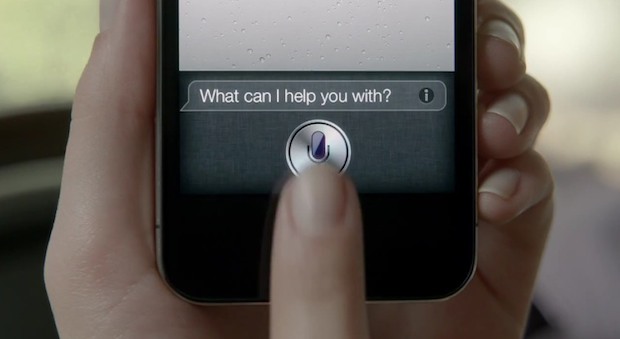
Want to sleep in? You can quickly turn off all your alarms on the iPhone 4S by telling Siri simply to “turn off all alarms“, Siri will then confirm the alarm change plus show you the alarm settings. Oversleeping due to Siri likely won’t be a valid excuse to get out of school or work for the day, so it’s best to save this one for the weekend.

More useful during the work week, you can also tell Siri to turn on all alarms and Siri will display the scheduled alarm times:

Turn Off or On all Alarms with Siri

This little tip was sent in by Jeff S by way of FinerThingsIn, thanks for sending this in.

“Steve Jobs – One Last Thing” Documentary to Air on PBS November 2nd

Oct 26, 2011 - 3 Comments

Steve Jobs PBS Documentary

Fire up your DVR and get ready for some couch potato action next week, a documentary about Steve Jobs titled “One Last Thing” will air on PBS this November 2nd at 10:00 PM. The film is said to be an hour long, and will include interviews with Jobs himself, as well as his colleagues and friends. Here’s the official description:

ONE LAST THING takes an unflinching look at Jobs’s difficult, controlling disposition, and offers unique insights into what made him tick. While there has been near-universal agreement that Steve Jobs was a great innovator in business and technology, ONE LAST THING looks into why he was so great. What were the influences that shaped his character? What drove him from such humble beginnings to the heights of success?

Featuring interviews with, among others, Ronald Wayne, co-founder of Apple with Jobs and Steve Wozniak; Ross Perot, who invested in NeXT Computer when Jobs was running out of money; Walt Mossberg, principal technology columnist for The Wall Street Journal, who interviewed Jobs every year from 2003-2010; will.i.am, frontman and producer for The Black Eyed Peas, whose “I Gotta Feeling” currently ranks as the most downloaded iTunes song ever; Dean Hovey, designer of the original mouse for Apple; Robert Cringely, writer and host of the PBS series TRIUMPH OF THE NERDS: THE RISE OF ACCIDENTAL EMPIRES; Robert Palladino, calligraphy professor at Reed College, whose classes Jobs credited with inspiring his typography design for the Mac; and Bill Fernandez, who introduced Jobs and Wozniak in Sunnyvale, where the three hung out in his father’s garage and tinkered with electronics.

In a never-before-broadcast interview from 1994, Jobs expounds on his philosophy of life: “You tend to get told that the world is the way it is, but life can be much broader once you discover one simple fact; and that is that everything around you that you call life was made up by people no smarter than you … Once you learn that, you’ll never be the same again.”

In his many successful Apple product launches, Jobs developed his own catchphrase to tease his audiences. Appearing to reach the end of a presentation, he would then announce to the expectant crowd: “Oh — one more thing,” before unveiling his latest design achievement. This documentary exploration of the life of one of America’s most successful innovators and entrepreneurs pays homage to his famous presentational skills and his unique talents.

This is one of many shows to cover Steve Jobs in the wake of his passing. If you’re a fan of the subject matter, it’s hard to get enough of this stuff.

You can read the press release or check your local listings for more information.

How to Tile Desktop Background Wallpaper in Mac OS X Lion

Oct 26, 2011 - 5 Comments

Tile a background image for wallpaper in Mac OS X Lion

Mac OS X Lion changed the way desktop background pictures are handled. In short, if the image is fit to or larger than your Macs screen resolution, it won’t tile. Likewise, the default OS X Lion wallpapers don’t have the option to tile or change how they are orientated on your display.

Linen wallpaper tile from OS X Lion and iOS 5 The easiest solution to this is simple: you have to use a background image that will tile, meaning it is smaller than your screens resolution.

For the purpose of this walkthrough, we’ll use the linen wallpaper tile from OS X Lion and iOS 5:

  • Have the wallpaper tile somewhere easy to find, like the OS X Lion desktop
  • Open “System Preferences” from the  Apple menu
  • Click on “Desktop & Screen Saver”
  • Drag the wallpaper image you want to tile into the picture window
  • When the pull-down menu becomes visible, select “Tile” from the list

If you don’t select “Tile” manually, the default will usually be “Stretch” which looks terrible for most images that are meant to be tiled.

set a background image to tile in Mac OS X Lion

Why was this behavior changed in Mac OS X Lion? Who knows, but we’ve received several questions about this and a few emails which indicates there’s a fair amount of confusion on how this background pictures are handled in 10.7.

Charlie Rose Interviews Walter Isaacson on Steve Jobs & the Biography

Oct 26, 2011 - 1 Comment

Walter Isaacson

Walter Isaacson was on Charlie Rose this week to discuss Steve Jobs and the writing of his biography. If you’re interested in Steve Jobs and his legacy, this is another great interview filled with interesting tidbits. It’s arguably better than the recent 60 Minutes segment and at nearly an hour long, touches on a fairly wide variety of topics related to Jobs.

The discussion between Isaacson and Rose also clarifies some of the soundbites that you’ve undoubtedly heard related to Mr Jobs cancer treatments, the reason the book was written, the naming of Apple, and what other industries that Steve would have likely disrupted had he survived another 7 years (including one I haven’t found mentioned online… yet).

This is the second recent Charlie Rose episode to cover Steve Jobs, the first being a discussion on Jobs with various Silicon Valley executives and friends just a few days after his passing.

Use Different Desktop Background Pictures for Spaces in Mac OS X Lion

Oct 26, 2011 - 4 Comments

Use Different Wallpapers for Spaces in Mac OS X Lion

Assigning different wallpapers to different desktop spaces is much easier in Mac OS X Lion, here’s the quickest way to do this:

  • Enter each space individually
  • Right-click on the desired background image and choose “Set Desktop Picture”
  • Repeat for the next desktop space

Using this method and Mission Control to switch spaces is the fastest method, but you can also do this through System Preferences.

Set Different Wallpapers for Desktop Spaces in OS X Lion

Before Mac OS X 10.7, third party utilities had to be used to set different wallpapers to each virtual desktop space, making this another nice addition to Lion.

Remove the Stock Ticker Widget from iOS 5 Notification Center

Oct 25, 2011 - 9 Comments

iOS 5 Stock Ticker

Don’t want to see the Stock Ticker on the iPhone or iPads Notification Center in iOS 5? This was one of the first questions a friend asked me after updating to iOS 5, so if the stock markets don’t play into your daily life, here’s how to remove the stocks widget:

Disable the Stock Ticker in iOS 5

  • Launch “Settings” and tap on “Notifications”
  • Tap on “Stock Widget”
  • Slide on the “ON” widget to turn it “OFF”

Remove the Stock Ticker in iOS 5

Now you can pull down the Notification Center and not see the stock market to be reminded of your portfolios abysmal performance (unless you own AAPL or GOOG of course)

Buying an iPhone 4S Without a Contract Makes it Unlocked

Oct 25, 2011 - 82 Comments

Apple iPhone 4S in white

Anyone can buy an unlocked iPhone 4S right now if you are willing to pay the full price of the device, meaning the lower carrier subsidized contract 4S prices do not apply. The unlock applies to both the GSM and CDMA carriers currently being sold, available at the following price points:

  • iPhone 4S 16 GB – $649
  • iPhone 4S 32 GB – $749
  • iPhone 4S 64 GB – $849

The iPhone 4S GSM SIM card slot is unlocked when the full retail price is paid at an Apple Store. In the case of the CDMA carriers selling the device like US carriers Sprint and Verizon, the Micro SIM card slot is also unlocked and will support other GSM carriers. The carrier unlock allows the iPhone to be used on another US carrier like T-Mobile, or allows for cheap roaming abroad with the purchase of a local SIM card, with the other benefit being that you are not tied to a contract with any single US cell provider.

You can verify the unlock immediately when the iPhone 4S is first connected to iTunes, where the following message is displayed:

unlocked iPhone 4S message in iTunes

Initial reports indicated the unlocked 4S would be sold in November, which may suggest a change in policy at some point when paying the full out-of-contract price.

Buying an unlocked iPhone at full price is typical outside of the USA, but in the USA was somewhat of an anomaly until earlier this year when Apple started selling the iPhone 4 unlocked at the full retail price. That has since translated to the iPhone 4S, and presumably will carry on with future iPhone releases as well.

Show Recent Items Per App with a Two-Fingered Double Tap in OS X

Oct 25, 2011 - 6 Comments

Show Recent Items per application in OS X Lion

You can quickly see any apps recent items in Mac OS X Lion by using a two-fingered double-tap on that applications icon in the Dock.

This brings up a menu contained within Mission Control showing all of your recent items, and if you have currently opened items they will be displayed above the list. The trick also works on apps that are not currently open, allowing you to see recent items without launching that app.

This tip was sent in by one of our readers, who cautions that you will also see recent items you may have forgotten about or don’t intend on being visible. Thanks for the tip Nilesh!

Check What Software Updates Have Been Installed in Mac OS X

Oct 25, 2011 - 2 Comments

Check installed software updates

Forget what Software Updates you’ve installed? You can easily check in Mac OS X:

  • Open “System Preferences” from the  Apple menu
  • Click on “Software Update” and then choose the “Installed Software” tab

From here you’ll see the precise installed date and time, the software update package name, and the version of each update listed.

This list can be helpful to look through for troubleshooting purposes, or if you’ve ignored some updates and plan to install them manually through the command line or by downloading the packages from Apple.