
Hide the Toolbar in Mac OS X Finder Windows
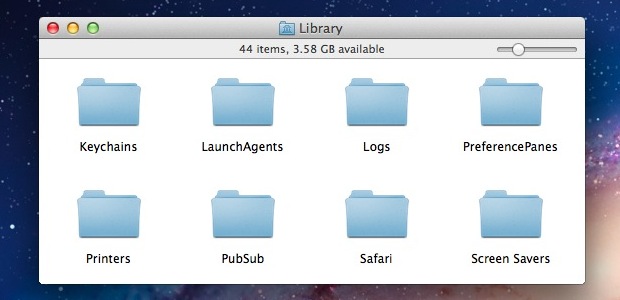
Modern versions of Mac OS X have left behind the toolbar switch that used to sit in the upper right corner of all Finder windows as a rectangular button in favor of a cleaner appearance. That doesn’t mean you can’t hide the toolbar in OS X any longer though, it’s just now done through the View menu or by using a quick keyboard shortcut:
- Open a Finder window
- Now hit Command+Option+T to hide the toolbar and sidebar
With the toolbar hidden, desktop windows take on a minimalist appearance and as a side effect, all folders open in new windows rather than be contained in the same window. This is how older versions of Mac OS behaved, and it’s very useful if you’re moving or copying items around in nested folders but can quickly lead to a lot of window clutter.
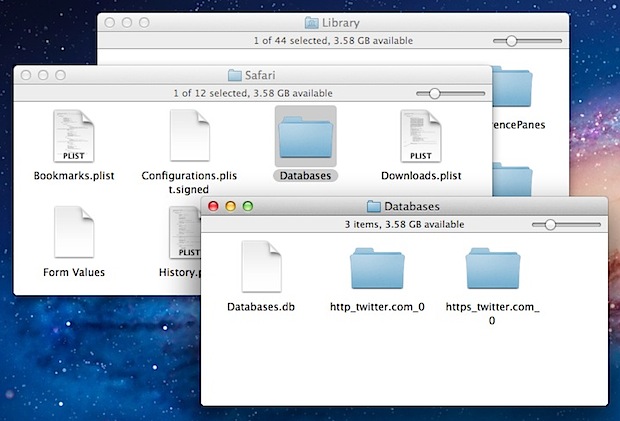
If you prefer to keep the toolbar, you can also try hiding the Finder sidebars only with Command+Option+S. That will also maintain the single window option too, unless it has been overridden by another Finder preference choice.
This change was first introduced to the OS X interface with Lion but has stuck around through Mountain Lion and beyond Mavericks, indicating this is solidified as the new behavior.






It would be nice to have all side bars shown!!! Its so annoying not have all controls at hand.
It would be nice to default to all side bars hidden. There is too much unnecessary window clutter with that side bar always showing on all of my finder windows. Never use it, just want it to go away.
I agree. I cannot believe you eliminated the ability to open a folder as a new window by simply double clicking. This is a basic functionality, the user should not have to hold a modifier key or jump through any other hoops. Why not let users disable that feature.
You can disable that feature in Finder preferences
No, you canʻt. Thatʻs part of why weʻre frustrated.
What really bothers me is what other ‘improvements’ they will make in the future. I don’t have the time or patience to relearn basic OS commands. Might be easier to find another way to professionally edit video, maybe a PC is the solution.