
Teach iPhone AutoCorrect New Words By Repetition
 If you’re annoyed the iPhone autocorrect dictionary still doesn’t know a word you use constantly, or you are constantly suggested the wrong word (what the duck?), you can easily teach iOS autocorrect new words by repeating them a few times in an app like Notes. The process is fairly simple, and it works universally for all iOS devices, and though you can do this process in just about any Apple app, it’s perhaps easiest in the aforementioned Notes application.
Here’s all you need to do to forcibly teach autocorrect a new word:
- Launch Notes app and create a new blank note
- Type the new word you want autocorrect to learn over and over again
This process of word repetition looks, well, repetitive, much like the following:
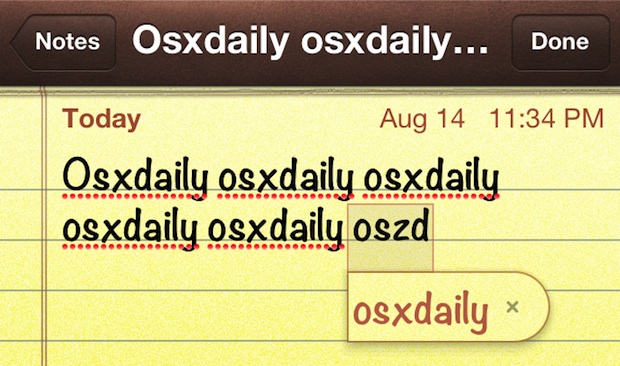
Yup, repetition is one of the ways to get the iOS autocorrect dictionary to recognize a word that it thinks is not a word, as a word. Typically by about the 5th or 6th consecutive time a new word has been typed you’ll start getting that word suggested by autocorrect.
Save some future hassle by repeating as necessary for other words, street names, unique names or spellings, acronyms, or whatever else you want suggested while typing. It’s helpful to do this in advance for words that are continuously messed up or autocorrected when they shouldn’t be.
Don’t worry if you decide to change your mind later, or if things are totally messed, because up you can always reset the autocorrect dictionary and start anew.
The end result? Your word(s) will now be taught, and autocorrect should stop inappropriately ‘correcting’ them with the word you do not want.

 This works the same on iPhone, iPod touch, and iPad and on all versions of iOS, from iOS 5, 6, and yes, iOS 8 and 7. It’s worth mentioning that the latest versions of iOS also support another method to train autocorrect to stop correcting certain words indirectly by using Search and Safari, it’s a handy tip that’s word a read for those with the newest iOS versions. Note the difference, however: the repetition trick teaches a new word, whereas the search trick simply stops the correction of any given word.






I agree that this does not work at all with the dictation. Does anyone know how to make Siri understand certain words used on a regular, regular, regular basis and spell them correctly? At least we finally got “y’all” in there!
I have been conscious of the speed at which I speak, and try to filter or at least lessen my southern accent – though I believe that should be programmed into every iOS device; same goes for anyone in any part of our country that “tawks funny.“
I have also tried to reason with Siri and add words into her/his brain, but to no avail. I do feel better knowing that others have had the same problems, though I hope Apple is listening!! APPLE!! I will be happy to consult pronunciations for some of the southern regions of our country.
This does not work with dictation or correction of names. No matter how many times you correct one spelling to the other, the system does not recognize the corrected spelling as the default.
Yeah but what about it’s annoying habit of changing perfectly valid words into other perfectly valid words – do / to / so / no and is / if are particularly irritating.
It does do that. I thought I was going mad.
I’m Afrikaans and I use the word “moet” (must) every day. Every time I type “moet” iOS gives me Moët… I’m so sick of seeing Moët that I think I’ll get nauseous when someone has to pour me a glass of Moët. I have just tried this little trick by typing “moet” TWENTY times and I still get Moët.
So far the only thing that worked for me was to create an keyboard shortcut to convert “miet” (mites) to “moet”. God forbid I ever have to type something about mites in future. *sigh*
I wish there was a way that we could edit the dictionary and take out silly words like Moët (unless you want to add it of course.
Or you can use Shortcuts so every time you star writing Kuro it will suggest Kurosawa.
Preferences, general, keyboard, shortcuts
Sorry, didn’t see Adams note before submitting.
The best way I found to hack around the auto correct is the built in keyboard shortcuts feature.
For example I always use the word ‘aight’ but it always corrected to ‘sight’ so I went into keyboard shortcuts and made one ai = aight. not only is it more efficient to type now but it also recognizes aight as a word.
it doesn’t work for many German words either. for example the German word “ah” (meaning something like hmmm) is always autocorrected to “äh” (meaning: i didn’t understand)
or dufte (=cute”) to düfte (“smells”)
i typed it in a 100 times and pressed the x. it’s still autocorrected.
Unfortunately this doesn’t work with the name Peta. I have three friends of that name, one is my boss. I write it a lot and tried the technique above. After 30 times, still it corrected as PETA. I hope none I them own an iPhone…