macOS Sierra 10.12.1 Beta 4 Released
Oct 11, 2016 - 10 Comments
Apple has released the fourth beta version of macOS Sierra 10.12.1 to users enrolled in the beta testing programs.

Mac OS, Mac OS X, or macOS, is the operating system that resides on Apple’s desktop and portable computer lineup. Built upon a Unix core, it is easy to use yet highly advanced, extremely stable, and an excellent OS for productivity and creation. Browse through our articles or use the search feature to look for something specific that is pertinent to the Mac operating system.
Apple has released the fourth beta version of macOS Sierra 10.12.1 to users enrolled in the beta testing programs.
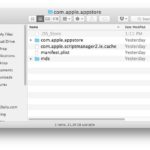
Rarely, the Mac App Store may report erroneous app download statuses or even offer a malformed file leading to an app that doesn’t launch or is partially downloaded. These situations are almost always the result of an interrupted or corrupted download, but can occur in some other scenarios as well. Sometimes simply deleting the app … Read More
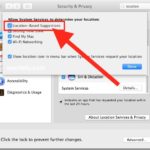
Spotlight, Safari, Siri, Maps, and other apps on the Mac use your location during searches to help suggest particular activity. For example, if you’re searching in Spotlight for “coffee” on the Mac, you may find that nearby coffee shops are displayed, allowing you to search local listings directly from Spotlight search in Mac OS. These … Read More
Apple is now automatically downloading macOS Sierra to Macs that are running a prior version of Mac OS X and which are compatible with Sierra. While this may be convenient to some users, not everyone may want to have macOS Sierra show up unexpectedly, or use their bandwidth to download a large file without explicit … Read More

Some Mac users who have updated to macOS Sierra have felt their computer is running slower than it should be. If you have noticed a performance hit after upgrading to macOS Sierra, there is likely a good reason for it, and it’s even more likely to have a simple solution. Read on to learn why … Read More
Apple has released macOS Sierra 10.12.1 beta 3, the new build arrives as 16B2338c.

For the vast majority of Mac users, macOS Sierra is a nice upgrade that goes without a hitch. For a small number of users, macOS Sierra presents a unique variety of problems that are impervious to all troubleshooting attempts, even reinstalling Sierra or a clean install. If you fall into the latter camp, or just … Read More
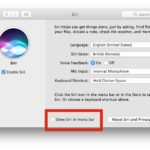
Want to hide the Siri menu icon but still have Siri enabled on the Mac? This approach offers a way to reduce menubar clutter on a Mac, while still retaining the Siri assistant functionality and each of its useful commands. With the Siri menu bar icon hidden, you can still access Siri on the Mac … Read More
Now that macOS Sierra has Siri built directly into the Mac operating system, you’re probably wondering what exactly you can do with the handy virtual assistant on your computer. It turns out that Siri has many abilities unique to the Mac, which you can’t perform on an iPhone or iPad with the virtual assistant. Of … Read More
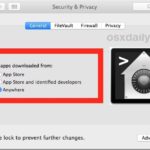
Gatekeeper in MacOS is now stricter than ever, defaulting to only allow options for apps downloaded from either the App Store or the App Store and identified developers. Advanced Mac users may wish to allow a third option, which is the ability to open and allow apps downloaded from anywhere in macOS Ventura, macOS Monterey, … Read More
Apple has released the second beta version of macOS Sierra 10.12.1. The new beta build arrives as 16B2333a and is available now to users participating in the beta testing programs.
Some advanced Mac users may like to perform a clean install of macOS Sierra, which is essentially the process of erasing a hard drive and then starting fresh with a new clean installation of macOS Sierra 10.12. After the clean install is complete, a separate backup of any necessary files is manually transferred back over … Read More
For most users, installing macOS Sierra has gone without a hitch and they’re left with a trouble-free Mac that works great with the latest macOS system software release. But, not everything goes smoothly for everyone, and sometimes updating to macOS Sierra can lead to a variety of problems. We’re compiling a list of common problems … Read More
Some Mac users like creating a bootable USB install drive for macOS Sierra, which offers for a way to easily update multiple machines, perform clean installs, and to have just as a backup Mac OS Sierra installer should the need arise. This walkthrough will demonstrate the exact steps necessary to create a boot installer drive … Read More

Some Mac users are reporting wi-fi difficulties after updating to macOS Sierra 10.12. The most common wireless networking problems seem to be either randomly dropping wi-fi connections after updating to macOS Sierra, or an unusually slow or delayed wi-fi experience after updating a Mac to Sierra 10.12. We’ll walk through some some-tested troubleshooting steps to … Read More
macOS Sierra has many new features and enhancements, some of which are significant and others that are more minor yet still nice to have. We’ve picked a handful of features new to macOS Sierra that you’re sure to enjoy and actually use, read on and check them out.
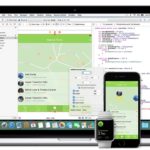
Apple has released the first beta versions of iOS 10.1 (build 14B55c), macOS Sierra 10.12.1 (build 16B2327e), watchOS 3.1, and tvOS 10.0.1.
With MacOS Sierra now available, Mac users can now get Siri on their computers, have improved iCloud integration, unlock their Macs with an Apple Watch, use Apple Pay on the web, and much more. Before you go diving right into updating to macOS 10.12 though, you should take a few precautionary steps to prepare for … Read More




