Subscribe to OSXDaily

Subscribe to RSS Subscribe to Twitter Feed Follow on Facebook Subscribe to eMail Updates

Shared on Facebook

Shop at Amazon

Ad

OSXDaily on Facebook

Search defaults write

Speed Up Mission Control Animations in Mac OS X Lion

Feb 14, 2012 - 15 Comments

Speed Up Mission Control Animations

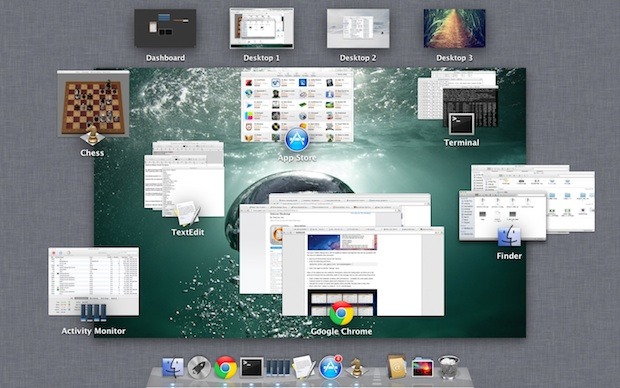
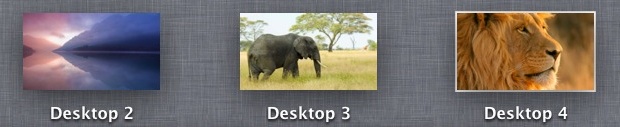
Boosting the speed of Mission Control animations can make Mac OS X Lion feel a bit faster when switching between windows, spaces, and apps within the feature. It’s easy to do and reversible if you decide you don’t like it, launch the Terminal to get started.

Speed Up Mission Control Animations

This will speed up Mission Control quite noticeably but still maintain a decent looking animation:

defaults write com.apple.dock expose-animation-duration -float 0.15

Now kill the Dock to restart Mission Control:

killall Dock

Do a three-fingered swipe up or down to see the difference in speed.

Super Fast Mission Control Animations
If you want extremely fast animations, this is your defaults write command:

defaults write com.apple.dock expose-animation-duration -float 0.1

Again, kill the Dock for changes to take effect:

killall Dock

As you may have guessed, you can adjust the animation speeds by changing the number after the -float flag, the larger the number the slower the animation, and the lower the number the faster the animation. The default setting is probably about 0.2 or 0.25, meaning anything larger than that starts to be slower than default. Whole numbers become increasingly slow, similar to holding down the shift key.

Slowing Down Mission Control Animations
This is marginally slower, but can quickly become a nuisance with usability:

defaults write com.apple.dock expose-animation-duration -float 1

Followed by:

killall Dock

Disable Mission Control Animations
This removes all animations, making Mission Control just snap in and out:

defaults write com.apple.dock expose-animation-duration -float 0

Killing the Dock is required for the animations to disappear:

killall Dock

The effect of disabling the animation is quite jarring and unless you’re trying to preserve frame rate for some reason it’s not very pleasant.

Return to Default Mission Control Animation Speeds

Want Mission Control to be back to normal? Use the following defaults command to clear any customizations, returning to the default setting:

defaults delete com.apple.dock expose-animation-duration; killall Dock

Check out more of our Misson Control tips.

Disable Launchpad Fade Transition Effect in Mac OS X Lion

Feb 10, 2012 - 9 Comments

Launchpad Transition in Mac OS X Lion

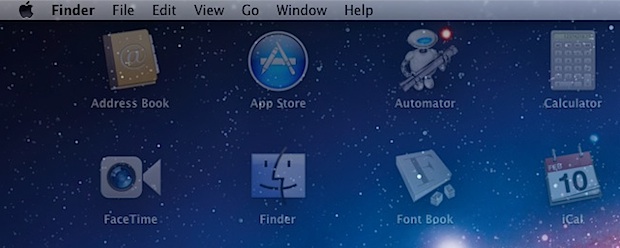
Launchpad shows a fading transition anytime it is opened or closed, making for a nice effect over whatever is in the background. It’s pleasant looking, but if you don’t like it you can disable the fading with a few defaults write commands. You can also choose to disable only half of the transition, either for showing or hiding Launchpad.

Disable Launchpad Fading

Launch the Terminal and enter the following commands separately:

defaults write com.apple.dock springboard-show-duration -int 0
defaults write com.apple.dock springboard-hide-duration -int 0

Now you must kill the Dock so it relaunches with the changes:

killall Dock

Launchpad is a subprocess of the Dock so killing the Dock forces Launchpad to reload, and the change will be immediately noticeable when you open Launchpad again. Gone is the smooth transition, and now it’s a sudden switch, almost like changing desktops but without the side scrolling animation. If you only want to disable half of the effect, say for when Launchpad is being hidden, only use the defaults write command with “springboard-hide-duration” in the string.

Re-enable Launchpad Fading

To reenable fading and go back to the default OS X Lion setting, use the following commands:


defaults delete com.apple.dock springboard-show-duration

defaults delete com.apple.dock springboard-hide-duration

Again kill the Dock with:

killall Dock

Remove Launchpad Fade Effect

Launchpad will now be back to it’s usual self with the fading transitions. If you’re not certain, hold down the shift key and see if the transition is in slow motion.

Change the Time Machine Backup Schedule

Feb 2, 2012 - 5 Comments

Time Machine Every Mac owner should be using Time Machine, it’s by far the easiest and most painless backup solution, running in the background and allowing for easy recovery of files or the entire operating system should something go wrong during an OS X update or otherwise. That said, Time Machine is a bit aggressive, and backs up all changes every hour that a drive is connected or within range, this is great for backup purposes but can be a nuisance when it hogs disk I/O and CPU cycles from other tasks. The easiest way to avoid this is to adjust the backup schedule, and we’ll show you how to do this from the Terminal, or with a super easy to use Preference Pane called TimeMachineScheduler.

Manually Changing Time Machine Backup Schedule

Using the command line and defaults write, you can manually adjust the Time Machine backup schedule. This command belongs on a single line:

sudo defaults write /System/Library/LaunchDaemons/com.apple.backupd-auto StartInterval -int 14400

The last number is the time interval in seconds, making hours grouped by 3600 second segments. If you wanted to wait 4 hours between backups, the number would be 14400, and so on. The default setting is one hour, or 3600 seconds, which can be restored with:

sudo defaults write /System/Library/LaunchDaemons/com.apple.backupd-auto StartInterval -int 3600

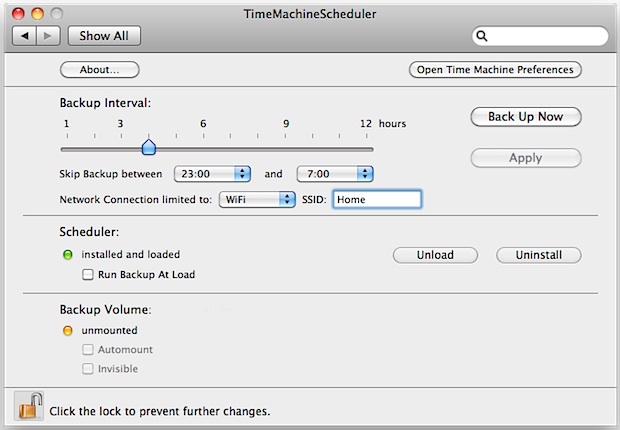
If you don’t like the command line, or if you want more control over when Time Machine runs, your best bet is the free TimeMachineScheduler app for Mac OS X.

Adjust Time Machine Schedule & Interval with TimeMachineScheduler

TimeMachineScheduler works with Mac OS X 10.7 and 10.6, and allows for simple and precise controls over when Time Machine runs. Just as with the defaults write commands, you can adjust the backup interval, but perhaps most useful is the ability to skip backups between scheduled times. Don’t want Time Machine to run during your peak productivity hours of 9am and 2pm? Set the time period to block in the app.

Time Machine Scheduler

TimeMachineScheduler also lets you restrict backups only to a specified network connection and SSID, which is a great touch for those who use Time Capsules or backups over wifi.

Heads up to The Graphic Mac for finding TimeMachineScheduler

See All Previously Used Defaults Commands in Mac OS X

Jan 31, 2012 - 4 Comments

defaults history

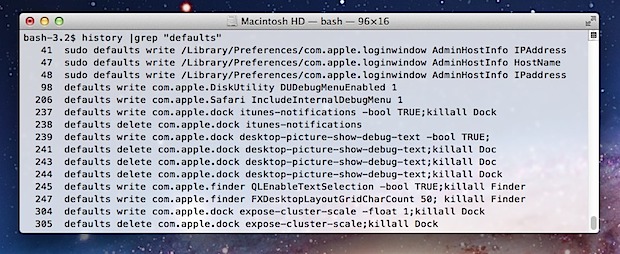
It’s easy to lose track of all the defaults commands used to perform tweaks to Mac OS X, but with the help of the history command it’s easy to list every defaults write and accompanying defaults delete commands ever used on a Mac. Launch the Terminal to get started.

See All Defaults Commands Executed

To see all defaults commands, including defaults write, defaults read, defaults delete, and even those requiring sudo:

history |grep "defaults"

Will return something like this:

47 sudo defaults write /Library/Preferences/com.apple.loginwindow AdminHostInfo HostName
48 sudo defaults write /Library/Preferences/com.apple.loginwindow AdminHostInfo IPaddress
98 defaults write com.apple.DiskUtility DUDebugMenuEnabled 1
206 defaults write com.apple.Safari IncludeInternalDebugMenu 1
237 defaults write com.apple.dock itunes-notifications -bool TRUE;killall Dock
238 defaults delete com.apple.dock itunes-notifications
239 defaults write com.apple.dock desktop-picture-show-debug-text -bool TRUE;
241 defaults delete com.apple.dock desktop-picture-show-debug-text;killall Dock

See Only Defaults Write Commands

To see only defaults write commands, including those requiring sudo:

history |grep "defaults write"

The results will look the same as above, but without showing any defaults read or defaults delete commands.

See Only Defaults Delete Commands

To see which defaults write commands have been reverted, grep for ‘delete’ rather than ‘write’:

history |grep "defaults delete"

See Defaults Commands Related to Specific App

By changing the text within grep to an application or process name, we can see which defaults commands were used only for that specific application. For example, to see only defaults commands that impacted the Finder:

history |grep "defaults write com.apple.finder"

Most apps are easy to find this way, and the default applications in OS X almost always follow the ‘com.apple.appname’ convention.

We touched on this concept before in a past post about the history command, but focusing on defaults commands is useful enough to deserve individual recognition.

Add Spacers to the Right-Side of the Dock in Mac OS X

Dec 16, 2011 - 5 Comments

Spacers on the Right Side of the Dock in Mac OS X

Just like you can add spacers between app icons in the OS X Dock (the left side), we can also add these same spacers to the right-side of the Dock, where the Applications, Documents, Downloads, and Trash icons live.

Launch the Terminal and paste the following defaults write string into the command line:

defaults write com.apple.dock persistent-others -array-add '{tile-data={}; tile-type="spacer-tile";}' ;killall Dock

If you want multiple spacers added, just hit the up arrow and return to initiate the command again. Each execution of the defaults write command will create one additional spacer in the Dock.

After a spacer has been added, you can click and drag it around the Dock to fit between icons. If you want to remove it, drag it out of the Dock like any other Dock item.

As previously mentioned, if you’re wanting to put spaces in the left side of the Dock instead, use the following command:

defaults write com.apple.dock persistent-apps -array-add '{"tile-type"="spacer-tile";}' ;killall Dock

Notice the two commands are different, and the spacers can not be dragged from the left side of the Dock to the right, or vice versa.

Both of these commands work with Mac OS X Lion and prior releases.

Jump to the Most Recently Used Desktop Space with a Hidden Gesture in OS X Lion

Dec 15, 2011 - 6 Comments

Mac trackpad If you use the multi-desktop Spaces feature of Mission Control often, you’ll probably like a hidden gesture in Mac OS X Lion that lets you immediately jump back to the most recently used Space with just a four-fingered tap on the trackpad (or Magic Mouse). Here’s how to enable the gesture with a defaults write command.

Launch Terminal from /Applications/Utilities/ and enter the following command:

defaults write com.apple.dock double-tap-jump-back -bool TRUE;killall Dock

Go to a different desktop and perform a four-fingered tap to immediately switch back to the previously used Space. You’ll obviously need to have multiple Spaces open for this to work, and once you get used to it, it’s a very nice addition to the other Mac gestures.

Spaces in OS X Lion

Disabling the gesture can be done by entering the following defaults write command into the Terminal:
defaults delete com.apple.dock double-tap-jump-back;killall Dock

This is a tip found on CultofMac written by Keir Thomas, who recently wrote some cool posts for us and also authored the book Mac Kung Fu.

Thanks for sending this in Torsten!

Set the Path Bar to be Relative to the Home Directory in Mac OS X Finder

Dec 3, 2011 - 6 Comments

Finder Path Bar from the Home Folder

Here’s another tip from Keir Thomas, author of Mac Kung Fu, a new book with over 300 tips, tricks, hints and hacks for Mac OS X Lion. It’s available from Amazon, and also in eBook form for all eReader devices, including Kindle.

Finder can show the path to the currently browsed folder (that is, something like Lion->Users->John->Music->MP3 collection). Just click View->Show Path Bar. However, there’s a slight problem—the path is listed from the root of the hard disk up to the current directory. If all you ever do is browse your home directory, then this information isn’t much use and the display can get bunched up very quickly.

Luckily there’s a secret setting you can use to cause the path bar to relate everything it shows to your home folder. In other words, should you browse your Pictures folder, the path bar will read something like John->Pictures, rather than Lion->Users->John->Pictures. See the screenshot up top for a before and after example.

Open a Terminal window (Finder->Applications->Utilities->Terminal) and type the following:

defaults write com.apple.finder PathBarRootAtHome -bool TRUE;killall Finder

The changes will take effect immediately. Should you wish at a later date to revert to the default path bar, open a Terminal window and type the following:

defaults delete com.apple.finder PathBarRootAtHome;killall Finder

Bonus tip: Files can be dragged and dropped onto any entry within the path bar to move the file to that location (hold Option before releasing the mouse button to copy the file instead).

Note you can also display the full path in Finder windows titlebars.

Show a Full Size Window Preview in Mission Control

Dec 1, 2011 - 5 Comments

Full Size Window Preview in Mission Control

Here’s another great tip from Keir Thomas, author of the new book Mac Kung Fu, which contains over 300 tips, tricks, hints and hacks for Mac OS X Lion:

Mission Control in OS X Lion groups together thumbnail previews of windows from the same app. By hovering the mouse cursor over a cluster of these thumbnails and scrolling up on a multitouch trackpad or Magic Mouse (or scrolling up the mouse wheel with other mice), you can cause the cluster to expand, showing more detail in those behind the main window. Give it a try now—it’s pretty useful.

This trick can be enhanced with a small tweak to a hidden system setting. To make clustered windows expand to full size so you can see their contents rather than merely slightly larger than they normally are, open a Terminal window and type the following:

defaults write com.apple.dock expose-cluster-scale -float 1;killall Dock

The changes take effect immediately. A variation of this tweak is to substitute a value of 0.6 rather than 1 in the line above. This will cause the windows to expand to a larger size than the default but not to 100 percent of their normal dimensions.

To undo the tweak at a later date, open a Terminal window and type the following:

defaults delete com.apple.dock expose-cluster-scale;killall Dock

Like this tip? Don’t miss our other Mission Control tricks.

Show Long File & Folder Names on the Mac OS X Desktop

Nov 25, 2011 - 6 Comments

Show long file names in Mac OS X

Recently we covered how to show full file names on the Mac OS X desktop, avoiding the abbreviated labels that occur when a file or folders name is too large to fit in the allowed character count limit. That trick was done by increasing the desktops grid size, but as one of our readers pointed out in the comments, you are still limited to a maximum of 20 characters in a file name. Using a defaults write command, this can be adjusted to display very long file names without shortening them. As you may have guessed, this is achieved by increasing the desktops grid size even further.

Increase the File Name Displayed Character Limit in Mac OS X

The displayed character limit can be increased to virtually any number, for the purpose of this tip we’ll increase the file names character limit from 20 to 50.

Launch the Terminal from /Applications/Utilities/ and enter the following command.

defaults write com.apple.finder FXDesktopLayoutGridCharCount 50; killall Finder

Entering this command will change the count and immediately restart the Finder so changes take place. If you want fewer or more characters, adjust the number on the end accordingly. The screenshot at the top of this post shows a 100 character limit, but too large a number can look strange, making 50 a good compromise for showing long file names and not making a disaster of the desktop.

Restore the Default File Name Character Limit
defaults write com.apple.finder FXDesktopLayoutGridCharCount 20; killall Finder

Using the above command, the Finder will also restart and the desktops file name limit will be restored to the default setting of 20 characters.

Thanks to Brah for the great tip left in our comments

Update: Additional testing and user feedback suggests the defaults write trick may work in Mac OS X 10.6 only. For OS X 10.7 Lion users, increasing grid space works to the same effect but doesn’t require Terminal intervention.

Select Text in Quick Look Windows

Nov 21, 2011 - 16 Comments

Select Text within QuickLook Windows

Quick Look is one of the better little features of Mac OS X, but a new hidden option in OS X Lion makes QuickLook even better by allowing you to select and copy text directly from the windows.

This awesome tip was sent in by Keir Thomas, the author of a new book called Mac Kung Fu and the guy who discovered the cool iTunes “Now Playing” notification that has since become popular on the Mac web. Without further ado, here’s the trick directly from Keir:

If you use Quick Look to view any files that feature text—such as PDFs or Word documents—you’ll notice that you can’t click and drag to highlight text. Clicking anywhere on the Quick Look window simply moves it around.

However, a secret setting will let you click and drag as usual to highlight text, and you can use the standard key combination of Command+C to copy text. The Quick Look window can still be moved around the screen by clicking and dragging its title bar, as with any other program window.

To activate the setting, open a Terminal window and type the following:

defaults write com.apple.finder QLEnableTextSelection -bool TRUE;killall Finder

The changes take effect immediately. To deactivate the setting, open a Terminal window and type the following:

defaults delete com.apple.finder QLEnableTextSelection;killall Finder