Subscribe to OSXDaily

Subscribe to RSS Subscribe to Twitter Feed Follow on Facebook Subscribe to eMail Updates

OSXDaily on Facebook

OSXDaily on Google+

Shop at Amazon

Ad

Shared on Facebook

Search dock

dock

Change the Animation Speed of Hiding & Displaying the Mac OS X Dock

Mar 28, 2012 - 7 Comments

Automatically hiding the Dock is one of the more useful features you can enable if you work on a Mac with limited screen space. That experience can be improved by removing the auto-hide delay from the Dock in OS X, which reduces the delay from when a mouse is hovered near the Dock to when … Read More

Remove the Auto-Hiding Dock Delay in Mac OS X

Mar 27, 2012 - 29 Comments

If you use a hidden Dock in Mac OS X, you can speed up the time it takes to show the Dock with a defaults write command. This command removes the delay from when a cursor is hovered near the Dock location and to when it’s displayed, it doesn’t change the animation speed of the … Read More

Change Stacks Icon Size in Grid View

Jan 19, 2012 - 5 Comments

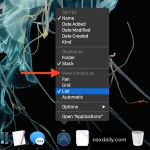
Stacks are a Dock feature added to Mac OS X a while back that let added an easy way to see the contents of Applications, Documents, Downloads, and whatever other folder placed into the Dock. To change the icon size of Stacks, the stack must be shown as “Grid”, this can be set with a … Read More

Change & Customize the Dock in Mac OS X Lion with Docker

Jan 13, 2012 - 10 Comments

We have gone through tons of OS X Dock tips before, but with the help of a free Lion compatible app called Docker, we can apply many changes to the Docks behavior and customizations to the Docks appearance easily with just a few clicks. What exactly can you customize? Using Docker, you can: change Dock … Read More

Show the Dock in Full Screen Apps in Mac OS X Lion

Jan 3, 2012 - 9 Comments

The Dock disappears whenever an app is put into Mac OS X Lion’s full screen mode, but that doesn’t mean you can’t access the Dock if you need it. To show the Dock in a full screen app, swipe twice at the bottom of the screen, the first swipe won’t show anything but the second … Read More

Add Spacers to the Right-Side of the Dock in Mac OS X

Dec 16, 2011 - 5 Comments

Just like you can add spacers between app icons in the OS X Dock (the left side), we can also add these same spacers to the right-side of the Dock, where the Applications, Documents, Downloads, and Trash icons live. Launch the Terminal and paste the following defaults write string into the command line: defaults write … Read More

Enable Hidden Dock Stack Gestures in Mac OS X Lion

Nov 30, 2011 - 6 Comments

Here’s another awesome tip from Keir Thomas, the author of a new book called Mac Kung Fu, which contains over 300 tips and tricks for OS X Lion. He’s the same guy who discovered the iTunes “Now Playing” notification tip and the Quick Look select text tip. Here’s the tip direct from Keir: This is … Read More

Show Recent Items Per App with a Two-Fingered Double Tap in OS X

Oct 25, 2011 - 8 Comments

You can quickly see any apps recent items in Mac OS X Lion by using a two-fingered double-tap on that applications icon in the Dock. This brings up a menu contained within Mission Control showing all of your recent items, and if you have currently opened items they will be displayed above the list. The … Read More

Super-Size Dock Icon Magnification

May 9, 2011 - 2 Comments

For those using larger displays you may wish the Dock icon magnification was greater, this can be achieved easily with a defaults write command. The number at the end represents the pixel dimensions of the icon magnification, so 200 equates to 200×200 (for reference, 128 is the default): defaults write com.apple.dock largesize -float 200 200×200 … Read More

Show Only Currently Active Apps in the Mac OS X Dock

Apr 28, 2011 - 10 Comments

Here’s a great trick if you prefer a minimalist Mac OS X desktop and Dock: set the Dock to only display currently active apps. Launch the Terminal and enter the following command: defaults write com.apple.dock static-only -bool TRUE Now you have to kill the Dock for changes to take effect: killall Dock If you use … Read More