Subscribe to OSXDaily

Subscribe to RSS Subscribe to Twitter Feed Follow on Facebook Subscribe to eMail Updates

Shared on Facebook

Shop at Amazon

Ad

OSXDaily on Facebook

Search redsn0w

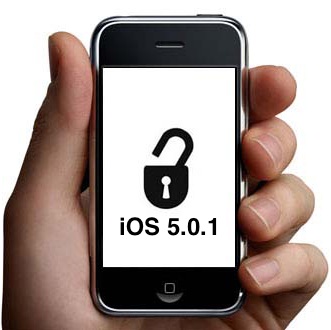
Redsn0w 0.9.10b2 Untethered Jailbreak for iOS 5.0.1 Released [Download Links]

Dec 27, 2011 - 25 Comments

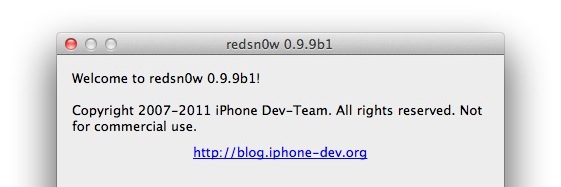
Untethered redsn0w for iOS 5.0.1 The much anticipated untethered jailbreak for iOS 5.0.1 has arrived in the form of Redsn0w 0.9.10b1, courtesy of the iPhone Dev Team and jailbreaker @pod2g.

Redsn0w will provide an untethered jailbreak to the following iOS 5.0.1 devices: iPhone 4, iPhone 3GS, iPad 1, iPod touch 3rd gen, iPod touch 4th gen. For iOS devices based on the A5 CPU, like the iPhone 4S and iPad 2, the jailbreak is not yet available but is expected to debut soon.

Download Redsn0w 0.9.10b2

Download and follow the in-app instructions, it’s very easy:

For the Windows version make sure to run it in ‘Administrator’ mode.

If you haven’t upgraded to iOS 5.0.1 yet due to the lack of an untethered jailbreak, you can do that now either with iOS 5.01 IPSW or through iTunes Software Update. After you’re on the latest iOS 5.0.1 version, you can then run redsn0w. If you are already on iOS 5.0.1 and using a tethered jailbreak, you can run this version of redsn0w directly over your existing jailbreak to untether it.

Update: Here is a guide on how to jailbreak iOS 5.0.1 untethered with redsn0w

Unlock iPhone 3GS & iPhone 4 on iOS 5.0.1 with Ultrasn0w 1.2.5

Dec 21, 2011 - 9 Comments

unlock iOS 5.0.1 with ultrasn0w Ultrasn0w 1.2.5 has been released and it allows for unlocking some iPhone 3GS and iPhone 4 models with older modem firmware versions. Compatible baseband is as follows:

  • iPhone 4: 01.59.00
  • iPhone 3GS: 04.26.08, 05.11.07, 05.13.04, 06.15.00

You can check baseband on the iPhone by tapping on Settings > General > About and looking for “Modem Firmware” near the bottom of the About screen.

If your iPhone 3GS or iPhone 4 has eligible baseband and is already jailbroken, then you can just search Cydia for “ultrasn0w” and download and install the latest version. Reboot the iPhone and you’ll be able to use the new unofficial network. If you’re not sure what to do, follow the instructions below:

How to Unlock iPhone 3GS & iPhone 4 on iOS 5.0.1 with Ultrasn0w

Be sure to confirm baseband firmware before proceeding:

  • Jailbreak iOS 5.0.1 with redsn0w 0.9.9b9 and then boot the iPhone tethered
  • Open Cydia and search for ultrasn0w, installing the ultrasn0w 1.2.5 package onto the iPhone
  • Shut off the iPhone and insert the new SIM card from another carrier
  • Boot the iPhone tethered using redsn0w again
  • Wait for the iPhone to join the new network

Most iPhones won’t be eligible to use this version of ultrasn0w due to the baseband limitation. Keep in mind you can now buy the iPhone 4S unlocked directly from Apple, they aren’t cheap but you won’t have to bother with jailbreaks, software unlocks, or preserving baseband versions between iOS upgrades, and will always be free to use the iPhone on whatever compatible network you have a SIM card for.

Jailbreak iOS 5.0.1 with Redsn0w 0.9.9b9

Dec 19, 2011 - 115 Comments

Jailbreak iOS 5.0.1 with Redsn0w 0.9.9b9

Update: An untethered version is now available, here is our guide: How to jailbreak iOS 5.0.1 untethered with redsn0w.

Redsn0w 0.9.9b9 isn’t the first jailbreak for iOS 5.0,1, but it’s certainly much easier to use thanks to native 5.0.1 support. This basically means you don’t have to point it at older firmware to perform the jailbreak, but it does still require a tether boot.

Requirements:

  • iOS 5.0.1 installed
  • iPhone 4, iPhone 3GS, iPad 1, or iPod touch 3rd & 4th generations

If you already have iOS 5.01 installed you do not need to download any IPSW files.

Jailbreaking iOS 5.0.1 using Redsn0w 0.9.9b9

These instructions are the same for all compatible iOS devices and from running redsnow in Mac OS X or Windows:

  1. Download redsn0w 0.9.9b9d: Mac OS X or Windows
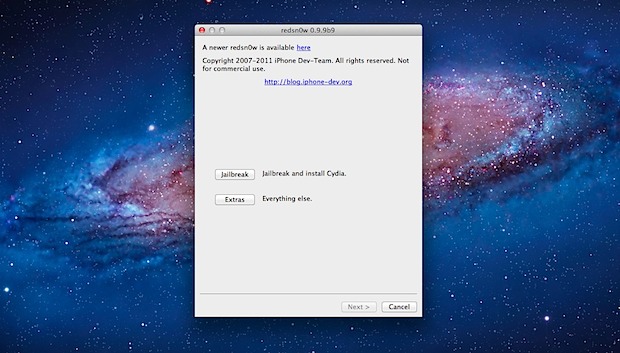
  2. Launch Redsn0w and click on “Jailbreak”
  3. Put the iOS device into DFU mode by holding down the power button for 3 seconds, then start holding the Home button as well for an additional 10 seconds, then release the Power button but continue to hold the Home button for another 15 seconds
  4. Wait while the jailbreak is installed, this will take a few minutes. When finished you will see a “Tethered Jailbreak” popup window reminding you of the tethered status and the iPhone screen will no longer display gibberish text
  5. Still in Redsn0w, click back to the first screen and click on the “Extras” button
  6. Click on “Just Boot” and put the device back into DFU mode again the same way as before, or follow on screen, then let the iOS device boot tethered

Your iOS device will now boot jailbroken and is free to use Cydia.

Remember that if the battery dies or if you reboot the device manually, you’ll need to perform the tethered boot with redsn0w assistance again. This is the difference between a tethered vs untethered jailbreak and why people prefer untether solutions, the untether is in the works for iOS 5 but not yet available to the public. We’ll keep you posted when we learn more.

Update: Links to redsn0w 0.9.9b9d have been updated.

Update 2: You can now untether existing iOS 5.0.1 jailbreaks with Corona

Update 3: Redsn0w 0.9.10b1 is an untethered jailbreak now available, here is how to use it

Redsn0w 0.9.9b9 Jailbreak for iOS 5.0.1 Released [Download Links]

Dec 19, 2011 - 19 Comments

Redsn0w 0.9.9b9 has been released by the iPhone DevTeam to jailbreak iOS 5.0.1. It is still a tethered jailbreak and the process is mostly the same as before, except users no longer have to point the redsn0w application at older 5.0 IPSW.

Supported hardware continues to be iPhone 4, iPhone 3GS, iPad 1, iPod touch 3rd or 4th gen. The iPad 2 and iPhone 4S are yet to work, but the upcoming untethered iOS 5 jailbreak should bring those two devices as well.

Download Redsn0w 0.9.9b9d

Mac and Windows versions are available:

If you’re already jailbroken on iOS 5.0.1, this version of redsn0w won’t be of much use to you, although the updated version includes a variety of bug fixes and minor changes to supported hardware.

Update: Here is a guide on how to use redsn0w 0.99b9 to jailbreak iOS 5.01

Update 2: Updated links to latest version, Redsn0w 0.9.9b9d

How to Use Redsn0w to Jailbreak iOS 5.0.1

Nov 11, 2011 - 105 Comments

redsnow logo iOS 5.0.1 with its bug and battery fixes can be jailbroken using the latest version of the redsn0w tool. For now, this is still a tethered jailbreak, but the semi-tether from Cydia works.

Update: An untethered Redsn0w jailbreak is out for iOS 5.0.1!
If you don’t like the tethered boot process, hold out for an untethered release which is actively being worked on by the Dev Team, no ETA is available for that however.

Requirements

  • A supported iOS device: iPhone 4, iPhone 3GS, iPad 1, iPod touch 3rd or 4th gen – there is currently no support for iPad 2 or iPhone 4S
  • iOS 5.0.1 installed already – download it here or use the OTA update if you haven’t already
  • The previous iOS 5 IPSW for the device
  • Redsn0w 0.9.9b8 – get it for Mac or grab it for Windows

The jailbreaking process will be familiar to anyone who has done this before or who has used a custom IPSW. The main thing to remember here is that you are pointing at the older IPSW file despite running a newer version of iOS, this will continue to be the case until a new version of redsn0w is released to circumvent that aspect of the procedure.

Jailbreaking iOS 5.0.1 with Redsn0w

  • Turn the iOS device off and then connect it to the computer
  • Launch Redsn0w and click the “Extras” button, then click on “Select IPSW” – locate the iOS 5 IPSW (not iOS 5.0.1) and click “Open”
  • Click “Back” to return to the original Redsn0w screen and click on “Jailbreak” as usual
  • Put the iOS device in DFU mode as redsn0w instructs, holding down the Power and Home button for 10 seconds, then release the power button but continue to hold the Home button for another 15 seconds or so
  • As the jailbreak works, the iPhone/iPad/iPod will reboot and you’ll get a notification that it requires a tethered boot, let the device boot up as usual and then put the hardware into DFU mode yet again so you can perform the tethered boot and get Cydia to work
  • Back in Redsn0w, go to “Extras” and select the iOS 5.0 IPSW again, then click on “Just Boot” at the top of the “Extras” menu to perform the tethered boot
  • Enjoy your jailbreak

If you have a white Cydia icon it’s because you didn’t perform a tethered boot properly, so just go through that step again and you’ll be fine. From this point it’s recommended to install the semi-tether since it improves the experience, it’s a free download from the Cydia store.

If all of this seems confusing or causes a headache, just wait until a new version of redsn0w is available or better yet wait for the untether.

Update: The untethered jailbreak for iOS 5.0.1 has been released, you can read how to use it here or download the newest redsn0w.

Enable Multi-Tasking Gestures & Display Mirroring in iOS 5 for iPad 1

Oct 28, 2011 - 8 Comments

Multitasking Gestures for iPad 1 The first generation iPad got iOS 5, but it didn’t officially get multitasking gestures or display mirroring. Not a huge deal, because a user on ModMyi figured out how to enable these two features and has released a modified version of redsn0w so that it unlocks these abilities, without a jailbreak. It’s pretty easy to use, so if you want to enable these features here’s how to use the tool and make your first-gen iPad feel a bit more modern.

Warning: This is for iPad 1 only. The gestures and mirroring already exist on iPad 2 making this unnecessary. Backup your iPad beforehand just in case something goes wrong, and proceed at your own risk.

  • Download the modified version of redsn0w that carries the tweaked payload
  • Connect the iPad to the computer
  • Turn off the iPad
  • Launch redsn0w and select “jailbreak” (no it won’t actually jailbreak if you follow the rest of the instructions)
  • Follow the onscreen instructions to put the iPad into DFU mode
  • Uncheck “Install Cydia” – this stops the jailbreak nut enables the multitasking and mirroring
  • Check “Enable Multitask Gestures”
  • Click “Next” and let the process complete and the iPad reboot
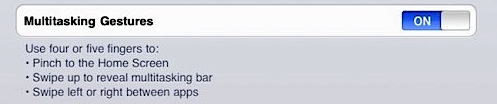
  • When the iPad restarts, go to “Settings” and tap on “General” to find “Multitasking Gestures” and be sure that is set to ON

Multitasking Gesture for iPad 1 in iOS 5

Once it’s turned on, the easiest way to verify is by pinching with four fingers to see if you return to your home screen.

The Multitasking Gestures
Using four or five fingers you can…

  • Pinch to the Home Screen (much like OS X Lion pinches to Launchpad)
  • Swipe up to show the multitasking bar of running apps
  • Swipe left or right between open applications

Display Mirroring
Display Mirroring only works with HDMI cables and not AirPlay

For those interested in the technical details of this, here’s the source code (via ModMyi user dB) for the modification:

Thanks for sending this in Daniel

Get a Semi-Tethered iOS 5 Jailbreak

Oct 23, 2011 - 21 Comments

Tethered jailbreak For anyone who has used the existing iOS 5 jailbreak methods, a new package has been added to Cydia that allows for a semi-tethered reboot.

What the semitether means in practice is that you’ll be able to reboot an iPhone, iPad, or iPod touch if you’re in a pinch without the assistance of redsn0w’s “Just Boot Tethered” option, but you won’t be able to use Safari, Mail, or Cydia until you complete the tethered boot with redsn0w and the iOS 5 device connected to a PC or Mac.

From the jailbroken iOS 5 device:

  • Launch Cydia and tap on “Add”
  • Add the following repository to Cydia:
  • http://thebigboss.org/semitether

  • Using Cydia’s search, search for “SemiTether” and install it

Despite being called a “semi-tether”, it should still mostly be considered a tethered experience due to the app usage limitations. If you’re unfamiliar, you can read the difference between tethered vs untethered jailbreaks, but basically an untethered jailbreak is the most usable since it requires the least maintenance.

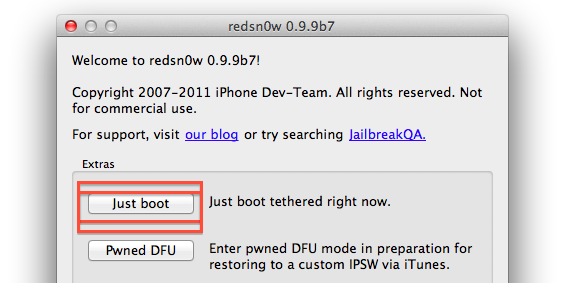
As previously mentioned, with SemiTether installed you’ll still need to boot the iOS device using the redsn0w app from Mac OS X or Windows. This is easily done by launching redsn0w, clicking on “Extras” and then choosing “Just Boot” option:

Boot tethered with redsn0w

You can find the latest version of redsn0w here. An full untethered release is apparently in the works, we’ll keep you posted.

Newest Redsn0w 0.9.9b7 Jailbreaks iPhone & iPad with iOS 5 in 80 Seconds

Oct 23, 2011 - 9 Comments

redsn0w 0.9.9b7 The newest version of redsn0w released by the iPhone Dev Team provides one of the fastest jailbreaks yet, and you’ll be finished in as little as 80 seconds. This is achieved by offloading some of the procedure to Cydia itself, which then takes longer to open on it’s first launch as the entire process is wrapped up.

If you haven’t jailbroken yet and you don’t mind the tethered booting process, you’ll enjoy the quickness offered by the new redsn0w. If you’ve already used a recent version of redsn0w to jailbreak iOS 5 then there isn’t any reason to download the newest version unless you intend to run it on other iOS hardware.

Download Redsn0w 0.9.9b7

This version supports iPhone 3GS, iPhone 4 CDMA & GSM, iPod touch 3rd & 4th gen, and iPad 1. This does not work with iPhone 4S or iPad 2:

The process is fairly simple, but if you’re new to this you can follow our walkthrough on jailbreaking iOS 5 using redsn0w.

Jailbreak iOS 5 with Redsn0w

Oct 12, 2011 - 149 Comments

iOS 5 jailbreak with redsn0w iOS 5 can already be jailbroken thanks to the iPhone Dev Team’s quick release of a new version of redsn0w (0.9.9b7). This is currently a tethered jailbreak, but an untether is in progress.
Redsn0w will work to jailbreak iOS 5 on iPhone 3GS, iPhone 4 CDMA & GSM, iPod touch 3rd & 4th gen, and iPad 1. Not supported yet are iPhone 4S and iPad 2 devices, due to their use of the A5 CPU.

Before getting started, download iOS 5 and update your hardware, keep the IPSW around, but also be sure to have updated to iTunes 10.5.

Download redsn0w 0.9.9b7

You will need redsn0w 0.9.9b7 to get started, download it now for Mac (v 0.9.9b7 here) or for Windows (direct download links)

Jailbreaking iOS 5

  • Launch Redsn0w and choose the “Jailbreak” button
  • Connect the iOS device to the computer and turn the hardware off
  • Enter DFU mode by holding down the Sleep/Power button and home button together for exactly 10 seconds, then release the Power button but continue to hold the Home button for another 15 seconds. You will get a notification from Redsn0w informing you of the device being in DFU mode
  • Point redsn0w to your iOS 5 IPSW file (older version)
  • Redsn0w will now perform the jailbreak, the newest version does not require you to have to point to any IPSW files because it downloads them directly from Apple
  • Choose “Install Cydia” and proceed with the jailbreak

Now you need to boot the iOS device tethered to get Cydia to load:

  • Open redsn0w again
  • Click on “Extras” and select the iOS 5 IPSW you downloaded in the previous step
  • Back at the Extras menu, click on the “Just Boot” option and follow the on screen instructions to boot into the jailbroken device

Your iOS device will automatically reboot as jailbroken, you can confirm this by looking for the Cydia icon on your springboard. As previously stated, this is a tethered jailbreak so you will need to connect your iPhone, iPad, or ipod touch to a computer and boot it with the assistance of Redsn0w if the battery dies or you shut it down for another reason. This is easy to do, just launch Redsn0w again and choose “Just Boot” again from the Extras menu.

Redsn0w 0.9.9b3 Jailbreaks iOS 5 GM

Oct 4, 2011 - 7 Comments

Redsn0w 0.9.9b3 The just released iOS 5 GM has already been jailbroken by a new version of Redsn0w. All devices that run iOS 5 can use redsnow 0.9.9b3, including iPad, iPhone 4, iPhone 3GS, and iPod touch 3rd and 4th generations, the only catch is that it’s a tethered jailbreak.

For those who are unfamiliar, a tethered jailbreak requires that the device must be connected to a computer and booted with Redsn0w 0.9.9b3 if the device powers off. Failure to perform a tethered boot results in jailbreak apps and Safari to not launch. The sole exception to the tethered limitation is old bootrom iPhone 3GS.

Download Redsn0w 0.9.9b3

Remember, to install iOS 5 GM you will need access to iTunes 10.5 beta 7 or later.