
Remove All Music from iPhone, iPod touch, iPad

If you want to delete all music from an iPhone, iPad, or iPod touch, you can handle the entire music removal process directly on the iOS device itself, you don’t need to sync to iTunes or do anything fancy. Do be warned however, this deletes every single song and album from the Music app and from the device, so be absolutely certain you want to do this!
So you definitely want to remove all music from an iOS device? That’s what we’ll show you how to do, it’s a few settings deep to prevent accidental access and removal of songs, but it’s easy to do in just a few steps.
How to Delete All Music from iPhone / iPad / iPod
- Open the “Settings” app and tap on “General”
- Select “Usage” and then choose “Manage Storage”
- Tap on “Music” to select the song library on the iOS device
- Swipe to the left over “All Songs” then tap on the red “Delete” button when it becomes visible
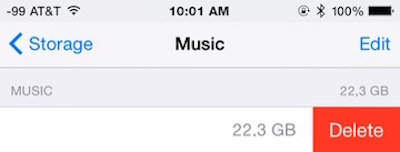
The total storage space taken up by the music collection will be listed alongside the “All Music” label, letting you know how much space is about to be freed up by removing all the songs.
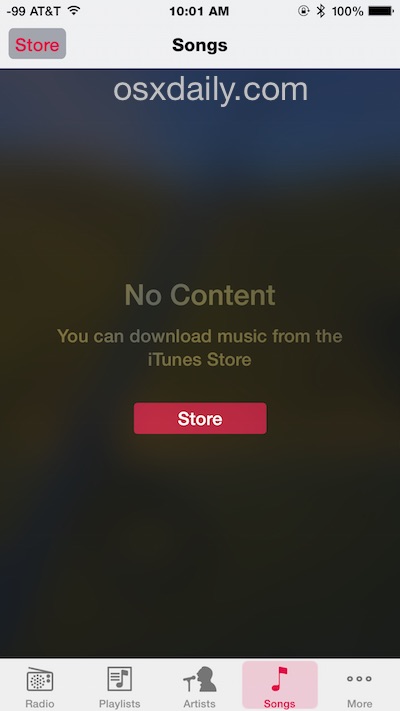
If you launch the Music app after you’ve deleted all songs from the iPhone or iPad, you’ll discover a “No Content” message signifying the device is now completely empty of music. You can still use iTunes Radio and Apple Music or other streaming services of course.
Just remember, there’s no going back if you choose to do this without resyncing to iTunes or downloading songs again from iTunes Store or iCloud. Also keep in mind that if you have iTunes Automatic Downloads enabled on the device, any future music downloads on other iOS devices will continue to copy over to the once cleared out list.
Removing All Music from iPhone, iPad, iPod Touch in Prior Releases of iOS
Note that in prior versions of iOS, you’ll find the “Delete” option in Settings > General > Usage > Music as here, but you can tap the Minus symbol next to “All Music” then tap on “Delete” to remove all songs from the device.
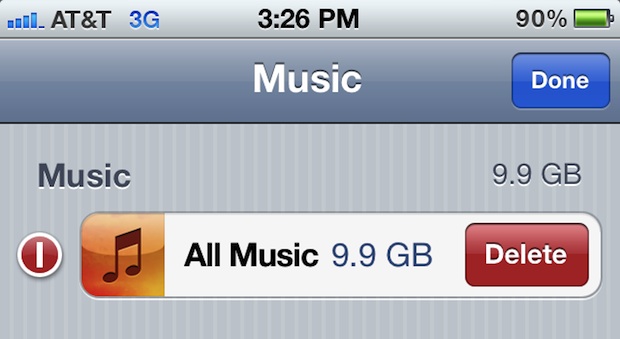
The function is otherwise the same it just looks a little different, but it removes every single song on the iOS device.
Remember, if you don’t want to delete every song, you can also choose to delete songs on an iPhone, iPad, or iPod touch on a one-by-one basis, just by swiping on a song and tapping “Delete”.






Hi thankyou for that helpful information, it is appreciated.
Will this work on songs that are just showing waiting in my downloads on my iPhone?
I have a laptop with Windows 8. I have downloaded some music in the past tehrhewereno problems. But tenderly when I try to listen to some of the songs they get over ridden by a song which I have never heard nor did download I don’t see it listed anywhere including my storage space Can you guide me in removing this song?
This did what it said, but I’ve run into a problem. Since I deleted the music (I did it because I wanted to get rid of all the songs on my iPod and re-sync with all the music on my laptop which I just finished sorting through) I can’t get it back. What I mean by that is the icon for music in my storage is now missing and everytime I try to sync my music from my computer again it doesn’t work or it’ll only sync 41 songs and a bunch of empty playlist instead of all 674 songs I have with full playlists..HELP!
That was very helpful, thanks.
Brilliant! The ONLY bit of advice `that actually worked…many thanks!!!!
can people just play songs on their phones and without tapping that download sign to the left of the screens
I have deleted all songs that I can using various methods. I’m down to 7 remaining songs on my ipod touch that I can’t get rid of. If I use the individual flick method, it simply plays the song instead of bringing up the Delete option. I have the option to list songs from the cloud turned off and I even disconnect from the internet. The songs still play. I look under usage for the amount of storage devoted to music and there is no Music entry, so I presumed all songs were deleted. This is very frustrating. I want to delete ALL songs from my ipod touch storage before I repopulate it with a new mix from my iTunes on my laptop. What might explain where these last 7 songs truly reside and how to delete them from this ipod touch?
Oh my goodness! You have no idea how long i’ve been looking for this exact info.
very good article SUPER HELPFUL
This will not work on my iphone
I did as instructed.
It showed it worked as zero data
closed settings
went to music app and all 5000 songs still there and will play
Thanks for this. Big help!
Thank you ever so much. I am not a techie person familiar with everything iOS. I had been searching my iPhone myself for the way to delete my entire music library from my new phone and simply use my previous one as an iPod. He problem came when each time I wishes to restore from the iCloud I had no idea how to prevent all my music being downloaded as well and taking up tons of memory. Again, thank you for providing the solution. :)
I’m confused to why everyone thinks this works. I went through the steps above and all the music was removed except anything I had downloaded! So music copied from a CD Has gone but every download (all for my daughters before I realised the utter woes of Apple ID sharing) is flatly refusing to get lost.
As for the delete each song individually, that fails too. Going through those steps does bring up the ‘delete’ symbol, tapping it just prompts the iPad to repalce it with a ‘download cloud’ symbol. Tapping again makes the blessed song play.
Is there another setting I have to disable or enable before I take these steps… Please help I can’t take any more Katy Perry on shuffle!
It was useful to me, I don’t know apple very well. You missed one step though. Step 2 is ‘tap edit.
[…] Keeping Music on the iPhone and iPad in particular is unnecessary, so do yourself a favor and remove all the music and then take the time to set up and use iTunes Home Sharing to play music from a computer while at […]
Same here
I have 1.7GB of music on my iphone and just deleted it all through the steps posted above, but 1.7GB of memory isn’t free now and my music still shows up in the music app. Did I do something wrong?
Nvm. Just takes a bit.
Thank you so much! this worked in about 5 seconds., I have been looking for this fix since I messed up my iTunes library months ago. Had no idea it was that easy. But I did sync all my music before I deleted it. Nice work Man!
Thanks for the help! It never fails to sadden me when people say such cruel things. Words are not just words. Words changes things. Say something nice to someone today. I wll make a great world better!
Thanks for the help! I never fails to sadden me when people say such cruel things. Words are not just words. Words changes things. Say something nice to someone today. I wll make a great world better!
[…] the direct link to the tip on OSX Daily. It’s four brilliant and easy steps. It certainly isn’t […]
Thank You! Really useful!
Okay so it will delete all music except greyed music (like songs synced but cancelled before finished syncing) how can i delete these without reseting iphone and don’t have my original laptop/computer i used to sync those songs, but it’s greyed out so i can’t swipe-delete?
[…] the direct link to the tip on OSX Daily. It’s four brilliant and easy steps. It certainly isn’t […]
okay i swiped my camera roll and pressed delete and then nothing happens. help???
Nice tip. Thanks.
That one can delete all music in the “usage” option is not obvious at all.
(One would expect this option in the “music” settings in stead.)
I had to delete all my music on the new iPod Touch 5G because the playlists skipped all songs while rolling through the playlist texts. Peculiar bug, that did not appear with newly downloaded songs.
This solved the bug for me, so thanks a lot.
This works just great for me! Was headache when my iPhone keeps showing duplicates of my songs. After clearing the Music section and re-sync, everything is back in order! Thanks! :D
I did what you said and all the music erased, but there are still song titles listed with no music attached – how can i get rid of this??
Thanks a lot for the info. It worked like a charm! Saved me some time & effort.
Thank you…..new to iPad and having tried for 2 weeks to figure it out, your solution worked straight away…..thanks very much!!!
thanks for all the responses, but i have an ipod nano – so is there any way on this device to just delete a song without going through the whole synching process?
Thank you for this, it is the tips like this that make the internet the wonderful place it could become… Keep it up. 20 minutes of searching my iPad, or 1 minute searching the internet for you… Figured I would repay some of the time by saying thank you.
Thanks! I had made hundreds of changes to my itunes/icloud/match (or whatever it’s called) library, and couldn’t figure out why the duplicates I deleted in my library were still showing on my iPad. Turned out deleting all downloaded music as per your instructions fixed my problem- my iPad library now fully matches itunes/icloud/match.
One extra step I had to take was to completely close the music app and re-open it after deleting the music (by double clicking the home button to get the task-switching ribbon on the bottom, holding down the music app until it wiggled, then hitting the minus sign to close). Otherwise the music app still showed the deleted music.
Apple hasn’t achieved the it-just-works level yet with itunes match, but once you learn the little tricks like this it becomes awesome.
Thanks for the post!
Thanks. Just what I needed. Have a new iPad3, but hardly ever listen to music on it, so wanted to quickly remove all the music.
Our Schmuck friend forgets that some of us older folk might have known how to do this yesterday, but today we don’t even remember who we are. Such is life.
Thanks again. You saved me a bunch of pain.
Hi, thanks a lot for this tip. I;m a new user of the iPad and i didn’t know how to do it. This function is simple but is hidden somehow.
is this for iOS 5 only? ’cause i don’t see music in the usage option.
Yeah i have the same problem on my ipad air?? Did you find out how to do it?
Forgot to mention step 2.5: Press the “EDIT” button on the top right to make the minus sign appear.
didnt work :((
That’s odd…. http://www.justaschmuck.com doesn’t exist. I was hoping for expert OS X tips unknown to anyone. I’m sure you’re working on it – unless you were on the phone while it was launched from the 4th floor; then I guess not.
LOL
please forgive me, but isn’t this a bit obvious?
oh, dang it all, what do I care? you have to keep your little enterprise going 24 hours each day and I am sure it gets quite boring searching for content and what ends up getting posted is all trivial and trite anyway so, go ahead, fill your little blog with whatever. i’m going off in search of a life. goodbye cruel technology world. you promised so much and yet delivered so little. i will no longer be seduced and distracted by your inane appearance of importance and relevance. adieu, my macbook and iPhone have just been launched from the 4th floor of my apartment building. seriously, adieu!
For some maybe, but not everyone is as well informed as you regarding iOS options and settings. Enjoy launching your MacBook from the 4th floor, sounds like fun!
Thank you very much Paul!!!!! you are right A LOT of us are not Iphone savy yet and we download a crap ton of music not realizing it takes up so much space you can not even update the dang phone. however on a droid you can select all the music and delete it much faster if you didn’t know about the “systems” folder. Thank you so much Paul I really appreciate your help. :)
keep up the good work, there are those of us that need people like you (even if I haven’t found the answer to my problem)
And launch yourself right after…!!
Have you been drinking?
Hey.. I’m pretty niffty with iPhones, but never thought about this feature… This actually helped me fix several iPhones, so don’t judge people when they have a point.
TROLL!
This friend will one day learn everyone is different. Thank goodness. The anon person making the immature remarks might mature someday.
I did not pay for the help from this tip so I want to thank you here.
I’m 58, he probably is not, I like Schubert Lieder, he probably does not, have been using a PC all my life, he probably has not, purchased first iPhone last week, he’s had his longer, don’t know how to use it well, he probably does, I generally dislike technology’s intrusion into one’s life, and we probably agree on the pain that stems from that.
I lived in China for 30 years, what the average Chinese person does is obvious to me but probably not to this person.
Needed to delete all the music off of that phone so I could set up a new play list for a trip to see a boyfriend. Did a quick search to get the job done, quickly found this link explaining how to do it, and I want to thank all.
You’ve lived in China longer than I’ve been alive! It’s uncommon to even hear of foreigners with that much China experience… I’m not even at 2 years yet. Can I ask what you did all that time?
I found this useful, unlike some people my gadgets are tools for work and consuming entertainment not a replacement for the real fun stuff in life i.e. girlfriend/ family etc.
Thank you for this info – I was trying to delete one by one and was going nuts.