Subscribe to OSXDaily

Subscribe to RSS Subscribe to Twitter Feed Follow on Facebook Subscribe to eMail Updates

Shared on Facebook

Shop at Amazon

Ad

OSXDaily on Facebook

Search

Apply Special Effects and Filters to Images with XCode’s Core Image Fun House

Dec 6, 2011 - 1 Comment
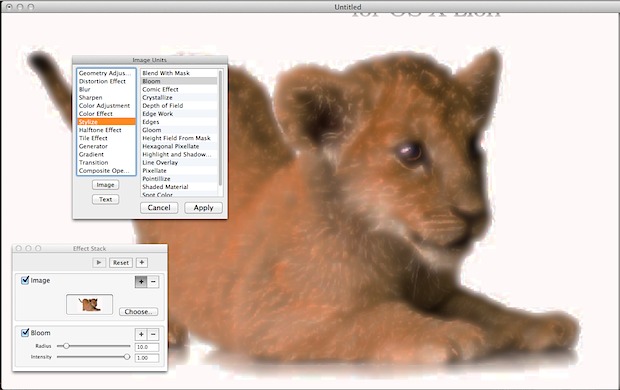
Core Image Fun House

Here’s another tip from Keir Thomas, author of Mac Kung Fu, a new book with over 300 tips, tricks, hints and hacks for Mac OS X Lion. It’s available from Amazon, and also in eBook form for all eReader devices, including Kindle.

Install the free-of-charge Xcode developer toolkit via the App Store (Apple gives it away to all those who’ve bought OS X), then open Finder and hit Shift+Command+G. In the dialog box that appears, type the following path:

/Developer/Applications/Graphics Tools/

Then double-click “Core Image Fun House”

This is a small program designed to showcase to programmers OS X’s built-in visual effects, but it also lets anybody apply the effects to images. It’s rather like options typically offered on the Filters or Effects menu of popular image editing apps.

When the program runs, you’ll be prompted to open an image. Once you do so, a floating palette window will let you choose effects to apply (if the palette isn’t visible, click Window->Effect Stack). Simply click the plus button alongside the Image checkbox to bring up a list of effects you can apply to the image. Most of the effects typically found in image editing apps are offered, and once applied, the program will also offer a variety of sliders that will let you adjust the intensity or nature of the effect.

When you’ve finished applying effects, click File->Save As and give the changed file a new name.

Set the Path Bar to be Relative to the Home Directory in Mac OS X Finder

Dec 3, 2011 - 6 Comments

Finder Path Bar from the Home Folder

Here’s another tip from Keir Thomas, author of Mac Kung Fu, a new book with over 300 tips, tricks, hints and hacks for Mac OS X Lion. It’s available from Amazon, and also in eBook form for all eReader devices, including Kindle.

Finder can show the path to the currently browsed folder (that is, something like Lion->Users->John->Music->MP3 collection). Just click View->Show Path Bar. However, there’s a slight problem—the path is listed from the root of the hard disk up to the current directory. If all you ever do is browse your home directory, then this information isn’t much use and the display can get bunched up very quickly.

Luckily there’s a secret setting you can use to cause the path bar to relate everything it shows to your home folder. In other words, should you browse your Pictures folder, the path bar will read something like John->Pictures, rather than Lion->Users->John->Pictures. See the screenshot up top for a before and after example.

Open a Terminal window (Finder->Applications->Utilities->Terminal) and type the following:

defaults write com.apple.finder PathBarRootAtHome -bool TRUE;killall Finder

The changes will take effect immediately. Should you wish at a later date to revert to the default path bar, open a Terminal window and type the following:

defaults delete com.apple.finder PathBarRootAtHome;killall Finder

Bonus tip: Files can be dragged and dropped onto any entry within the path bar to move the file to that location (hold Option before releasing the mouse button to copy the file instead).

Note you can also display the full path in Finder windows titlebars.

Change the Login Screen Wallpaper in OS X Lion

Dec 2, 2011 - 16 Comments

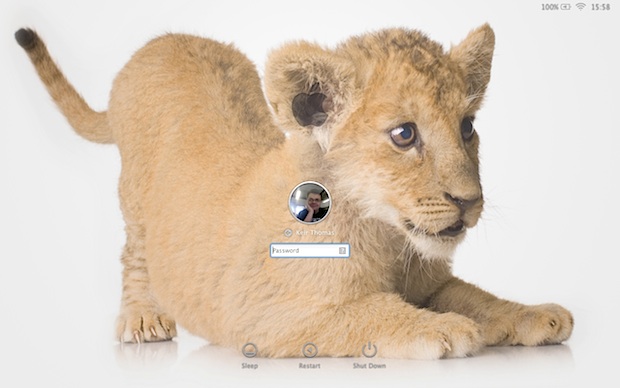
Change the login wallpaper in Mac OS X Lion

Here’s another tip from Keir Thomas, author of Mac Kung Fu, a new book with over 300 tips, tricks, hints and hacks for Mac OS X Lion. It’s available from Amazon, and also in eBook form for all eReader devices, including Kindle.

Here’s how to change the wallpaper that lies behind the standard login screen on OS X Lion (although not the login background you see if you have FileVault enabled, which cannot be altered). As such, this tweak is not for the fainthearted because it involves editing system files and will therefore affect all users of the system. Previous tips here at OSXDaily have explained how to change the login screen background in prior versions of OS X, but OS X Lion changed everything (again).

For OS X Lion, the file we need to replace is called NSTexturedFullScreenBackgroundColor.png and is located at: /System/Library/Frameworks/AppKit.framework/Versions/C/Resources/

As with the Mission Control and Dashboard wallpapers, the login screen wallpaper is actually a pattern that’s repeated from left to right, top to bottom. You can replace it with a similar pattern of the same size (256 x 256 pixels) or use a full-size image the exact same resolution as your monitor.

Note that because the white text and graphics of the login screen are overlaid on the wallpaper, darker wallpapers tend to work better than light ones.

How to Replace the Login Screen Wallpaper in Mac OS X Lion

  1. Open the image you’d like to use for the wallpaper in Preview and convert it to PNG format by clicking File -> Export. In the dialog box that appears, select PNG from the Format dropdown list and change the filename so it reads “NSTexturedFullScreenBackgroundColor.png”.
  2. Back up the original wallpaper image by opening a Finder window, hitting Shift+Command+G and typing the following path:
  3. /System/Library/Frameworks/AppKit.framework/Versions/C/Resources/

  4. Now copy the “NSTexturedFullScreenBackgroundColor.png” file to a safe backup location.
  5. Then click and drag your new image onto the Finder window so it overwrites the original. You’ll be asked to authenticate, so click the button in the dialog box that appears and type your login password when prompted. Choose to replace the original file when prompted.

That’s all that’s required, but you’ll have to reboot your computer for the change to take effect.

If you find the wallpaper pattern shrunk and repeated across the login screen rather than filling it, try using an image editor to create a new image of the same resolution as your screen (that is, 1280 x 800, for example), and then open your wallpaper image before copying and pasting it into the new image. Then save out the new image to the location mentioned earlier using the filename that’s mentioned.

To revert to the default login wallpaper, repeat the steps above to browse back to:

/System/Library/Frameworks/AppKit.framework/Versions/C/Resources/

And drop your backup “NSTexturedFullScreenBackgroundColor.png” image back in place.

Show a Full Size Window Preview in Mission Control

Dec 1, 2011 - 5 Comments

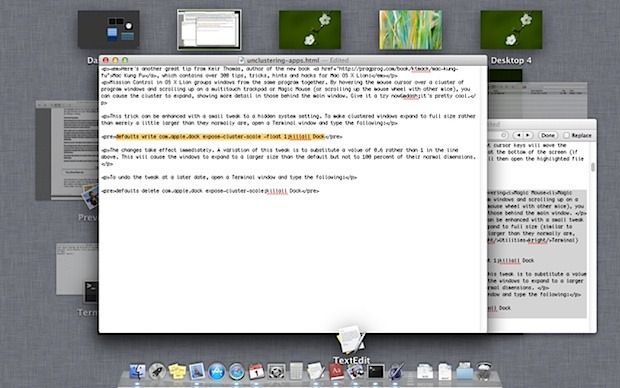
Full Size Window Preview in Mission Control

Here’s another great tip from Keir Thomas, author of the new book Mac Kung Fu, which contains over 300 tips, tricks, hints and hacks for Mac OS X Lion:

Mission Control in OS X Lion groups together thumbnail previews of windows from the same app. By hovering the mouse cursor over a cluster of these thumbnails and scrolling up on a multitouch trackpad or Magic Mouse (or scrolling up the mouse wheel with other mice), you can cause the cluster to expand, showing more detail in those behind the main window. Give it a try now—it’s pretty useful.

This trick can be enhanced with a small tweak to a hidden system setting. To make clustered windows expand to full size so you can see their contents rather than merely slightly larger than they normally are, open a Terminal window and type the following:

defaults write com.apple.dock expose-cluster-scale -float 1;killall Dock

The changes take effect immediately. A variation of this tweak is to substitute a value of 0.6 rather than 1 in the line above. This will cause the windows to expand to a larger size than the default but not to 100 percent of their normal dimensions.

To undo the tweak at a later date, open a Terminal window and type the following:

defaults delete com.apple.dock expose-cluster-scale;killall Dock

Like this tip? Don’t miss our other Mission Control tricks.

Enable Hidden Dock Stack Gestures in Mac OS X Lion

Nov 30, 2011 - 5 Comments

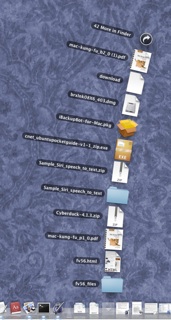
Mouse Spring gesture from the OS X Dock Here’s another awesome tip from Keir Thomas, the author of a new book called Mac Kung Fu, which contains over 300 tips and tricks for OS X Lion. He’s the same guy who discovered the iTunes “Now Playing” notification tip and the Quick Look select text tip. Here’s the tip direct from Keir:

This is a neat little hack that lets you activate any stack within the Dock by hovering over it and making the scroll gesture on a multitouch trackpad or Magic Mouse, or by rolling the scroll wheel on a mouse.

Do the same trick while hovering the mouse cursor over an app icon in the Dock, and App Exposé will activate. You will see open program windows for that particular app and—with compatible apps—the app’s document history. This is similar to the App Exposé option within the More Gestures section of the Trackpad entry within System Preferences.

However, in each case, once you’ve activated the secret setting, you need to scroll up to activate (that is, to make the stack expand), and then scroll down to deactivate (to make the stack hide again). You’ll need to scroll a substantial amount to activate the feature so that OS X knows you’re doing it on purpose and not accidentally. In other words, you’ll need to flick the scroll wheel up rather than just rotate it a few clicks.

To activate this hidden feature, open a Terminal window and type the following:

defaults write com.apple.dock scroll-to-open -bool TRUE;killall Dock

The changes take effect immediately. To deactivate this feature, open a Terminal window and type the following:

defaults delete com.apple.dock scroll-to-open;killall Dock