Search

Top Posts

Comments

  • David: unfortunately this photo has either been doctored or is a complete fake. hopefully its the former 6 monitors...
  • slatapolsky: I should have updated this earlier, but I went ahead and upgraded from our old Netgear router (G) to a...
  • Cory: @Dave: It looks like 3rd party developers have access to this functionality, but not all use it. For example, I...
  • ZAYIFLAMA YOLLARI: Zayıflama Yolları, diyet listesi,rejim
  • Dan: You’d definitely need a microphone, mic stand and usb audio interface for a start!

Categories

Recent Posts


Archives for Ask OS X Daily

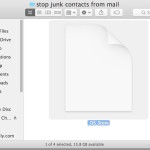
What is a .DS_Store file?

I frequently get asked about the purpose of .DS_Store files by Windows System Administrators who have a few Mac’s on their networks. Here is my explanation:

What is a .DS_Store file?

.DS_Store files are used by Mac OS X to store folder specific metadata information. They are created in every folder that Mac OS X Finder accesses, even network volumes and external devices. Folder level customizations are stored in the DS_Store file, things like custom icons, icon placement, icon size, window placement, list views, custom background pictures or colors, etc. DS_Store files are intended to be unobtrusive, which is why they have a . in front of their name, which indicates to UNIX file systems that the file is invisible. Most Mac users will likely never see a DS_Store file at all.

What happens if I delete the .DS_Store files?

If you delete .DS_Store files from the Mac folders, you will lose that directories folder specifics; things like icons, window placement, background pictures, etc, will be lost. While there is no significant harm (except losing the folder metadata) to deleting DS_Store files, unless you have a very specific reason to delete them, you should keep them in place since the Mac OS X Finder uses them. Deleting the files is really only necessary in some specific Windows+Mac shared networking environments.

Can I stop the DS_Store files from appearing on network drives?

Yes, by executing the following command in the Terminal:

defaults write com.apple.desktopservices DSDontWriteNetworkStores true

It is rather easy to stop .DS_Store file creation on network connections but it is rarely necessary, read for more information.

Subscribe to OS X Daily RSS and Follow Us on Twitter!

Do you come here often? How about subscribing to our RSS feed, or follow us on Twitter! Both feeds will give you up to date posts directly from OS X Daily, so check them out.

rss_logo

Subscribe to OS X Daily via RSS

Twitter-256x256

Follow OS X Daily on Twitter

Our Twitter account is pretty new but it is updated live as any new post is created, so definitely follow us! If you’d like to get ahold of us or submit a tip, you can email the staff of OS X Daily at osxdaily.com@gmail.com

What shell am I using?

I’ve gotten this question multiple times and the answer to what shell you are using is easily discovered by typing the following command at the command line:

echo $SHELL

This command works across all unix platforms, whether it’s Mac OS X, Linux, or whatever. The command will report back something like:

/bin/bash or /bin tcsch

For the vast majority of Mac OS X users, you will be using the Bash shell by default. You can set it to another shell you want rather easily by changing the preferences inside the Mac Terminal.

mdworker – What is mdworker?

mdworker mdworker is short for ‘metadata server worker’ and if you’re still confused don’t feel bad. mdworker is basically the core technology behind Mac OS X’s awesome search engine Spotlight, it spiders meta data from your Mac and its files and creates a readable index so that you can find things practically instantaneously via Spotlight (command-spacebar). Here are some common questions and answers regarding mdworker, inspired by my recent switcher friend Daryl, who tweeted me asking why mdworker is taking up so much CPU.

What is mdworker?

As mentioned above, mdworker is part of Spotlight, which is basically a search engine for your Mac (think Google but locally, for your own files).

mdworker is slowing down my Mac with 60% CPU usage!

Yes, mdworker will sometimes cause your Mac to be slow and have high CPU usage, this is totally normal. You should just let it run until it’s finished, and CPU usage will be back to normal.

How long does mdworker take to finish?

This is entirely dependent on the last time that your Mac filesystem was indexed and the amount of new files since indexing. If you just plugged in a loaded external hard drive, expect it to take a while. 15 minutes to well over an hour are not uncommon amounts of time for mdworker to run.

Should I kill mdworker? What happens if I kill mdworker?

No you shouldn’t kill mdworker, because it’s doing you a service by indexing your Macs contents. If you do kill mdworker, your Mac filesystem will not be completely indexed and it’s searchability will be greatly reduced until mdworker runs again and completes a full indexing. There is no serious problem with killing mdworker, it’s just not recommended.

How can I stop mdworker or disable mdworker?

Since mdworker is part of Spotlight, you’ll have to disable Spotlight to disable mdworker. Again, this is not recommended, but if you want to disable mdworker here’s a how-to guide:
How to Disable Spotlight

Ask OS X Daily: How do I force open a file?

Reader Mathew Prairen asks a common question about opening files that has a remarkably simple answer:
“I have a few image files from my PC that Preview refuses to open, is there any way I can force Preview to open these images?”
If you want to force open any file with virtually any program, simply hold down the Command+Option keys while dragging the file onto the applications icon. There’s no guarantee the program will like the file you are forcing it to open, but it will try anyway.

Ask OS X Daily: How do I lock a Mac OS X workstation?

Reader Adam Smith writes in with the following question: “I am a new Mac user, and I love OSX! I have a MacBook Pro 15″. I would like to know though, is there a way that you can lock a MAC? Like in Windows, you can hit the shortcut “Windows Key + L”. Is there something similar in Mac or is there a script you can write? It’s just so I can leave my Mac while its doing stuff, lock it, so that no one else can play around with it. Thank you for your time.”

Yes there is! Mac OS X doesn’t have an active workstation lock quite in the same manner as Windows, but you can still lock your Mac’s workstation and require a password for all users to access the machine. Here’s how:

Read more »

Ask OS X Daily: “How can I password protect a file?”

Hello all you loyal OS X Daily readers! Recently we have been receiving a large number of Mac OS X related questions in our inbox. Normally our staff would try and respond with an answer to the best of our knowledge. However, sometimes we get a question we absolutely do not know the answer to. We think it would be fun to run some of these by the many regulars who stop by the site. Please help us with the following question, and feel free to continue to email us with any Mac OS X related questions.

Read more »