
Changing your Mac’s Computer Name
 Want to change the name of your Mac computer? You can change the identified computer name of a Mac easily from the Mac OS system settings. This not only changes the Macs computer name, but it also changes what the name of the Mac is as identified by other users on a network, and by default it will adjust the name shown at the command line prompt in Mac OS too.
You can change the name of a Mac at any time and for any reason. Changing the computer name of a Mac is really quite simple, and the setting location is within the file sharing portion of system preferences, whether you use file sharing or not. Let’s walk through this easy process to change the name of a Macintosh, you will find it’s the same in all versions of Mac OS X.
How to Change a Mac Computer Name
- Go to the Apple menu and launch ‘System Preferences’
- Click the ‘Sharing’ icon
- Type in what you want your Mac’s new computer name to be
- Close ‘System Preferences’ for the setting to take effect
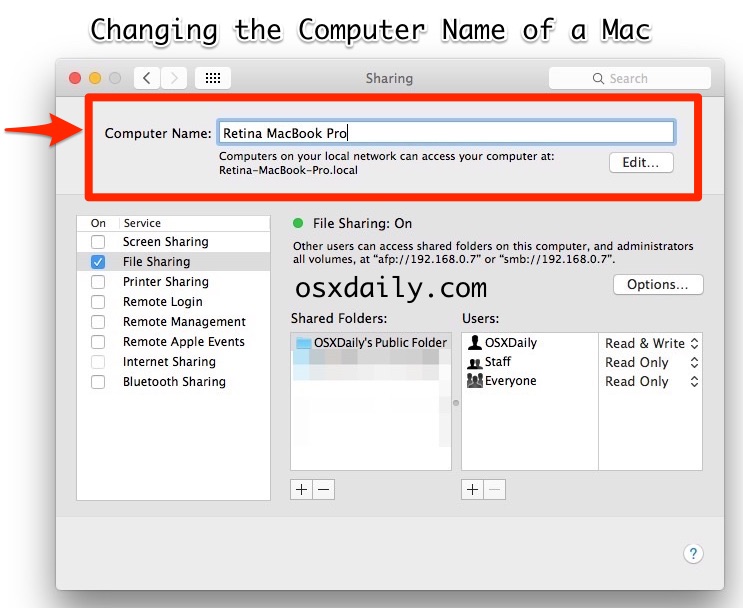
Name your Mac whatever you want, but you’ll want to keep it distinguishable from other Mac’s on your network.
Also keep in mind that since the Mac computer name is displayed to other Macs on the same network by default, you’ll want to choose an appropriate name to identify the computer and differentiate it from others.
The default naming convention for a Mac is usually something like “Username’s Computer”, for example “Paul’s MacBook Air” or “Bob’s iMac”. Whether or not you want to leave a personally identifying name within the computer name is up to you, but if the Mac is frequently on a network with other Macs and other computers, naming the Mac something obvious is generally a good idea. One common approach for naming Macs, computers, and hardware in general is to label it quite literally as according to the model of the computer itself, something like “Retina MacBook Pro 15” or similar. You’ll find that many corporate network naming schemes are often less legible with names like
 Adjusting the Macs name this way will also change what you will see in the remarkably basic “Computer Name” screensaver. Someone recently asked me how to change their Mac’s computer name because they were annoyed by the extra lengthy default in that ‘Computer Name’ screensaver. Although this individual was concerned about their screensaver, changing your Mac’s name is also important because that is how others will find you on a network share, and it’s also what you will see by default in the Mac OS command line.
Another thing to think about when changing the name of the Mac is the command line. If you’re a frequent Terminal user you might want to consider how it will look with the default settings in the Mac OS command line, to do that you just need to launch a new Terminal window and look at the prompt. By default, the computer name appears as part of the prompt name at the command line, though that can be changed separately from the general computer too if desired.
Many Mac users probably know how to change their computer name already, but for those who don’t, now you do.






The last person who used my iMac used her personal email and password to purchase apps from the Apple store. Now I can’t get the updates because I don’t have her password. Any suggestions? Thanks!
Log out of her account on the Mac, and log in to your own account.
Thanks it works
Thank you very much. That was simple, quick and easy :)
Thank you so much buddy. I searched every option to change name of my mac, but didn’t went into sharing because I don’t use it.. But see, it was so important to check sharing folder. Thank you once again. Love Ya. Great effort..!! Thumbs Up..!! :-)
After a clean reinstall of OS X, the name of my Computer changed to Mel’s MacBook Pro Retina (2). That bugged me because I only own one such machine. I asked about getting rid of the :”(2)” when I visited the Genus Bar on another issue. Two people there told me that the name computer name can not be changed. Then I found this thread and changed the name with ease. This confirms my belief that not all Geniuses are created equal.
nice tks a lot
Padlock!!! I was being blind, thanks for your help.
I changed my computer name in Sharing and accounts. I checked my computer name in Terminal systemsetup -getcomputername and all of that has the correct name.
However, when I use my laptop to turn on a wifi hotspot the name on the wifi for my iPad to connect to is my full name, and so anyone close can see that when they search for wifi. Any ideas?
Thanks, so simple, but I forgot and was looking for that setting for ages!
you haver no idea how much that has helped me !
Very good post, simple and easy to understand. Im a tech guy, and I know its hard to explain stuff, but this was really good and helpful! :) Good job!
I mean ‘Why can’t I download stuff?
I’m just wandering why can’t I download thing. It needed my Name and Password after putting them in I can’t submit it even if it’s the right name and password.
Why is can’t I download stuff?
THANK YOU SO MUCH!!!!
Before now i have looked up all the items in System preferences except Sharing thinking its not gonna be there. Thanks, its very helpful
@Roshan make sure you quit the terminal first and open it again.
The name in the terminal is still the same as before…. Why is it so???
Thanks and helped me change it. I will need to tell/teach my friends who asked me this question to solve it!!!
Hello,
Just want to thank you for all tips and information that help me so much with my Mac. I find anything and everything here, this site is really Great – you rock!
best
Even easier.
Open Terminal and type in:
systemsetup -setcomputername NEW_COMPUTER_NAME
if you want to check what the name currently is, type:
systemsetup -getcomputername
That’s it!
Thanks for sharing this issue! I really appreciated!
from terminal:
sudo hostname YOURPREFERREDHOSTNAME
cheer
Hi. I changed my Macbook’s name but somehow created 2 users. My original user is now not what comes up after I retarted my computer. All my files are still available but most are duplicates. How do I fix this problem? The Geek Squad at Best Buy have another person w/the same problem and they don’t know how to fix it either. Thanks for the help!
Ann
Thanks
What if I want to change the name under /Users? the name that’s with no capital letter. Any way to change that name?
@Jen If your talking about changing the folder name, it’s not easy nor recommended.
See this article from the apple kb – http://support.apple.com/kb/ht1428.
As per the article, the easiest and recommended way to do that, is to create a new user account (admin or regular depending on needs) and then transfer all users folder items to the new user folder.
Hi, I have 2 macs at home, an iMac and a MacMini, which are also the network names I gave them, no problem here. Now, after a few days, I get a message on the Mac Mini saying: “name already in use, computer renamed to MacMini-2”, aarrghh!!! So a number of applications can’t find ‘MacMini’ anymore and I have to change it back manually.
I suspect this has something to do with the computer waking up from standby, but I don’t like to turn the computer on and off all the time or leave it running all times.
What to do??
Thanks
I’m using Snow Leopard and “hostname” in terminal returns the name I attempted to change to but System Preferences->Sharing still shows the old name. What’s up?
TIA
[…] transferring data on a LAN, you can use another Macs hostname or IP […]
Hi,
Thanks for the tip. I have a quick question in addition to the help you’ve already provided. I am not tech savvy. In fact, I’m super inept when it comes to this kind of thing. Anyway, how do I change it from automatically filling in addresses and phone numbers? Does that make sense? We moved, and whenever we visit a website where we’re required to type our address and phone number (ie: online shopping) it puts in our former information. Or, if I can’t keep it from entering that kind of information, how do I update the info to keep it current?
Thanks!
thanks a lot for the info i’m new on mac.. :)
Thanks for your post. :-)
thank you so much
im new to mac so yah hh
[…] is even googelen een optie ? Systeem naam SL veranderen Wellicht zal dit helpen: Systeem naam SL veranderen direct GA-G41M-ES2L————–Intel e6550 3 GB kingston ram———–1x 320gb & 1x 250gb hdd […]
In a pc this is like skinning a shark alive
In a PC, just right-click on My Computer, choose Properties, click on Advanced System Settings, Computer Name.
No blood in the water.
I need to get a ‘ (apostrophe) in the computer name of my mac. It doesnt allow me to type it. How can this be done?
Thanks a ton!! Your answer was intelligent. I went some where else it said (Enter a new name at the top!) Sadly this was no help. :P Thanks again!!
So I just reinstalled my macbook pro (snow leopard) and typed in the wrong name on my harddrive. Is there a way to rename it without reinstalling again? So annoying to see the misspelled name in finder all the time!
Thanx
/Alx
[…] Mac OS X, Tips & Tricks – September 6th, 2010 – No Comments For most people if you want to change your Mac computer name you just do it through the Sharing system preference, it’s quick and very easy. For those of […]
Sorry strange font here – there should be two minus signs before get or set – ie: – – set or – – get. No space between them.
I’ve been trying to find out how to do this for ages. This seems to work fine on 10.5.8:
In the Terminal use this, but please use ‘man scutil’ before you do anything.
a-macbook:~ matt$ su
Password:
bash-3.2# scutil –set ComputerName b-macbook
bash-3.2# scutil –set LocalHostName b-macbook
bash-3.2# scutil –set HostName b-macbook
This seems to change the hostname in the terminal and your System Preferences. I can connect from other computers on my home network fine using the new hostname.
Please don’t do this at work – play with it at home first.
My router (a BTHomeHub) still used the old hostname for my Mac but I think it uses the MAC address of the network card to identify my Mac – I am probably wrong here as I am not a network guru, just a lowly programmer. I changed my hostname on the hub manually, although everything worked without me doing that (which is why I think it uses the MAC address for previously connected computers? Anyone know?).
Please only try this if you have another computer nearby that you can use to get back on the internet and work out how to undo what you did, or use scutil to revert to your previous settings (ie write down your old hostname, or save it in a file somewhere, along with the 4 commands above).
NB scutil –get HostName returned nothing before I set it, to revert to your previous settings it may be sensible to set it to an empty string.
I couldn’t find a way of doing this in any of the LaunchDaemon files or anything in /System/Library or /Library by hand editing the XML.
Anyway, this worked for me after reboots on everything here.
Hope this helps.
thanks
so simple but very useful
So simple, yet so easy to miss. Thanks.
Now I have DaddyMac and MiniMac all intertwined. And none of my neighbors know whose they are.
Now how to I change the Itunes name? Okay that was quite easy. It’s in itunes Preferences
Thanks
for some fricken reason,
i don’t even have the frciken sharing icon!
*sigh*
Hehe, *lol* – I have convinced several “PC”s and netbooks to run OS X flawlessly and probably know more about OS X inner workings than most typical “Mac users”, but THAT’s something I always forget… Now my new little Acer Revo Hackintosh does not any more have to bear the burden of being called “Admin’s Mac”… ;-)
Very useful
What a numpty I’ve been… Have searched HIGH & LOW on how to do this and didn’t realise how simple it is..
Many thanks,
Jon……..
http://www.by-jc.co.uk
Freelance photography & Video
Thanks for help. It worked for me while changing system’s name in my computer
I really appreciate the website I credit the administration @ oxdaily.com for helping me out with getting to know the OS X Snow leopard. Thank you!
Thank you! So much easier than any of the other suggestions I have seen! Worked like a charm!
Hey, I have a Mac running Snow Leopard, and whenever I connect to my home internet (via PPPoE) it changes my computer name to xyz.netvigator.com – does anyone know how to stop this? It is driving me insane because i get a new computer name everyday when I connect to the internet, and none of my home networking stuff is working.
Much Thanks
I tried the hostname command and that changes the name. But after a reboot it all looks as it was before.
My computer name in System Preferences/Sharing is a perfectly logical name which I prefer to use. BUT when I open Terminal and for instance give the command “hostname -s” I get the totally weird name – “1e8bf16cb6904c6”. I don’t want to see this name anymore! You can’t ping it, you can’t do anything whith it. To ping my computer I use the name found in System/Preferences and that works fine.
I use Mac OS 10.2.6
Check if your hostname has spaces in it. Mine did and would print out a string of numbers in the terminal. I changed it to something without spaces and haven’t had a problem since.
I didn’t know it was that simple.
Thnx man.
@jichi Wow, ok so I was assuming the std unix/linux cmd wouldn’t work. I was wrong :)
So here it is, update your hostname via the cli:
$ hostname
your_hostname_spits_out
$ sudo hostname new_hostname
(Even an account w/full Admin privs will need to run the cmd w/sudo privs)
$ hostname
your_new_hostname_spits_out
@jichi I was wondering the same thing. If you find out, please let me know too.
Cheers,
Brennan
Perfect! I needed to do this because it got changed when I updated to leopard. Thanks!
thank you for this posting. I had a Macbook air which had that screensaver, but I always wondered why does it still show up that name and how do i change it? I am really glad that now whenever somebody sees my computer in screensaver mode, they don’t think that it’s someone elses.
Is there a way to change this attribute under terminal?
Is there a way to change this attribute under terminal?
Thank you so much for putting this out there. I am so glad that I don’t have to stare at my ex-husbands name as my macbook’s name. I love you. God bless..
P.S. one good thing did come out of the relationship… I got the Mac!
I want it back… lol
[…] Mac (a Macintosh LC) was also named Avalon, so I consider this MacBook Pro a part of its lineage. Changing the computer’s name was very easy, a task that’s never hard on any operating […]
I am a newbee myself but If you want to change the short name in Finder you probably should follow these intructions:
http://support.apple.com/kb/HT1428
Be sure to enable root login and then login as “other” with “root”/password
@melissa: Renaming your home folder is surprisingly easy. You can literally select it in Finder, click return, and overtype it. Do not do this, however! Doing so will result in a new user account being created the next time the computer is started. This is clearly not what you are after.
I did a quick search, which led to an article which linked to two useful pages. The first, http://support.apple.com/kb/HT1428?viewlocale=en_US, is Apple’s 40 step walk through on changing the user short name or home directory name. The second, http://homepage.mac.com/frakes/ChangeShortName.html, is a simpler alternative to the 40 step solution.
I hope these links prove useful.
David, thank you, thank you, thank you!! I just got my new MacBook Pro yesterday. I am currently living in Vietnam, the guys at the computer store wanted to setup my computer for me, and they misspelled my name when setting it up!!!! I was so angry, they told me they would fix it and I would lose my data that I was up until 5:30 am moving over from my old PC. I searched the web and found this page, I followed your link for your “changeshortname” application, then saw your instructions on changing for the current operating system. I nervously followed them on my 1 day old Mac, and voila!!! Everything worked out perfectly!! Even my home/finder folder is correct now. I’m so happy you wrote that article for MacWorld, it saved my butt today!! Thanks again for the great instructions.
I just came back from the “genius” bar and got off the phone with Apple help. I had to explain to the guy on the phone that when you name your computer, the name is permanent! Anyway, the genius at the store upgraded my system and named it “administrator.” I have changed the Computer Name in all of the places listed above (I’m not an idiot) and still the finder and the House icon say “administrator.” So without speaking down to me, can someone please help me change this? Because clearly the genius and the Apple care guy on the phone cannot.
I just this minute set up my new mac book pro and after i clicked ‘continue’ it said choose a name (this cannot be changed later) – i think this is what your refering to. I just WISH i’d payed more attention as it took my computer name from the first part of the email address which is registered to iTunes. !! GRR
I have a macbook pro 10.5.6 after changing name as you stated, it changes it for the computer screensaver name, but the old name is still what shows up in the sidebar, which is what is broadcast to other computers wirelessly.
help with sidebar name change please??
@Marc: the computer name might be grayed out because the settings could be locked. Click the lock icon in the lower-left side of the window. You might be asked for the password… and voila! now the computer name can be edited.
@Marc: the computer name might be grayed out because the settings could be locked. Click the lock icon in the lower-left side of the window. You might be asked for the password… and voila! now the computer name can be edited.
Finder, System Preferences, Sharing
Change Computer Name
~and/or~
Finder, System Preferences, Accounts
Change Name
I have just cloned a mac onto another mac and the computer name is greyed out. I cant change it and it is driving me insane….anyone got any ideas?
Hello, Sorry for this late reply, but It may also help anyone else who’s scurrying for an answer to this question ;)
The first thing to check, is if your account has Administrator privileges. If so, then move on to the next check. If not, you CANNOT do this, and you have to talk to your administrator. Kids – This may be your parents so….. Good luck with that.
The second thing to check is if the Padlock is Unlocked. If its not unlocked, click it, enter your password, and it should be unlocked.
Once these are correct, change the computer name, and lock it again. This prevents unauthorized access to settings you may not want changed.
Best of luck! :)
I forgot about the padlock. Its greyed out because you’re not logged in a an admin! Thanks M1XC, you were a great help.
Check the padlock icon bottom left, if it is locked you need to unlock to make changes :)
Thank you very much. I just picked up a used MacBook Pro 17″ computer from my brother-in-laws company. it had his companies name all over it… yet it is now my computer… was wondering how I could get it to reflect the new owner and this did the trick. Thank you again. Easy yet helpful.