
Four Great Uses for Preview App Full Screen Mode in OS X
 Preview is the default application to open just about any image or PDF file on your Mac, it’s a great program that blows anything comparable in the Windows world out of the water. One of the greatly underused features of Preview is the ability to view images and PDF files in full screen mode.
Entering full screen mode is very easy, it’s just a matter of hitting “Command-Shift-F” while a document is open in the Preview app.
If you’re wondering what to do next, here’s some more information and four great uses for Preview’s slideshow capabilities:
Entering into Preview App Full Screen slideshow mode:
First, let’s get into Full Screen mode:
- Open an image or PDF file in Preview
- Hit “Command-Shift-F” to enter the slideshow mode
- Navigate a series of images, or pages in a PDF document by using the arrow keys
- Exit full screen mode by hitting the Escape key
Four great uses for Preview’s Full Screen Slideshow mode:
Now that we’re in Full Screen Slideshow Mode, you can apply some of these handy uses to the feature:
- Create an instant and very attractive slideshow of an image collection
- Browse through large amounts of images quickly
- Read lengthy PDF’s at a higher resolution and in a distraction free environment
- Use Full Screen mode to create a quick and simple presentation using a PDF file or collection of images
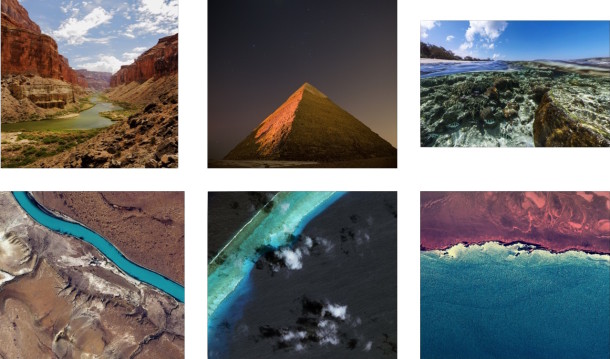
This screenshot shows what a series of images looks like:
The screenshot below demonstrates what an individual image in Preview’s Full Screen Slideshow mode looks like, lined with borders for the presentation style:
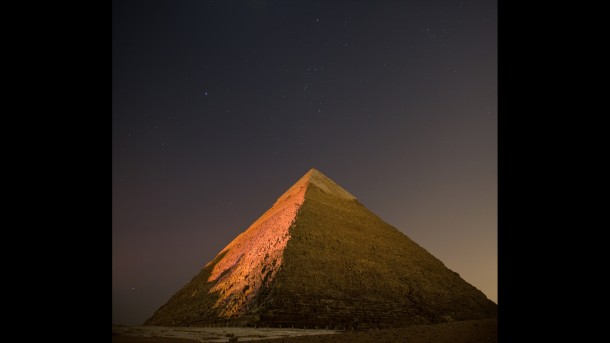
This works with images of all kinds that are compatible with Preview app, and PDF files too.






[…] across this when looking for a way to use Preview in full screen (CMND + Shift + F, Esq to quit) Four great uses for Preview’s Full Screen mode – OS X Daily […]
Actually Preview can navigate through multiple images in a folder – all you have to do is select all of the images in the folder (CMD+A) and then open them all at once in Preview. Preview is smart enough to recognize that this is a set of images and will allow you to navigate them with arrows – just like in IrfanView, ACDSee, etc… Of course – you can combine this with CMD+SHIFT+F in order to have a full-screen experience.
I have noticed the same lack of features. I wish preview would work straight on directly level instead of dragging all files to it manually. I also wish it would be possible to go back and worth with simple key presses in full screen mode – a feature which lacks in Finder preview at least. Also in finder preview you can’t open it full screen with a key, you have to click the full screen “button” on the screen instead.
Last time I tried Xee it worked only on Tiger – in Leopard it showed always a complitely white screen when in full screen mode. Maybe they have made an update by now.
I love OSX, but Preview blows. You should be able to go through all images in a given directory and navigate through them easily, rather than having to select every image you need to view before loading Preview.
allow me to clarify myself. if you think preview blows every single image app for windows out of the water then you obviously have never tried irfanview. and if you haven’t, youre the quite the conceited fanboi. hooray for fanboi blog sites
>> it’s a great program that blows anything comparable in the Windows world out of the water.
are you kidding me? irfanview? preview is a joke.
Try Xee! It opens entire directories of images (but not PDF’s it seems…) and lets you zip through them with pretty good controls, none of which are on-screen, ruining the image for you. Read more here:
http://www.macupdate.com/info.php/id/19978
I think of it as IrfanView for the Mac, at least in the viewer capabilities — I know IrfanView has a lot more to it than mere viewing.
I love my mac also and I love preview. it’s much faster than windows image viewer, but one of the big problems is the leek of showing animated gifs! even the iPhoto doesn’t show the animated gifs. it’s really disappointing :(
and one of the other things which I always face it is the ability to zoom in the slideshow (or full screen) mode.
I hope they fix them in the Leopard.
Please. Even Windows’ built-in image viewer kicks Preview’s ass. I love OSX, but Preview blows. You should be able to go through all images in a given directory and navigate through them easily, rather than having to select every image you need to view before loading Preview. Booooo.
This is a nice feature, but you can do this in the Finder as well.
Select some images in the Finder, right click and choose “Slideshow”.
Move the mouse to access the controls.
Works identical for all image formats that the Finder can render previews for.
Preview is good for some things but it is no replacement for Aperture in terms of managing massive amounts of photos and tweaking them
Nice idea about using it for presentations
Nice feature :D
– Does anyone know how i can delete a picture during the Slideshow?
But you can’t zoom (can you?) once you are in full screen mode?
It fits the PDF by height to the screen.
I want it by width, otherwise it is too small.
I had the same problem. I downloaded Skim, which is ideal for what I (and you, by the sounds of it) want.
Here’s the link if anyone is interested:
http://skim-app.sourceforge.net/
Another nice trick I just discovered: You can open pdf’s in google chrome, in which you can also go into fullscreen mode, and zoom in and out with apple+ and apple-
Quite handy if you have Chrome already and don’t want a separate program to view pdf’s.
I’ve always used Preview though, it’s very good for most uses. It’s just the fullscreen zoom I’ve always missed.
I love preview. it’s replaced acrobat reader for me full time. It’s also been the perfect Keynote companion. Until PowerPoint is faster (read: universal or written for intel), my Preview.app presentations are fast, simple, and straightforward.
I love preview. it’s replaced acrobat reader for me full time. It’s also been the perfect Keynote companion. Until PowerPoint is faster (read: universal or written for intel), my Preview.app presentations are fast, simple, and straightforward.
Oh, please. I love my Macs, but I can think of at least half a dozen free programs for Windows that absolutely destroy Preview. FastStone Image Viewer, Picasa, and IrfanView to name but a few.
http://www.faststone.org/FSViewerDetail.htm
http://picasa.google.com/
http://tinyurl.com/27j9v8
In fact, I’ll go so far as to say Preview is one of the most disappointing and anemic programs on the Mac platform compared to its Windows (and even Linux) counterparts. I mean, Hello! It’s 2007 — how hard can it be to add dual monitor support?
Hopefully Preview’s many shortcomings will be addressed in Leopard. Until then, I’ll continue to use the slower, but much more effective Aperture.
I LOVE this feature of Preview. I use it frequently to proof layout and sheet music projects in PDF before sending; makes for a cheap, simple and focused environment for giving everything the pre-flight looksie.