
Disable “application downloaded from the internet” Message on a Per-App Basis in Mac OS X
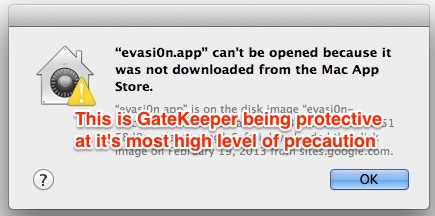
Mac OS X warns users in a variety of different ways if they have downloaded a file from the internet to their Mac, with a popup message that says something along the lines of “[NAME] is an application downloaded from the internet. Are you sure you want to open it?”, or even “this application can’t be opened” – both are a precautionary measure aimed at preventing more casual users from inadvertently launching something malicious or unintended. While this is a great feature for many mac users to keep on, some advanced users may be annoyed with it.
How to Disable Application Downloaded from Internet Warning on a Per App Basis in Mac OS X
If you want to, you you can remove the “[NAME] is an application downloaded from the internet. Are you sure you want to open it?” on a per application basis by using the following command string in Terminal, pointing the path to the actual location of the application triggering the warning itself:
xattr -d -r com.apple.quarantine /Path/to/application/

Removing the Open Warning from All Files in a Directory
If you want to remove the that warning message from all in your ~/Downloads directory, you can type the following command:
xattr -d -r com.apple.quarantine ~/Downloads
Remember this method only effects items you choose to specify.
If you want to disable this message from ever appearing again for any applications downloaded, learn how to permanently disable the file warning dialogue.
Also, more modern versions of Mac OS X can simply bypass GateKeeper on a per-app basis, or even turn off GateKeeper and unidentified developer warnings to get similar results.
All methods work, so use which is right for you and your specific situation.






I would like to run this command dynamically means run through the code. Its not working through either system or task process. Can anyone help me in this?
Perfect! Thank you.
I am struggling to delete the app which I downloaded from the internet, I have attempted to delete it in various ways (deleting through admin or pressing on it for a while till it jiggles) yet it wouldn’t let me delete it. This app is not found in applications either. Any other ideas on how to delete it? (I also get the warning of “…. application was downloaded from the internet…”) Please help?
THANK YOU SO MUCH this was driving me absolutely crazy! It just started doing it out of the blue for torrents for some reason. Sanity saved.
For 10.8 I had to run like this as other user stated. Make sure you put .app at the end of the path. It also required me to type in my mac password to run it.
sudo xattr -d -r com.apple.quarantine /Applications/skype.app
[…] Apparently, marking the file with an extended attribute wasn’t enough for this ‘security’ feature, so Apple decided they should also keep a log, dating back all these downloaded files. That is a SQLite DB that OS X use to show the download URL in the alert window when the file is executed. And it keeps information about downloads by all kinds of applications (skype, cyberduck, email attachments…), not just browsers. This is a mechanism supposed to protect us users form unintentional execution of malware. Apple didn’t seem to mind that the DB will continue to collect data even after file quarantine was turned off for files and apps. […]
[…] list even works if you have file quarantine turned off for files and apps, thanks to inket for verifying […]
I keep getting a “no such file.” I believe this is because I am using an incorrect path to the application? Is there a quick and easy way to find the correct path? I tried /hard drive/applications/firefox and every conceivable variant to no avail.
worked for me on 10.7.3, but i had to preface it w/ sudo:
> sudo xattr -d -r com.apple.quarantine /Path/to/application/
This don’t seem to work on 10.5.8 as there is no switch for recursivity.
To be more precise, it will fail because 10.5.8 doesn’t understand the -r option. There is no man page, but there is help (works on 10.6 and 10.5) using:
xattr -h
This command will do it under 10.5
find folderpath -print0 | xargs -0 xattr -d com.apple.quarantine
where folderpath is the folder you want to recurse into eg:
find ~/Downloads -print0 | xargs -0 xattr -d com.apple.quarantine
[…] OS X Daily has provided a […]
DOESN’T WORK IN LION.
Yet another defect in this POS. Lion is a huge regression and massive embarrassment to Apple.
What an affront to customers.
Works in Lion for me. Required admin login in Terminal. Quit yer whinin’, What Haveyou.
option -r not recognized
usage: xattr [-l] file [file …]
xattr -p [-l] attr_name file [file …]
xattr -w attr_name attr_value file [file …]
xattr -d attr_name file [file …]
The first form lists the names of all xattrs on the given file(s).
The second form (-p) prints the value of the xattr attr_name.
The third form (-w) sets the value of the xattr attr_name to attr_value.
The fourth form (-d) deletes the xattr attr_name.
Perfect! Now how do you reverse this if needed?
Thanks it works !!!