
Rotate MacBook Display Orientation
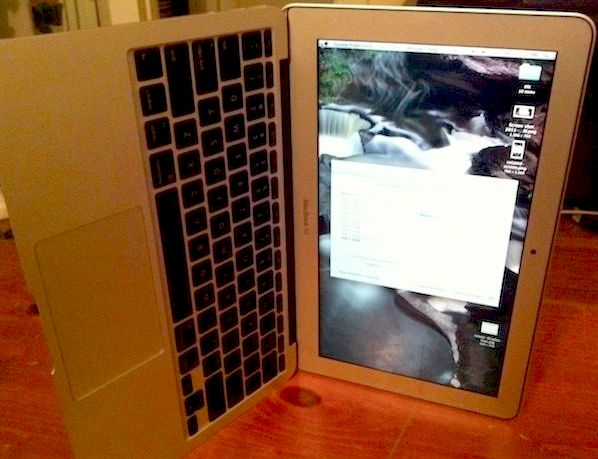
Want to use a rotated display on a MacBook? You can do exactly that, and the same way that you rotate screen orientation on a display connected to a Mac can be done with the built-in display of a MacBook, MacBook Pro, or MacBook Air (pictured).
How to Rotate the Built-In Display of a MacBook / MacBook Pro / MacBook Air
Rotating the internal display of a Mac laptop is quite simple in OS X, here’s what you’ll want to do:
- Launch System Preferences from the Apple menu (quit it if it’s already open)
- Hold down the Command+Option keys and click on “Display”
- Look for ‘Rotation’ on the right side of the Display window and take your pick of the display rotation options
- Standard – the default display orientation without any rotation
- 90 – rotate 90 degrees clockwise and turn the display on it’s side
- 180 – flip vertically, the screen will look upside-down if the Mac is right-side up
- 270 – rotate 270 degrees clockwise, turning the display onto its other side
- Choose your rotation option to immediately see the change
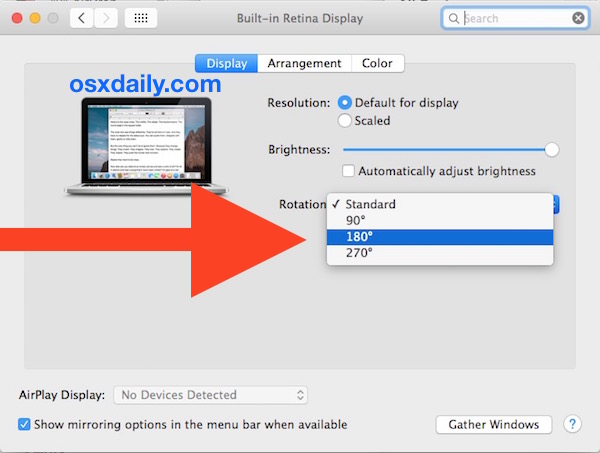
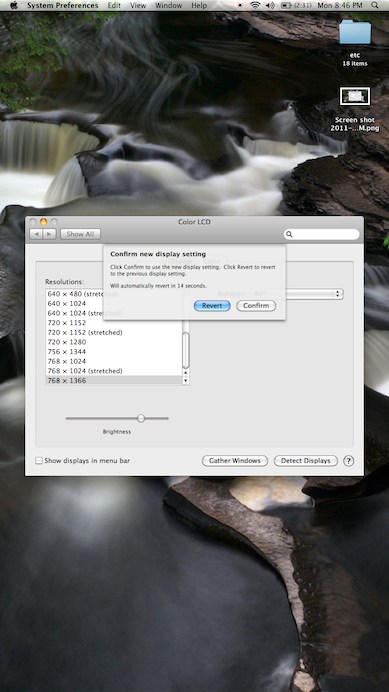
After the display has been rotated, the resolutions adjust from width x height to height x width. For example, 1440×900 would turn into 900×1440, scaled or unscaled, depending on if the Mac has a retina screen or not.
Here’s a screenshot taken with the display on a MacBook Air set at 90° rotation, for example:
If System Preferences is already open then holding down Command+Option doesn’t seem to make the Rotatation menu appear. If you run into that, just quit out of System Prefs and relaunch it.
The rotation of the internal display will stay in effect each time you reboot the MacBook, but if you run into any issues you can boot into Safe Mode (or reset SMC) to dump the preferences associated with display settings and get back to normal again. Rotating the built-in display of a MacBook, MacBook Pro, and MacBook Air works in all versions of OS X.
Note: Just in case you couldn’t imagine why a user would want to do this, it’s actually fairly handy for some workstation scenarios. And indeed, some users use their MacBook this way, as this does have some practical use, as you can see in a recent Mac setup post showing a MacBook Pro sideways next to a Cinema Display.






On a MacBook Pro (Retina, 15 tum, late 2013) with Sierra this kinda works. When rotating from normal the screen goes blank. After forcing reboot it starts up correctly in rotated mode. Setting rotation backs to normal works.
Tried couple of times without luck… I could have swored it worked when only holding down the option-key, but I can’t replicate. But it now works now my MacBook Air… holding down cmd + option when clicking Display in the System Prefs.
I’ve found that it’s important that you quit System Pref before trying… so quit System Prefs first. Reopen. Hold down cmd + option + click Display.
Or… quit System Prefs first, hold down cmd + option + click System Prefs. Keep holding down System Prefs then click Display.
Believe that the ‘Quit’ is the crucial thing here…
I have the issue that when trying to use cmd and option on my MacBook Air that ‘detect displays’ comes up in the bottom hand corner of my system preferences-displays menu, however when I select it nothing happens, like, nothing at all. I keep holding down cmd and option but the button is there and goes dark grey when I click it, just nothing opens. Does that also happen to you?
On Rotation Screen Struck due to Display Preference Error for OS X
So Basically i had tried to reinstall the whole OS X through Reboot + cmd R; It did not work out for me. After going through the Apple Discussion board, I tried to Safe Boot; shutdown 10second, reboot, Soon After startup sound Shift, Enter Safe boot and restart. It worked out, Problem Solve.
to my understanding, it refresh some cache and change the preference to normal.
Hope this can safe some user. Wasted 3 days of my Life.
P.S. Maybe that 1 dollar is worth it for the Rotation App…
Alan, rotating the MacBook internal display this way works fine in OS X El Capitan and OS X Yosemite (and prior versions of OS X too). It sounds like you experienced some sort of preference corruption, but as you found there is a solution through booting into Safe Mode or by resetting SMC, neither should require OS X to be reinstalled as it’s simply a preference setting in OS X. Regardless, certainly worth noting for those troubleshooting any similar but rare issue – thanks for note.
Warning to Those who want to follow this tip, You can get Struck with the rotation as the Display Preference error will not allow you to change rotation back.
Tried to Reinstall the OS X, waited 1 day for the OS to be downloaded. and it didn’t work
Best that osxdaily can remove this tip or put a warning text first.
P.S. I am writing this downside down on my Macbook Pro 13 retina 2015 OS X 10.10.5
I rotate the Mac display without incident, many people use their screen sideways. Rotating the display of a Mac is a feature in OS X, just because your OS X installation is bugged or you did something wrong does not suggest there is anything wrong with this method. If Honda sells 50000 cars, do they recall them all because one driver ran into a bush backing out of their driveway? No, of course not.
I used this method too, and got stuck with my screen upside down. I can confirm this bug, so I guess Honda (Apple) made at least two cars (macs) with this problem. So yes, a warning sign would be appropiate. After all, I followed the instructions, and didn’t do anything else, so the potential bug should be warned about.
did not work for me–even when pushing the appropriate keys down, it keeps saying “PREFERENCES ERROR–Could not load the Display Preferences Pane.”
what am I missing here???
command+control worked for me
Works for my mid2009 macbook on 10.9. Had to quit and relaunch preferences.
Did need to hold the keys when I launched sys pref as well as when I clicked on displays.
Doesn’t seem to work on Macbook Pro 2007… Is this correct?
I have tried to do this numerous times. I really needed it to work today and tried many times again.
* Launch System Preferences (quit it if it’s already open)
**** Hold down the Command+Option keys and click on:
1) System Prefrences and
2) then on “Display”
* And yes, I finally managed to find the ‘Rotation’ on the right side of the Display window
PS: I have an 2009 Macbook Pro – 13″
[…] * Teaching tips you can use: How to Rotate Your Macbook’s Orientation. […]
Oh wow quitting and relaunching made it work! Horray! Thanks Chat Lag Ate!
Sadly this doesn’t work on Mountain Lion, or at least the Retina MacBook Pro. I desperately need to do this. :(
God bless you! This worked for my Macbook Air. Strange why Apple disabled it by default?!?!?!
[…] Pro?I'd like to rotate the display of my Macbook Pro 90 degrees, and found instructions here: https://osxdaily.com/2011/03/30/r…Holding down option-command when selecting "display" does reveal the hidden pulldown menu, […]
Daz: I got my 17″ MBP in Feb. 2011, and the trick above works just fine with it. If the command + option doesn’t work, quit out of system prefs and relaunch it. :) It’s an amazing trick that I’m going to utilize in a classroom assignment next week.
Has anyone figured out how to rotate the screen orientation on the new 2011 MacBook Pros? Not being able to do it is driving me crazy!
I wholeheartedly agree with Alberto… that’s completely untrue.
I’ve used my MacBook Pro as a desktop with a HengeDock for a long time and have no trouble. And everywhere you go, you see desktop boxes that are on their side on the floor to save space.
“A regular hard drive can be damaged by running it while turned sideways.”
It is a “legend”, an HD can work without problem in any position.
OSXDaily should add… only do this if you have an SSD hard drive in your MacBook. A regular hard drive can be damaged by running it while turned sideways.
You are wrong..
However, if you have a CD/DVD in the drive, that may a problem.. i’m not sure about that..
Correct me, if i’m wrong!
Turning your machine sideways will not have any affect on your hard drive or your cd/dvd.
Way back in the early days of computers, some hard drives did have this problem, but that is not an issue now. And your cd/dvd is locked in place and the laser that reads it is not affected by the way you hold your computer.
[…] [via] Tags: Display, drehen, MacBook, rotieren, Tipp, Trick « Previous Post blog comments powered by Disqus /* */ /* */ /* */ […]
Didn’t you guys just write about this like two days ago?
I tried to rotate my 2010 MacBook Pro’s monitor, and it worked, but since the trackpad does not rotate the screen reverted to normal before I could click [confirm].