
How to Convert Text to Spoken Audio in Mac OS X the Easy Way

If you have a lengthy amount of text to read or review that you don’t have time to actually read, another alternative is to convert that text into an audio track. This is kind of like making an audiobook out of any text block, and it can be as long or as short as you need it to be. Of course it sounds complex to convert text into audio files, but it’s not at all, Mac OS X makes it extremely simple. In a few moments, you’ll have a fresh MP3 audio file from the origin document, added to iTunes that you can then sync to an iPhone, iPad, or iPod touch. Sounds awesome right?
It is, here’s how to use text to speech on the Mac to speak selected text and save that spoken audio as an audio file, and it works it in all versions of Mac OS X.
How to Convert Text Into a Spoken Audio File in Mac OS X
The Text to Spoken Audio feature is enabled by default in modern versions of Mac OS, therefore, to use it in MacOS and Mac OS X, all you need to do is:
- Select a group of text you want to transform into a spoken audio file
- Right-click on the block of text and select “Add to iTunes as Spoken Track” from the menu, or from the ‘Services’ submenu
That’s it, the Mac takes care of the rest. Here’s what this looks like:

The audio track will then open up in iTunes, give it a listen, it sounds great.
This will also record in the default voice, but with the myriad of realistic new voices available since Lion this feature is even more useful, because by changing the system voice you can also change the voice recorded used for the audiotrack.
This feature is included by default in modern MacOS releases, including MacOS Mojave 10.14, Sierra, High Sierra 10.13.x, Mac OS X 10.7 Lion, 10.8 Mountain Lion, 10.9 Mavericks, El Capitan, and Yosemite. That doesn’t mean earlier Mac OS X releases are left out however.
Older versions of Mac OS X can also accomplish this in one of two ways. We showed you how to convert text to spoken audio files via the command line but some people ran into trouble with that method. It turns out I completely over-engineered how to do this, because there is a much easier way to convert text to audio that is guaranteed to work for everyone, you just have to enable it first in Mac OS X 10.6, so let’s get to that next:
How to Enable “Add to iTunes as a Spoken Track” in Services in Mac OS X 10.6.8 or lower
This is such a useful feature I’m surprised it isn’t enabled by default in 10.6 (it is in Lion, read on for that). Here’s how to enable text to audio conversion prior to 10.7:
- Launch System Preferences
- Click on the “Keyboard” panel
- Click again on “Keyboard Shortcuts” and select “Services” from the left side menu
- Scroll down until you see the “Text” option group, click the checkbox next to “Add to iTunes as a Spoken Track”
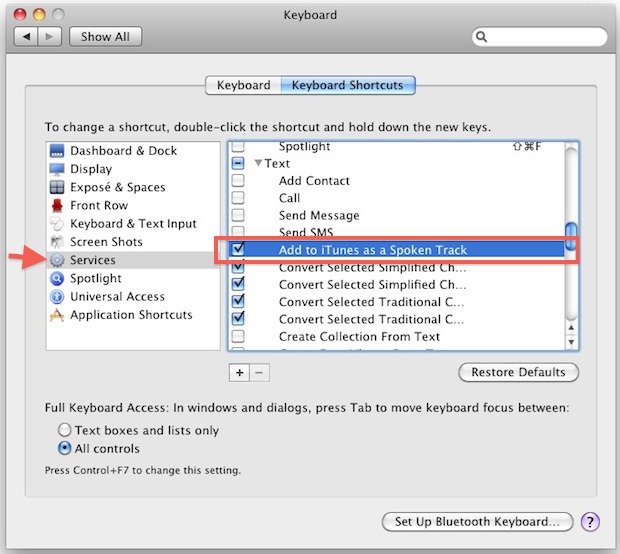
Now you just need to close up System Preferences and the option to convert text files and text blocks to spoken audio is enabled.
To access the feature, just right-click on any text block and select the “Add to iTunes as Spoken Track” option from the pop-up menu. You’ll then see the Services gear churning away in your menu bar and in no time the file will be automatically loaded into iTunes as a spoken audio track.
That screenshot comes via MacGasm.
This follows the same convention as the command line method in that the default voice is whatever you set your Mac’s text-to-speech voice option to, you can always change that in the Speech preference pane.






Can this still be done in macOS 12.14 (Mojave?). How?
Yes this works in the modern MacOS releases including MacOS Mojave, MacOS Catalina, Sierra, El Capitan, etc, it’s exactly the same.
If you don’t have the option when right-clicking on a text block, you may need to enable it in System Preferences > Keyboards > Shortcuts > Services > “Add to iTunes as a Spoken Track”
There should be a way to download more voices to use. I heard my spoken text singing on an instrumental voice, which got me thinking…can I download music genres for voice options?
How do you modulate the speed? Changing the speed setting in preferences doesn’t affect it.
I tried to follow your directions, which were very precise, but the box is already checked in my OS X 7 Lion. Here’s my problem: When I highlight text and then right-click it, I get a
“Speech” option below Spelling, Proofreading, and Font but when I select “Speech” I get the only two options, “Start Speaking” or “Stop Speaking” I do NOT get the option to Add to iTunes as a Spoken Track, even though that is checked in my Services folder.
Also, how can I select a different voice from the horrific Finnish accent that must be default???
I’m really hoping your answers will be exactly what I need for my project. Thanks in advance for your help.
[…] another nifty text transformation in OS X Lion is the ability to convert text to spoken audio for iTunes with just the selection of text and a right-click. stLight.options({ […]
Get the new voices for Lion. SO much better.
Need a way to set default voice used.
Are you sure your not just playing it? (Speech > Start Speaking)
Make sure you select “Add to iTunes as Spoken Track”.
When i try this it creates the file and automatically sends it to the trash bin… any ideas why?
It is supposed to send to iTunes, do you have iTUnes not set to the default music player?
If you didn’t already figure it out, it sends a file copy to your iTunes folder and a the “leftover” file to trash.
Go with Alex as the voice and this is very usable in 10.6. Now you can make your own audiobooks :)
[…] There is an easier way to do this using the Services menu, you may want to try that first unless you prefer the command […]