
Always Show Scroll Bars in Mac OS X
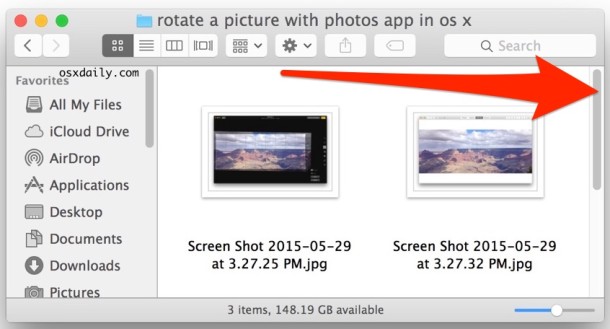
The scrollbars in new versions of Mac OS X are hidden until activated by use, that is, by scrolling, making them invisible by default. This is the new default behavior that works very well if you primarily use a trackpad with your Mac. I use an external mouse with my Mac quite often though, and I find the hidden scrollbars to be annoying when I do. That’s my reason for bringing them back, but other people just like to see when content is available that needs to be scrolled to access.
This quick tip will make users who wish to constantly see available scrolling portions happy, by displaying the scroll bars all the time in Mac OS X.
How to Set Scroll Bars to Display All the Time in Mac OS X
This will make the scroll bars always display when there is content within windows that must be scrolled to access, it applies to all windows and all apps on the Mac:
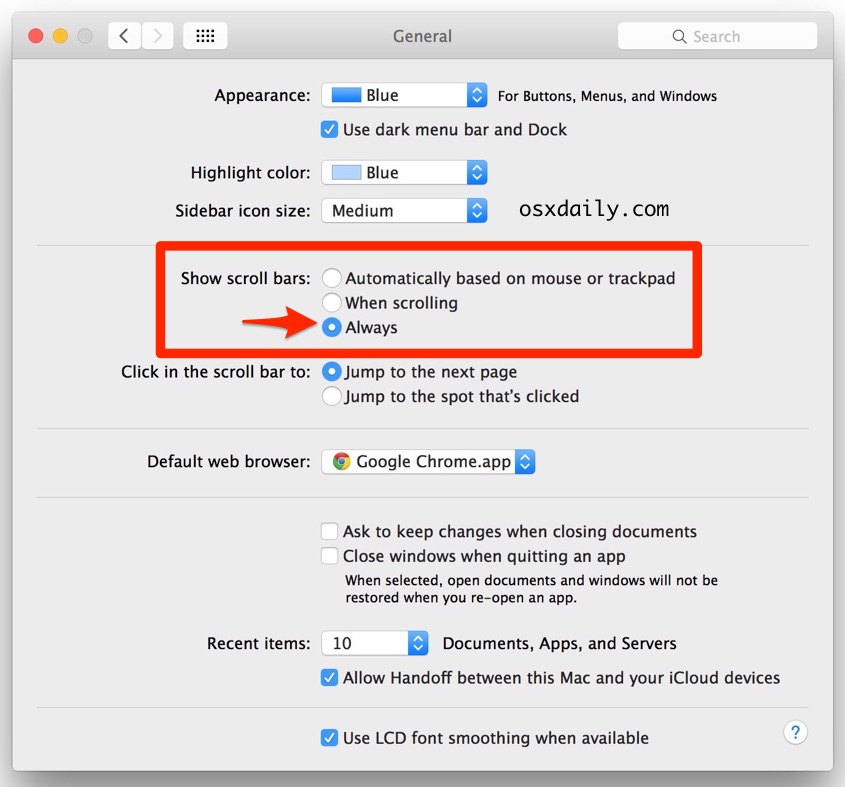
- Launch System Preferences from the Apple menu
- Click on the “General” settings panel
- Look for ‘Show scroll bars’ and select the radiobox next to “Always”
- Close out of System Preferences when finished
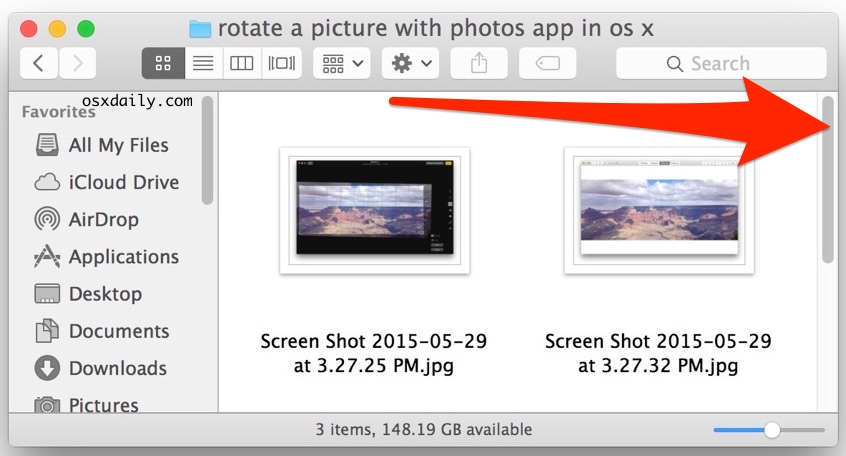
Scrollbars are instantly visible with this change, and they will be now always visible anytime there is a scrollable portion of a window:
While you’re in the settings panel, you may want to take this tip one step further and adjust the behavior of clicking within the scroll bar too, but I find the default setting here of jumping to the next page just fine.
Hiding the scrollbars does make the user interface a bit more minimalist and more in line with iOS, but on the desktop it really just makes more sense to see them constantly for some users.
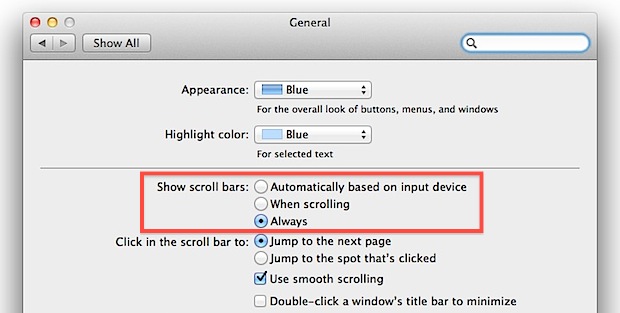
All this really does is return scroll bar behavior in modern versions of Mac OS X to that which existed in Mac OS 10.6 and prior, that is, the scrollbars being always visible. This change was introduced and the scrollbar settings persist and work in all modern versions of Mac OS, including OS X 10.7 Lion, OS X 10.8 Mountain Lion, OS X Mavericks 10.9, OS X Yosemite 10.10, and beyond. The interface of the settings window can look slightly different depending on the version of Mac software, but it’s always there in new versions. Here’s how it looks prior to the Yosemite redesign:
Moving forward, it’s safe to expect this to be the new standard scrollbar behavior as iOS and Mac OS X continue to share more features, but so long as we continue to have the easy option to toggle the feature back to have our scrollbars always visible, it’s not too bad.






Thanks for this tutorial!
Decency exists in Apple for putting such option available! All these days I was fiddling around with the scroll bar when it keeps on disappearing.
Thank you for clarifying how to get those scroll bars back up. Very much appreciated!!
thank you so much.I thought in my app CSS in not applying.But finally i fount your solution and i fixed…
Thank you!! I was so close to getting my MAC serviced I absolutely HATE that my scrollbar wasn’t appearing….but I fixed it thanks to this article.
thanks very much!
thank you, very useful, I was trying to get rid of them
I still miss those old windowshades Mac used to have, When you clicked on the document, it would roll up like a windowshade. Much easier to located closed documents than the dock.
But I love my Mac.
My best feature ever. Thus why everyone wanted to turn it off.
Thank you so much! I hate not having the scroll bar! You just made me very happy!
helpful , thank you!
Thanks! This has driven me crazy for I don’t know how long. Such a simple solution!
Thank you! This has been driving me nuts!!! Much appreciated!!!
You are a god among men. Thank you thank you thank you. I hope next time you’re out shopping, you find a $20 on the sidewalk.
Great tip, straight to the point and easy instructions to follow! Thanks ;)
I have tried setting preference to ‘always’ but it still doesn’t work for every website. If I grab the scrollbar when the page first appears, I can scroll, but the minute I take the mouse away, the scrollbar is gone, I can’t scroll, and nothing will bring it back.
Thank you so much…you just made me love my mac a whole lot more!
Thank you so much!
THANK U SOOOOO MUCH FOR THIS TIP!!!!
Thanks for the tip. I love having the scroll bar always present. Perhaps it’s not as “clean” as some users prefer, but it’s a must in iTunes. Really can’t navigate without it — on some screens at least.
This was very helpful. Not having a scrolling bar was driving me nuts. Thank you!
I am using a Mac Powerbook with OS x version 10.4.11. There is NO ‘Always’ box to check in my system preferences. I can get the scroll bars back by restarting, but have yet to find a way to get them back while using a site on which they do not appear.
Any suggestion would be greatly appreciated.
Thank you!
Could be a good idea, BUT they didn’t make it smart enough to know if I’m using the Magic Mouse or my Wacom. OK idea botched by poor design and execution.
I just want to add the comment for the Apple stupid design. What is the point to hide the scroll bar on the screen? It is silly to make the simple things complicated.
This hidden scroll bar is confusing. Yes. The solution provided works for me. Thanks.
Oh my gosh. Thank you so much for this! I was going crazy trying to get those scrollbars to appear!
Thanks for this help!
Hiding the scrollbars really slowed down scrolling (as hiding elements almost always does) so this was very helpful.
Come on Apple … Listen to the folks who buy your updates. Return the scroll bar arrows to OSX Lion and above. This is perhaps one of the dumbest things you’ve left out of your upgrades. We are creatures of habit. Some of us depend on a few things remaining consistent.
Thank you, thank you. I have an older MacBook Pro (2010), upgraded to X, lost my scroll bar and was quite irritated. This quick fix made me like my notebook again.
I wasnt necessarily having issues with the scrollbars, but in Mac Mail, now I cant get the folder list to scroll or the messages to scroll/page up, ONLY the message will move…help?
I just spent 2 hours suffering in iMovie for lack of scrollbars… couldn’t seem to get the hidden ones to engage. This is a LIFESAVER right now.
Thanks, you’re a genius!
THANK YOU! That was really annoying me.
Many thanks, I’m grateful for your advice. Like many others this was driving me crazy and you provided a quick fix.
Thanks for posting this information….not having the scroll bar in Mountain Lion was driving me crazy!
thanks a ton!
Thank you so much, simple and to the point!
Thank You! Thank You!! I thought I was losing my mind and doing something wrong. So nice to be able to google and get the right answer
Thank you! This was driving me crazy too, because it was almost impossible to get to the last file in a list without the scrollbar always up. you are a lifesaver.
Thanks! It works :)
THANKS! This was driving me crazy until I just decided to Google the issue and your site showed me how to fix it. Awesome.
Thanks for this simple but rage-quelling tip. This has been driving me absolutely mad.
Just got my new Mac today and was confused about the scrollbar issue too. However, once it was explained above- use two fingers instead of one to scroll- I love it already! So much more convenient than clicking and scrolling. The scroll bar comes up automatically and shows where I am in the document. I think it’s a great idea- at least for my usage.
The Apple design team can occasionally be totally clueless. How the he11 these kinds of decisions are made escapes me.
Yes! I’m so glad that I found this advice. I been on and off my Mac all day and everytime I have to scroll is adventure. How frustrating! This has made my day!!
Thank you so much for this. I never thought of looking having been frustrated without them for so long! So pleased to have them back!
Thanks for the Tip..
The disappearing scroll bar has been the bane of my existence for quite awhile now, thanks!
Thanks for this tip – I was in constant “trying to make the scrollbar appear” purgatory until I came across your helpful info (only just bought a new Mac). The disappearing scrollbars is the biggest, most inefficient waste of time! I’m glad you can reverse this with System preferences. Thanks again!
Can you tell me how to get the info box in the bottom of the file folders that existed prior to Lion. It used to tell you how many items were in the folder. Now I can only get it to do that on the outside/desktop…not when I open the folder. Thanks for your help.
I found it annoying when in a chat client. If I scrolled up to copy something to another window and came back not remembering if I scrolled up or not. I had to scroll to see if I was already at the bottom.
Glad to see the scroll bar. Terrible terrible choice to hide the scroll bar in general, let alone by default.
I like my Mac again! Thanks
THANK YOU! Just got a new MacBook Pro and I HATED the scrolling change. WTF? That’s an improvement? SUX.
THANK YOU for the quick fix for us non-techies.
I would be fine with the scrollbars not appearing until hovered over or panning begins, but it rarely if ever works and I primarily use a stylus and wacom tablet.
I guess I am the only one for whom this “easy fix” doesn’t work.
New MacBook Pro, and even after selecting “Always”, I get no scroll bars on anything.
I also cannot change this. When I change it in box, then close it, it reverts back to all of the defaults. How can I change this?
[…] with a two-fingered swipe left or right. The feature works the same whether scroll bars are visible or not. Horizontal scrolling works with most native and cocoa apps, although some apps are pickier […]
Having just purchased my lovely new MacBook Pro and having been used to Microsoft Windows for years, personally I believe the scrollbars default on all new Macs should be that they are visible – it simply makes it easier for us new users. My initial thoughts when I first tried scrolling was that the Mac was crap, but thankfully this excellent resource made it all very clear. Also, as an aside, the backspace key reads ‘delete’ which is a bit silly for a Mac and there is no actual separate ‘delete’ key – again for an ex Microsoft user – I miss that function terribly – BUT as I learn’t on another blog site, you can delete by pressing ‘fn’ and then ‘delete’. In a nutshell, I believe Apple need to be more aware of new user’s needs thus making the change from Microsoft to MacBook just that little more simple. Overall, I love my Mac and won’t be going back!!
[…] you can set scrollbars to always display in windows, there is no option to show the actual scrollbar arrows anymore in Mac OS X Lion. A […]
[…] you can set scrollbars to always display in windows, there is no option to show the actual scrollbar arrows anymore in Mac OS X Lion. A […]
Is there no way to get the up and down arrows on the scrollbar (which I finally found) in OSX Lion? Using the scrollbar without arrows is a pain.
Thanks!!!! I was hating the new “dissapearing scrollbars thing” ;)
Can we make the scroll bars wider and blue like they were on older Macs — I find the narrow grey ones horrible.
Whatever happened to ‘don’t fix it if it ain’t broke’ ..
Not having the arrows on the scroll bar is a pain the pages do not move up and down cleanly.
Thank you very much for the tip. As a developer, the hidden scrollbar is VERY annoying (but I think that most of mac “everything is clean and hidden” features are awful for developers :P )
[…] Hidden Scroll bars: So i want to quickly scroll down or to the right.. i have to first scroll my wheel then grab the scroll bar indicator and drag it down. SLOW.After all this, I decided to format and go back to Snow Leopard. I hope someone builds a 3rd party version of spaces for Lion because eventually I will be forced to get it makes me sad. Makes me wonder if the guys at Apple are actually thinking about developers when they build this stuff. […]
I agree. It is getting more and more annoying as Apple rolls out each version. They are not thinking for developers. They only think for the “minimalist savvy”. Functional values are equally important as aesthetic values. This time, fortunately, Apple allows a toggle selection in preferences. Think of one day they will not give any options! Just recently (Year 2017), we discover Photos does not display file name any more and there is no option to toggle it on! Apple said that you could enter title for each photo. I have 50K of photos and the file name represents the inventory number. I have to re-enter them all!
Return the arrows together at both the top and bottom of the scroll bar the change is a form of elder abuse. The older people who use the mac are extremely irritated and upset at this change they have not changed to the new stile of mouse and have a gustier that involves one finger for apple. I might not be in the age group but I agree with them and give apple the same Gustier.
I agree. The way they reversed the scrolling direction of wheel mice, and hid the scrollbars by default is pretty cheeky. Nice tho that it’s possible to switch back. But I still give Apple some Gustier too whatever that is! Oh yeah!
I’d prefer to have the arrows on the top and bottom of the scroll bar where I’ve had them since I got my original Mac. Any way to do that?
I prefer no scrollbars until they’re in use, very clean UI
@ Greg
The scrollbars are there to give the user a clue.
It can tell you if there is information not currently visible on the screen.
Without the scrollbars, you must always try to scroll. This is silly and a waste of time.
I prefer the scroll bars to be always visible, definitely on my MacBook Air.
On the MBA Mail pgm it’s slow waiting for the scroll bar to appear, after positioning the cursor at the scroll bar location.