
How to Rename an iPhone, iPad, or iPod touch
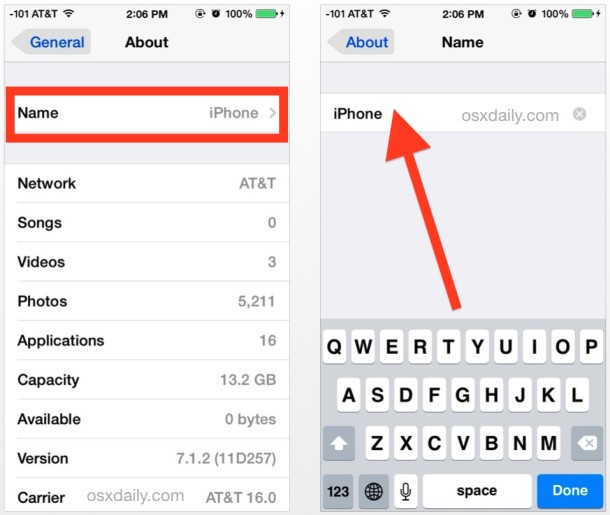
A nice addition to iOS is the ability to rename your iPhone, iPad, or iPod touch device directly on the device itself through the Settings app. This is a nice software feature which prevents users from having to go about changing the name with iTunes on a computer. Instead, the entire name adjustment is handled directly in the Settings application itself.
How to Rename iPhone, iPad, iPod touch from Settings
This is handled entirely on the iOS device without using a computer or iTunes. It works on virtually all versions of iOS, and with any iPhone, iPad, or iPod touch. Here’s exactly what you’ll want to do:
- Open the “Settings” app in iOS and then choose “General”
- Locate and tap on “About” in the general settings panel
- Tap on “Name”
- Enter the new device name using the keyboard, then tap on the Back button to save the change and rename the hardware
This is what the Name section looks like in Settings:
The change is immediately set, and in a moment will carry over to iCloud Services like Find My iPhone and your backups. Exit out of the Settings app when satisfied.
You will also see the new name show up in iTunes too, assuming you connect the device to a PC or Mac using a USB cable.
The instructions above are for modern versions of iOS like iOS 13, iPadOS 13, iOS 12, 11, 10, 9, 8, and 7. That said, you can absolutely rename an iPhone or iPad on other versions of iOS too, the process is just very slightly different, described here:
How to Rename Older iPhone, iPad, iPod touch devices
If the iPhone, iPad, or iPod is running a much older iOS release, here is how you can rename that device:
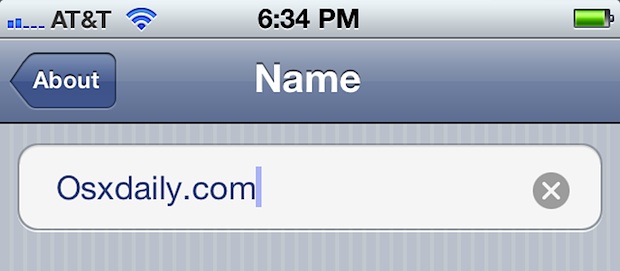
- Tap on “Settings” and then “About”
- Tap on “Name” and enter the new device name
The settings panel in prior iOS releases also looks slightly different:
What seems like a minor change for convenience is really another step in the PC-free direction of iOS, breaking away from tethering your iPhones and iPads to computers. You can greatly push iOS hardware in the post-PC direction by setting up iCloud and using Wi-Fi sync as well, two other features available to modern versions of iOS.
As mentioned already, you can also set or change the name of an iPhone from the iTunes application and a computer if you are syncing the device. Both methods work and set the device name which will be recognized both in iOS and in iTunes, so use whatever approach is best for your situation.






Rename this iPad
15-27-39-51
(A7608223)
What if my itunes name is different than name it shows in printers and devices? Has my name on itunes but when plug in USB cable to computer and look by drives it has my Moms name. She charged ipod at my house before is only thing I can think of. Is there any way to change it back on Windows? I am running windows 7. All good on ipod, just having to see her ipod listed on my computer.
Open the Registry Editor (regedit) and search for your mom’s name then replace it with whatever you want. The Registry stores the name in several places so you’ll have to keep searching and replacing the name.
Michael ~ THANK YOU! You finally gave a simple AND effective way of resolving this issue. I don’t know if it has to do with the OS of the iPod, my computer, the version of Windows, or what – but a meer click to hightlight & rename just is NOT an option here. I especially loved the many responses that said to go to iTunes or in the general settings directly on the iPod despite many even stating in their ORIGINAL post that neither option changed how their computer “saw” it. So again, I say THANK YOU!
I don’t know why it took so long to implement such a basic feature, but it is good to have.
You should have named it Titanic, that way it will say syncing Titanic. ;)