
Add or Remove Apps from Notification Center in iOS
 You can quickly add or remove any items from showing up in Notification Center in iOS on your iPhone, iPad, or iPod touch by modifying your allowed apps through the central system settings. This isn’t the same method as disabling an item like the stock ticker, but it’s faster if you want to adjust several apps at once, and quickly determine what apps can appear in the Notification Center screen on the iPad or iPhone, and also what apps don’t show up there.
Changing What Apps Show in Notification Center
This will apply to iOS on the iPhone, iPad, and iPod touch:
- Open “Settings” and tap on “Notifications”
- Scroll down to “In Notifications Center” (or “Include”) and tap on the “Edit” button in the upper right corner
- Remove an app from Notifications center: Tap and drag from the right-side of any iOS app, drag down to remove an app from Notifications Center
- Add an app in Notification center: drag up to ad an app to what is shown
- Click on “Done” when satisfied, and close out of Settings when finished
The changes are immediate.
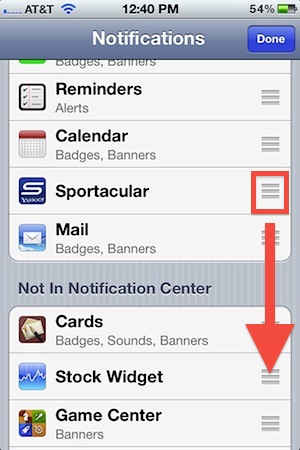
The list of items at the top are apps that are set to be visible in Notification Center, while the list of items at the bottom are apps that are not visible in Notification Center. If you can’t drag the apps between each list then you are not in the “Edit” mode, so do that first.
Using the same settings panel, it’s also possible to adjust precisely where an app is displayed within Notification Center, rather than relying on the two default sorting options. Do that just by dragging them around according to where you want each apps respective placement within the list of notifications.
Changes made here are visible immediately by pulling down Notification Center with the familiar swipe down gesture from the iOS clock area.






Hello,
When I go into Settings then Notifications on my iphone 13 there is NO EDIT button to select. I would like to delete some apps from the Notifications in Settings. I have already deleted them from my screen. Thank you.
Kaye
[…] sharing buttons does not impact whether or not the individual social notifications appear in iOS, those are controlled separately along with app-specific […]
[…] the red badge but still have them show alerts in the older pop-up variety, and continue to have the apps show in Notification Center when an alert or event […]
In center notification I lost Facebook app how can I get back in notification center and not in not in center notifications list
Is or possible to disable Notification Center completely? I’m constantly opening the thing by accident and just want it to go away.