
Find Large Files in Mac OS X with Search
 Whether you’re feeling the pinch as hard drive space runs low or you’re just wondering where all your disk space went, it’s easy to find large files in Mac OS X by using the built-in search tools. You don’t need to use any third party tools here, instead you’ll rely on search operators and the excellent Spotlight locating functionality that is a core feature of all Macs.
If you’ve never used these specific features of the Mac search function before, you’ll find it’s simple to do, just follow these steps to locate files and items based on their size.
How to Find Items Based on File Size on a Mac
This works to locate large files and items in all versions of Mac OS X:
- From the Mac OS Desktop, open any new Finder window to any file directory (except “Recents” *)
- Hit Command+F to bring up Search
- Click on “Kind” filter and select “Other”, then select “File Size” from the attribute list
- Click on the second filter and choose “is greater than”
- In the third space, enter the size to search for anything greater than (ex: 100) and choose either KB, MB, or GB as the final filter
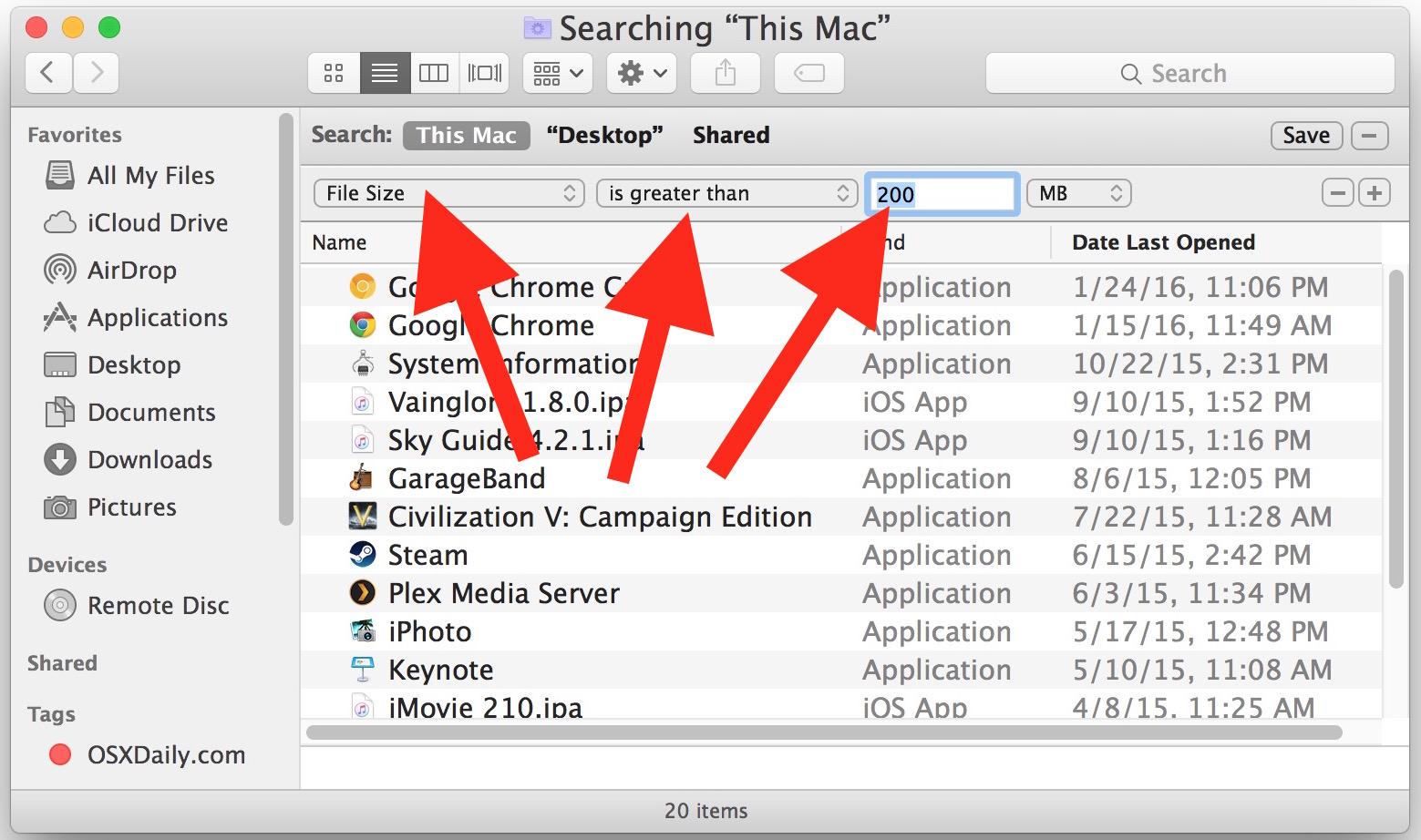
The file and app list below will automatically update as anything larger than the specified file size is found on the hard drive. Be sure that “This Mac” is selected if you’re getting limited results, though you can also use the search limiters to find large files contained within single folders or user directories.
This feature is the same in all versions of MacOS and Mac OS X, regardless of the version, naming and spelling convention.
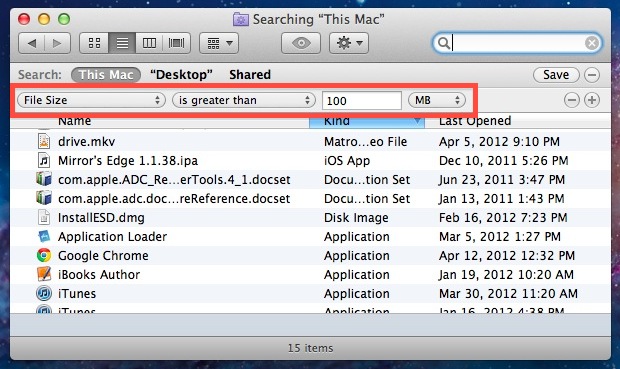
Want to use this feature to track down large files often? Click on the “Save” button in the upper right corner and you’ll turn the File Size search into a Smart Folder that can be easily accessed from the sidebar for easy future retrieval, plus that folder will constantly be updated with large files only, making it a very useful way to instantly find any big item laying around on a Mac.
 If you’re hunting down large files because you’re running low on hard drive capacity, don’t miss these tricks to free up disk space on any Mac. Even if you’re not in dire need of more disk capacity, it’s pretty much guaranteed that you can use a tip or two from that list to find and recover some disk capacity.
One very common pit of enormous files is the user Downloads folder, which often contains .dmg .zip and other downloaded items that have long since been forgotten, so don’t be surprised if you’re using the file size search and discover that directory is consuming much of the disk space, or at the very least, is the primary location of many large files. Typically that directory can be cleared out with little impact, though you will want to confirm the contents and the necessity of keeping them around yourself before making such a drastic move.
* Note: If you are using this feature in the latest versions of MacOS, and you open a Finder window to the “Recents” folder, you will need to start searching for a filename and then click the + button before you can access the search filters. You can avoid that additional step by going to any other directory other than the Recents folder.
What do you think of this great search ability and being able to locate files based on size, and to find large files on a Mac? Let us know your experiences in the comments.






These options do not show up when I hit CND+F any idea how to see it. There is no plus sign next to save.
See this link https://support.apple.com/guide/mac-help/narrow-search-results-mh15155/13.0/mac/13.0 (you can select the version of the macos operating system you’re using)
Try entering a file name first into the Search field, then the + button should appear
Use the shell command “find”
#sudo find /.* -size +500M -print
will print all hidden files directories, where the huge system files are located. Or just / and /.* The sudo is needed to traverse the system directories. The “print” or “-print0” is historical. I don`t think it is needed but in old Unix it went “silent”.
+500m is for “+” for bigger than, 500 and “m” for MB.
See “man find”.
But this solves a couple of the questions above.
Open Terminal
Type:
cd to the level you want, or cd / (This Mac)
du -ka | sort -n
disk usage all in kb sorted numerically
(on AZERTY terminals, the PIPE symbol is ALT-SHIFT-L)
Have a coffee because it takes a while.
This will show you large files AND folders with lots of files.
This can be speeded up by putting grep in the middle which only passes large things to the sort, using the size at the beginning of the line.
Article was spot on. It got mentioned, but its worth re-mentioning, make sure to command+F in Finder> select sorting option in first pop up box(select “other” if preferred option is not available)
how is this done ins Sierra
So I did the steps and nothing came up even though I know there are things on my system that are more than 100 mb, can someone help me out
Make sure you search the entire Macintosh HD drive by selecting “This Mac” at the top, then using the three search parameters as described in this article: https://osxdaily.com/2012/04/17/find-large-files-in-mac-os-x-search/
Following the instructions is sufficient to narrow down large file sizes, it should be sufficient and works as described.
This is a nice search function, but it doesn’t show large folders, e.g. my 10 GB Microsoft User folder for Outlook. How can i find these large folders?
That’s the best tip so far on how to find those files. Search inside HDs are the worst part of a computer.
With Snow Leopard, the option to view the Size column is greyed out and can’t be activated.
Hey, THANKS!!! I wanted to very quickly open space on my SSD, without fiddling around with 3rd party programs. Turned out some music FLACS were taking up HUGE space, way more than I thought, and their download images as well. Killed out 9 GB and counting as I type, you are my hero!
Thanks for the useful tip. I had files that I thought I’d thrown away a long time ago.
There is a great visualizing app for this issue – Disk Inspector.
[…] files in an obscure folder and you can no longer locate them on your own, don’t forget that you can perform file size specific searches with Spotlight in the OS X Finder to quickly track down any large item in the file system. […]
Best part about this search function is that it doesn’t actually search all of the files on your computer. Strong logic. (No offense to the editor)
James, how do you use size as a sort item, w/o Lion? Thanks, J
Nice sharing, I am going to throw my mac away, waiting for WIN8, amzing sys
Thaks for the tip.
Anybody knows how to filter files by kind, to show ony mpgs or xmls like in Win7?
@alex
you search by file type ie; .mpg or .jpg to search for all jpeg images you would just type this in the search box: .jpg
Good trick…and you know what…i have Google Chrome that is almost 1.5GB…how can be possible??
Depending on what you may have installed as an add-on for Google Chrome, your Google Chrome’s file size will either change drastically, or have a minor change. If you have Google Drive installed, that may also affect your Google Chrome’s file size.
Great tip, but it’s made much more useful if you use Size as a sort item too so you can find the biggest items on top of the list.
Keep em comin!
On Lion you can add columns on finder. Add Size column before or after the search and tap/click on the column name to order by the column.