
How to Rotate Photos on the iPhone & iPad
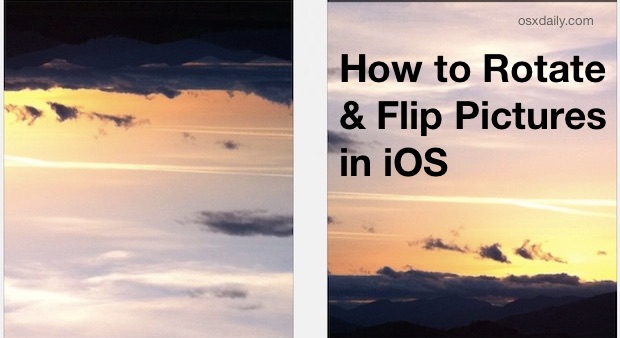
Did you take a great picture with your iPhone, but your iPhone camera orientation was upside-down or sideways? This happens pretty often, and if you ever need to correct the orientation of an image by rotating or flipping a photo, you can easily do so right on your iPhone, iPad, or iPod touch.
The image rotation and flipping tools are built directly into the Photos app of iOS, thus there is no need to download additional software for this simple image editing purpose. Here is how to easily correct and rotate a photo directly on iPhone or iPad:
How to Rotate or Flip a Photo in iOS on iPhone or iPad
- Open the Photos app in iOS if you haven’t done so yet
- Choose the photo you want to rotate or flip by selecting and tapping on it so that it’s open on screen
- Tap “Edit” from the upper right corner of the image
- Tap on the little square crop icon to bring up the editing and rotation options
- Now tap on the box with an arrow rotating around it located in the corner to rotate the picture 90°
- When finished, tap the “Done” (or “Save”) button in the upper right corner
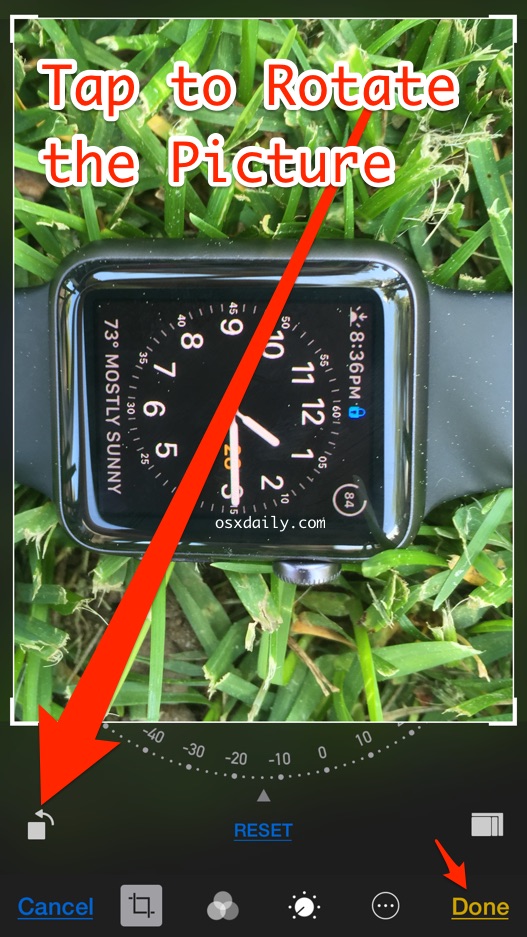
Each tap of the arrow icon will rotate the image another 90 degrees, so if you want to flip something around completely tap it two times.
When you tap on “Done” the image rotation is changed, but it can be undone at any time. If you’re not satisfied with the rotation results tap on “Cancel” or “Revert to Original” to go back to the default version, accessible by accessing the same Edit menu.
If the rotation is too extreme, perhaps because you don’t need to rotate something 90 degrees, 180 degrees, or 270 degrees, you can also use the straighten dial to manually adjust the orientation of the picture and correct it as a lower degree, giving a tilt as necessary.
You will notice the iPhone and iPod touch will only show a little arrow icon, but the iPad will display actual “Rotate” text alongside that icon. Also, the “Edit” options will not be visible from the lock screen camera roll, you must be in the Photos app directly with the iPhone or iPad unlocked.
This obviously applies to photos and images, but you can actually rotate videos too by using iMovie on iPhone if you need to do that as well. And of course Mac can also rotate pictures easily using Preview or the Photos app there too.
Modern versions of iOS on new iPhone and iPad models are represented in the above screen shot images of Photos app, where the sequence is Edit > Rotate > Done. That contrasts to how it was done in prior iOS versions, which we’ve saved below for posterity just in case you’re running a much older device. In those cases, the process is then to tap Edit > Rotate > Save looking like so:
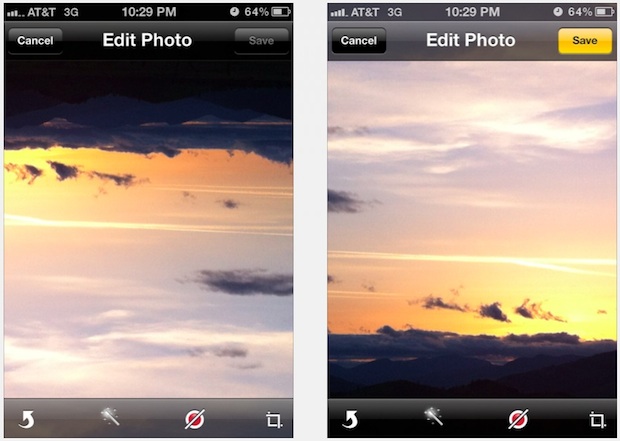
Ultimately basically every somewhat modern iPhone will have this image rotation ability. Though you’ll need a somewhat modern version of iOS to have this feature, newer versions of iOS have even more rotation and cropping abilities, whereas prior versions are a bit more limited with more simple rotation adjustments features.
If you know of another handy way or quick way to rotate a picture on the iPhone or iPad, share it with us in the comments below!






Is there software which I can check orientation setting of jpg file at computer? Thanks a lot.
Rubbish. it is impossible to ‘flip’ an image in ios without third party software. get your terminology straight.
What about inverting the orientation? I mean flipping the image without altering the colour in any way. Inverting it as a mirror image. I have seen apps for this, but is this really such an advanced editing maneuver that I need to D/L an app?? Please let me know. I feel I have utilized all aspects of my iPod’s editing features and it seems quite unbelievable that this would not be included. Cheers!
You are looking to flip horizontal or flip vertical the image, that mirrors it. Snapseed is a free app that has lots of features like that.
Just got iPhone 5 – can’t see a rotation arrow in photo edit screen… I’ve got to b able to rotate my pug pics! Help…
My pictures will not rotate when I turn my phone sideways
[…] you can perform basic photo editing on them using the built-in tools, which allow for things like rotate, red eye reduction, and cropping. They can also be modified with third party apps at this point, […]
I wish i could rotate my photos a few degrees, does anyone know an app that does that?
Many Thanks
[…] save the resulting vertical shot into the proper vertical orientation, so you won’t need to rotate the image after the […]
But you can only save to Camera Roll not original album :(
[…] in the Edit menu you can also rotate images, crop pictures, and even remove […]
I always thought it was weird that Preview in Mac had the rotate gesture but Photos in IOS doesn’t…. What is up with that?
That is a peculiar oversight, I suspect we’ll see more gestures in iOS 6 though.