
How to Completely Disable Audio & Sound in Mac OS X
Whether you just like peace and quiet or you work in an environment that requires audio input and output to be disabled on a computer for security purposes, it’s fairly easy to accomplish in Mac OS X. We’ll cover how to handle turning off audio for both situations, the first uses mute for basic audio silencing and disabling on the Mac, and the second technique is much more secure and completely disables sound in OS X.

Disabling Sound in OS X with Mute
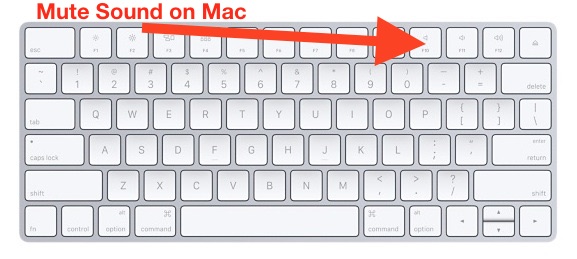
Most Mac keyboards have a MUTE button, you can simply press that to mute all sound on the Mac. This will silence the Mac and disable sound output as long as mute is enabled, but can be quickly undone and sound can return by un-muting again with the same keyboard button.
Muting the Mac Sound via System Preferences
The most basic approach uses system mute for both audio input and outputs, this is easy to accomplish through Sound preferences as well:
- Open System Preferences, click on “Sound” and from both the “Output” and “Input” tabs click the “Mute” checkbox

No audio will go in or out now, easy enough.
The problem with using mute is that it can be unmuted just as easily, and if you want audio to be completely disabled for security purposes with no chance of a user or third party tool turning it back on again, you’ll have to dig a little deeper and disable some kernel extensions.
Completely Disable Audio Input & Output in Mac OS X
- From the Finder, hit Command+Shift+G and enter the following path: /System/Library/Extensions/
- Locate “IOAudioFamily.kext” and “IOAudio2Family.kext” and move them to a safe place for backup purposes, like somewhere in the home directory – you will need to authenticate this change with an admin password
- Reboot Mac OS X for changes to take effect
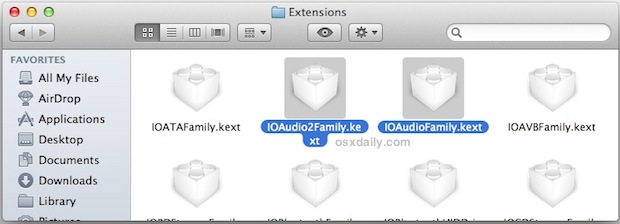
On reboot you’ll probably notice there isn’t any sound, and with the audio support kernel extensions gone no audio input or output will work at all with any application. If you want to reverse the change and re-enable audio you just have to move the backed up .kext files to their original location and reboot again. Note that some system updates will replace these kernel extensions on their own, so if you’re in a sensitive environment that requires audio to be disabled then you’ll want to pay attention to how OS updates behave.
What About Muting Boot Sounds?
If you like the idea of just disabling the boot sound but don’t want to remove all system audio functionality, you can silence it on a per-boot basis or mute it completely with StartupNinja.






Is there a way to set Quick Look video previews to mute by default?
I can’t move or rename the file (the second one doesn’t exist in El Capitan either, at least on my mba). Not even with sudo. It’s simply impossible to do it within the OS.
I did the steps to completely disable, and when I put the two files back the sound is still disabled. PLEASE HELP
You could also try the osx86 scene’s hdadisabler for applehda.kext. Also did you repair disk permissions (all systems) and remove the kext cache (Lion and above).
Ideally using hdadisabler.kext should suffice (no removal of other kexts).
Failing that remove the files mentioned in the article and try my suggestions.
I have a MacBook Pro running Mountain Lion and am trying to disable sound. There is no /System/Library/Extensions/IOAudio2Family.kext, but I did chmod 000 /S/L/E/IOAudioFamily.kext. Sound still works. I killed AppleHDA.kext. Sound still works. I killed ApleFWAudio.kext Sound still works. I killed /System/Library/Components/CoreAudio.component. SOUND STILL FREAKING WORKS!!!
What on Earth do you have to do to actually kill sound?
FWIW, I really only want to disable the microphone, but it appears that Apple has gone out of their way to make that impossible.
A nail, and a hammer. =)
Good way to troll the Apple Store employees :P
I find the F10 (mute), F11 (sound down) and F12 (sound up) keys work very well, at least for output volume.
And how to disable HD and fans sounds ????
Disable HD what?
If you don’t want your fans to run you’ll need to find a way to cool down the computer, either by using a stand or by finding another way to improve cooling air flow.
Paul, I was just joking about “How to Completely Disable Audio & Sound” because for me the most annoying sounds are the one made by the fans and the HDs (especially when I listen soft music) :D