
Change the Save Location from iCloud to Local Mac Storage on Mac
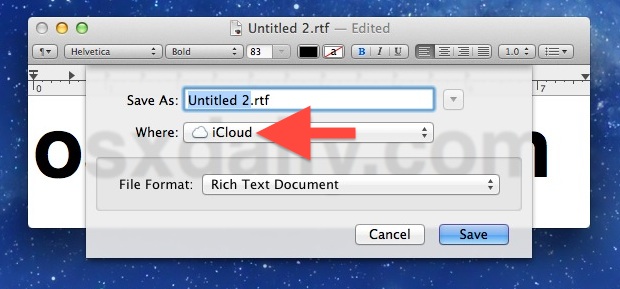
The latest versions of Mac OS feature deeper iCloud integration than ever before on the Mac, a feature that is extremely convenient for syncing things likes desktop Notes, desktop Reminders lists, documents, emails, bookmarks, and whatever else with iOS devices, but it can also be frustrating when you’re just trying to save a file in an app like TextEdit, Pages, or Preview directly to your desktop and local file system. If you’d rather save to your Mac rather than iCloud, here is how to change it per-save and also two different ways to change the default behavior entirely.
How to Save to Mac Locally Instead of iCloud on a Per-Save Basis
Before jumping into system changes, remember that you can always save to a Mac instead of iCloud on a per-save basis just by changing the “Where” directory in the Mac OS X save dialog.
Hitting Command+D will automatically change the file save location to the desktop, but clicking and pulling down the menu lets you adjust it to anywhere you want as well. This has to be adjusted on every single save however.
How to Change Default Save Location to Local Storage from iCloud for All Apps on Mac
Launch Terminal, found in /Applications/Utilities/ and enter the following command:
defaults write NSGlobalDomain NSDocumentSaveNewDocumentsToCloud -bool false
For changes to take effect, log out and log back in, or just reboot your Mac. Now when you go to save a file it will no longer default to iCloud, but you can still choose iCloud as a save option and leave iCloud enabled in general.
How to Revert to iCloud as Default Save Location on Mac
If you’d rather have iCloud as the default save location again, you can switch back to iCloud storage by launching Terminal and issuing the following command:
defaults write NSGlobalDomain NSDocumentSaveNewDocumentsToCloud -bool true
Again, logging out and back in or rebooting will revert the setting back to iCloud.
This nice defaults write little tip has been floating around for a while, heads up to Peter Danes for the reminder.
How to Turn Off iCloud Document Storage Completely on Mac
Another solution is to disable the iCloud Document & Data storage feature on the Mac, this varies slightly depending upon the version of MacOS / Mac OS X you are using:
- Go to the Apple menu and open System Preferences / System Settings
- Click on iCloud
- Uncheck “Documents & Data”, or “iCloud Drive” – depending on the version of MacOS

There are a few obvious problems with this method though, because it prevents the ability to save any documents to iCloud from compatible apps, and also because it also removes the locally stored iCloud documents on your Mac known as iCloud Drive. iCloud Drive is a really useful feature that most Mac users will want to preserve (assuming they have sufficient iCloud storage available anyway) so this is not always desirable to disable.
For those of us who use iCloud, the better solution is to change the default save location to local Mac disk storage rather than iCloud. There is no preference panel for this, so for now it must be done through a Terminal command using defaults write.






defaults write NSGlobalDomain NSDocumentSaveNewDocumentsToCloud -bool false
Saves the documents to the ~/Documents folder by default instead of iCloud, so amazingly useful!
I can’t believe Apple is trying to make OS X save automatically to the horrendously unreliable awful service of iCloud with the puny 5GB of storage that is always full. Maybe if Apple gave us unlimited storage, and access the iCloud file system, sure, but as is? No way, keep iCloud off my Mac!
I so agree with you! My Macbook Pro died recently. I should have had it fixed. Instead I bought an iMac. Ive been sick recently and so hadn’t had time to really use the iMac. At first i thought my cancer had done something to my brain. Now I realise that this Mac is doing something so awful – it’s behaving like a PC. Doing stuff I havent asked it to! I want the iCloud off! I want to control my own photographic and design work. I do NOT want to have all my stuff on the cloud!
I’m worried how much the iCloud controls and if I shut it off permanently will I loose any of the stuff already up there?
Diana
This is a very useful fix. The default save location becomes the user’s Documents folder. But what if I want the default to save to the Downloads folder? What would the Terminal command be in that case?
This totally worked. Awesome.
Brilliant Thanks!
Another small step away from Apple’s arrogance. Thanks.
Works great after I logged out and logged back in. Thanks so much! I hated always having to change from iCloud!
Worked for me without logging in and out, I just had to quit TextEdit and launch it again.