
Turn Off Auto-Save in OS X Mountain Lion & Mavericks
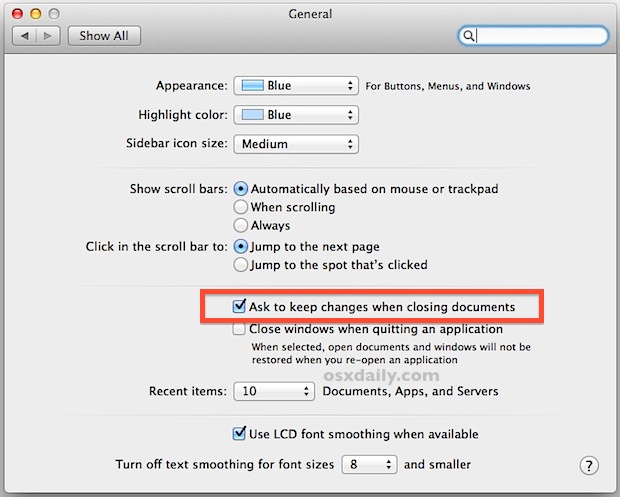
If you don’t like the Auto-Save feature of OS X, you’ll be pleased to discover that turning it off system-wide on a Mac is just a matter of checking a settings box within OS X Mountain Lion and OS X Mavericks. This will disable the automatic saving behavior for all files across all documents on a Mac.
Just to clarify, auto-save tracks changes made to documents and saves them to the file automatically, thereby preventing manual saving from the File menu. This can be a major perk to many Mac users, but others find it frustrating because it may be overwriting a file or document that is in progress or being edited before changes are ready to write to the file.
Simply turning off the auto-save function will prevent those file overwrites from happening, but it then requires users to manually save documents themselves, similar to how older versions of Mac OS X behaved. This setting is really a matter of personal preference, though many users are accustomed to it and would not want to disable it.
Disabling Auto-Save Completely in Mac OS X
- Open “System Preferences” from the Apple menu and click the “General” pane
- Check the box next to “Ask to keep changes when closing documents”
- Close out of System Preferences
The change takes effect immediately, though you may want to reboot the Mac or log out and back in if you notice some apps are still doing
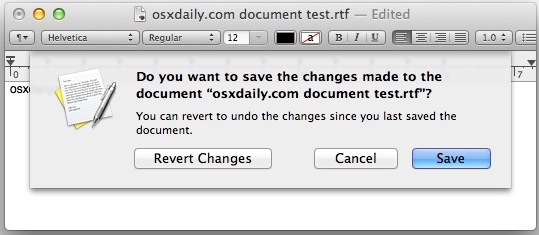
With automatic saving turned off, you will be asked to save files manually each time you attempt to close a file or document that has been modified, just like past versions of Mac OS X. This means you will be prompted for file changes when an app or document is being closed, as demonstrated in this screen shot:
The System Preference based approach to toggle the setting is much easier to use than disabling the feature in Lion through defaults writes commands and the Terminal, and with the newer approach, turning this off does not disable Versions too (Versions allows you to track changes made to files and revert back to prior versions).
It’s important to remember how turning this off changes the behavior of OS X from the default automatic saving, to the user needing to save documents manually again. If you’re already accustomed to the automatic saving on file change behavior, it’s probably best to leave enabled. Then, if you find a file has been overwritten unintentionally, use Versions or Time Machine to roll back to a prior version of that file.






The apple website and Google was just argh… not very helpful when it came to this! I randomly found this after some really random searches. I needed this. Thank you so much!!! It helps for Catalina too!
Bummer! This should have been turned off by default in Mac OS.
Thanks for the tip :-)
great. I´m breathing again. One thousand thanks
I like this auto save feature!
Thank you so much, helped me a lot!
Save changes on close was really messing up my files sometimes.
I was wondering why I was still getting the Save dialogue box…duhh!
Thanks for the tip.
If only Apple had simply included an “AutoSave: On/Off” button, then me and many other would have easily found this. Why make it so cryptic?
Holy crap…. autosave was RUINING some of my documents! Only _I_ know when saving is a good thing…. sometimes I absolutely do NOT want to overwrite a document with a change that I’m not too sure about. How can the computer know such things? It can’t.
Totally!! I am new to Mavericks and was happily cropping my pics but not saving them, just to see what they would look like. Surprise!! I lost some really nice pics due to this new “feature”!! Luckily I realized before I destroyed too many of them …
Just so you know, the following snippet in Terminal…
/Users/”YOURHOMENAME”/
Can be achieved by simply typing…
~/
chflags 1600017 /Users/”YOURHOMENAME”/Library/Saved\ Application\ State
How do you switch this off in MAC OSX Lion
Well, well. I turned auto-save off when you posted about this option. I did not like auto-save. Would you believe it, in spite of my dislike I obviously got used to rely on it. I just turned auto-save back on for good :-)
I noticed that with auto-save turned off, sometimes a version was *NOT* created when saving manually.
It is really not wise to fight new system features to hard. In the long run, maintaining all the kluges to keep new unwanted features at bay causes more work than it saves.
where to begin?
how about:
spoken like a true amateur
stop posting this nonsense and buy some more apple toys
the rest of us should avoid any OS that saves files without prompting users _by default_.
OSX has become a joke-
not professional
So just so we are clear. When typing up a document, tip tapping away pages upon pages of work, and you get up to go to the bathroom, and you don’t save because you will be right back, and your dog comes in and runs through your power cord and it disconnects and you lose your hours of work… that is somehow more convenient to you than having to click “file->revert to” and finding the old unedited file that you decided on second review was better?
You must be reaalllllly good at doing professional level editing if your additions are so terrible that after working on them for hours you just decide to scrap them all after working to try to make the original better.
Seems to me you aren’t very good at what you do if that is the case.
For the rest of us, to protect our actually well thought out edits from accidental complete deletion, the inconvenience of having to click twice to find the old version in case we don’t like the new changes seems like a positive on the ol risk benefit analysis.
How can you go ahead on your documents and not use your fingers for Cmd-S to save progress? I use Command-S almost all the time, and I have disabled Auto-Save who not let experiment things…
Some of us are not simpletons like you, and can think in terms of multiple states like ‘potential changes’ or “candidate”, instead of simply “in the doc” or “not in the doc”.
When something reaches a good state I’m in the habit of being responsible and hitting command-S. Or I’ll branch off to a new filename and describe what I did. I’m never in the state of “tip tapping away for hours (and unsaved)” because that’s a foolish and irresponsible way to operate.
Also way to revive a dead post
Enabling the “ask to keep changes when closing documents” option doesn’t disable auto-save; it prompts you to confirm whether you want to keep the changes you’ve made to a document since you last explicitly saved it.
See http://tidbits.com/article/13187 for detailed information on this subject.