
How to Remove EXIF Data from Images on Mac Quickly
Photos taken with digital cameras, including the iPhone, iPad, and iPod touch, all include some level of EXIF data, which is basically metadata with information about the image. With pictures taken from the iPhone and other smartphones, that data can even include details like precise geographic coordinates where the image was taken, (though that’s easy to disable), and overall that metadata can just make images more bloated than they need to be.
This tutorial will show you how to remove all EXIF data from pictures you choose to on a Mac in a nice quick and easy manner. EXIF data includes meta data, GPS coordinates, originator information, and more, and by stripping the EXIF metadata from the image file the photo will no longer have that information bundled with the file itself.
For our purposes here we’re going to use a third party tool called ImageOptim, which allows EXIF data to be easily removed. ImageOptim is a free Mac tool we’ve discussed before that compresses and optimizes images as well. In that process of optimizing a photo, ImageOptim also strips EXIF data and metadata from the picture and image file(s) in question.
Removing All EXIF Data from Image Files in Mac OS
Ready to strip metadata from some image files on the Mac? Here is all you need to do:
- Get ImageOptim free from the developer
- Launch ImageOptim on the Mac, and put the window somewhere that offers easy visual access
- Drag the picture(s) you want to strip EXIF data from into the open app window to begin the EXIF removal process
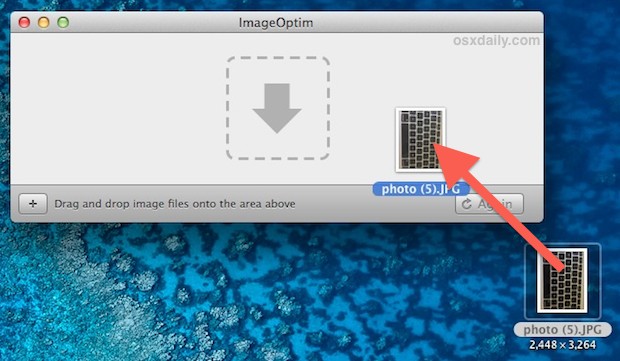
Most images are optimized and stripped fairly quickly, but using this to remove EXIF from huge amounts of photos or very large resolution images may take a little while to complete. JPEG and GIF are quite fast, but PNG files will typically take a bit longer to strip metadata and EXIF data from.
That’s how easy EXIF is to remove, just by dragging and dropping image files into the ImageOptim app on the Mac they will go through the compression and EXIF metadata removal process. The end result will be smaller file sizes without losing image quality, and also the images will be stripped of all meta data like GPS location, origination, time taken, aperture and camera details, and more.
How to Confirm Image File No Longer Has EXIF Metadata on a Mac
If you want to be certain that EXIF metadata has been removed from the picture(s), you can use Mac OS X’s Preview app to double-check:
- Open the image in question with Preview on the Mac
- Pull down the “Tool” menu and select “Show Inspector”
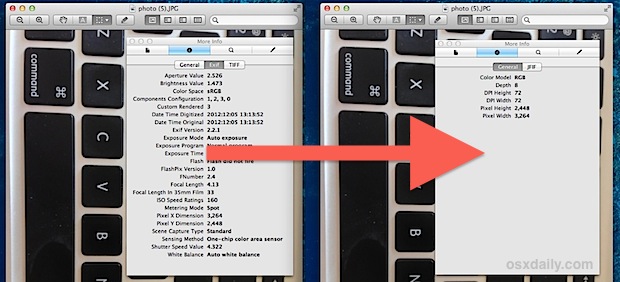
- Click the (i) tab, there should be no “EXIF” tab, or the contents of the EXIF tag should be limited to only image dimensions with no other data stored
In this before and after image, the before image on the left shows the EXIF metadata intact on a photo, and the after image on the right shows the EXIF metadata has been successfully removed via the ImageOptim app.
If you follow internet culture you may be aware of various incidents where metadata stored in images has led to various news reports or other curious happenstances. This particular post was spurred after talking with a friend about the truly bizarro ongoing saga of John McAfee, whose “secret” location was exposed because someone forgot to strip the EXIF data from the image or, perhaps easier, didn’t turn off Location data on the iPhone camera before they took the picture. I’m willing to bet that many people don’t realize EXIF data even exists, let alone that it can contain the precise coordinates of where a picture was taken, which are then easily discovered through Preview or a variety of online tools, so the the McAfee mishap is not too surprising.
Oh, and even if you’re not looking to strip EXIF from pictures before posting them online, ImageOptim is a great tool that’s worth getting for it’s compression features alone. It’s a handy tool to have in any Mac users toolkit, and it’s free.






I can find no way to strip exif data with this app WITHOUT adding another layer of compression. If you turn off all the jpg and png compression options the application does nothing to the files given to it.
This is my experience also. As I’m sending stripped files up into social networks (that will take their own potshots at the image quality) I just turned the compressor down low and let have its wicked way. An app that really JUST strips exif quickly would still be better.
Update, from the app’s help: “If lossy minification is off, optimization will be lossless. Pixels won’t change and optimizations will only remove invisible metadata. This gives larger files, but is safe to run on any file any number of times.”
Someone’s note above gave me an idea – since Facebook strips out exif data, I just posted my photo to Facebook, and then resaved from Facebook – bingo! no exif data :)
Awesome! Just what I was looking for, thanks much OSXD ;-)
Very helpful! Thanks!
Cool info. I’ll try the tool out. I wish you could just delete it from the more info tab.
It’s actually incorrect. Take a look at the help information:
“Strip EXIF markers from files
Removes image metadata, such as color profile, exposure time, GPS coordinates, camera model and name of software used to create the file. Metadata is never removed from JPEG files larger than 1.3MB.”
If the JPEG is larger than 1.3MB, it won’t do a thing to the data.
hmmm… don’t see why people want to do this. Metadata tells everything about the picture, and though it’s not as compressed, I think it’s nice to know location, ISO, exposure and everything (Expecially because I’m using Lightroom 4 alot :) )
I agree with you.
These are the kind of info that you will surely need……
………once you removed them :D
The reason people might want to do this is to remove sensitive information. Location is very sensitive, depending on the application, meaning if you’re sharing with family and friends, then it’s not a big deal but if you’re sharing it with the world, e.g. Internet, then you may not want to share a location with strangers. No doubt there are times when not having the EXIF attached to photos is more assuring, and there are times when having the information is handy. If you don’t see the two views, then carry on as you were…not sure why you’re even reading the article and commenting if you weren’t interested in the concept.
I have an Image I change yearly. When I put it back in Fotos it appears at 2012, where I first made it. In this case: annoying.
Me, as a location scout, send pictures to a director or producer and if they like the pictures they pay my fee and receive the location details. If the location is right there on the picture, they don’t even have to pay me.
You can also do this right on your iPhone, though you need an app. A good one that I use is deGeo. It’s simple and gets the job done quickly. You don’t want to be posting your GPS location every time you post an image to Twitter!
https://itunes.apple.com/us/app/degeo-geotag-remover/id412472011?mt=8
Facebook and Twitter strip the exif data to uploaded images so I dont think it should be a problem when thinking about posting your GPS location to these social sites.
Or screenshot of you only have one or two pictures