Search

Top Posts

Comments

  • David: thanks! And Hey I wasn’t calling you a liar just that the image may have been a fake and i said that i...
  • Dagaza: Thanks for the post, itunes also has an option to “Show Exact Duplicates” meaning you don’t...
  • maria Nicolaou: I have a Mac Os X version 10.5.8 and I was wondering if I can change my keyboard to a light one!
  • Mike: Holy cow, I want that! I have 3 monitors and it has greatly increased my productivity, I think it is an...
  • Zachary Waldowski: The Nvidia 9400M, which is on anything current but the high-end MacBook Pros, high-end iMacs, and...

Categories

Recent Posts


Archives for Development

Compare two files with FileMerge

If you’re a developer and you haven’t found out about FileMerge yet, you are missing out on one of the more useful apps included within Apple’s XCode installation. FileMerge lets you select any two files and it will compare the two, pointing out any differences between the files. If you’re a developer you already know why this is wildly useful, as it makes tracking down major and minor code changes remarkably easy. Apparently FileMerge is a survivor from the days of NeXTStep, and once you see how useful it is, you’ll see why it was saved and bundled with XCode.

XCode can be installed from the CD/DVD’s included with your Mac, or downloaded for free from the Apple Developer site. Once XCode has been installed, FileMerge will be located at /Developer/Applications/Utilities/FileMerge

FileMerge file comparison mac

[ FileMerge screenshot from Schwehr.org ]

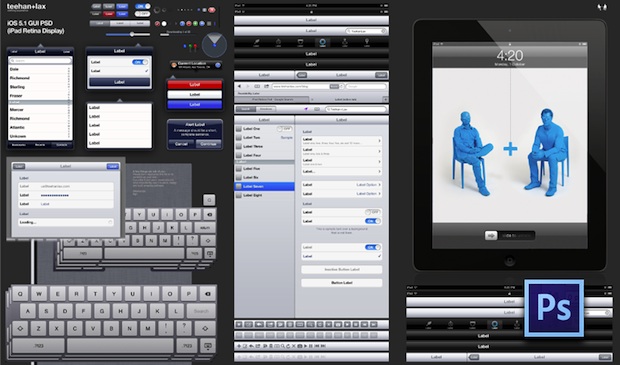
iPad GUI designers take note: iPad GUI element set in a layered PSD file!

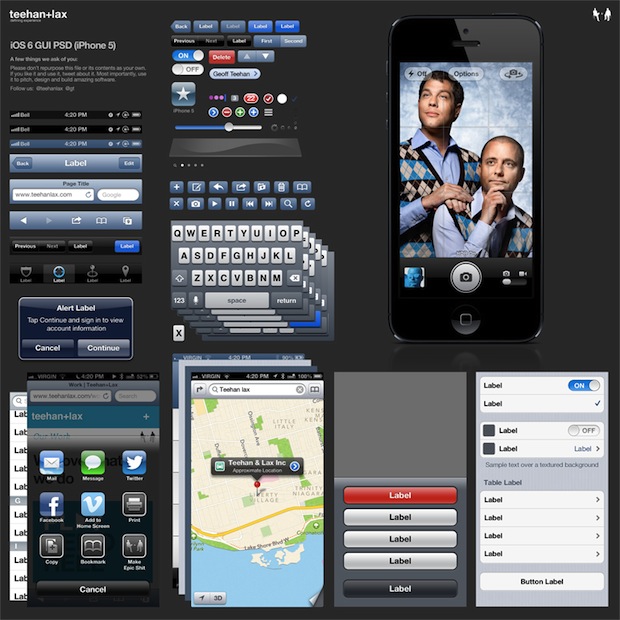
Apple iPad GUI Elements If you plan on developing or designing for the iPad this could be very valuable to you, the folks over at teehan+lax have created a fantastic PSD file of the iPad’s GUI elements, all arranged quite well.

The elements are created using vectors so they’re completely scalable, and the files resolution and design is set to the iPad’s screen resolution of 768×1024. It doesn’t get much more convenient than this! Developers efforts for the iPad are already underway but it is really set to take off as the device is going to ship to consumers soon, and I for one can’t wait.

Get the iPad GUI PSD file here

[ screenshot and link via The Graphic Mac ]

Disable the Crash Reporter Dialog in Mac OS X

If you’re a developer (or anyone else) you may quickly get fed up with the Crash Reporter Dialogue box that pops up when an app melts down and crashes in Mac OS X. You can disable the Crash Reporter dialog box by launching the Terminal and entering the following command:

defaults write com.apple.CrashReporter DialogType none

and you can show the Crash Reporter again by entering the following at the command line:

defaults write com.apple.CrashReporter DialogType crashreport

It’s generally best to leave this kind of thing set to the default settings, and sending in crash reports actually helps Apple debug and improve software, but if you have a compelling reason to disable it, now you know how to.

disable crash reporter

Quick Guide to Bash Shell Scripting

mac terminal Shell scripting is wildly useful and a powerful way to manipulate a lot of files and to automate behind-the-scenes tasks in Mac OS X. This guide is intended for Linux users but the Bash shell is also used in Mac OS X, and as far as I can tell everything in this bash shell scripting guide works the same across the two platforms. Before checking out the guide you might want to check what shell you are using in Mac OS X by typing the following in the Mac Terminal:

echo $SHELL

Something like /bin/bash or /bin/tcsh will be reported back to you, obviously this Bash scripting guide only works for the Bash shell. If you need to, you can change the default shell rather easily in the Terminal preferences, but Bash has been the default shell since 10.3 and continues to be in Snow Leopard.

LinuxHelp: 10 second guide to Bash Shell Scripting

If you’re looking for more, a much more advanced and complete guide to Bash scripting is available here:

Advanced Bash Scripting Guide

And if you really want to dive into shell scripting, a good book like Pro Bash Programming: Scripting the GNU/Linux Shell will do you wonders.

Setup Wordpress in MAMP

wordpress mamp MAMP is a really useful instant webserver for your Mac that requires practically no setup or installation, you run the app and click “Start” – yes it’s that simple. I use MAMP a lot for local web development and really like it, it’s probably the easiest way to develop locally with something like Wordpress. I was going to write a full article on setting up MAMP and Wordpress, but TUAW beat me to it! So rather than re-writing the wheel, let’s take a look at TUAW’s simple walkthrough on getting Wordpress setup under MAMP:

TUAW: Getting Started with Wordpress & MAMP on your Mac

If you’re still a little confused or want a more thorough walkthrough, check out this one at labs.dariux.com:

Labs.Dariux: Install and Run Wordpress Locally with MAMP

If you do any kind of web work or development, you really should check out MAMP!

Set a local domain to ease local development

If you’re a web developer you probably do a fair amount of development on your local machine using either the built-in Mac OS X Apache server or, in my case, something like MAMP. You can make your local development life a bit easier by setting a local domain, here’s how.

from the Mac Terminal type the following:
sudo nano /etc/hosts

this will bring up the /etc/hosts file in the nano editor, it will look something like this:
##
# Host Database
#
# localhost is used to configure the loopback interface
# when the system is booting. Do not change this entry.
##
127.0.0.1 localhost
255.255.255.255 broadcasthost

next, you’ll want to add the hostname (in this case, local.dev) you’d like to use locally to the end of that file on a new line, in the following format:
127.0.0.1 local.dev

Save the changes to /etc/hosts file by hitting Control-O and then Control-X to exit. Now you can access your local domain via the web browser, ftp, or whatever other means.

iPhone Simulator – iPhoney Simulates iPhone Web Browsing

iphone simulator

iPhoney is a nice iPhone Simulator that works to replicate the web browsing experience of iPhone users. This is very helpful to web developers that need to test if a web site or application works on the iPhone, and also how the user experiences the site. It’s not a traditional iPhone Simulator in the sense that it emulates the entire iPhone user experience, instead it just simulates the web as seen through the iPhone browser. It’s also got a handy feature that gives you the ability to change the user-agent to whatever you want.

My only complaint about the iPhoney app is that it won’t quit normally, I have to force-quit the application whenever I’m done with it (this is on Mac OS X Snow Leopard, could be a 10.6 specific bug). If you can work with that minor annoyance, then I don’t know of a more simple and free iPhone web simulator for the Mac.

Download now
Developer home

If you’re serious about iPhone Development it’s probably best to get the Apple iPhone Development Kit which also includes an iPhone simulator, but will set you back $99 for an Apple Development Center Membership.

5 Tips to help Independent Developers to succeed in the App Store

3gsiphone Successfully developing for the iPhone and iPod Touch is fun but it’s not easy, sure, you’ll want a good book, but after you’ve written your first app, what do you do next? TechCrunch for mobile geeks site MobileCrunch has a couple great detailed tips for small independent developers to increase their chances for success on Apple’s App Store for the iPhone and iPod Touch. Here’s the readers digest version:

  • #1) The Hare beats the Tortoise. Develop fast, release often.
  • #2) Make sure the price is right. (basically, $1)
  • #3) Show off your feathers. (ie: have a good looking icon and screenshots)
  • #4) Partner for success. (group with other small developers to cross promote)
  • #5) PR isn’t all its cracked out to be. (send links to blogs and reviewers, but don’t bother spending big money on a PR rush)

Read the details and more helpful hints at MobileCrunch: Rising to the top -5 ways indie developers succeed in the app store

Run Internet Explorer 6 under Mac OS X with IEs4OSX

Internet Explorer for Mac Microsoft officially stopped developing Internet Explorer for Mac’s a few years ago, but you can still run Internet Explorer on your Mac using a few tools. Now I don’t know anyone that wants to run Internet Explorer 6 for personal use, but if you’re doing any kind of development work for the web, you likely are required to check for IE6 compatibility. Many Mac developers install Windows in VMWare or Parallels to get the ability to check their work in IE, but that’s not needed thanks to IEs4OSX. IEs4OSX is dependent on Darwine to be able to run Internet Explorer 6 on your Mac so be sure to download that too if you don’t already have it. The developer’s page has simple instructions on how to get it up and running, it’s a quick process and will definitely save Mac developers sometime!

Run Internet Explorer 6 in Mac OS X

Download IEs4OSX now
Developer home

Update:IES4OSX has been renamed to WineBottler, but its functionality is still the same: you can still run IE6 in Mac OS X

University of Washington offers Certificate in iPhone & Cocoa Development program

iPhone SDK development Here’s something that’s bound to be popular. The University of Washington is offering a Certificate program in iPhone Development, the coursework covers Cocoa too but there’s plenty of Cocoa development programs out there so it’s really the iPhone development that makes it stand out. For now the program is only offered at the University of Washington Seattle campus, but ArsTechnica reports that an online offering will be available next year.

Here’s the program description, directly from UW:

Learn the language, framework, processes, and skills to develop quality applications for Apple’s iPhone. Become familiar with Objective-C and begin developing applications in the Cocoa framework, using the iPhone SDK (Software Development Kit). Gain the tools to design, build, and test your applications, and to effectively market them through the App Store. Expand your knowledge to include more advanced Cocoa programming skills.

University of Washington: Certificate in iPhone Development

If you are interested in iPhone Development and aren’t interested in paying for a certificate program, a great place to start is Apple.com’s very own iPhone Developer site, iPhone Dev Center and by picking up a good book, we recommend Beginning iPhone 3 Development: Exploring the iPhone SDK available from Amazon.com