Subscribe to OSXDaily

Subscribe to RSS Subscribe to Twitter Feed Follow on Facebook Subscribe to eMail Updates

Shared on Facebook

Shop at Amazon

Ad

OSXDaily on Facebook

Search Mission Control

Rearrange Full Screen App Placement in Mac OS X by Dragging & Dropping

May 1, 2012 - 11 Comments

Rearrange placement of full screen apps in Mac OS X

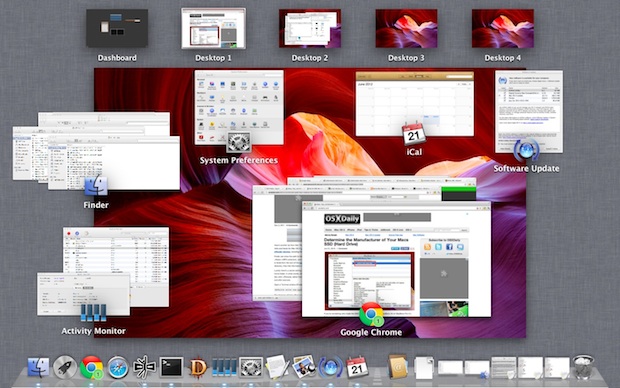
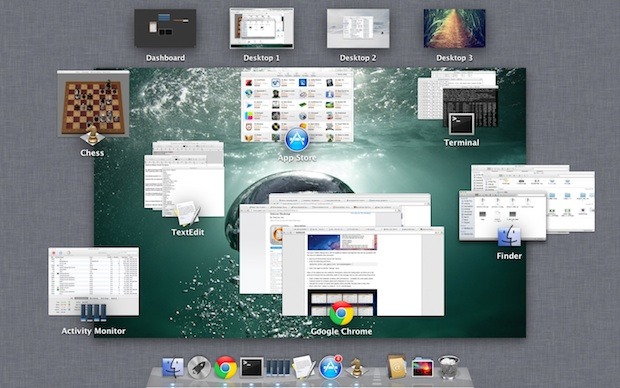
Full Screen apps in Mac OS X are managed by Mission Control, this means that if switch beween or gesture swipe from one full screen app to a desktop or another app, it follows the order of desktops and apps shown at the top of Mission Control. This also means that you can rearrange the placement of fullscreened apps easily just by clicking on one of the app windows and dragging and dropping it beyond another Desktop or full screen app. Now anytime you swipe between desktops or apps, you’ll find the app in its new placement.

We’ve covered a similar tip showing how to move Desktops around to rearrange their order within Mission Control as well.

Speed Up Mission Control Animations in Mac OS X Lion

Feb 14, 2012 - 15 Comments

Speed Up Mission Control Animations

Boosting the speed of Mission Control animations can make Mac OS X Lion feel a bit faster when switching between windows, spaces, and apps within the feature. It’s easy to do and reversible if you decide you don’t like it, launch the Terminal to get started.

Speed Up Mission Control Animations

This will speed up Mission Control quite noticeably but still maintain a decent looking animation:

defaults write com.apple.dock expose-animation-duration -float 0.15

Now kill the Dock to restart Mission Control:

killall Dock

Do a three-fingered swipe up or down to see the difference in speed.

Super Fast Mission Control Animations
If you want extremely fast animations, this is your defaults write command:

defaults write com.apple.dock expose-animation-duration -float 0.1

Again, kill the Dock for changes to take effect:

killall Dock

As you may have guessed, you can adjust the animation speeds by changing the number after the -float flag, the larger the number the slower the animation, and the lower the number the faster the animation. The default setting is probably about 0.2 or 0.25, meaning anything larger than that starts to be slower than default. Whole numbers become increasingly slow, similar to holding down the shift key.

Slowing Down Mission Control Animations
This is marginally slower, but can quickly become a nuisance with usability:

defaults write com.apple.dock expose-animation-duration -float 1

Followed by:

killall Dock

Disable Mission Control Animations
This removes all animations, making Mission Control just snap in and out:

defaults write com.apple.dock expose-animation-duration -float 0

Killing the Dock is required for the animations to disappear:

killall Dock

The effect of disabling the animation is quite jarring and unless you’re trying to preserve frame rate for some reason it’s not very pleasant.

Return to Default Mission Control Animation Speeds

Want Mission Control to be back to normal? Use the following defaults command to clear any customizations, returning to the default setting:

defaults delete com.apple.dock expose-animation-duration; killall Dock

Check out more of our Misson Control tips.

Swipe Up to Zoom in on App Windows Within Mission Control

Dec 20, 2011 - 6 Comments

Two finger upward swipe in Mission Control shows app windows

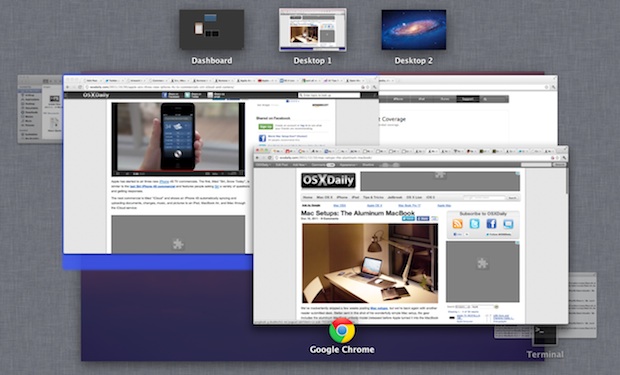
If you have a lot of app windows open in Mission Control, hover over a group of windows and use a two finger swipe upwards to expand and zoom on just those windows. This makes easier to differentiate windows and select one that may be obscured behind others in the default view.

Using a defaults write command you can also set this zoom feature to show the full size of windows in Mission Control.

Jump to the Most Recently Used Desktop Space with a Hidden Gesture in OS X Lion

Dec 15, 2011 - 6 Comments

Mac trackpad If you use the multi-desktop Spaces feature of Mission Control often, you’ll probably like a hidden gesture in Mac OS X Lion that lets you immediately jump back to the most recently used Space with just a four-fingered tap on the trackpad (or Magic Mouse). Here’s how to enable the gesture with a defaults write command.

Launch Terminal from /Applications/Utilities/ and enter the following command:

defaults write com.apple.dock double-tap-jump-back -bool TRUE;killall Dock

Go to a different desktop and perform a four-fingered tap to immediately switch back to the previously used Space. You’ll obviously need to have multiple Spaces open for this to work, and once you get used to it, it’s a very nice addition to the other Mac gestures.

Spaces in OS X Lion

Disabling the gesture can be done by entering the following defaults write command into the Terminal:
defaults delete com.apple.dock double-tap-jump-back;killall Dock

This is a tip found on CultofMac written by Keir Thomas, who recently wrote some cool posts for us and also authored the book Mac Kung Fu.

Thanks for sending this in Torsten!

Quickly Sleep the Display in Mac OS X with a Hot Corner

Dec 5, 2011 - 4 Comments

Quick Sleep the Display of a Mac with Hot Corners

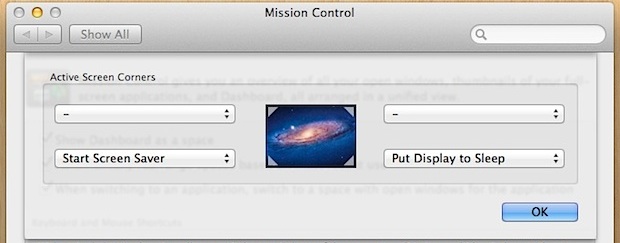
You can quickly sleep the display of a Mac or immediately start a screen saver by setting up Hot Corners, which are activated just by sliding your cursor into the specified corners of the screen.

Setting up Hot Corners has been moved in Mac OS X Lion as part of Mission Control, here’s how to set it up:

  • Launch System Preferences and click on “Mission Control”
  • Click on “Hot Corners…” in the lower left corner
  • Set the screen corners you want to use to “Put Display to Sleep”
  • Close out of System Preferences and test the Hot Corner by sliding your cursor into that screens corner

In the screenshot example, the lower right corner is set to put the display to sleep, while the lower left corner starts the screen saver. Sleeping the display is more akin to turning it off, and it’s not the same as putting the Mac to sleep.

If moving the cursor isn’t your preference, you can also setup a keyboard shortcut to lock the Mac screen. In both cases, if you have a password enabled for the lock or screensaver screen you will need to enter the login credentials again to regain access to the Mac OS X desktop.

Show a Full Size Window Preview in Mission Control

Dec 1, 2011 - 5 Comments

Full Size Window Preview in Mission Control

Here’s another great tip from Keir Thomas, author of the new book Mac Kung Fu, which contains over 300 tips, tricks, hints and hacks for Mac OS X Lion:

Mission Control in OS X Lion groups together thumbnail previews of windows from the same app. By hovering the mouse cursor over a cluster of these thumbnails and scrolling up on a multitouch trackpad or Magic Mouse (or scrolling up the mouse wheel with other mice), you can cause the cluster to expand, showing more detail in those behind the main window. Give it a try now—it’s pretty useful.

This trick can be enhanced with a small tweak to a hidden system setting. To make clustered windows expand to full size so you can see their contents rather than merely slightly larger than they normally are, open a Terminal window and type the following:

defaults write com.apple.dock expose-cluster-scale -float 1;killall Dock

The changes take effect immediately. A variation of this tweak is to substitute a value of 0.6 rather than 1 in the line above. This will cause the windows to expand to a larger size than the default but not to 100 percent of their normal dimensions.

To undo the tweak at a later date, open a Terminal window and type the following:

defaults delete com.apple.dock expose-cluster-scale;killall Dock

Like this tip? Don’t miss our other Mission Control tricks.

Show All Windows for an App in OS X Lion with Mission Controls Exposé

Nov 24, 2011 - 11 Comments

Show All App Windows with Expose in OS X Lion

Exposé was replaced with Mission Control in OS X Lion by name, but that doesn’t mean some of the most useful functions of Expose are gone.

To access app-specific Expose in Lion and display all of an applications open windows, move the cursor over an apps Dock icon and then do a three fingered swipe down. You’ll be brought to the familiar all-window view that was very popular in prior versions of Mac OS X.

swipe down open app in the Dock to show Expose in Lion

Depending on your Mission Control and gesture settings in OS X Lion you might need to do a four-fingered downward swipe instead. Performing the downward swipe in the currently open app has the same effect, assuming that app has more than one window open.

Update: for older Macs or those without a trackpad, you can access the same feature by using the keyboard shortcut Control+Down Arrow.

Restart Mission Control in OS X Lion

Nov 23, 2011 - 1 Comment

Restart Mission Control in OS X

If you make any customizations to Mission Control, or if you encounter obvious problems with how Desktops and apps are handled and assigned, you can restart Mission Control without having to reboot the entire Mac. This is done by killing the Dock, where Mission Control is a child process of, and this is also why when you want to change the Mission Control background image you kill the Dock. You can kill the Dock in two ways:

  • Using Activity Monitor
  • Using the Terminal

The command line method is much faster if you’re comfortable with Terminal.app, launch Terminal from /Applications/Utilities/ and type the following command:

killall Dock

The Dock and all subprocesses will restart themselves automatically, including Mission Control.

Using the task management tool Activity Monitor is the other option for those who prefer staying within the GU and avoiding the command line:

  • Hit Command+Space to bring up Spotlight and type in “Activity Monitor”
  • In the upper right corner of Activity Monitor, find the search box and type “Dock”
  • Select the process and then click on the big red “Quit Process” button, confirming in the dialogue box by selecting ‘Force Quit’

Again, the Dock and Mission Control will automatically restart themselves.

Whichever method you choose to perform the restart, this can be a great troubleshooting tip if you’re running into peculiarities with graphical artifacts, irregular Desktop Spaces assignments, and other generally buggy behavior within Mission Control.

Thanks for the tip Mike

Stop Spaces from Rearranging Themselves in Mac OS X

Nov 12, 2011 - 6 Comments

Stop Spaces from Rearranging Themselves in OS X

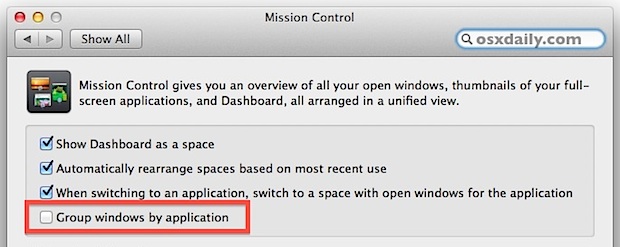
The Mac OS X 10.7.2 update brought with it an unusual change to Mission Control’s behavior, where desktops/spaces will automatically rearrange themselves based on how recently they’ve been used or accessed. If you’ve set your spaces to be in a specific order, this is fairly annoying, but it’s also easy to stop.

  • Launch “System Preferences” and click on Mission Control
  • Uncheck the box next to “Automatically rearrange spaces based on most recent use”
  • Close out System Preferences

With the automatic rearrangement disabled, Mission Control will again remember your app and desktops placement and not reorder them on it’s own.

Like this? Check out some more Mission Control tips.

Quickly Create a New Desktop for an App from Mission Control in OS X

Nov 8, 2011 - 1 Comment

Create a new Desktop from an App via Mission Control

Using Mission Control, you can quickly create a new Desktop Space just by grabbing an app, dragging the window into the corner, and letting it go on the “+” plus icon.

After dragging windows around, you’ll continue to stay in Mission Control, which lets you quickly rearrange and organize your desktops

You can also grab apps and drag them into existing Desktops to move them around quickly. If you’re still getting the swing of Mission Control, don’t miss our other tips on using the window and app manager new to Mac OS X 10.7.