Maximize FileVault Security by Destroying Key Storage in Standby Mode
 Standby mode is a power saving feature that automatically hibernates a Mac after it has been in sleep mode for a while, which it does to further decrease drain on battery. When a Mac using FileVault encryption is placed into standby mode, a FileVault key (yes, this key is encrypted) is stored in EFI (firmware) so that it can quickly come out of standby mode when woken from deep sleep. For 99% of users, that hardly matters and it’s not a security concern, but for those who are concerned about absolute maximum security and protecting a Mac from some unusually aggressive attacks (i.e. espionage level), you can set OS X to automatically destroy that FileVault key when it’s placed in power-saving standby mode, preventing that stored key from being a potential weak point or attack target.
Read more »

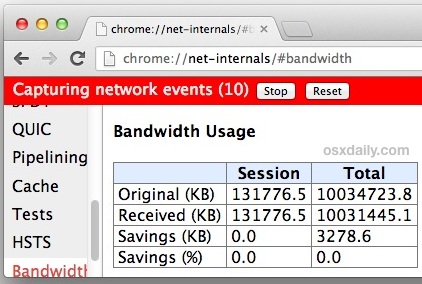 If you’ve ever wanted to watch all data transfer and bandwidth usage while you browse the web you’ll know it’s not necessarily an easy task. Thankfully, a little-known feature contained within the excellent Google Chrome web browser provides a simple solution, and it allows for easy monitoring of how much data is consumed in a given web browsing session.
 Some Mac users overlook a feature in macOS / Mac OS X that allows them to attach an Apple ID to their actual user account, not just to iCloud and the App Store. It only takes a moment to set, and it provides for an incredibly

 As you probably know, all of your iPhone Contacts and related address book information is stored within iCloud, assuming you use the cloud service to sync and backup your data of course.
  Network Locations in Mac OS X allow you to save specific configurations and settings for different networks. Once they’re setup, you can use them to change between various network configurations quickly, without having to re-enter any settings. These are perfect if you are switching between things like an automatic DHCP config vs a manually assigned IP address, different routers with unique settings at different locations, toggling proxy use on or off, using different and specific DNS configurations, or just have custom network configs for specific places like work, home, or school.



 Ever needed to quickly mirror a Mac display, switching another screen from an extended desktop to the mirrored image of what’s on the primary screen? Sure, you can visit the System Preference Display panel and fumble around in settings, but there is a much easier and faster way to toggle display mirroring with just a simple keyboard shortcut.
 iOS devices can use an optional