
How to Customize your Terminal Prompt
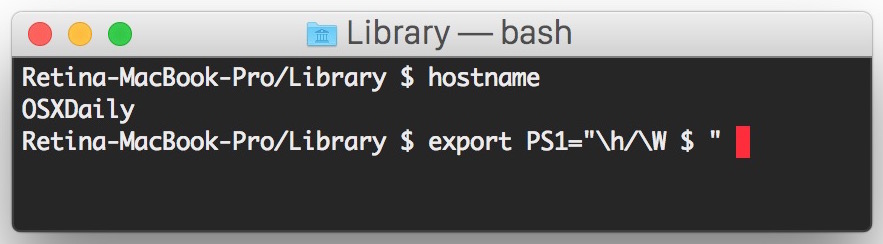
Whether you use the Terminal occasionally or regularly, you might find it appropriate to change the way it looks beyond the color scheme and transparency settings. How about changing the actual command line prompt? It’s quite easy, and can be a fun way to further customize your Macs appearance.
Changing the way the terminal prompt looks is not too complicated, but it involves some fairly minor usage of the command line, which, given that you are wanting to customize how the bash prompt looks, we assume you’re at least somewhat familiar with the Terminal. And yes, this applies to all versions of OS X, as every version on every Mac defaults to using bash as the command prompt. OK let’s get started.
The default command line prompt in Mac OS X is something like:
ComputerName:CurrentDirectory User$
That would look something like this when the Terminal has been launched:
MacBook:~/Desktop Admin$
Not too bad, but kind of boring, and not the best, right? It’s quite easy to change though, and you can really customize your bash Terminal prompt to look like almost anything you want.
We’re going to assume you use the default bash shell, so you’ll be editing either the file .bashrc, .bash_profile, or .profile if you installed fink.
Thus, to start customizing the bash prompt, at your current Terminal prompt, type the following to load the appropriate profile into nano text editor:
nano .bashrc
Yes, you can change that to .bash_profile or .profile depending on your specifics:
nano .bash_profile
You’ll probably be presented with a plain file, so type the following onto a line in the terminal to get started:
export PS1=" "
It’s between those quotation marks that your bash prompt customization occurs.
Between the quotation marks of export PS1=” “, you can add the following lines to customize your Terminal prompt:
- \d – Current date
- \t – Current time
- \h – Host name
- \# – Command number
- \u – User name
- \W – Current working directory (ie: Desktop/)
- \w – Current working directory with full path (ie: /Users/Admin/Desktop/)
(Note if you just want to use a custom bash prompt one-off or to test out the appearance of changes before setting them in the bash profile, you can simply use the export commands, the change will take effect immediately with the export command but will be abandoned when that Terminal session is ended.)
So, let’s take a few examples. Perhaps you want your Terminal prompt to display the User, followed by the hostname, followed by the directory, then the appropriate .bashrc entry would be:
export PS1="\u@\h\w $ "
which will look like the following when rendered at the actual bash prompt:
Admin@MacBook~Desktop/ $
Cool huh? You can also change the prompt itself to anything, it doesn’t have to be the $ sign, simply replace it with whatever else you’d like to use, : for example would be:
export PS1="\u@\h\w: "
which is the same as above, but : instead of $
Admin@MacBook~Desktop/: "
So, play around and see what you prefer. My personal favorite is the following:
export PS1="\W @ \h [\u] $ "
This renders looking the currently active directory (PWD), the hostname of the computer, and the username of the current user, looking like the following:
/System @ MacBookPro [Paul] $
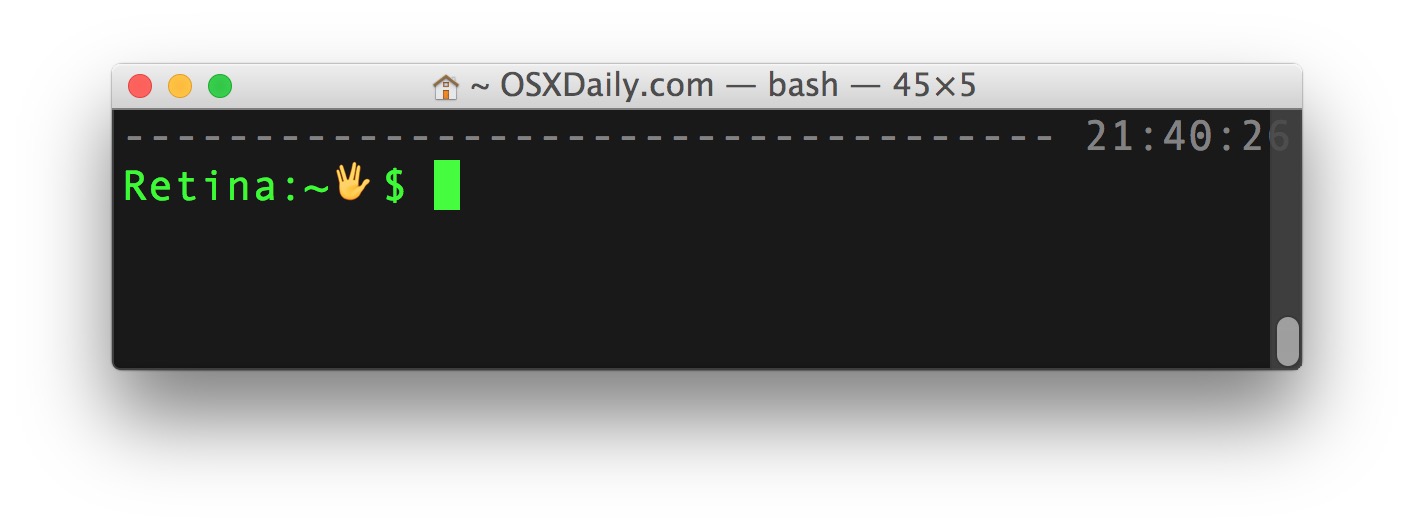
With modern versions of OS X, you can even include an Emoji in the prompt by dragging it into the place you’d like it to display, for example:
export PS1="\h:\W (DRAG EMOJI HERE) $ "
That would display as:
Hostname:Desktop (Emoji) $
Seen in this picture below:
When you’re satisfied with the appearance of your prompt, save the .bash_profile file edits in nano by hitting Control+o and you can then exit out of the nano program by hitting Control+x
If you really want to, you can also just use a standard text editor like like TextWrangler or TextEdit to edit your .profile, but if you’re changing your terminal prompt you should likely learn how to modify files from the command line too.
If you’d rather change things to look more graphical, there’s also a simple how-to designed to make your Terminal prompt include an emoji character (yes, the same emoji icons that people use for text messaging), you can read that here if you are interested.
 Finally, keep in mind this is changing the command prompt, not the appearance of the Terminal app windows. If you like customizing the look of things, changing the appearance of Terminal is well worth doing, as you can add a huge number of changes and customizations to the way a standard Terminal window renders. Added together with a custom command prompt and the days of having a boring looking terminal will be long gone, on your Mac anyway. It’s probably obvious, but yes these prompt customizations work beyond OS X and in Unix and Linux as well.
Do you have a cool prompt you want to share? Post yours in the comments, try to include both the export command as well as what the prompt will render as, to make it easier for others to determine if they want to try it or not.






How can you get the color customization changes that you make in .bash_profile to apply when you ssh into an remoter server (specifically an aws instance whose ip address changes every time you start and stop the instance)?
Great question. You’d have to create a new .bash_profile on the user account used for logging in on the remote server, just put it in the remote hosts users home directory just as you would on your local machine. You can use the same one, or customize it uniquely.
This assumes the remote server is using bash shell too of course, sometimes they default to tcsh, zsh, etc.
I’m wondering how I could use this to output “current volume disk space in Mb/Gb” into the prompt? would be really good.
Thanks for the tip! Now I know how to modify this!
Great Bash customizing! Here are my favorites:
Redhat bash prompt:
PS1=”[\u@\h \W]\\$ ”
Rainbow bold color prompt:
PS1=”\[$(tput bold)\]\[$(tput setaf 1)\][\[$(tput setaf 3)\]\u\[$(tput setaf 2)\]@\[$(tput setaf 4)\]\h \[$(tput setaf 5)\]\W\[$(tput setaf 1)\]]\[$(tput setaf 7)\]\\$ \[$(tput sgr0)\]”
Which reminds me of a site we used to use at work to customize our linux server prompts back in like, ancient times: https://www.kirsle.net/wizards/ps1.html
The real magic is in the colorization that’s easily made with that utility, of course you need to set your own xterm / Terminal profile colors in Preferences for the app, or themes for Terminal sessions, but, it can look really fancy in a jiff.
my favorit with line break after current directory
export PS1=”\[33[0;34m\]\[\e[0;32m\][\$(date +%d.%m\” \”%H:%M)]\[\e[m33[0;34m$ \w 33[m\] \n! “
Does not work. Gives errors …
line 8: syntax error near unexpected token `date’
bash: /Users/tom/.bash_profile: line 8: `export PS1=”\[33[0;34m\]\[\e[0;32m\][\$(date +%d.%m\” \”%H:%M)]\[\e[m33[0;34m$ \w 33[m\] \n! “’
should be http://www.ibm.com/developerworks/linux/library/l-tip-prompt/
Perhaps its my bad luck…. Mac OS X 10.7 (mid-2008 MBP):
export PS1=”\h::\W $” results in a prompt of:
authoriz-fd8998::~ $
Damn I wish Apple would test their stuff before unleashing it on the world…..
This is a great addition to the command prompt……
Another i personally use is editing the ~/.bash_rc file and adding the following line in order to view octal and normal drwxr etc permissions when typing list at the prompt (as apposed to typing ls -al)
alias list=”ls -la | awk ‘{k=0;for(i=0;i<=8;i++)k+=((substr(\$1,i+2,1)~/[rwx]/)*2^(8-i));if(k)printf(\" %0o \",k);print}'"
(The command above is all one line)
Hope this helps others see what the permissions are on files and folders at a glance.
Steve
This formatting works until the command extends to a second line, at which point the first line is overwritten.
Turns out this is only a problem if formatting brackets aren’t properly terminated!
Thank you so much. My prompt is now cleaned up.
In my new iMac with Lion, the terminal prompt was unknown34ce6f4c0ea5 ~ bud$. From this discussion I discovered that the hostname being used was \h = unknown23de6f4c0da2. I replaced \h with my correct computer name as shown in the Sharing preference pane.
Does anyone have an idea how \h got messed up, and do I have to worry about this crazy hostname affecting other things? The hex number looks like a MAC address except I don’t think I have that particular address anywhere although it differs from my wi-fi hardware Mac address by only 4 of the characters.
[…] you want to customize the Terminals appearance a bit beyond the prompt and a custom background, you can make the Terminal much more readable by using this nice trick to […]
$ ln -s .bashrc .bash_profile
I know this is old but: depending on what you have in those files linking one to the other can cause problems depending on the type of shell invocation (interactive, login) is active. For the record this is how it’s done in other Unices (at least Linux; it’s been well over a decade since I used other Unices than Linux! – I want to say it’s been 15 years as of last month or even this month exactly):
# .bash_profile
# Get the aliases and functions
if [ -f ~/.bashrc ]; then
. ~/.bashrc
fi
# EOF (not in mine but just showing that I’m done with the pasting)
It should be noted too that should you go the symlink route if the file already exists you’ll have to specify the -f option (it will overwrite the file if you have the right privilege so be wary if you don’t know what you’re doing – in fact be wary always at the command prompt! – well always be careful full stop).
One thing is that in 10.6.7 it seams you have to create a file .bash_profile and put in the commands to change the command line. I used
export PS1=”[\#]\w>”
so it has the command number \# and the complete path name \w
[…] weren’t quite in the order that I wanted. So I went back to my search results, and I found this. Here are the relevant bits: export PS1=" […]
1 the suitable spliting up is definitely sent in, right after month or two this record for your absolute or perhaps short-term a divorce lawyer atlanta may be manually filed. These jobs usually are not effortless by any means which is very hard in order to remember many of the clauses for a nonprofessional end user. Thus, more often than not, if the petitioner includes your money after that without any doubt, they need to choose the particular solicitors. Says such as Houston provides so many advantages for the lawyer as well as hence the Houston breakup law firm will be greater than common.
[…] one is easy, you can lots of posts for that, you can even do it in mac osx, but problem is, changing value for PS1 in .bashrc, effects all terminal windows, and there is no […]
How will i set the prompt to only like this “$ ” and when i change to root will show only “# “.
thanks.
[…] Eine (englischsprachige) Anleitung findest Du dort: https://osxdaily.com/2006/12/11/how-t…rminal-prompt/ Hier die komplette Dokumentation zum Bash-Prompt: […]
Thanks, very helpful.
thx a lot !!! :)
I made a kind of DSL in Ruby to generate valid strings that represent colored text in the terminal, I use it to generate my prompt: http://github.com/rafmagana/geek_painter
Like fak3r, I like having the time in there plus username@host. Makes it easier to go through the logs and keep things straight.
thanks, that was really helpfull!
Thank you!
This helped me out in customizing my prompt in Snow Leopard. To make my prompt more permanent, instead of having to reload .bashrc everytime I opened up a terminal window, I edited the /etc/bashrc file. You’ll need to use sudo since it’s a read only file. Here’s what mine looks like:
PS1=’\u@\h:
\w$ ‘
So you get the username@host on the first line and then the second line you get the PWD$.
Hi,
I am a banker & I just bought a Mac computer with my bonus I last week. Its the first time that I am using a Mac operating computer & I didn’t quite understand how to use it properly though I am able to get familiar with the basic operations.
I was able to find this post on Mac terminal skins – http://www.levoltz.com/2009/08/08/macchanging-skins-of-the-terminal/ but is quite hard & complicated to understand for me. Its the first post that came across for me since I mostly use that blog for information.
Its a good blog, but then, I found yours & its really great there are so many & topics to discuss. Although its hard for me to understand some things in this, I guess that blog posts will be a fast track to get familiar Mac operating systems.
I thank you you for this amazing post. Keep it up. I will keep in touch.
Thanks again.
Thank you
you have really saved my time.I was searching for a long time for a help to cutomize my command prompt.
At the begining I have forgotten the dot space dot bashrc thing in . .bashrc so the changes couldn’t be affected but shortly after I fixed it. :)
That was very helpful especially coz I’m lost fan and I got a nice Lost ’style for my prompt with the following command
export PS1=”\u@\h\w at \t :” .
I’m expecting more tips for mac users in you blog:)
keep up the good work
I switched from vista to mac OS just 2 weeks ago, so I ‘m still a mac beginner.
Thank u yery much for ur tips.
It looks now much better than before. I always wanted to change the actual command line prompt but never succeeded to do it.
I have followed your instructions and also added \T for another time format, \s for shell name \v for shell version, it is really easy .
I switched from vista to mac OS just 2 weeks ago, so I ‘m still a mac beginner.
Thank u yery much for ur tips.
It looks now much better than before. I always wanted to change the actual command line prompt but never succeeded to do it.
I have followed your instructions and also added \T for another time format, \s for shell name \v for shell version, it is really easy .
No need to quit the Terminal.app and restart… merely open a new Terminal window (this creates a new session). Or you could simply invoke a new bash session by:
bash -l
To have this work after saving .bashrc you can put the exact code into .bash_profile.
But even better, keep the code in .bashrc and in .bash_profile put the line:
“source ~/.bashrc” without the quotes if you want the prompts to be the same in login and non-login sessions.
For my prompt, I chose this: [17:19:21] User@Host::/current_directory >:
With Terminal set to Pro style, and the time, @, :: and >: are yellow and User, Host are teal and directory green. Contents of my .bashrc is:
export PS1=”\e[33;40m[\t] \e[36;40m\u\e[33;40m@\e[36;40m\h\e[33;40m::\e[32;40m\w\e[33;40m >: \e[0m”
I’m running Tiger and you can use the same code in your ~/.profile file. I assume this will change only the settings for that user, though.
I had the same problem re: .bashrc not being executed…try making the same edits as above to .bash_profile instead. worked for me.
I’m having the same problem as mrc – it seems like .bashrc is not being executed. I have even quit and restarted Terminal. Any ideas?
for whatever reason, it appears that my .bashrc file is not being executed when i start up Terminal. i can set the “run command” for the basic window profile to execute the . .bashrc command to change the prompt, but it seems like it should work automatically. have i missed something?
[…] read more | digg story […]
I was frustrated until I realized that you have to quit terminal and restart before the customization takes effect. ah…the joys of customization…
Why didn’t you just:
source .profile
or
source .bashrc
?
Much easier to change this…
Source will read and execute the stuff that’s in.
Did the LOST prompt. Awesome!
very cool.
!!!! swweetttt
a very nice article by IBM just reminded me of your site:
http://www-128.ibm.com/developerworks/linux/library/l-tip-prompt/
[…] OS X Daily » How to Customize your Terminal Prompt – Mac OS X Apps, Tips, Tricks, News, Updates, Everything Mac OS X Posted in bookmarks | Trackback | del.icio.us […]
I myself am partial to:
PS1=’\u@\h \[\e[33m\]\W\[\e[0m\] \[`if [[ $? = 0 ]]; then echo ‘\”\e[32m=)\e[0m’\”; else echo ‘\”\e[31m=(\e[0m’\” ; fi`\] $ ‘
works with linux/bash anyway =)
needed to change to export PS1=”\u@\h \[\e[33m\]\W\[\e[0m\] \[\`if [[ \$? == 0 ]]; then echo ‘\e[32m=)\e[0m’; else echo ‘\e[31m=(\e[0m’ ; fi\`\] $ “
Love it! I have modified it slightly to use os x’s emoji support, and turning the smiley face into the prompt. For anyone who is wondering what gid’s prompt string does, it returns a smiley face or sad face, depending on whether the previous command returned 0 (success) or non-zero (failure).
PS1=”[\t] \W [\u] \[\`if [[ \$? == 0 ]]; then echo 🙂 ; else echo 😞 ; fi \`\] “
looks like this website get’s confused with where to put the emojis. My prompt string should be:
PS1=”[\t] \W [\u] \[\`if [[ \$? == 0 ]]; then echo (smiley face) ; else echo (sad face) ; fi \`\] “
Don’t forget to run:
. .bashrc
… to effect the change in your bash session. That’s dot space dot bashrc.
THANK YOU.
THANK YOU!!!!
I may be n00bish with some things but damnit I prolly would’ve wasted another hour not realizing I had to run it to invoke the change.
This one looks pretty nice (I’ve been using it for years)
export PS1=’\u@\h[\w]\$ ‘
looks like this:
nhart@sectumsempra[/usr]$
where /usr changes to your current dir and the $ changes to # if you are r00t.
A good PS1 for dark backgrounds, colorful and informative.
PS1=”\n33[1;33m-33[1;34m-(33[1;37m\u33[1;34m@33[1;33m\h33[1;34m)-33[1;33m-33[1;34m-(33[1;33m\w33[1;34m)-33[1;33m-\n\[33[1;33m\]-\[33[1;34m\]-\[33[1;33m\]-#\[33[1;37m\] “
This is not an OS X trick, in fact I post my .bashrc online: http://phil.cryer.us/code/dotfiles/bashrc and use it on FreeBSD/Linux at home, and Solaris, AIX, HP-UX at work. I’ve shared this with many co-workers and friends too, and it’s easy enough to modify if you need to. It gives output like this:
[09:51:54] [uname@hostname ~/home]$
I like having the time on each line, it makes it very easy to deal with logs to compare when an even happened. With 10 terms open having the uname and hostname listed is great, and the path is a standard, but this one truncates so it doesn’t push your $ all the way over to the side. I’ve tweaked this for years, but this is how I use it day to day.
HTH
f
I like to update the title of the terminal window as well, so here’s mine as it stands currently:
case $TERM in
xterm* | aterm | rxvt | screen )
XTITLE=”\[\e]0;\u@\h (\w)\a\]” ;;
* )
XTITLE=”” ;;
esac
PS1=”$XTITLE””[\u@\h:\w]\n\\$ ”
While I’m here and in case anyone uses GNU/screen, it’s worth mentioning: http://dischord.org/blog/2006/11/22/gnuscreen-and-dynamic-titles-for-ssh/
I think
\n
creates a line break in the prompt, too. It’s not ideal, I guess, but when you’re in a really deep directory, it’s good not to have the prompt all the way on the right edge of the screen, but it’s also nice to see the entire directory without asking (pwd) all the time.
Also play around with
\T
for another time format,
\s
for shell name
\v
for shell version. I am sure there are more, but enjoy!