
Turn On Slow Aqua Animations Permanently in OS X
 The Mac OS X GUI and all it’s eye candy is a pleasure to use and look at. Perhaps you’ll remember a while back from our Fun Eye Candy Effects article that by holding down the Shift key, you can slow down virtually any Aqua effect in Mac OS X, from minimizations, window sizing, to Mission Control and Expose.
If you want something kind of useless but also kind of fun, you can make the slow effect permanent by typing a defaults command string in the Terminal.
How to Enable Slow Animations in OS X
defaults write com.apple.finder FXEnableSlowAnimation -bool true
This works in all versions of OS X, and when we say slow, we mean slow. This is not going to be a productivity booster, the animation is drawn out considerably!
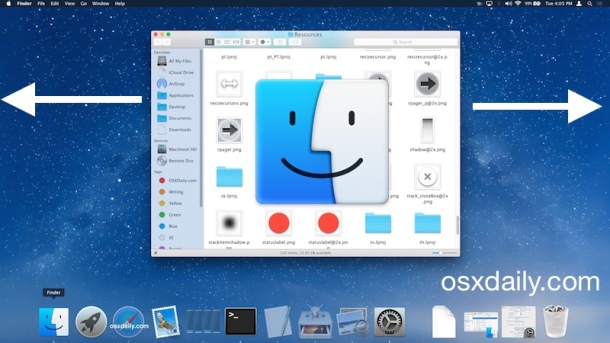
Try resizing a window or minimizing, the animation is going to be sloooooow.
Disable Slow Animations in OS X (default)
defaults write com.apple.finder FXEnableSlowAnimation -bool false
For changes to take effect, you’ll need to reload the Finder either by logging in and out, or by killing the Finder. You can kill the Finder via the command line by typing:
killall Finder
The slow Aqua animations serve no real purpose, just pure eye candy. Enjoy! You’ll find this impacts the Finder, but if you wanted to apply it globally, you could potentially do so with the -g flag attached to defaults, let us know in the comments if you get it working.






Not only is this useless, but it’s annoying! I guess it is nice to be able to do such a thing and it shows the user power in OSX but there’s no way this is usable. THanks but no thanks!
That is so useless, I’ll just hold down the Shift key
why would you want everything slow? Some Mac users just want bragging rights