
Open Current Folder in Finder from Terminal of Mac OS X
 Want to open a Finder window from the current directory location in Terminal? Mac OS makes this easy!
From the Mac Terminal, you can immediately open whatever folder or directory you are working within into the Finder of MacOS and Mac OS X by simply typing the a short command string and executing it. To try this out yourself, you’ll want to use the following command:
How to Open the Current Directory in a Finder Window from Terminal on a Mac
Assuming you’re already in the Terminal application, found in /Applications/Utilities/ the command to type is as follows:
open .
Hitting return and executing “open .” (yes that is a period, and yes it is required) will open the present working directory (PWD in the world of UNIX acronyms) in the Terminal / Command line into the Finder of the Mac – you know, the visual file system.
You can do this from anywhere in the command line as long as you’re in a local path, but it doesn’t matter if it’s system files or user files, you can launch it into the Finder. This can actually be a really helpful way to modify and adjust buried system files if you found them through the command line but now need to interact with them in the Finder.
For example if you’re digging around in /Library/Preferences/Mozilla/ and type open . that folder will be opened in the Finder. Or if your CWD is /etc/ and you want to access that directory immediately in Finder, type ‘open .’ to access it.
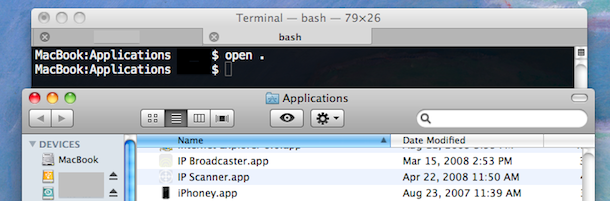
The screenshot above shows this in action while the PWD within the Terminal is the /Applications directory, thus the Applications folder is opened in the Finder.
This is useful for many reasons that I’m sure you can think of, and it’s one of those must-know tricks for command line users in Mac OS X.
By the way, you can also set this up to go the other way, from Finder to Terminal, if you’d like.
This isn’t the only option to open the present working directory from Terminal into a new Finder window on the Mac, you can also use the ‘open’ command like so:
open `pwd`
Note that those are not quotation marks but the tilde press instead. As mentioned before, pwd stands for present working directory, and this launches into that in a new Finder window the same way ‘open .’ does.
Use whichever approach works for your needs. And if you have any similar tips or tricks for opening Finder windows from the command line of Mac OS, share them in the comments below!






open .
that’s all =)
MacOS Mojave
No application knows how to open ..
Nice tip, but is there a command to close the folder?
As far as I know you can not close a specific Finder window from Terminal, but you could use the Keystroke Command+W to close it in Finder, or you could kill the Finder application with killall Finder
Works perfectly! Thanks for your help…
thank you. :)
thank you. :)
[…] option is to use the command line and open to bring the root directory into the GUI through […]
[…] Open Current Folder in Finder from the Terminal Categories: Apple, […]
life saver!
[…] Oops looks like David covered this a month ago: Open Current Folder in Finder from the Terminal, Thanks for pointing this out […]
[…] Shared Open Current Folder in Finder from the Terminal. […]
[…] Shared Open Current Folder in Finder from the Terminal. […]
how do you do it the other way around – i often want to open Terminal at the path open in Finder.