
Type Foreign Currency Symbols in Mac OS X
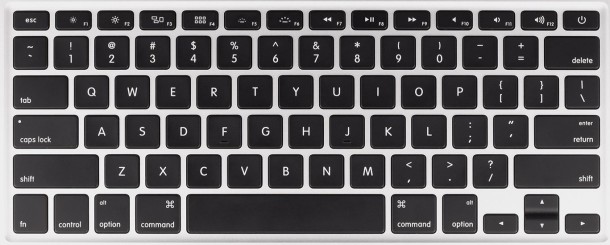
You can access and type foreign currency symbols in Mac OS X in much the same way that other special characters are typed out. That means you’ll use a keystroke combined with the “Option” key to type the respective character. A few common currency symbols are available on default keyboard layouts, including the $ dollar, € Euro, ¥ Yen, and £ Pound, but other foreign currencies can also be accessed through a special character panel. Let’s review each of these:
Foreign Currency Symbols in Mac OS X
The three most commonly used symbols (according to Apple’s inclusion as option-characters, at least) are the Euro, Yen, and Pound. On a standard US, Australian, and Canadian keyboard layout, they can be typed by using the following keystrokes:
European Euro Symbol: € – Shift + Option + 2
Japanese Yen Symbol: ¥ – Option + Y
British Pound Symbol: £ – Option + 3
Dollar symbol: $ – Shift + 4
Of course, the common $ dollar sign (Shift+4) applies to many currencies as well (USD, NZD, AUD, CAD, etc), and thus will appear on many keyboards whether they’re using a US layout or not, and on those keyboards the ¢ cent sign can be typed by hitting Option+4 (or option+$).
Accessing Additional Foreign Currency Symbols
Additional symbols for currencies can be accessed through the Character viewing panel, which can be summoned just about anywhere that you can type on the Mac by pulling down the “Edit” menu and choosing “Special Characters”. From there, choose the “Currency symbols” option to gain access to many more symbols, ranging from the Peso to Yuan Renminbi.
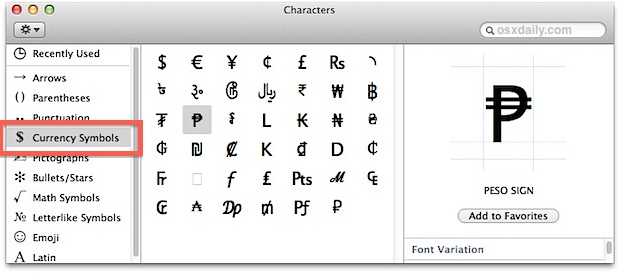
If you can’t recall the precise keyboard shortcut, going straight to the character viewing panel can be easier, particularly with some of the more obscure keystrokes, and thus having them all in a central location for those International Mac users or avid travelers is quite nice. Speaking of travelers, don’t forget you can also access type foreign currencies on Apple’s mobile devices in iOS too, which in many respects is even easier to do than it is on the Mac.






I must save this page (Jack’s reply is perhaps the most understandable). Your help fell just short of what I was looking for. But came close with: “going straight to the character viewing panel can be easier”. I’d found that panel before, but couldn’t get the symbol, ♀ to show up (I was typing it into the title at bottom of a file’s icon). Maybe I just missed your last step but finally, and accidentally, I clicked TWICE, on the image in the Character viewing panel. It then appeared in my text.
[…] and intuitive, and in many ways this is easier than how it’s done on the Mac since you don’t have to remember any quirky keystrokes per […]
One mistake. Option+zero is not the degree sign. It’s a superscript O for ordinal numbers in Romance langauges. Option+9 is superscript A. You would write 2º or 2ª accordingly.
Now you may say that the superscript O and the degree sign look the same, but in some fonts, they have a little underline.
The real degree sign, which looks right in all fonts, is Shift-Option-8. Second in Spanish is 2º, two degrees is 2°. There is a slight difference in this font between the two: °º (degree sign, masculine ordinal sign)
[…] to type foreign currency symbols on a Mac This great post from OSX Daily on how to type currency symbols (British Pound, Chinese Yuan, Euro) on a Mac came in handy the […]
goosh, awesome !! I printed out this page. I asked the retail staff where i bought my iMac and they actually said they are not sure !!! Thank you so much : )
Jack you are awesome you should write for this site
I’d also point out that at least many symbols (though not the Euro) are somewhat mnemonic for Americans – you just press option while also pressing the most logical key. Consider:
The Japanese Yen symbol looks like a letter Y with a line through it: Option+Y = ¥
When Americans say “the pound sign” we mean # – and the # symbol is on the upper row 3 key, so to make a British pound symbol: Option+3 = £
If you want to create the ¢ sign, where would you look for it? Well the other U.S. currency symbol is the dollar sign ($) which is on the upper row 4 key: Option+4 = ¢
How about the degree symbol (º)? Well, it looks like a small zero, right? So where else but on the upper row zero key: Option+0 = º
Many of us use an asterisk when making bullet points because we don’t know how to make a real bullet (•). The asterisk is on the uppercase 8 key, so just hold down the option key instead of the shift key and your bullets look better: Option+8 = •
Need an infinity symbol (∞)? Closest thing on the keyboard is the percent sign, on the upper row 5 key. So: Option+5 = ∞
How about the “circle R” trademark symbol? You guessed it: Option+R = ®
Into electronics? Specifying capacitor values? Don’t write mf when you really want µf: Option+M = µ
How about a slice of π (no, that’s not a lowercase n, it’s a pi symbol). Pi starts with P so: Option+P = π
Of course, ≤ and ≥ are where you’d expect, on the same keys as : Option+, = ≤ and Option+. = ≥
And you don’t need to make people guess if you mean division or a fraction by using the / symbol: Option+/ = ÷
What about a “not equals” sign? Do you even have to ask? (Wait for it, here it comes): Option+= = ≠ :-)
Not ALL symbols are mnemonic (for example, the © symbol is on Option+G – the only mnemonic I can think of for that one might offend the religious folks – *** **** the **AA). ;-)
All those symbols are right there: http://store.apple.com/be-nl/product/MC184FN/A?fnode=MTY1NDA1Mg&mco=MTMzNzkwNjQ