
How to Print to PDF in Mac OS X
 Want to save a document or web page as a PDF file, but you don’t own Adobe Acrobat? No problem, you can print documents, webpages, or nearly anything as a PDF, this means it creates a PDF file directly in Mac OS X using a built-in feature, without the need for any additional software or apps. In fact, this trick works with almost any Mac app, and basically if you can print a document or file through the normal “Print” functions, then that means you can also turn that into a PDF document through this method.
Printing to a PDF File on a Mac
What you’re essentially doing is exporting the file as a PDF through the Macs print service. That may sound complicated but it’s actually quite simple. Here is exactly how to print PDF’s if you haven’t done so before in Mac OS X:
- Open the document, web page, or file you want to print to a PDF
- Click the File menu and select “Print”, or just hit Command+P
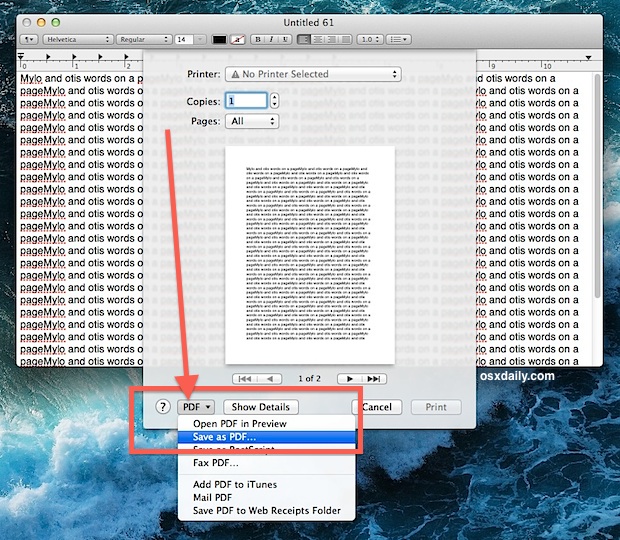
- Look for the “PDF” button in the lower left corner, click on that pull-down menu, and select “Save as PDF”
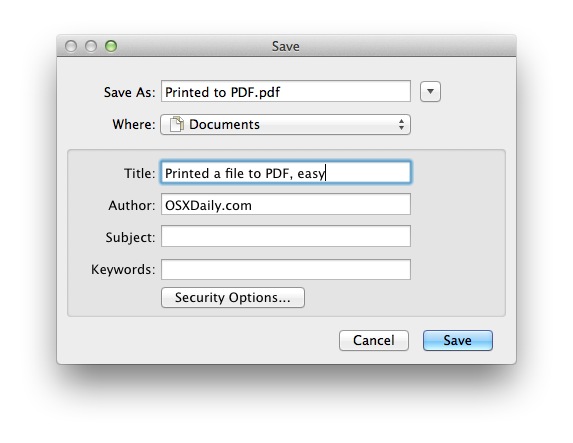
- Click “Save” in the save dialogue box, and save the file to whatever location you want (Documents is default)
Locate the resulting document in the Finder or with another app, it’ll appear as a unique PDF file, and no, it will not overwrite or alter the origin file it was created from.
Here is an example of what the submenu looks like in most Mac apps, note there are other PDF saving options too but what we’re looking to do is “Save as PDF” which effectively prints the document precisely as it appears into a PDF document:
Going to save gives you a few options, specify a location other than Documents if desired, and you can fill out author information, the title of the PDF document, subject, keywords for searching within the document, and even specify a password and editing options by choosing “Security Options” if you want to protect the file from others having unauthorized access to it:
That’s all there is to it, you will now have a PDF file created instantly by the print function. You can then view it later, use your favorite PDF editor for Mac (or Windows/Linux) to edit the PDF, distribute it online with something like Amazon, ScribD, Google Docs, or whatever else you need it for.
Note that some apps like Google Chrome have a separate Print window, and you’ll find “Save as PDF” as a checkbox option in Chrome alongside “Destination” options. All else is the same though, and you’ll still wind up with the open document or web page being saved as a PDF file through the virtual printer engine of Mac OS X. Additionally, some applications have native “Export to PDF” functions built directly into them, though using those functions does not pass the origin document through the printer engine of Mac OS X and thus can have slightly different results.
This ability has been in Mac OS for a very long time, but it looks slightly different in older versions of Mac OS X and some things have slightly different language and options. Nonetheless, the general idea is the same and you shouldn’t have a problem working it out, whatever version of MacOS or Mac OS X you’re using.
Though this is not yet a native feature in iOS, you can set up a bookmarklet to achieve the same function with webpages if you’re interested in doing the same thing on an iPad or iPhone.
Updated 6/24/2019






When I print a PDF file from my inbox, it does NOT print the very bottom portion of the page. It prints the PDF file completely from my PC. Why not my MAC book pro?
Print to a pdf? Don’t you mean save as a pdf? Preview has an issue with PDF printing (sending a pdf to a printer). Apple has no idea how to make Preview recognize it has a new printer or a new OS update – both basic functionalities seem to break it and have for a considerable period of time without redress from Apple.
I for the life of me can’t figure out how to print to PDF using my mac. What I want to do is save an existing file as a PDF. Easy. Then I want to shrink the size by 70% (not the file size) the actual size on the doc so there’s more white space on the paper. However, there is no “save” button, only Print button. This is driving me nuts and I’ve spent days troubling shooting issue. It’s super easy on a PC. Unfortunately, I don’t have PC. Can anyone help?
The best help I can offer is to get a PC.
Crummy advice. Followed the steps, and ‘that’s all there is to it’ printed a blank page.
I print PDF with this technique every single day. Works for me to print to PDF from anywhere. In fact it works for everyone but you Rick, that means you’re the one doing it wrong. Read the instructions.
@ARgo, I have used this option for 12 years and I can verify that Print to PDF does sometimes fail and when it does you are left with a blank page. So, Rick may, or may not, have been following the steps correctly.
When it fails for me, then I try something like printfiendly.com
I typed something on microsoft word online and to print it says to print as pdf so I do that, but it just opens another web browser and just shows the document (no print button). What do I do?
thank you
Hi, 10.8.5 Mac. This new save as pdf with password is not good. Save without password, and it will print fine. But, if I save it as pdf with password, I can open it with that password, and view it fine, but if i try to print it, it just hangs forever in the printer que. This new security password protecting pdf is good idea, but it doesn’t work right? (and no, I didn’t give it a password for printer, just for viewing). Any ideas?
I’m new to Mac! the tip in this old headline article helped me a lot as I thought I’d need to download something or buy something to ‘print to pdf’ – THANK YOU SO MUCH.
G.
I have a completed application form on file with the state. I’ve always been able to turn it into a PDF using the Print, PDF feature. Nothing I do will allow me to save it or convert it into PDF. It can only be printed. I’ve never had this problem before. I’m running Maverick on Mac. How can I do this without purchasing Acrobat for one document?
Thank you!
I have the same problem with many government forms.
It seems Adobe 11 has screwed Apple users. Certain PDF files will no longer view in Preview, and MUST be opened in Adobe 11, and certain of those won’t let you save them; you can only print them.
HOWEVER, I was able to “print” to a virtual PDF printer (“Adobe PDF 7.0”), BUT it sits in the queue with “Authentication required” in the status. And yet, you can double-click the job in the queue, and QuickLook will show you the file, making me think it exists in a cache somewhere as a .PDF file.
Anyone know where CUPS stores these jobs? I crawled around in Terminal, and didn’t find anything obvious.
[RANT]Why the heck has Adobe decided that you should be restricted from saving partially-filled-out forms? They desperately need some competition![/RANT]
I have a document created in Indesign CS6 running on Apple OS 10.8.6. I usually save Indesign documents by exporting which gives an option to save as a pdf. This particular document does the same but doesn’t show up as a pdf anywhere. Printing to a pdf file as described above when I select pdf in the lower lefthand corner I get a message: “The Save as PDF option in the Printer dialog is not supported.” So, what’s that about?
The “save as pdf” option just disappeared from my printing menu (0SX 10.4) for no apparent reason. The only thing that has been changed recently is that I installed a second printer on my computer this weekend.
Any help would be appreciated.
I tried the above suggestions but it still does not print when document is saved. The page I try to print is blank. Am I missing a download step?
[…] iPhone, iPad, or iPod touch directly to a file on the computer, much like you can print to a PDF on the Mac. Note that if you’re just wanting to print an item to to a PDF file, you can do effectively […]
[…] that it’s achievable through almost any Mac app, because the password layer is created from the OS X standard “Print to PDF” trick. Essentially that means if you can print the document, you can probably password protect it as […]
[…] the ability to natively “print to PDF” directly on the iPad and iPhone, a popular trick on the Mac and in the PC world that allows you to digitally print anything and, in this case, save the […]
Does anyone know how to print a pdf from a pdf in the browser (there you get the print dialog from adobe and it doesn’t allow to print to pdf’s). Some pdf’s you can only fill in text in the browser. But it cannot be saved.
A virtual pdf printer you do it. But the installation of for example CUPS fails (OSX 10.5.8).
Any idea?
does anyone know how to change the default “author” of the pdf file.
My default is setting to my computer owner name.
The author is automatically set as the user name that you are logged in as in Mac OS X, you can change that either in general OS X settings or if you have a PDF editor you could change authorship there. Preview has limited functionality of that through the Preference panel > PDF > Annotations.
how do I in one step:
– print to PDF and save that PDF in a preferred location
– plus email that PDF
so essentially saving myself a copy, and emailing a copy
I could not find any PDF service for that.
thankyou
Not a very useful feature or I may not know how to use it properly. If the document has a scroll bar only the part visible gets saved. you actually have to print to pdf twice. once to copy top of document and once to copy bottom.
Somebody feel free to educate me.
[…] their desktop just to have a look at what you’re thinking. If you’re on a Mac you can print to PDF or take a screenshot. … If you’re on a PC, I really can’t help you (maybe […]
I use save as pdf a lot, but it always enlarges the file size. So, if I want to print a word of 1 MB to pdf, the pdf will be 50 MB of size! Instead I would want to decrease file size when printing to pdf.
Can anyone help with this? Thank you!
I almost used this feature ONCE… Looked at a print preview. Saw that if wrecked the web page formatting and so I never printed. Now I can’t print normally. Why?
How do I make it go away?
MacBook Pro with Mac OS X 10.6.8
[…] The printer driver I am using is the Pdf995 Printer Driver. And Mac users already have the required functionality without installing […]
I don’t get it. I click on the link above and it takes me to a download for FoxTab PDF converter, for Windows, XP PC etc. What is up with that?
You’re clicking on an ad.
[…] some of the free Logic tutorials from WikiAudio or Logic-Cafe and save a few as PDF for later viewing on your Mac, or open them in iBooks on your iPhone and iPad for reading and […]
I too find this feature a great help. But… I often print pages from websites that I might want to keep for later reference (a good example is cooking recipes). But often times, I find that the PDF file does not save the file well at all. Either very odd formating, or even missing images, and type. 1) does anyone else have this issue? 2) does anyone have tips or tricks to get it to work correctly?
Thanks!
Here’s an example of a link that won’t correctly ‘print to pdf’…
http://www.foodnetwork.com/recipes/ina-garten/potato-salad-recipe/index.html
no, try clicking the “print backgrounds” checkbox, which will print background images.
This is one of those features of Mac OS that is just wonderful to have and I use it frequently for offline reading and document production. Why buy Acrobat Pro when you can just use any application on the Mac? One of many features where Mac > Windows.