
Convert FLAC to MP3 in Mac OS
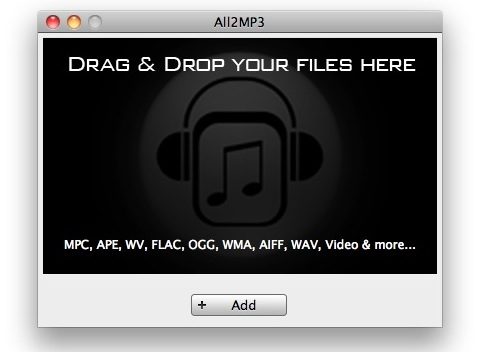
If you need to convert FLAC to MP3 in Mac OS X for free, the best way to do so is using a utility called All2MP3*. It’s super easy to use with drag & drop conversion tools and total simplicity, just grab the app and follow along with this tutorial and you’ll have converted your FLAC files in no time at all.
How to Convert FLAC to MP3
Here are the steps to convert FLAC audio files to MP3 format within Mac OS X. You’ll be able to set the bitrate and quality of the conversion as necessary. Audio Converter is free and very easy to use for mp3 file conversion:
- Locate the FLAC audio files you want converted, it’s often easiest to put them into a folder within the Finder
- Download AudioConverter, it’s a free utility that will handle the conversion
- Launch the app and have it somewhere easily visible
- Drag the FLAC audio files into the All2MP3 GUI (or into the All2MP3 Dock icon)
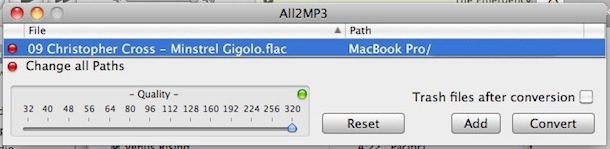
- Adjust quality options as necessary, use the sliding bitrate scale. The default is set to 320kbps which is usually sufficient for most users
- Click on “Convert” and let the conversion process complete
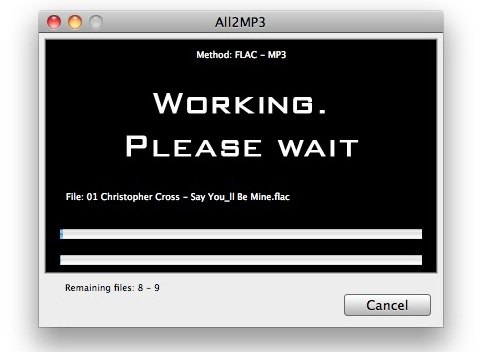
The app goes to work and handles all the conversion. The time it takes depends on the processor speed of your Mac, but it’s generally really fast for audio conversion standards. The FLAC files will be converted to MP3 within their original directory, so look for the new converted files in the same place. For example, if you stored a bunch of FLAC files in ~/Desktop/ConvertMe/ then the new Mp3 files from the conversion would also be in that directory when completed.
What is FLAC anyway? Can iTunes play FLAC?
FLAC stands for Free Lossless Audio Codec, and every once in a while you’ll come across audio files that are in this format. This is typical with high quality files shared online between musicians, but also FLAC files are commonly generated by high quality audio rippers if you’re converting a physical disc. FLAC files are great because they’re usually of very high quality, but they’re annoying for some users because iTunes can’t open a FLAC file by default. The solution is to convert the FLAC to MP3 format, and then iTunes can read and play it as usual.
Using the same app you can also convert wma to mp3 amongst many other supported audio formats, including MPC, APE, WV, FLAC, OGG, WMA, AIFF, WAV, and others. It’s a great utility to have around on the Mac for converting audio files, and given that it’s free and fast, it’s hard to beat.
Another option is to use Audacity to convert FLAC to MP3, and it’s a good alternative.
* Update: All2Mp3 has been discontinued, but AudioConverter and Audacity remain alternatives for Mac users to convert FLAC to mp3.






AppGeeker works like a charm.
You can convert APE to Apple Lossless with Avdshare Audio Converter.
Funciona a la perfección. Gracias
Hey
many thanks for making this app
very useful
and all for free
Not like that thing called switch
You’re the best
Another way is using Faasoft Audio Converter to convert FLAC to MP3, M4A, AIFF, etc. This program also has a Mac version.
one word…perfect
thank you
While the program may be free and simple (two great characteristics) it did some very unexpected, inappropriate things to my computer!
As soon as I hit install (using CNET’s downloader) both Safari and Chrome rebooted with 4 new extensions added to Chrome, all of which were CRAP! It also changed my search engine preference and startup page to Yahoo! Perhaps it was the CNET downloader… Anybody else have these issues?
You shouldn’t need to download anything from CNET or Cnet Downloader, just get All2MP3 directly from the developer:
http://www.tresrrr.com/All2MP3/ENGLISH.html
Worked like a charm. Thanks for posting this elegant and simple solution Paul. And to all those proposing alternatives might I suggest posting a solution of your own rather than shooting down a solution someone has posted that works well, is easy to use for those of us who aren’t techno genius and is easy to follow.
Thanks again Paul for your help.
T
Thanks!
Please convert my Pavement FLAC files…….
Works very well, cheers mate!
Thanks so much. Worked great.
I’ve used this a few times without problem. Today when I open it and drag and drop a FLAC file, it literally takes 1 second to produce an mp3 file. However, it’s ‘zero bytes’ and cannot be played by RealPlayer, VLC, Quicktime or iTunes. I get the feeling that ‘zero bytes’ means the conversion failed… but how and why? I’m on Lion, so I ‘checked for updates’, but it says I have the most up to date version. Can anyone tell me what’s going wrong?
I have the same problem occasionally. I’ve checked the source files and they play just fine but turn into zero bytes files when I convert them. Anyone have an idea?
Thnx Paul, much appreciated! Let the bashers bash, they don’t know what they are doing :)
This software is brilliant – so easy to use and does the job nicely. Well done!
Thanks for this, great free software
its not free. it will not work till you buy it. what a crock these comments all are !
easy install, good enough for me, idiot proof, ’nuff said
Thank you!! This app/program did it for me!
In order to import FLAC to iTunes, we will need to convert FLAC to Apple friendly audio formats.
If you care the quality of the output audio, converting FLAC to Apple Lossless audio is recommended.
If you do not care about the quality of the music, you can convert FLAC to MP3, a versatile audio format across system and devices then import the converted FLAC files to iTunes.
Just google search Step by Step Guide on How to Import and Add FLAC to iTunes on Windows and on Mac?
You will find a step by step guide
Great program. No frills, very easy to use. Exactly what I was looking for.
Pretty easy to use utility and does the job.
Now what more do you want:)
Wow! This is great! Thank you for sharing :)
F8cking Awesome!!!
Wow, Thank you very much. This so easy
This was perfect. I was really reluctant to download anything, but I said to myself, “Can it really be that easy”? and sure enough, it is! :)
Thank you!
gracias por la app. muxas gracias
Awesome. great advice and really easy which is good for my low-tech brain. thank you!
Amazing!!! Have been trying to do this on my PC all day…when I changed and tried on my Mac, it worked straight away…great, fast, straighforward! LOVE IT!
Amazing app, thanks a lot!
Thanks for the info, Paul.
Worked fine.
Thanks for sharing the info!
thanks for sharing! cheers!
thanks for sharing the convertion steps. very helpful!
Handy little app: Works as advertised, and free. Seldom do we have such a perfect world. ;-) Thanks!
thank u!!!!
RE: Luke Frohling
Yep, I agree with HIGUY, the people making the first comments should get (in no particular order)
a) a clue
b) a sense of appreciation
c) a life
d) out of their parents basements
Hahaahaahahahahahah! totally!! wheres the appreciation?!??
WOW, so easy thank you very much! Love it and now I can listen to the album I downloaded! :)
Paul,
Thanks for great and sensible advice. I downloaded all2mp3 and converted my flac files in less time than it took to read some the drivel posted in response to your suggestion – and the mp3’s are playing fine in iTunes. Any tips for an mp3 tag editor ?
Hi all,
I use an easy and fast workflow for this. I use toast and create a disk image with all the files. Then, i mount the disk and voila! iTunes automatically reads it and transfers all the files as if you had the original CD. Hope this helps
Used all2mp3 which worked great converting the FLAC files to mp3’s. But I still cannot play the new mp3’s in iTunes?! Weird.
Paul for someone like me who is technologically challenged and time-constrained, this is perfect. Thanks much for the ease and clarity of program installation and use.
Yep, I agree with HIGUY, the people making the first comments should get (in no particular order)
a) a clue
b) a sense of appreciation
c) a life
d) out of their parents basements
e) a g/friend or (more likely) a b/friend
Hey I got that rant out without mentioning Star Trek once!! (Maybe ’cause it’s one of my guilty pleasures too.)
Thanks for your efforts Paul. The program you recommend may/may not be the best but the damn thing works, seems to be free, has an easy to understand interface (judging from your screen shots), and is available!
I am unable to find a website where I can download the English version of this program. The link you provided doesn’t seem to load. Am I missing something
THANKS! It was so fast I didn’t even realize it was done. Great quality.
love how easy this is! thanks so much!
Using both xld and all 2mp3 after reading this post.
For sheer simplicity and ease of use all2mp3 is an excellent app for the consumer market..
Thanks
Fluke is an open source utility which provides FLAC drivers to iTunes. With Fluke, you can play FLAC files in iTunes. FLAC files are not annoying; they are lossless whereas MP3 and the AAC and m4a formats are lossy with intentionally degraded sound.
it’s a very simple program. just drag and drop and it’s converted with minimal fuss. Works great.
Worked for me! If I can figure it out without throwing this laptop at the wall anyone can!
That All2MP3 program works GREAT! I’ve been having trouble finding a reliable, easy-to-use FLAC to MP3 program, and this really fills a void….Thanks for the hint!!!
It does it job, clean n simple, I like it thanks.
Wow! I can see why he calls it the best. Fast, not fussy. Great for amateurs like me who don’t want to spend all night figuring out a bunch of details. Just drag the files into the window, set the resolution (I just cranked it all the way up) hit convert. They all land in the parent folder. Thanks for the lead.
Im sorry but this comment section is funny. Paul is this guy who was just trying to offer an opinion on how to do a conversion and people just bashed him down to nothing. Poor Poor Paul. I feel your pain. The world will knock you down when you try to stand up.
>all2mp3
>No VBR
>good
>People bringing up XLD or Max as if they can actually launch
ha ha oh wow
[…] from the “Advanced” menu. Likewise you can use a third party utility like All2Mp3 and convert the song to MP3 that way as […]
All2MP3 or All3MP3? :)))
XLD (X Lossless Decoder) available at http://tmkk.hp.infoseek.co.jp/xld/index_e.html will allow conversion of the lossless file to AIFF which is a standard uncompressed file that iTunes understands, and can then convert to Apple Lossless or AAC if desired, or burned to CD without running through the mp3 converter
Yep, my fav converter.
hey jerry i dont read japanese from your link. so dont post garbage please. admin
“…. they’re annoying because iTunes can’t open a FLAC file by default”
Well, the annoying point is itunes (for not supporting FLAC), not the FLAC format. ;)
Anyway, for converting audio files and/or ripping CDs the perfect way i recommend using XLD.
Use XLD instead. It’s faster, multicore aware, and has more options than you could probably ever want.
Plus, you can get great CD rips with it since it uses the CD Paranoia engine.
I also found Max, which has bitrates, ID3 tags, cover art, iTunes integration, the lot.
I’d use either of these over All2MP3, which in my view has very little to recommend it.
Max works too, but XLD has a much faster release cycle – usually 2-3 times a month, rather than Max which is so old it still has a Tiger screenshot.
I use the flexible ID3 tag editing in Max, which I couldn’t find in XLD. Could be that I just overlooked it though.
Update to my previous comment: I decided to just download the app and have a look. You can’t choose a target bitrate. In fact, you can’t choose anything – there isn’t even a Preferences menu.
In what way can this possibly be described as “the best way” to do a conversion?
I probably should have been more clear on the options. When you drag in an audio file to convert, you can adjust the quality on a sliding scale from 32 to 320kbps
Why do you like it so much, Paul? I would highly recommend you check out XLD or Max instead. Heck, even AudialHub is better than All2MP3 since you can specify output formats, instead of needed a different program.
Given that this is “the best way” as you say, I assume you can specify the bitrate, or at least CBR / VBR. I can’t find any reference to this – could you clarify please?
If I’m going to be converting lossless to lossy, I’d like to be able to at least choose *how* lossy.
Good point. You can select quality of the MP3 with a sliding scale, I adjusted the article with a screenshot to show this.