
Open & Save PDF’s to iBooks on iPhone and iPad
Want to open a PDF file and save it to your iPhone or iPad so that you can read it later? The best way to do that is by downloading the PDF file into the Books app, which runs on the iPhone, iPad, or iPod touch.
You’ll need Books (once called iBooks) installed to do this, which most people should have already, and at that point you can easily save any PDF and then access it later.
If you’re unfamiliar with the process, here is what you’ll need to do:
How to Open and Save PDF to Books on iPhone & iPad
On modern iOS and iPadOS versions, opening and saving PDF files to iPhone or iPad is quite simple:
- First you need to open the PDF on your iPhone/iPad, this can be done through eMail, Safari, or where ever you encounter the PDF
- Tap the Share button, it looks like a box with an arrow flying out of it
- Tap on “Books”
Now you can access that PDF from the Books app, anytime.
Books used to be called iBooks, and it’s the same app with the same functionality despite being renamed.
Opening PDF into iBooks on Older iPhone & iPad
On earlier versions of iOS, this process of opening PDF onto an iPhone or iPad was slightly different:
- Open the PDF
- Once the PDF is open, tap on the “Open in iBooks” button in the upper right corner
- Anytime you open a PDF with iBooks like this, it stores a copy in your iBooks library for accessing later
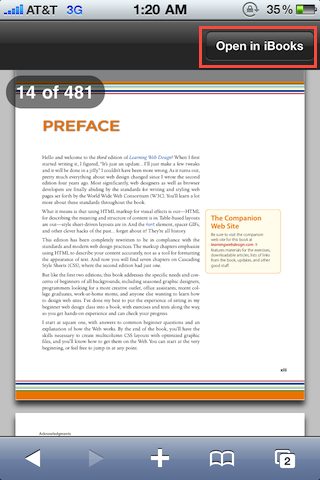
If the “Open in iBooks” button is not immediately visible, be sure to wait for the full PDF to download, then tap on the document again and it should become visible.
This is really nice because it lets you access those PDF files on your iOS / ipadOS device later even when you are not online, and you can skim through it like any other iBook within the app, because it literally downloads the PDF to your device whether it’s from the web or an email.
You can also sync these PDF’s as books within iTunes too for easy backing up, or if you are looking to transfer one that way.
This works on any iPad, iPhone, or iPod touch running the Books / iBooks application. This really is the easiest way to get a PDF file onto your iPad or iPhone for use in iBooks, and it works with literally any PDF file, whether it’s a document, manual, book, a proof sheet, or something of your own creation.
The iBooks app was later renamed to “Books”, but the function still exists the same – you can store downloaded PDF files into the app with ease.
A variation of this trick is to save webpages to the Books app on iPhone or iPad for later review too, which can be nice if you’re looking to read a long webpage or article, or an online book.
Thanks to reader Dustin L for sending in this tip and screenshot!






[…] Apple (PDF file), which can be a pretty useful addition to iBooks on any iOS device if you want to save the pdf file locally to your phone for future reference. stLight.options({ […]
– Search for “Document reader” in the appstore
– Install one of the document reader apps (most free versions should work fine!)
– Open the app, ensure your wifi is switched on.
– Upload your documents and they will now be stored on the app within your phone. You will be able to view them without internet connection.
Just follow the in-app instructions! :)
I have the I phone 4 with the latest iOS 5 and when I open the PDF from my email, the button in the upper right hand corner, only allows me an option of print. So any ideas ??
[…] some protection which is causing some users trouble, re-save it or download the new version and open that PDF into iBooks and it should […]
I don’t see an “open in iBooks” on my iPhone or iPad .
[…] the entire book as a PDF and example files, for free – you can then save and open the PDF on your iPad for quick reference if you […]
What is eMail? Did you mean Mail (the apple email client on OSX & iOS)? Yeah, I’m being anal. but I’m also right.
Maybe email as in electronic mail as in email…
WOW! What is email? Did you mean mail? Idiot
Mail is email. Idiot.
[…] upper-right side of the screen. Now I can access this issue anytime without having to be online. (*This works on any iPad, iPhone, or iPod touch running the iBooks application.) While we’re on the topic of libarians, I wanted to share an update posted in the CUNY […]
Hello, I had just tested the Ipad without IOS 4.0 and
it still works opening an attachment with PDF in an email and at the right top corner, it will state – Open in Ibooks. Tap on that and it launches Ibooks.
It works perfectly. Thank you for the tip Dustin L and wanted to share mine as well
Regards, BA
[…] Once the man page is opened within Preview, you can then use Preview to “Save As” and then create a PDF file of the man page for later viewing. I find myself using this command frequently and then saving the PDF to view on my iPad. […]
Sorry, I have a question. With reference to the first picture, I face another issue, ” open in PDF reader ” is my default reader. I do not know how to make iBook as my default reader as every document which I wanted to save to my iPhone will be directed to PDF reader automatically. Can anyone help ?
Phonie, it should give you two buttons if you have alternative PDF reading software; one button on the right which is reserved for opening in iBooks, and a button on the left that allows you to ‘open in…’ the application of your choice.
If you have another app called ‘PDF Reader’, then it may be diverting PDFs to itself. Try removing it from your device and see if iBooks becomes the default again.
If you have an iPhone, do the above, then sync all books to iTunes. Then you can sync all books to your iPad and you will have the PDFs available in iBooks. Not the worst kludge I’ve ever had to do, but still silly that we have to do it.
The iBooks app will now have buttons at the top to select either Books or PDFs
Todd, very helpful advice, thanks. David.
Bah, I want this feature now. Grr. :-)
Does this work on an iPad or just on an iPhone? I have a pdf opened on my iPad and do not see the option to Open in iBooks.
It looks like this is an iPhone OS 4 feature, and iOS 4 is to be released for iPad in the fall of this year… we’ll have to wait a few months.
Even in iPhone 4 notable to view this option kindly help