
Trim an MP3 on your Mac
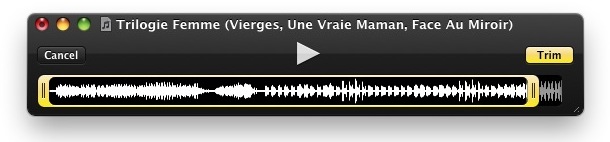
You can trim any MP3 file for free in Mac OS X thanks to the bundled QuickTime Player app, which comes preinstalled on every single Mac. Though we’ll cover trimming MP3’s, it turns out you can actually use QuickTime to trim just about any audio file, as the app supports many more other audio formats too. So, if you want to quickly trim down an audio file in Mac OS X without downloading any other apps or software, read on, it’s a piece of cake and works with all versions of Mac OS X.
How to Trim MP3, m4a and Audio in Mac OS X
Here’s how to trim MP3’s and audio on a Mac using the built-in QuickTime tools:
- Make a copy of the MP3 file you want to trim
- Open the MP3 file with QuickTime Player, you can launch the app from /Applications/ and then drag the MP3 file to edit into the QuickTime Dock icon
- Hit Command+T to open the Trim function, or, you can also find the Trim function under the “Edit” menu
- Drag the yellow sliders on the left and right side to trim down the section of the song to where you want, press the play button to confirm the audio segment is where you want things to be
- When you’re finished, click the yellow ‘Trim’ button
- Go to File -> Save As and save as an appropriate file type, you’ll have several options if you choose “Save As” or “Export”, but most users will want to pick the “m4a” format, or the iPhone .m4v movie file as the saved file

Now the MP3 has been trimmed down the section of the song you wanted. If the file is m4a, aac, m4v, or otherwise, you can use iTunes to convert the song to MP3 format again. Otherwise you can just keep it in the current file format. M4a is basically a variation of the popular mp3 format and works just fine across many platforms, while still retaining high quality sound and good compression.
This works in the newer versions of QuickTime Player for just about every version of OS X ever released, ranging from Snow Leopard to OS X Mavericks, El Capitan, and presumably into the future.






I am using iTunes 1.9.5.5 but surprisingly I can’t find the trim option in Edit or any other menu!
It does not Export as an MP3, only an M4A file.
Although this produces nicely-edited audio files, it doesn’t quite do what the author appears to claim: to trim an mp3 file. It does so by converting it into an m4a file, which many players won’t support. (Lots of car systems for a start.) Sometimes sound quality isn’t everything.
It’s neat, though.
It worked until I tried to save and then it said… “QuickTime Player can’t open “Arnold Layne (Duophonic remaster_remix 2016) 2.mp3. The file may be damaged or may not be a movie file that is compatible with QuickTime Player.” Great :(
It worked until I tried to save it and then it says… “QuickTime Player can’t open “Arnold Layne (Duophonic remaster_remix 2016) 2.mp3. The file may be damaged or may not be a movie file that is compatible with QuickTime Player.”
Great.
Another option directly in iTunes (12.5) is to set stop and start time for the mp3 file: cmd-i -> options. This will *not* trim the original file, but just play the indicated interval in iTunes.
is there a way to cut multiple sections of a song?
You could use Garadgeband for this.
I sometimes record training calls with my business team so my leaders can go back and listen and take better notes. This is the first time I have tried to trim one down or edit one. All I can say is WOW! and YAY! This was the best and easiest A/V editing advice I have ever found on the google search. Maybe it’s me getting more experience, but I seriously went from never trimming an mp3 to getting it done in less than 5 minutes. Thanks for your help!!
:)
Hi, are you saying you TRIMMED your audio by using ONLY Quicktime on your MAC? If so, HOW? When my QuickTime is open it DOES NOT show any options for “trimming” – Please let me know what program you’re using. Thank you in advance for replying.
My quicktime on mbp does trim at the wrong location a few seconds off. When I play it in QT before save, all is well. When loaded elsewhere, it is off by a few seconds.
super and simple.
Thanks for the help…
[…] you have the audio output file on the desktop, you can trim it down to a more specific section, convert the wav file to an mp3, or whatever […]
[…] unnecessary parts of any recorded video by using the built-in Trim feature. It’s just like trimming in QuickTime but it can be done right on your iOS […]
[…] you want to skip through a lengthy intro of a song or a boring part of a podcast and didn’t trim the mp3 […]
If you don’t mind using the command line and having Fink or Darwinports, I can highly recommend mp3splt to split MP3 files. Best of all, it does not recompress.
Just name your source file, then a list of split points (in minutes and seconds), like
mp3splt my_source_file.mp3 0.00 2.41 6.14 8.33
Do it directly in iTunes, either destructively or non-destructively. CMD+i on the track in iTunes, under the options tab, set in the and out points. Do make it permanent, right click the track again, and convert to MP3.
It’s even easier to use some of Doug’s Applescripts for iTunes. There is a great script called (something like) “Copy from Start to Stop” which makes a new mp3 from any mp3 in iTunes, based on the start and stop times you set in “Options”. Along with another script called “Set Player Position to Start or Stop,” you can easily play the mp3, set the start and stop points by ear, and then make a trimmed copy which automatically shows up in iTunes named however you want. I don’t think there is encoding/reencoding going here, but I have never noticed a degradation of quality. See http://dougscripts.com/itunes/
[…] Trimming an MP3 on your Mac? Sure, you could do it with GarageBand, but OSX Daily show us how to do it with QuickTime instead. […]
Good tips, didnt know about the trim in QT, cheers.
I think if you are trimming an mp3 file, you are using it for a ringtone or some other one-off purpose, you’re not going to be hurt by the quality loss of re-encoding.
Yes, recompressing in a lossy format ALWAYS hurts the quality.
what a bad idea to re-re-encode a file…
I do not support