
Map a Network Drive on a Mac
If you frequently access a file server from a Mac it’s pretty helpful to map the network drive to your desktop. There’s two ways to do this, one method is just mapped for one time use and will reset after a reboot, and another method is a more permanent route that allows the mapped network drive to always appear and mount on your desktop after system reboots and user logins. We will cover how to do set up both, so that if you just want to temporarily connect to a network share, or always connect to a network drive, you’ll be able to do either in OS X.
These techniques work the same in all versions of OS X, including Yosemite, Mavericks, Mountain Lion, Snow Leopard, you name it. This also works on all common network share types, though AFP and SMB / Windows are the most common for most Mac users.
How to Map a Network Drive / Server to Mac OS X
This method connects to and maps a network drive or network share that will disappear if the network connection drops, is disconnected, or if you reboot your Mac:
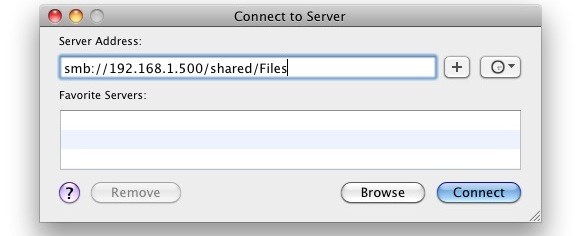
- From the Mac OS X Finder, hit Command+K to bring up the ‘Connect to Server’ window
- Enter the path to the network drive you want to map, ie: smb://networkcomputer/networkshare and click ‘Connect’
- Enter your login/password and click “OK” to mount the network drive
- The drive will now appear on your desktop and in the Finder window sidebar
You can access the network share like any other folder at this point, so long as it’s maintained on the same network.
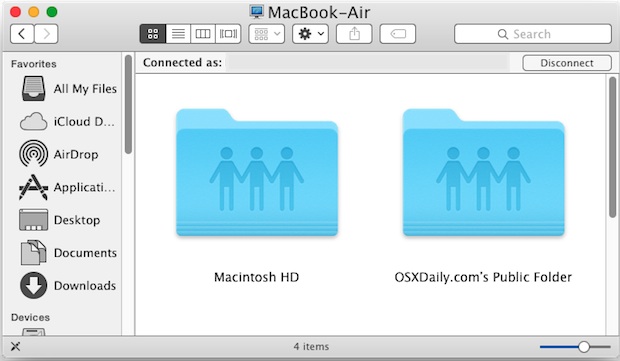
Map a network drive to Mac OS X that re-mounts after system reboot
This method allows you to reboot your Mac and have the mapped network drive / network share automatically connect and remount, appearing on the desktop of OS X or in the Finder sidebar. This is more persistent than the above method and is helpful for network shares you connect to frequently:
- From the Finder, hit Command+K
- Enter the path to the network drive you want to map, ie: smb://networkcomputer/networkshare and click ‘Connect’
- Enter your login credentials and click “OK”
- The drive is now mounted, but continue on to map for system reboot persistence
- Now enter into System Preferences, from the Apple menu
- Click on ‘Accounts’
- Click on “Login Items”
- Click on the + button to add another login item
- Locate the network drive you previously mounted and click “Add”
- Exit out of System Preferences
Your network drive will now be mapped and automatically remounted when you reboot your Mac. Keep in mind that if you leave the network where the mapped share is located, the drive/share will not automatically reconnect until that network is joined again, and the Mac is either rebooted or manually reconnected to the desired network share.
Nonetheless, the actual mounted network share works the same as usual, visible through Finder as a folder. You can also go to the Network window to see the connected shares.
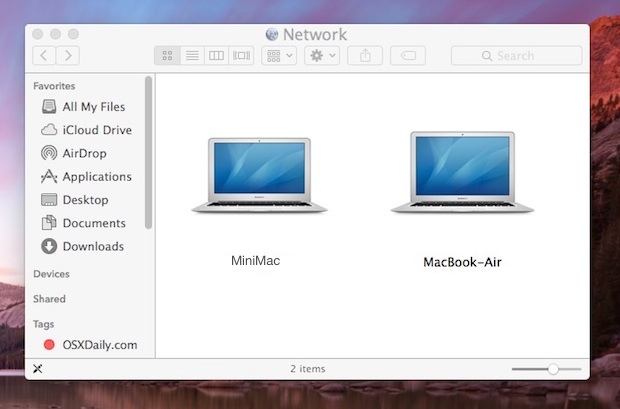
Let’s go a step further and make the network share visible on the OS X Desktop, and learn an easy way to remap a drive with an alias.
How to Make the Mapped Network Drive Visible on the Mac Desktop
It’s possible that the mounted drive will not appear on the desktop due to a system setting. If you want the mapped drive icon to be visible on the Desktop, be sure to do the following additional steps:
- From the Finder, open Finder Preferences by hitting Command+,
- Click the General tab
- Select the checkbox next to ‘Connected Servers’
- Close Finder Preferences
Selecting the checkbox next to Connected Servers ensures that you’ll see the icon on your Mac Desktop, otherwise it will only be visible in the Finder window sidebars and Open/Save dialogues.
Remount a mapped network drive with a click in OS X
A great additional step for either method is to create an alias of the mapped network drive. This allows you to reconnect to the share with just a click. Here’s how to do this:
- Right-click on the mapped network drive on the Mac OS desktop
- Select “Make Alias”
Now you can double-click that alias to reconnect to the network drive instantly.
If you’re having issues identifying a network item, sometimes refreshing the Network Finder window can help, or using Network Utility in OS X.

As you may have guessed, shared network volumes are treated differently by the OS than external drives and disk images, which is why this a different technique than what you use to mount an ISO in Mac OS X.
You can also access and mount smb shares via the command line which allows for scripting possibilities, if you’re interested in a more technical approach.






Is there AppleScript file/applications to automate all these steps, since Mapping Drive is one of the common and most widely used on MacOS or Windows
I’ve successfully mapped our office’s network drive onto my mac thanks to you! It’s on my desktop. Progress! However, I’m really supposed to only have access to my file on there; we can’t find a way to just put a link to that file and not to the whole office’s info.
Hope someone out there can help.
Hi,
This should really be done on the server with permissions added as a user by user basis. If you enter smb://server/share/folder replacing the specific things it should only take you to your share
Why is a Windows laptop/computer 100% stable with connecting to a NAS and Apple is failing unstable??? There are thousands of complains on the web, but Apple seems to be ignoring their high paying customers :-(
Almost……. I need it to mount from the command line, permanent as root.
I don’t have the root password to use the GUI but I do have sudo access, hence, I want to use the command line.
I can see the share, but only on mac in the network conects. I have tried with all the others but for some reason username and password are not acepted.
Any clue..
Thank you.
DiskTracker only scans volumes RATHER than folders on the volumes. Can Mac make a folder turn into a volume so that it can be scanned?
I’ve got a problem with the network drive. If my Laptop isn’t connected to the internet is gives a message which will only go away if you click on okay for 6-20 times (this variates)
There was a problem connecting to the server “”.
Check the server name or IP address, and then try again. If you continue to have problems, contact your system administrator.
Is there a way to hide this message or remove this message?
Need a quick help,
I am unable to access share drive using MAC OsX. I have tried mapping but unsuccessful. Can someone help on this.
Regards,
Ram
i want to check the version of smb, what should i do?
I have mounted a network folder successfully but I am unable to use it to save files or similar operations.
It’s basically a hidden folder on a remote windows server which we have to access using “$” that is, smb://servername/homedir$/username. Hence, it does not show up in the “Login items” tab as well under system preferences –> Users and Groups
Hey, I have a similar question that goes a little deeper than just mapping a drive:
1. I want to map a share on OSX 10.9.4 to a Windows share that is a couple layers deep in the share hierarchy. For example: smb://server/share/folder
When it maps initially it opens a folder to this deeper point in the share, but if I close this Finder window I then have to re-drill down into the folder structure from the Finder sidebar. How can I map to the lower level folder and make it an Alias to leave on my desktop?
2. Can I then put that deeper level share folder in the sidebar that I can access at any point?
Do you think that re-mount method could be applied for SSHFS?
I know this thread is a little old but I didn’t see a repeated question get answered so this may help someone later.
If you don’t want the mapped network drive folder to automatically open on your desktop why not just turn off “connected servers” from appearing on your desktop. Click on “Finder” from Finder’s top menu bar and select preferences. Uncheck “Connected Servers” from the list of what you want to appear on your desktop.
I love you guys!! … Mac seems tough to be used in the beginning
Thanks for a very helpful post. One thing to note: In Mountain Lion, “Accounts” has been changed to “Users & Groups”.
Hi
I tried following these intructions however the system is asking me for a username and password, not sure which user name I am suppose to use here. Can someone please help?
Most of the computers where I work are PCs. They recently did something to the network and moved my H drive. They sent me this link to try to re-map it. Everything worked fine until I got to the login window and none of my old passwords work. Do they need to re-set passwords on their end?
Brilliant, like a charm ;) Thanks!
Thanks a bunch!!! Worked perfectly
osascript -e ‘mount volume “smb://username:password@192.168.1.111/path/path”‘
Using Automator, this is simple.
[…] hard drive (i.e. \192.168.0.5seagate). If you’re using Mac OS X, you can follow these instructions to map the network […]
Hi,
worked well for me except when it mounts the 10 external volumes it automatically opens the file finder… how do I stop it doing that?
When you add the drives in Login Items, there is a check box under the Hide column. When you tick this, the connection to the shared drive is established, but it will not open up.
[…] you’re already familiar with mapping a network drive in Mac OS X you can skip the first part of this and go straight to System Preferences in the second […]
Thanks — the creation of the “alias” on the desktop worked perfectly for mounting my network connected drive
Get a Windows PC
most of a DO have windows machines! i got one sitting right here next to my Mac ;-) Funny thing… I can operate both very well if i might add!
dude, macs r way better than pc’s. mac’s r easier too.
Worked beautifully for me.
thankyou
great article
—
I am on 10.6X, with TimeCapsule
I have PPC 8100/80 Mac OS 9.1 that its all file shearing are set and ready to go, and I can ping it from my MacBook Pro Mac OS X 10.7.3, but I cannot map any drive through “Connect to Server…” command!
Any solution, please.
TIA
I’ve been trying the same thing, only I’m still on Snow Leopard instead of Lion, and having no luck so far. Have you set up the PPC to use TCP/IP? I keep reading that the latest OS’s have to use that protocol.
I’ve got the two machines connected with a crossover cable. How are yours connected?
reconnecting the network drive works perfectly for me, thanks.
One question still. Every boot the network drive is automatically opened in a window. I want the network drive to be mounted, but I dont want the window to be automatically opened.
How can I change this?
Hey Marco.. this is exactly what I’m looking for as well. Did you figure out how to disable finder from opening on login?
Same thing is happening to me. Even if I go into the login items and check it to hide it still pops open. I tell you one thing… MAC and networks are so stinking finicky!
I have the same issue. It’s not really a problem, just an annoyance. If anyone knows the fix please let is know. The “Hide” checkbox does not work either. Just a heads up on that.
Thanks so much this is EXACTLY what I was trying to figure out how to do. I wanted to replicate the network drive experience I have at work on Win 7 with network storage appearing as mounted hard drives. I was beginning to think this wasn’t possible on my mac.
Something I have noticed.
Is Mac OS X Lion making viewing your drives more difficult? It seems to me that it requires more trickery to simply view all of your available drives. I just got a new 13″ Macbook Air running Lion and it’s my first experience on Lion from Snow Leopard. It feels like they are trying very hard to obscure the nuts and bolts (finding my hard drive to view it on my new mac was a challenge) of how the Mac OS works from the user. Scares me for hard core Mac users. Simple tasks are likely to become more complex and or buried in system settings.
1.7GHz dual-core Intel Core i5 processor
4GB memory
128GB flash storage1
Intel HD Graphics 300
Hi,
i have this working, but in some cases i need to re-boot my nas.
when i re-boot, the connection comes good, but itunes wont re-establish the connection, and im forced to re-add all my media into itunes….
any thoughts?
Hi all,
Mounting a network drive works fine towards my Synology NAS system. The problem I have is that I would like to change the user it connects with. Each time my system starts up (still OS X 10,5,8) it uses UserA where I want it to be UserB. Any idea how to get rid of that???
Cheers,
Ricky
You probably need to dig into the keychain login identities, nuke the old one and then mount the volume using the new one.
Your instructions worked perfectly and now I have mapped drives that stay connected. I chose the reconnect every time I reboot.
This is very convenient.
Networking on the mac is very bad. Sure you can do all you said, but it is always very slow. The first time you click on one of your shortcuts, it takes a while to mount in the background. On windows it is instant. Why?
your comments regarding networking on the mac are just to vague to really reply too. One could guess though, that maybe the mac you are connecting to is a sleep and you are waiting for the drives to spin up… and become available to mount, while the widows box is not asleep and the drives are set not to sleep, there for available instantly!
As an example of the exact opposite situation, the g4 server in my studio, mounts IMMEDIATELY when I browse. Where as the windowsXPpro workstation up stairs takes about 20seconds to mount. Networking on widows is very bad…. Why?
Maybe you should upgrade that WinXp machine to an OS that has come out in the past decade. That might help.
It is very bad because…. widows are boring..LOL!
@liz
widows are boring? i hope youre laughing at yourself and for your information, mac’s are hard to lock down in a windows environment but this is not due to windows or os x sucking. the truth is that both company’s have made it difficult for the IT community to overcome this.
You can also mount the drive as usual and then drag it to the dock. When rebooting you’ll no longer be connected to the drive but the icon will still show up in the dock so the drive is still one click away.
Thannks Manish
However, in the System Preferences -> Accounts -> Login Items, I click on the mounted drive and attempts to connect to it again and fails. Tried this a couple of time, no workee. It may be something to do with my network here.