
Show or Hide Macintosh HD and Other Disk Drives on the Desktop of Mac OS X
You can easily hide or show the “Macintosh HD” main hard drive from the desktop of Mac OS X, along with any other internal volumes and removable drives by adjusting some Finder options.
If you like to keep your disk drives available on the desktop for easy access like this, here’s what you can do to be sure they’re always visible on the Mac desktop:
How to Show (or Hide) Hard Drives, Disks, and Volumes on the Mac OS X Desktop
This feature is available in all versions of Mac OS:
- Go to the desktop of the Mac if you haven’t yet
- Launch the Finder Preferences from the “Finder” menu, or hit Command+,
- Under the ‘General’ tab, check or uncheck items you either want shown or hidden, respectively
- Close Finder preferences
The settings look like the following:
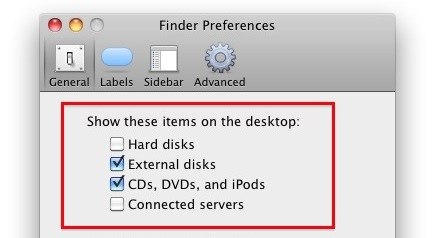
These changes take effect immediately. Through these preferences you can adjust the visibility of Macintosh HD and other internal hard disks, external drives, CD’s, DVD’s, iPods, and even connected servers.
Macintosh HD is categorized under ‘Hard disks’ so if you leave it checked, then Macintosh HD (or whatever you have named your hard drive) will remain visible.
Each drive will have a unique icon visible on the desktop. Icons for volumes will represent what the actual media or volume is. For example an internal hard drive looks like an internal hard drive, and external drive kind of looks like an external hard disk in an enclosure, CD and DVD looks like optical media, and so on.
If you’re a minimalist or you just don’t like the desktop icons and the clutter they can cause, you can always hide all desktop icons in Mac OS X with a simple Terminal command as well.
Having icons for Macintosh HD, hard drives, external drives, disc media, and other volumes show up on the desktop had been a long standing feature that was in classic Mac OS, and some of those external volumes persist today in modern Mac OS releases too. Thanks to settings, you can customize these icons on your desktop exactly as you’d wish.






I changed my SSD and the Macintosh HD appear in desktop. Unfortunately it doesn’t hide with unmark HARD DRIVE, but only if I unmark EXTERNAL DRIVE…
very strange, because it is the main SSD (only SSD in machine), but the Operating System is interpreting it as an external disk, not as HardDisk.
does anyone know how to fix it?
How is this done with a terminal command?
lol, what a tips :p
Yes Iphone & ipad are not mount from Apple decide…
When you plug in your iPhone, shouldn’t that appear also?
Mine does not. Also, how does one get the “Shared” column in the finder window? Thanks much.
iPhone and iPad does not appear, but my old iPod does. I never understood this either.