
Lock a Mac Screen
 Any time that you are away from your computer, it’s a good idea to lock the screen. This provides a level of privacy and security to the Mac that is very easy to use and implement and it should be considered a must-use trick, particularly for anyone working in public spaces, offices, schools, or anywhere else that there is potential of an outside party accessing the computer. The fastest way to lock the screen of any Mac OS X computer is to use a simple keyboard shortcut.
We’ll walk through exactly how to set up the lock screen feature and show you the keystrokes to use to instantly lock the Mac, thereby requiring a password to be entered before the machine can be used again.
Enable the Lock Screen in Mac OS X
To use the lock screen keyboard shortcuts you first must enable the lock screen ability in Mac OS X. With this enabled, you can then lock down the Mac instantly and require a password for it to be usable again. Here’s how to enable the lock screen in Mac OS X:
- Launch System Preferences, found in the Apple menu
- Click on “Security & Privacy” and look under the “General” tab
- Click the checkbox next to “Require password after sleep or screen saver begins” – from the drop down menu select either “immediately” or “5 seconds” as the time interval to require the password
- Exit out of System Preferences
This password locking setting exists on all versions of Mac OS X:
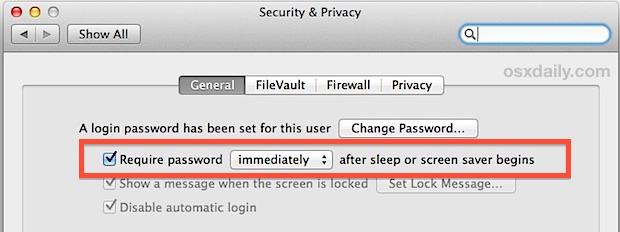
You can easily confirm the setting is now functioning by hitting the locking keystrokes for your Mac model, which will make the screen go black instantaneously.
Lock a Mac Screen with Keystrokes
Now that Mac OS X screen locking is enabled, you can lock down the screen with a few simple keyboard shortcuts:
- Control+Shift+Eject is the keystroke for Macs with an Eject key, and for external keyboards
- Control+Shift+Power is the keystroke for Macs without the eject key, like the MacBook Air and MacBook Pro Retina
- Control+Command+Q is the default Lock Screen keystroke on Mac with the latest MacOS versions installed, this is new to MacOS Mojave, High Sierra, and later
Hit the appropriate key combination for your Mac model and the Macs screen will instantly go dark, thereby locking it and requiring a user to enter a password before the computer can be accessed again.
The lock screen on a Mac will look something like the images below, with an image of the user account avatar and a password field, as well as a few other simple options. Authentication must be valid to proceed beyond the lock screen, which can be through a password, Touch ID, Apple Watch, or other authentication method if the Mac supports it:

Here is what the Mac OS X lock screen looks like in earlier versions of system software:
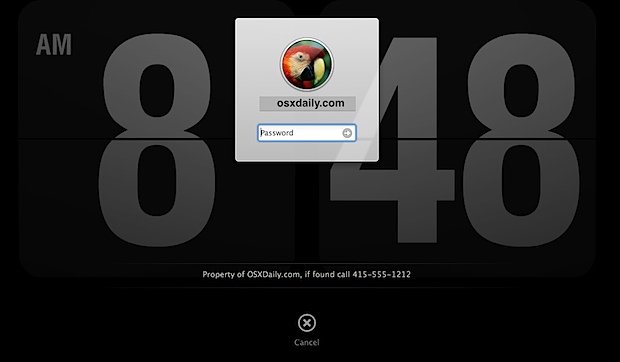
If you chose the immediate option in Security preferences, then you will need to enter the user password before being able to use the Mac again, the option to wait 5 seconds gives you a few seconds of allowance before requiring the password, which may be more desirable in some situations. You’ll probably have noticed that other choices are available in the timing, but realistically anything higher than a minute starts to lose it’s security benefits, thus the shorter times are most desirable for optimal security and privacy purposes.
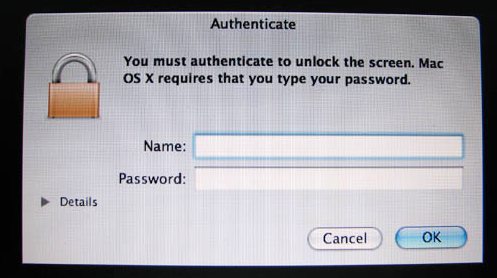 The Mac OS X lock screen is the same as what you see when you wake a Mac from sleep or a screensaver when this feature is enabled, so remember that if you use a screensaver that auto-activates or sleep your Mac regularly, you’ll also be entering your password when it is woken.
Locking the Screen through Hot Corners
You can also lock down the screen of Mac OS X by using Hot Corners, which lets you drag the mouse cursor into a corner of the screen and initiate either the screen saver, or, much like the keystrokes above, turn the display black. Either will require a password to unlock the Mac and use it again. Setting up Hot Corners for this purpose is really easy, just be sure to have already enabled the “Require password” setting that we mentioned above:
‘
- In System Preferences, go to “Mission Control” and click the “Hot Corners” button in the lower corner
- Choose the hot corner you wish to associate with the locking feature (lower right is my preference) and then choose “Put display to sleep” or “Start Screen Saver” – either method will require password entry to regain access
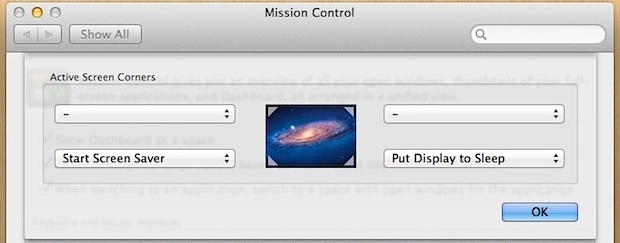
Now you can test this out by dragging the cursor into the hot corner you just set. The display sleep method turns the screen black, while the other begins whatever screen saver is set. Assuming you set “Immediately” as the initial password requirement, any motion of the mouse will summon the login screen and require proper login credentials to unlock the Mac again.
Remember: Always Lock the Mac when Away
It doesn’t matter which method you use to actually lock down the screen, just make it a habit. This is highly recommended to enable on any Mac, but particularly for those in offices, schools, public places, and any other environment where you may have sensitive data on your machine that you want to keep from prying eyes. Another very worthwhile endeavor is to add a login message to Mac OS X, which can include things like identifying information of the Mac, or better yet, ownership details like a name, email address, or phone number.
Note: This feature exists in all versions of MacOS and Mac OS X, including MacOS Mojave, High Sierra, Sierra, El Capitan, Yosemite, OS X Mavericks, Mountain Lion, Lion, Snow Leopard, and prior as well as newer versions too. The verbiage is slightly different in earlier versions of Mac OS X, but the setting works the same. Here is what you’ll find in the same settings for Snow Leopard, for example:
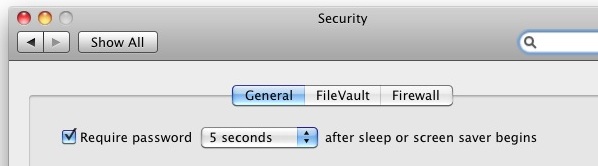
Nonetheless, the setting and keyboard shortcuts are the same regardless of the version of Mac OS X, and the Hot Corner will work as well universally.
Remember the password otherwise you will not be able to easily access the computer. If you do wind up in a situation and happen to forget your Mac password, you can reset it through a few different methods.






Sir, my macbook pro not working.only lock visible on screen. Cursor also not showing instead of arrow.
Sir, I have macbook pro. Now it is not working, only lock on screen. Cursor also not functioning. Pl.what I will do for remedy?
Sorry, Control-Apple-Q — the other one logs you out.
Shift-Apple-Q apparently on High Sierra, without the need to change security settings.
My 4 yr old MacBook Pro froze up. I restarted & it wouldn’t let me open after putting in password. Then I did complete shutdown & tried again & it wouldn’t shut down, got hot & went to gray screen w/a 🚫in white on it. I looked here & decided to force shutdown w/power button. What did that sign mean? I’m afraid to try to open it again. I only have one password on it.
locking the screen does not work for me with shift + control + power.
option + command + power does the trick on my Air running Mavericks though.
CTRL + SHIFT + EJECT will not only lock your screen, but also eject a disk if you have one inserted. If this happens to be say, an OS disk you are using to install a VM, and it is taking forever, so you lock your screen to go on lunch, you may bone yourself.
Apple: Isolate the damn eject key in this command so locking the screen does not also eject a disk which may or may not be in use.
how does one do this with a non-mac keyboard? There’s no power or eject key on most keyboards
/System/Library/CoreServices/Menu\ Extras/User.menu/Contents/Resources/CGSession -suspend
How can I enable or disable the lock screen by command line? Thanks
/System/Library/CoreServices/Menu\ Extras/User.menu/Contents/Resources/CGSession -suspend
Using the power or eject buttons as part of the shortcut is pretty dumb considering most people that have a need to lock their laptops have a keyboard and mouse connected and the lid closed. Good job Apple.
The article shows you how to lock the screen with the mouse by moving it into a corner of the screen. Also, all Apple external keyboards have an ‘eject’ button will can be used for the purpose too.
https://osxdaily.com/2011/01/17/lock-screen-mac/
Command shift, eject, got it! Thank you very much!
Simply pressing the power button will suffice as well. If you hold the power button it will let you switch off the system.
[…] it’s not a replacement for using traditional security measures as well. Always remember to lock your Mac when it’s not in use, and always password protect the Mac with screen savers and by requiring passwords on login and […]
[…] specifically for the display in these choices, for that you will still need to either use the lock screen keystroke or a hot corner that is configured to sleep only the […]
[…] we’ll mention, this is best used in conjunction with the standard Mac lock screen trick that utilizes the screen saver and can be activated through a keystroke, and should not be […]
[…] Instantly shutting off the Macs screen will also lock it with a password if that option has been enabled separately through the Security & Privacy preference […]
Hi, new mac pro retina 13 does not seem to have eject button. Which combination will work the same?
Great question! We just updated the article to directly address this. The keyboard shortcut for MacBook without an eject button is Control+Shift+Power, enabling the password option is the same though.
Nice!
thanks!
[…] is to require passwords for things like boot login and when waking from sleep. Enable and use the screen lock feature when you step away from your desk, and disable Automatic Login through the Users & Accounts […]
[…] find non-exact phrases like “Lock Screen”, which will match up to the security panel where the “Require password for sleep and screen saver” feature is enabled, despite not even coming close to sharing the searched phrase. […]
[…] be sure to put a reasonable way for someone to get in contact with you. Also, be sure to set the screen saver to require a password, and also set login and lock screen messages too. stLight.options({ […]
Thanks! This worked like a charm!
[…] a replacement for setting a general password for a Mac, and it’s always a good idea to lock down the screen when you’re away from the computer. Filevault also provides encryption and security features, […]
[…] can use them for anything, including email accounts, iCloud and iTunes, SSH, logging into OS X and the lock screen, and even logging into the iOS lock screen. Just don’t forget […]
Works like a charm! Thanks buddy!
[…] waking each Mac from a screen saver, though a password must be entered on each individual Mac if a lock screen is […]
[…] right from the Terminal. This does not log a user out, it just brings up the standard Mac OS X lock screen and login window, requiring a valid user and password before the Mac can be used […]
[…] the login name change took place by logging out or by locking the screen, both of which will bring you to the standard OS X login window. This is the same for OS X 10.7 […]
The bummer about this keystroke, is that it locks the screen AND puts the display to sleep. I really with is just locked the screen (like the option in Keychain Preference). It’s a nice tip if someone really wants to sleep their displays. Not so hot if you just need it locked. Sleeping/Waking the screen every time I leave or comeback is a major pain. I don’t understand why OSX doesn’t have an easy keyboard shortcut to just lock the screen (without doing anything else).
You could try activating a sleep corner for the screen saver only
[…] moving the cursor isn’t your preference, you can also setup a keyboard shortcut to lock the Mac screen. In both cases, if you have a password enabled for the lock or screensaver screen you will need to […]
thk very nice …
My Mac is set to lock after 60 min when put to sleep. Nevertheless my brother seems to be able to lock the screen instantly. Does anyone have any ideas on how he does it?
[…] you want to confirm the change, activate a screen saver with a sleep corner or lock your Mac screen, just be sure that you require a password or you won’t see your message. You can see what […]
[…] folder is named after and it’s also the shorthand name for logging into the Mac either from a lock screen or network […]
[…] Developer Preview 3 brings some nice new UI changes to the lock and login screens. Now when you lock your Mac screen in Lion with Control+Shift+Eject, you’ll see a small login window over the current background […]
[…] security reasons, it’s always a good idea to lock your Mac screen when you step away from the keyboard. On the other hand, there are times where you’ll be away […]
[…] OS X, Tips & Tricks – February 10th, 2011 – No Comments We showed you how to lock your Mac screen with a keystroke, but you can also access the same desktop lock through a little known Mac OS X […]
[…] How to Lock the Mac Screen with a Keystroke […]
I Use Expose and this is the best for upper left corner.
I use this a lot, because when i stand up and leave my mac i don’t want anybody to touch it. So upper left with the mouse and it goes black. After that when you move your mouse it asks for a pass. Thats the best option
great tip with the key combo
thx :)
Yeah… This is nice, but press the shortcut and then immediately move the mouse and you’ll be able to see the screen waked up you can see everything, control everything with the mouse, but it still asks for the password. This lock function on Macs or so buggy… To avoid accidents better use user switch and leave your mac showing the login screen.
Thank you!! i never stop learning these things about my mac!!
U guys rock for publishing things like this.
I find that using expose active screen corners for this works really well also.
Very quick way to lock by dragging the mouse to the corner.