
FTP from Mac OS X
 Did you know that your Mac has a built-in FTP & FTPS client? You don’t need to download any additional software or apps to connect to FTP sites from Mac OS X, instead you can connect to remote servers directly from your desktop by using an excellent and little known feature. If you’ve never used the Mac FTP tools before, you will find them incredibly simple and quite familiar, because the connection utilities and server browsing are much like navigating through the normal Mac desktop. Let’s get started.
How to FTP from your Mac
If you want to test this by connecting to a real server, use ftp://ftp.mozilla.org and login as a Guest. Regardless, here’s how to start an FTP connection from Mac OS X to a remote server:
- From your Mac desktop or Finder, hit Command+K to pull up the “Connect to Server” window (alternatively, you can access this from the “Go” menu)
- Enter the address of the ftp server in the following format: ftp://ftp.domain.com
- Optional: If you want to add a bookmark to ‘Favorite Servers’ for repeated connections, click on the + icon next to the “Server Address” field
- Click on “Connect” and wait to connect to the remote server
- Enter the FTP username and password, or connect as “Guest” if the server allows guest connections and click on “Connect” again
Here is what starting a standard FTP connection will look like:
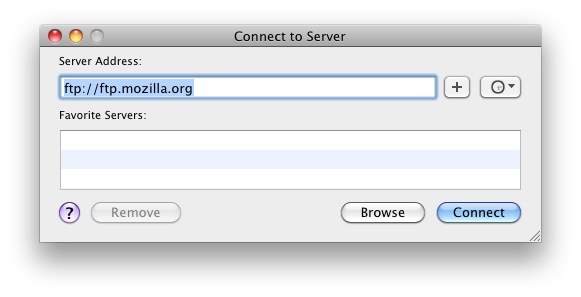
If you want to use a secured connection instead you just need to make a tiny modification, which we’ll discuss next.
Using FTPS for Secured Connections
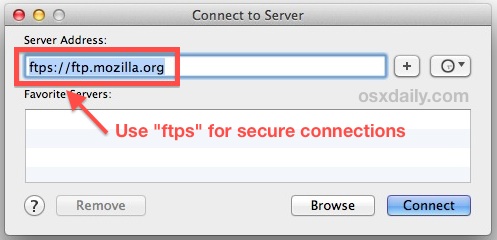
If you want to connect to secured FTPS server, all you need to do is prefix the domain with ftps:// rather than ftp://. This is dependent on the remote server having SSL support and acceping FTPS connections, which most servers do. The minor difference is pointed out in the screenshot below:
FTPS vs SFTP
Something to keep in mind is that FTPS and SFTP are two different protocols; FTPS is FTP with a secure SSL layer, while SFTP uses SSH (yes, the same protocol that SSH servers are enabled by with Remote Login in OS X). FTPS connections are supported directly in OS X’s built-in FTP functionality, while SFTP through SSH is not accessible through the same “Connect to Server” menu. Nonetheless, OS X does include a native SFTP client as well, and it’s accessible from the Terminal by typing “sftp username@host” at the command line. Because SFTP and SSH in general are generally command line based, that’s really a topic for another article, so we’ll keep things simple here and stick with FTP and FTPS.
Navigating & Transferring Files with FTP & FTPS
Once you are connected to the FTP server, you can browse the remote server like any other local folder on your Mac, because the server is treated just like a normal file system window in the Finder.
Copying files to the remote server, or downloading them to the Mac, is done easily with simple and familiar drag and drop. Navigate to the file or folder you want to copy, then just drag and drop it as if you were copying or moving any other file, and the items will being to transfer to/from the FTP server to the Mac, or vice versa.
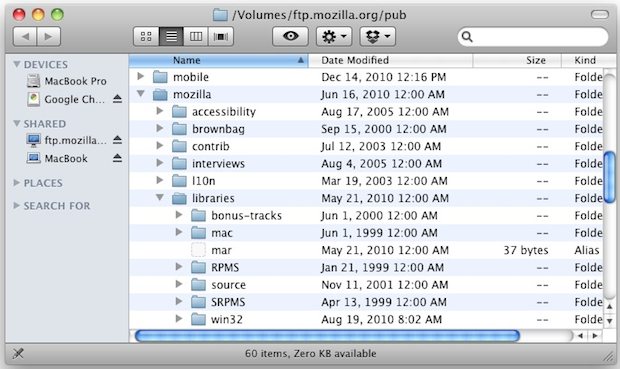
By default the window will show as a minified Finder window, but you can expand the window to your familiar Mac OS X Finder style by pulling down the “View” menu and choosing “Show Toolbar”. The main benefit to expanding the window is that you get the forward and back arrow navigation buttons, in addition to sorting options to browse through the FTP server by icon, name, date, lists, and the search functions.
You can also start an SFTP server on any Mac to be able to connect to it this way for downloading or transferring files.
By the way, if you were wondering, I have my titlebars set to display full directory paths which is why you see the path on the remote server in the second screenshot.
What about third party FTP clients for Mac?
Since the Finder FTP function does not support some features users may wish to have on their Mac, there are plenty of third party OS X apps that can do the job instead, with full FTP, SFTP, FTPS support, downloads, uploads, queuing, permissions changing abilities, read/write support, and much more. In no particular order, here are a few free FTP apps for Mac OS X:
There are many other options available, including simply using the command line on the Mac, which has full sftp support as well. Advanced users may wish to go with paid SFTP applications too, like Transmit or Yummy FTP.
The FTP features in Mac OS X have been around since the earliest days of OS X, and they’re still around in OS X Yosemite, Mavericks, Mountain Lion, Snow Leopard, you name it, it’s supported. While incredibly useful, they are obviously not as developed as third party FTP clients like Transmit or Cyberduck, but if you’re in a bind and just need to quickly connect to a remote FTP to transfer some files back or forth, it’s more than adequate and it does not require downloading anything additional. If you need more advanced features, both of the aforementioned apps are fantastic and integrate well with other apps.






I had tried several “FTP clients” through the years, and I’ve stuck with Forklift. I use Forklift as a Finder replacement and as an SFTP client, and I’m very happy with it. The recent performance test of some FTP clients reassured me once again that I had made the right choice with Forklift.
The fact that the command line FTP permits `put` operations but the Finder prevents write operations using the same credentials is a bug in the Finder. Why won’t Apple fix its bugs?
I think that it is not necessarily a bug. It can be just a limitation, for any reason apple blocked it.
I highly recommend Transmit. It now supports mounting the disk, so that you can interact with your files directly in the Finder if you wish. This includes the coveted write access.
Double Commander is great for FTP/FTPS
Im having trouble dragging a file into my FTP Server. I have done everything as it states above, but when i drag my file into the folder, it doesnt go. I have tried copy and paste but it doesnt work either. I have tried via Filezilla but it also doesnt work. What else can i try?
Here’s the odd thing. I got ftp working but ftpwho is not working. I’m wondering if this is linux specific or if ftpwho can work under unix as well as both are sort of the same.
Whenever I try to press cmd+k on my desktop, nothing happens. I also can’t see the “Connect to server” option under the Go menu. How can I fix this?
It only works when you’re in Finder. Open a Finder window and then press Command-K.
Same here, trying to figure out how to change permission for MAC, since its only Read-Only permission (can’t Upload), while WINDOWS can Read/Write (Upload/Download).
Please help.
While I can DOWNLOAD from your FTP server to the Mac, I can not UPLOAD from your Mac to the FTP server.
Read/write FTP. That’s the whole point of this article.
Thank you
I’ve tried accessing my printer’s ftp various ways (ftp link, their website, various browsers) – worked fine last time, not at all this month. Printer says it’s working fine on their end. I checked my Mac security and tried uploading via cmd+K and FileZilla. Neither worked. Can’t figure out what I’m doing wrong.
Thanks for this–worked like a charm. I have a Mac with Mountain Lion. I set up an FTP account through my Web Host. Command-K opened the FTP window. Initially, I also had trouble with the Username and Password. I expected that they would be the same combo I had just created to set up my FTP account. NOPE! A bit puzzling until I realized that I was encountering the security of my Web Host, not the FTP account. When I tried the Username and Password combo that I use to log into my Web Host account, everything worked like a charm. I was able to drag and drop the files and folders I needed. Thanks so much for making me aware of this great feature! OS X is much more powerful than I will ever know, and I love it that the Internet quickly provides answers to my needs. I was looking at third party software when I came across your post. Awesome!
Are you saying you can upload files to your web server this way? I set this up and can download beautifully, but cannot drag and drop a file onto the server window to effect an upload. Everything I read says apple did not supply this capability with this interface. Dis you manage to find a setting or defeat this? I would LOVE to use this GUI to upload.
Best and thanks,
Yes you can use the file system as a simple FTP manager to upload files to remote servers.
Simply use the FTP protocol from the Mac and the familiar drag & drop within the file system to upload files to the remote FTP server.
You can use secure ftp by prefixing with “ftps://domain”
No it is read only. Cannot upload. Using OSX 10.9.3 Mavericks.
I found the same thing. FTP window (or ftps) is read-only. (running Mavericks)
I can connect just fine, using ssh credentials from my keychain, and I own the account on the other end. I just can’t write to it.
I have a windows machine running FTP server and can connect ok from other pcs. My mac keeps giving me an error message saying incorrect ftp password even though I can logon from another pc on the same local network OK. I tried filezilla client on the mac too – it just gives timeout messages.
I’ll try command line(terminal app) next
Need to connect with the ftp address which contains only ip address.and when giving “ftp://ip” details it is giving error.please suggest……
Ridiculous article … FTP in the Finder is useless :
1. Doesn’t allow uploads
2. Unstable
Advising people to use it is just irresponsible and misleading.
I personally use Yummy FTP (http://www.yummysoftware.com) and it’s really easy to use and very reliable. But any other FTP client app will work better than the Finder!!
Hello DFLAN,
Thanks for mentioning Yummy Software. I have been looking for an FTP client for Mac users. I am trying the trial version of Yummy FTP and so far it works great. :)
Hello Paul,
I appreciate what you posted. However, it didn’t work on my Mac.
I have been using Interarchy (and its predecessor Anarchy) for years, and am very happy with it. From time to time I try other clients (such as Flow, which I got in a bundle deal) but I keep coming back to Interarchy. Lots of extra features (most of which I don’t use), but usually very stable and reliable.
Doesn’t work for me. Not at all. Always says I’ve entered an invalid username or password. Guess I don’t really care, since it’s read-only anyway.
OK. I command-K like above and browsed from there. I saw the offending site and unmounted it. I cant power down right now, but I guess my problem is solved. Thanks
I also could not get it to accept my username and password combination. I have verified that they are correct. I’m not sure what the deal is, but my username does have an @ in the password. I typed in the command in Terminal just as suggested above, and it said that I didn’t specify a file name. What else could be wrong?
ssh://
scp://
git://
What else do ya’ need?
Yes, I noticed the same thing on OS X Lion … read only! Would have been awesome if you could write as well!
Only problem? This is read only. Can’t copy files to the server. Useless garbage.
Totally useless…
The GUI version is unusable as it’s read only – mught as well use the ftp:// scheme in a browser.
If you really want to *upload* files, why don’t you use the command-line client?
Open the Terminal and type:
ftp http://ftp.host.com
it will ask for your username and password (and in this case an @ in the address is not a problem).
then you can upload whatever you want with:
put filename
you don’t need to type the complete filename though – just the first letters and then press Tab for autocomplete
have fun!
I can connect to an ftp server using terminal and ftp but when I try using Finder it says invalid user name or password. Since I have a @ in my password and that messes up the ftp://username:password@address form for entering an ftp address with user name and password, I am wondering if that is the problem? If so, do I have to change the password or is there a way around this (maybe with a \@ or something like that?)?
Thanks for posting this, but…
I am running 10.6.8, and get an odd error when trying this route. I can enter ftp://mysitename.com into my web browser (both Safari & Firefox), enter the ftp login when prompted, and can view the directory. However, when I try to do it from the Connect to Server prompt, I get “You have entered an invalid username or password”. I have tried both ftp://ftp.mysitename.com, as well as ftp://mysitename.com, and get the same error either way.
Any ideas?
It’s probably defaulting to your Mac user name, be sure to specify the appropriate name for the server
Hw do you do that?
I don’t have a mac and filezilla is crap, so I’ve started to use Maytech.
Whats crap about filezilla? , I’m just trying it as the normal client I use isn’t installed on the mac I’m working on and I’m much preferring it to the cyberDuck that I most often use on osx.
Awesome…!! when I read about these little tips which are BIG TIPS I realize how much I need to learn more about my MAC.
THANKS!!
[…] hasn’t finished starting yet or you didn’t enter the command properly. You can then FTP from other Macs via the same ftp command, or by using the “Connect to Server” option in the […]
It’s not really FTP support if you can’t upload. Does this really not support copying files to the FTP server?
[…] on the Finder icon in the Dock and selecting “Connect to Server.” From here you can connect to FTP, SMB, local, or remote servers as usual – and yes they will open in the […]
[…] connect-ftp-from-mac osxdaily.com […]
[…] readers pointed out that you can use Get Info to adjust file permissions on remote files using the Mac OS X built-in FTP client, which is pretty convenient if you’re without a separate FTP […]
It’s a bit unfortunate though that it doesn’t support sftp:// in finder, while it works just fine in the terminal (since it’s unix power..). Sticking with FileZilla for sftp atm.
[…] via OSXDaily […]
Of course you can use FTP from your Mac. The Mac is a Unix system, and all Unix systems have FTP built-in. You can use it from the command line (using the Terminal app). In this case, the GUI doesn’t make it any easier.
You can not change read/write permissions from a windows based server on a mac. Just use remote desktop connection for mac from microsoft and login to the server and change it their. Would like to see this issue fixed.
Yeah, but the directory is read only on the FTP server.
Same problem here. I’m not getting the option to change read/write permissions.
Nice. But how to change the read & write permissions on the remote server…
If you are logged in you can make RWX changes through Get Info
I’ll still use Transmit but this is a good tip
Unfortunately you can’t change the read and write permissions and it seems its only read permissions via this FTP.
Might add that there are several protocols available via this “tip”.
smb:// – for connecting to samba (Windows shares)
vnc:// – for Apple’s Screen Sharing
afp:// – apple file protocol
http:// – I think this is for WebDAV
sweet!