
Show Folder Sizes in Mac OS X List View

If you would like to see the folder sizes on the Mac, you can do so easily by enabling a folder size calculation when looking at directories in the List View of Finder in Mac OS X.
What this trick does is show folder sizes on the Mac, calculated in megabytes, kilobytes, or gigabytes, depending on the total storage size taken up of each individual folder found on the Mac. In my opinion this should probably be enabled by default since it is a popular feature, but the standard Mac OS X list view setting is to not display the size of folders and their contents. Alas it’s no big deal, this is easily changed with a preference adjustment.
How to Show Folder Sizes on Mac OS List View
From the Finder and file system view of a Mac, do the following:
- First, make sure to select list view from a Finder window
- Now open “View Options” from the View menu (or hit Command+J)
- Select the checkbox next to “Calculate all sizes”
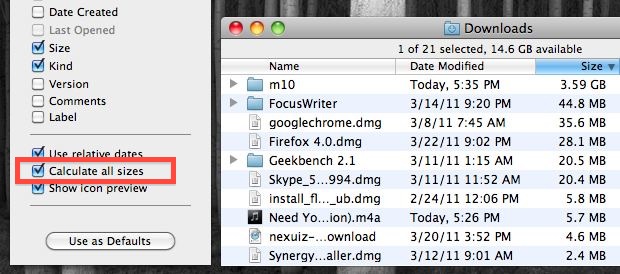
If you choose “Set as Default” then the Show Folder Size option will be enabled for all folder sizes on the Mac, displaying each calculated storage capacity of each individual folder, totaling the contents of that folder.
Now when you open any directory in list view, you’ll see the size of directories and their respective contents.
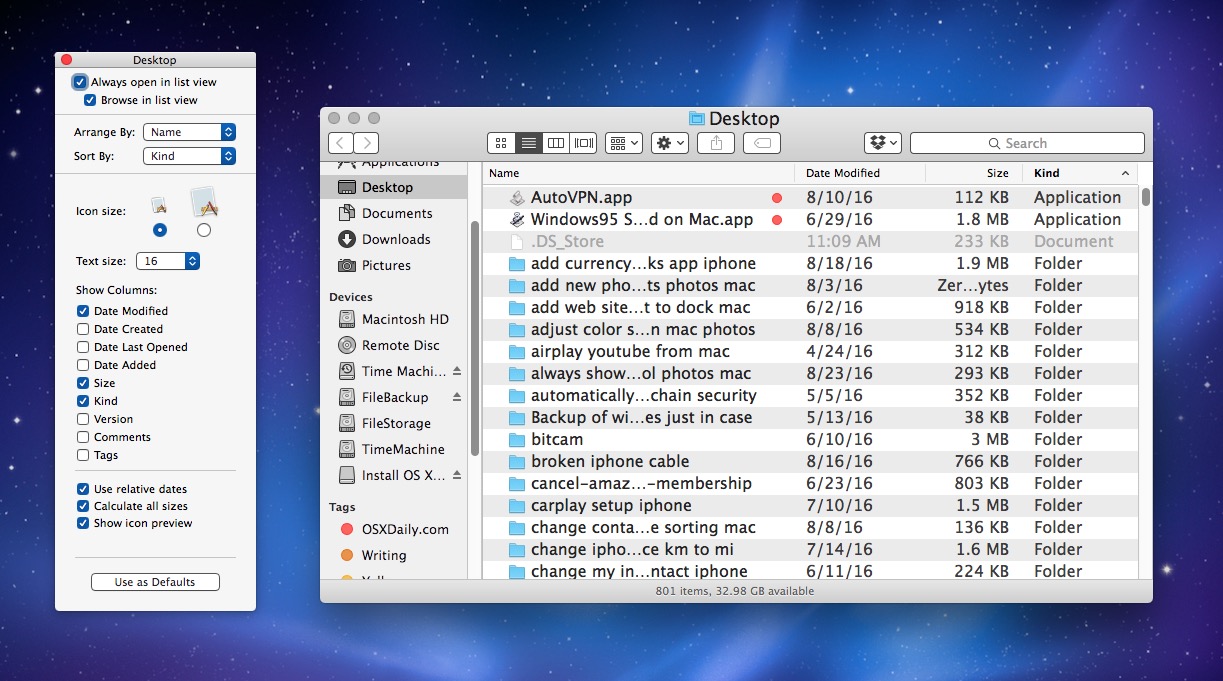
This also works with Cover Flow view, but must be set separately through View Options.

Like all other settings on the Mac, you can easily reverse this change if you decide you do not want to see the folder size of folders. The folder size setting is available in all versions of Mac OS X, macOS, and OS X, it does not matter which release or version the Mac system software is running.






Thanks. Exactly what I needed. I was playing for a bash commands that would do this but this is much easier.
Path Finder.
What is in the m10 folder:P?
I agree with Olivier. this could be very resource expensive. I rather consult for each folder.
i have to do it for every folder seperately… how can i do it for all folders?
If you want to have this automatic for all folders click on the “Use as Defaults” button in View Options, it will apply to all directories that are open in list or coverflow view.
As Olivier notes though it will cause your disk to be more active.
While I agree this is very convenient, I disagree that it should be enabled by default – calculating folder sizes is expensive and requires many disk access operations.