
Show Image Dimensions in Mac OS X Finder Windows & Desktop
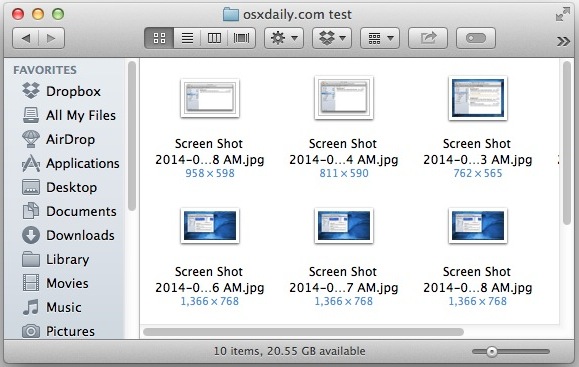
The default setting in Mac OS X Finder is to display no file information, but you can easily set the Finder, Windows, and the Desktop to show image dimensions through a setting in View Options. Basically, you’ll see the complete resolution of a picture highlighted in blue underneath the file name, hugely useful for Mac users who do a lot of image work and editing.
Here’s how to enable this great feature and view the image file dimensions right from the Mac Finder.
How to Make Image Resolution & Dimensions Visible Under File Names in the Mac Finder
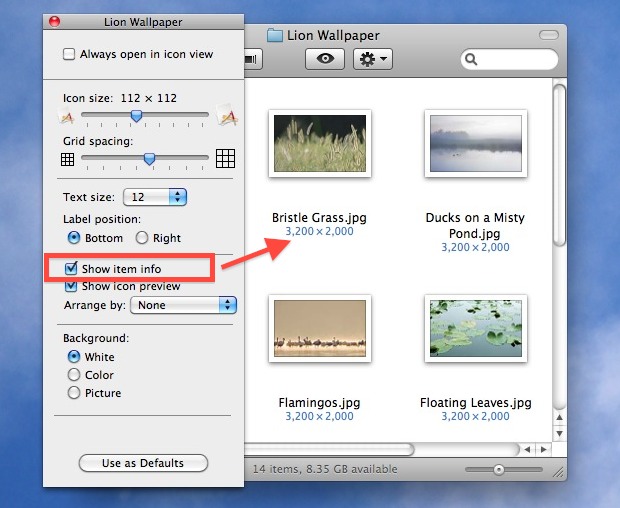
- Hit Command+J or pull down the View menu and choose “Show View Options”
- Select the checkbox next to “Show Item Info”
- Optional: If you want the setting to be applied to all Finder windows and folders, click the “Use as Defaults” button at the bottom, which will allow all folders to show the image information. Otherwise, this setting is just folder specific.
You’ll notice that images will immediately show their dimensions. As a side effect, other Finder objects will also display information like item count and file size. Here is what the view option looks like toggled, and the image resolution shown under a few sample files in the Finder:
In order to see the image dimensions underneath a file name, you must be viewing the files in “Icon” view of the Finder. Any other view option will not display the image dimension or file information under the file name, this is limited to the icon format only due to size restraints, that may change in a future version of OS X. Keep that in mind, because if you enable the “Show Item Info” option and don’t see the image resolution underneath a picture, you probably just need to switch back to the Mac Finder’s “Icon” view to make it visible.
This works in all versions of OS X from the earliest renditions through Mavericks, so you’ll find it supported regardless of what release you’re using.






Looking for a way to enable the Pictures folder behavior in other folders. Someone said to move the working folder under Pictures. Yes, that would work – the dimensions behavior in the columns mode seems to work in subdirectories of Pictures.
I wondered if a symbolic link in Pictures pointing to my working folder elsewhere would trigger the dimensions behavior. Nope.
Neither does creating an alias in Finder and moving the alias to Pictures.
I have run into an annoyance with OS X where the OS does not update the displayed file info.
For instance, lets say a jpg is 400 x 400 and I resize the image to 250 x 250 the OS still shows the old size. There is no update to the information provided by the OS
Also when I move files into and out of a folder the OS still displays the same number. It NEVER updates it until I restart.
Is this normal or is it just that all these software gurus don’t have the common decency to test their products before making us their testers. I feel like a testes. I understand I can update to the newer OS but all my Apps work fine in this one and I am afraid to upgrade and have to deal with issues after I upgrade where software will not work correctly.
One more item. If you have changed the dimensions on an image, you will NOT see the change reflected in the “Dimensions” column. To refresh the column, you must do either: change view from LIST view to IMAGE view and back; or, close the folder and reopen the folder.
exactly the issue I am having, didn’t see you mention it as well.
It seems like a no brainer that someone testing their OS should have caught that kind of thing, but it just goes to show they aren’t updating the OS’s to make things easier for the USER.
That is the tragedy of Apple and all technology.
Instead of making things more useful they like to play games and change things constantly for no reason.
And no improved functionality for the casual power user.
I have found an easy solution. The desired features work in the folder “Pictures” (the default folder for images … you will find Photo Booth here).
Move the folder you are working with into the “Pictures” folder. Select “List” view. Right-Click on the column header bar. Select “Dimensions” from the pull-down menu. You will see 800×600, 1280×1080, etc. in the “Dimension” column.
In the Image Preview or Icon view, press “command+J”, click on “show item info” box. You will find 800×600, etc. under each image in light-blue small font. (If you try this in the normal folder, the images will jump as an empty space is moved under the icons!)
One you have completed your work, move the folder back to it’s original position. Clumsy, but it works! Hope this helps.
Once again, Apple is attempting to control your life with supposedly an easy-to-use system where you are forced to work their way. Work-around methods require deep-knowledge. Microsoft let’s you do things the way you want … but I wouldn’t go back.
Works for folders on my mac itself. As soon as I move the folder to our network, the dimension column is still there but no actual dimensions are shown. It just displays — where each dimension should be.
Utterly useless for the OS El Capitan version 10.11.5. With this, when I select View Options from the top I have: Tick box – Always open in icon view – Tick box Browse in icon view. Two fields Arrange by: and Sort by: Two slide rules Icon size and Grid spacing. Then Text size choice: Then Label Position with two button choices : bottom and right. A line separate the next two items which are Tick boxes of Show Item Info and Show Icon Preview. Another line followed by Background choice buttons, White, Color and Picture. Another line followed by a selection button ‘Use as Defaults’. There is nothing whatsoever to ‘Show Dimensions’. Even after selecting ‘Show Item info’ The dimensions are not on display under the thumbnails as in your screenshot. If it is different for the latest iMac version you need to update your instructions.
I have checked off “Show Item Info” and don’t see any image dimensions below the images in Finder. I’m also using El Capitan.
I paid upwards of 3000$ for my iMac and what comes default in machines running Windows including older OSs doesn’t come on my overpriced machine. Ridiculous.
It works on ElCapitan, but it’s a shame that on Detail View, there’s only 7 or 8 options to chose, when on Windows Explorer, there’s almost A HUNDRED options to chose from.
shame, really.
does not work on yosemite
I cant get it to work since installing Mavericks. Please help me fix. I really enjoyed having the size of the pictures. now i just have to guess when FB or yahoo comes back and say the image is too small ect.
unfortunately this seems to be broken in mavericks. such a shame; i used this a lot when coding – quick way to check image dimensions without having to open in photoshop.
This works fine in OS X Mavericks, use the “Show Item Info” to display image dimensions under images when shown in icon view.
It’s also broken on Mac Pro with OS X 10.6.8 there are some things Windows does better… sadly even then Windows is no Mac OS.
One of the view option boxes is “size” Yet that box is never highlighted on my MacBookPro, so I cannot check it to find out the file sizes, a very useful bit of information when one is trying to clean up the hard disk. Grrrr How do I get it activated??
It doesnot work on remote folder like: smb (windows share folder)
Works as intended but nothing more.
You’ve to select grid view to see the information. So it’s not so useful when browsing large lists of files.
Furthermore you’ll receive information you’re maybe not interested in like files in a folder.
I’ll continue to find a slim, elegant picture viewer that allows flipping through a folder and displays necessary information in a nice way.
Don’t get me wrong. This way might work but it’s more a workaround than a real solution for our needs :)
Didn’t work for me :((
https://lh4.googleusercontent.com/-huqZy3QLEwQ/T2aCsyN2RZI/AAAAAAAANWs/n6YV_0e6tWE/s501/Screen+Shot+2012-03-18+at+8.49.01+PM.png
If you look directly under “Show Item Info”, you’ll see “Arrange by:” is set to “None”. If it was changed to anything else in the menu, then the window would be arranged and, thus, you would not have to scroll to the right.
[…] via OSXDaily […]
nice, what I always found annoying is that if you have a folder with images and see the thumbnails, you have to scroll down AND RIGHT to see them all. (just as in the picture above)…
can you somehow fix the columns?
In windows this works nicer.