
How to Add New Voices to Mac OS X
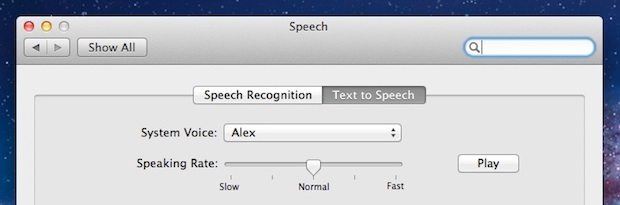
Mac OS X includes many high quality voices for it’s text-to-speech abilities, they’re in a wide variety of languages and accents and are probably some of the best computer rendered voices out there.
But guess what? Many of these incredible voices are not installed by default on a Mac! Thankfully that’s easy to change, and we’ll show you exactly how to add new voices to the Mac.
Add High Quality New Text-to-Speech Voices to Mac OS X
Here is how you add the great new voices to MacOS and Mac OS X:
- Launch System Preferences from the Apple menu
- Click on “Dictation & Speech” under the System items, then click on “Text to Speech”
- Select the System Voice menu and scroll to “Customize” in the pull-down
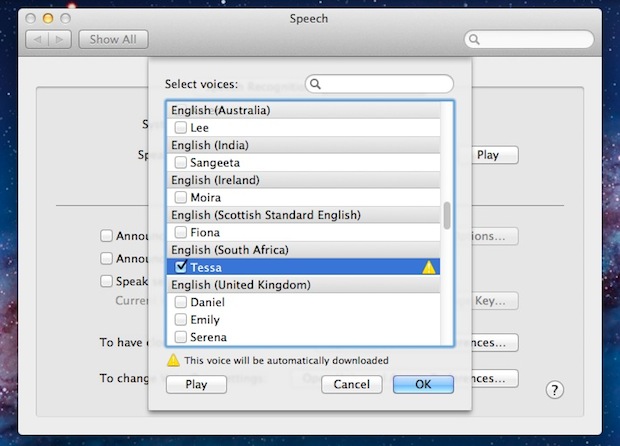
- Choose the voice or voices you want to add to Mac OS X by clicking the checkbox next to the name, you can play samples by selecting them and clicking “Play”
- Click “OK” and you will get a popup confirming that you want to add and download the new voice to Mac OS X, click on “Install” to proceed, for the purpose of this walkthrough with chose Tessa, the South African English voice
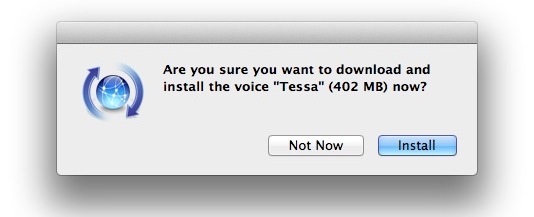
That’s all you need to do, just let the voices download and it will become a selectable option in that previously mentioned Voice menu. You can add all the voices if you want, though be mindful of storage capacity on the Mac when doing so.
You’ll notice that each of the high quality voices are somewhat hefty downloads, so if you have limited disk space you may want to just pick one or two new voices rather than adding the entire lot of them all, which take up several GB of data.
You can also add new voices from the VoiceOver Utility, but going through System Preferences dedicated Speech / Dictation control panel is the easiest way.
The high quality voices are one of the many new great features that arrived with Lion and Mountain Lion, and are now default in all modern MacOS and Mac OS X versions. Once you have added a few, you can test out the new voices and what they sound like with larger phrases, documents, or whatever else you want spoken, by using the standard text-to-speech methods of making your Mac talk to you, either through compatible apps like TextEdit and Safari, or by using the command line ‘say’ utility.
It should be noted that other voice options are available in many different versions of MacOS and Mac OS X, though in new versions of macOS the Speech control panel is labeled as “Dictation and Speech” and older versions of Mac OS X label the control panel as “Speech”, but the voices are there in any vaguely new release ever since we got a sneak peak at some of the newest voices that arrived way back with Lion, but now they’re accessible for everyone to add to Mac OS X as long as you are running 10.7, 10.8, or newer, and yes that includes everything modern too from Mavericks, El Capitan, High Sierra, Mojave, and onward.
If you have tips or tricks regarding adding voices to the Mac, share with us in the comments below!






I love you
You are missing a step for the new Mojave OS for those with the newest OS. To be able to change the voice you wish to use, you will have to go to “Accessibility.” Go to “General,” and there you will see a list and the “Speech,” button is the fourth one down. Go there and now you can change to whatever voice you wish to use.
there is no Speech option in System Preferences
Obviously, MacOS changed a tad
SYSTEM PREFERENCES > ACCESSIBILITY > SPEECH > System Voice dropdown, select Customize.
Or, you could have searched “Voices” from the System Preferences main screen, and it would’ve brought you right there. But, who wants to take the obvious/common sense route when you can scour the Internet into the depths of an article comments section, nahh’msayin?
I downloaded a number of voices and installed on to Mac at the library as my net access is far too slow for such sizable files, my question is now how to install them to my Mac. As merely copying them to system library speech voices folder does not make them available voice selection menu. Which files do I run to have installed and available
Thx
Solution here:
https://discussions.apple.com/thread/6827547?start=15&tstart=0
Here’s what you have to do:
1) download the software catalog where the ML language file URLs are included from Apple: CatalogVersion 2 ApplePostURL http://swpost.apple.com …
2) Open this file with a text editor (e.g. TextMate) and search for the voice you want to install (e.g. in my case the German Steffi). The language files are labeled with the prefix MLV__… – You can skip the rest.
The only thing you need to find is the download URL for the required voice. In my example the search term was: “MLV_de_steffi”.
3) When you have found the URL please pay attention that there are different URLs for each voice. You just need the one that provides the “.pkg” package. In my case it was:
http://swcdn.apple.com/content/downloads/04/49/031-11879/7decsi3btktgatnfttjj66k rx4u1l7c6ps/MLV_de_steffi2.0.0SU.pkg
Remark: it would be possible to extract the corresponding URLs and make them available as list with a simple REGEX (if someone is searching for a REGEX exercise :-) )
4) Open the URL from 3) in a browser and your Mac should start the download of the voice right away.
5) Install the voice package
After this your new voice should be available without any additional steps.
I have a problem with downloading new voices. I’m trying to install a Swedish voice (have tried downloading both). After accepting the downloading and installation of anyone of them (and the license agreement), the progress shows that it’s searching for the voice. Then I get an error message that (in Swedish) “The update “Multi-Lingual Voices” can not be installed. An unexpected error occured”. I don’t know where to go from here.
Same problem with Trinoids and Zarvox
These instructions don’t work for me because there is no “Customize” under “System Voice” drop-down list in “Snow Leopard 10.6.8”. If anybody knows how to do this, please let me know. Thanks, Garry.
I’m making a simple program that involves voices. Is there any way I can add custom voices besides the default custom ones, since I want voices from a game called Team Fortress 2? If it can be done, could you please tell me.
Thank you this has made all the difference when listening to the e-books that I have downloaded and all the complicated technical papers too. I have finally found a voice that does not make me want to throw something especially when getting a reading of my draft papers.
Does anyone know if it’s possible to force OSX 10.6 to accept the new voices? I’ve downloaded Daniel for my MacBook Air on 10.7.5 and he works a treat – I copied the files over to my iMac on 10.6.8. I put them in the Voices folder, then backtracked and also left them in the Speech folder. However, when I go back to the Clock settings and the Speech settings, the voice is not available in the list, even after pressing ‘show more voices’.
I’m guessing the new voices are handled differently and therefore aren’t compatible. But has anyone had any success using them on a machine before 10.7?
Thanks.
[…] voices can also be added to the Mac if you want to change things up there too, you’ll need any version of Mac OS X later than […]
[…] bundled in both Mac OS X and iOS. If you aren’t happy with the default system voice, you can add new high quality voices very […]
oops – above meant to say hit the hot key to turn on the speakable text, not to write the words hot piece. I am using SIRI
I love the new voices. The international languages are excellent. It is especially useful me living in Thailand and when I chat with my friends in Thai, instead of me having to trust an often incorrect translation using Google, I simply select the text I want to understand and hit the hot piece. Since, I already can speak and understand Thai, but cannot read it (very complex), it helps me a lot.
I’ve been trying to Download “Daniel” for a week now, and that server keeps timing out with just a few GB to go.
[…] text. You’ll notice the voice is that of Siri’s, which is also the voice of Samantha in Mac OS X which you can add yourself if you haven’t done so […]
Problems: I keep getting; not connected to the internet when I try to download my location (Danish, Ida).
My MBP did the same for some time. Now, I got her downloaded there. Does any one have a clue why I keep getting this prompt? (hint, I am on the internet:)
Jakob
“The voice “Ida” can’t be installed now, because you are not connected to the Internet.”
“Connect to the Internet and try again.”
[…] aufgezeichnet innerhalb von drei Wochen, entstanden vor fünf bis sechs Jahren. Und wie erfuhr die britische Mac OS-Stimme von seiner neuen Promi-Platzierung? Aus dem Fernsehen. Photo: Jon Briggs Jon Briggs, a former […]
[…] OS X 10.7 incluye varias voces de serie, pero también te da la opción de añadir muchas más y en muchos […]
[…] of OS X Lion‘s many great new features are all the new high quality multi-lingual voices (here is how to add them yourself). If you went on a voice adding spree like I did, you may quickly realize that all these new voices […]
“for it’s text-to-speech abilities” – please remember that “it’s” means “it is.” The possessive form of “it” is “its” and has no apostrophe, just as “his” and “her” also have no apostrophe.
[…] OSXDaily This entry was posted in 苹果业界 and tagged Lion添加新的嗓音, 如何给Mac, […]
[…] 記事元: How to Add New Voices to Mac OS X Lion. […]
[…] via OSXDaily […]
I downloaded a few voice files, and it took quite some time to download. Does anyone know where the voice files are installed? I have more than one machines, and do not want to download these files for each machine or each time a machine is re-installed.
The French Canadian is exceptionally well done, sounds very authentic both the male and female voices.
Is there a way to remove a voice after you have added it?
You should be able to just unselect the voice in the Speech customization menu
Found it in another page:
Downloaded voices are located in /System/Library/Speech/Voices/
Unselecting the voices in Preferences doesn’t delete the voice.
Thank you!!
cant find them in /System/Library/Speech/Voices/ sure is it the correct location of these files?
Hi
I deleted the whole directory /System/Library/Speech/Voices/
Stupid I know… not on purpose…
How do I get it back?
OSX = 10.10.5
Thanks!
Liz