
How to Refresh Launchpad in Mac OS X
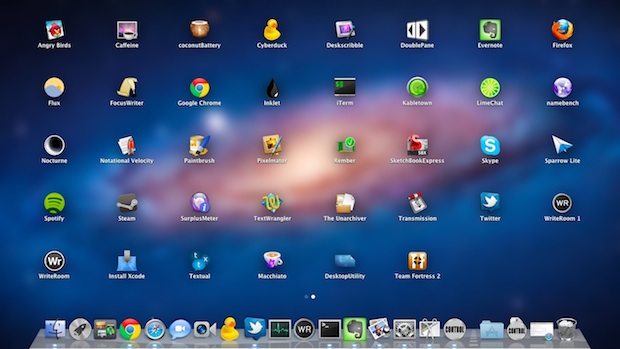
Launchpad is the app launcher in Mac OS X that is quite like the iOS Home Screen, showing a series of app icons and names on a simple screen making it very easy to launch whatever apps you want to open. It’s a nice utility and feature built into the Mac, but it does have some quirky behavior from time to time. One of those issues is that sometimes apps won’t appear in Launchpad at all, or perhaps when you delete an app it doesn’t disappear from Launchpad as it’s supposed to. If you run into this or any other irregularities with Launchpad, try this great tip left by one of our readers to discover how to refresh Launchpad and all of its contents.
These tricks work to refresh and relaunch Launchpad for all Macs with versions of Mac OS X that include the native feature, including Lion, Mountain Lion, Mavericks, and beyond.
Relaunching Launchpad on Mac
Launchpad is attached to the Dock app, so the easiest way to relaunch LaunchPad is to kill the Dock from the command line:
killall Dock
Both the Dock and Launchpad will relaunch and that should clear up most minor issues with app persistence.
How to Refresh Launchpad Contents
If relaunching alone hasn’t fixed LaunchPad and apps are still not showing up, try deleting Launchpads database files located inside your home ~/Library directory, which forces them to rebuild. The directory path you are looking for is:
~/Library/Application Support/Dock/
The fastest way to get there is by using Command+Shift+G in the Finder to access the “Go To Folder” function, then just paste that directory path in. You will see a folder like this:
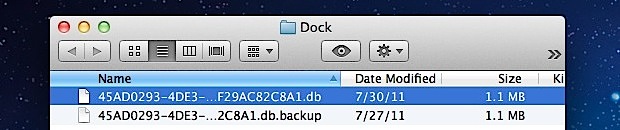
If you want to back these up you can, otherwise just delete them by dragging all of the .db files to the Trash, and then kill the Dock again from the Terminal to force the databases to regenerate.
killall Dock
Take note that you will lose any custom icon placement and folders that are setup within Launchpad, because that information is stored in the database file you are trashing.
One-Line Terminal Command to Refresh Launchpad Contents in MacOS X
If you are comfortable with the command line, you can also do this entire process through the Terminal with the following commands:
rm ~/Library/Application\ Support/Dock/*.db ; killall Dock
Be sure to issue that command exactly as written, because the rm command is powerful and will delete everything without asking, and * is a wildcard for any files matching the *.db name (meaning, anything that ends with .db).
If you want control over exactly what shows up in Launchpad rather than just creating a bunch of folders, use the third party System Preference Launchpad Control, it’s free and works as a sql frontend to the Launchpad database.
Again, this works with Mac OS X 10.7, Mac OS X 10.8, OS X 10.9, and newer.
If you wish to reset the Launchpad in MacOS Sierra, El Capitan, and newer, you can do so here with these instructions.
Thanks to Igo for the tip left in the comments!






hello! i have removed my launchpad from the dock by mistake. and now its all gone. i don’t know how to reinstall that launchpad in the dock. please help me. Thank you
press command space search for launchpad. drag it to your dock
Thanks for this. The first step (Killall) worked on my OSX el Capitan build which had a weirdly behaved calendar icon. It had doubled itself and gone off centre. Great to see these tips working on later builds – thanks!
Thank you for this – worked like a charm on OS El Captain with the command prompt :)
Thank you! Quick fix for a very annoying problem!
OS X 10.10 yosemite doesn’t work 😐
I rearranged the icon on my launchpad but i cannot get rid of the ghost icons.
It doesn’t work in OS X 10.10.3. I have over 249 applications on my Mac Pro and Launchpad lists them every which way but alphabetically. I’ve tried every known tweak to reset them so they would appear A-Z but nothing works.
If someone comes up with an answer please post.
I just arranged my icons alphabetically on OS X 10.10.3. have
to do it manually. if you have the icons on the launchpad just drag it from one side to the other, hold it and drag it out to the first page of the launchpad or whatever page you want to position the icon. one by one, took mi like 3 hour or so to do it all.
This method has and hasn’t worked for me in the past. I found that a surefire way to remove ghost icons in the launchpad is the following: open up launchpad, drag and drop the icon onto the dock, right-click/two-finger tap the icon in the dock, open in finder, delete the icon, remove the icon from the dock, then emptying your trash.
This. This worked for me, finally rid of several icons – steam games and Google Launcher – that have been driving me mad.
Very helpful… the “killall Dock” approach still works in OS X 10.9.5. I just tried it to fix the empty, dashed-lib box problem for a category in LaunchPad and it worked perfectly (as described).
OSX 10.10, my launch pad won’t save changes(rearrange, grouping) I made. Any idea? Thx.
OS X 10.10 beta3 – didn’t work
didn’t work
The One-Line Terminal Command to Refresh Launchpad Contents method worked for me, thanks a lot!
thanks for the help
Excellent tutorial. Just need to share. It shows:
1. Applications distributed by Apple in alphabetical order,
2. Applications installed for all users in alphabetical order, 3. Any minor apps installed in other directories for all users(like subdirectories in Utilities),
4. Applications installed for current users only
Of course you can do manual changes as well for any change in order. Thanks
How do I use the killall command? Someone help :/
Thanks .. It worked the way I wanted it. You are awesome
I’m still estranged as to why Apple haven’t thought of including a separate system preferences to launch pad. I, myself, is one of many within my network who can see the possibilities in the Launch Pad app, but I still find it to be a mess in many ways. Hope there’ll be a fix soonish. Although I wouldn’t be surprised to see the fix being Mountain Lion only, which I’ve been dreading since Lion. God, have I dealt with many issues regarding Lion.
Works fine for me. Thnx
It doesn’t work.
A gui alternative is to use the Activity Monitor and go to the “dock” process and quit it. I had a folder that was not showing anything but the dashed lines around it. Anytime I clicked on it launchpad would exit. This fixed it the same as the command “killall dock”.
Thank you, thank you, thank you. It worked perfectly! Glad to have my apps back!
I am not sure if this is related, but i have a similar problem of the icons in launchpad not loading when launchpad opens for atleast 20 seconds so the all just appear as squares. Anyone else have this problem?
If for example you changed an icon of an app, instead of killing the dock like I tried and was still unsuccessful at refreshing the launchpad database, or deleting the .db file you can just rename that app and then name it back and that icon will change…
I have another problem: when I sort all my apps in folders in Launchpad, each time I install or disinstall something, the mess from the beginning appears (no folders, just pages of apps) so I have to use Launchpad Control each time… is there any hint for this? I’d love to have there my order….
N
THANK YOU, YOU CHAMPION!!!
Look at the Launchpad icon. Then look at the blue corner of the game center app icon on your idevice. MIND=BLOWN!!
Aside my shenanigans, I like the launchpad feature. It’s not really useless. In my opinion it’s a much, much faster way to get to my apps and not one of the useless gimmicks that came with lion.
killall Dock has become my ‘go to’ command with Lion for unfreezing Mission Control. Ah, the pain of early adoption.
I hope 10.7.1 resolves the bugs with LaunchPad, I can’t delete over half the apps so I just created a huge folder called MISC that holds everything that I can’t remove manually. Buggy, but I use it more than I thought I would.