
Check What Software Updates Have Been Installed in Mac OS X
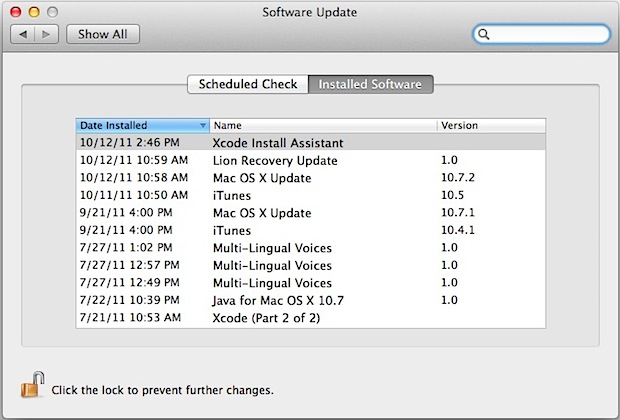
Forget what Software Updates you’ve installed on a Mac? Maybe you need to check if a particular Mac workstation has installed a particular software update? With a little work, you can easily check which particular software updates have been installed before in Mac OS X.
We’ll show you several different ways to get a list of software updates installed onto a Mac. How you can get a list of installed software updates on a Mac depends partially on the version of MacOS / Mac OS X system software installed on the Mac. There are a few different approaches, some which work on all versions of Mac system software, and others which are version dependent, as you’ll see.
How to See What Software Updates Have Been Installed on Mac with System Information
Perhaps the simplest way to see every single software update installed onto a Mac is with the System Information utility:
- Open the “System Information” app, found in /Applications/Utilities/
- Go to the “Software” section shown in the sidebar
- Choose “Installations” to see the full list of software updates ever installed on the Mac
A helpful tip is to sort the software updates list by install date, or you can sort by name too.
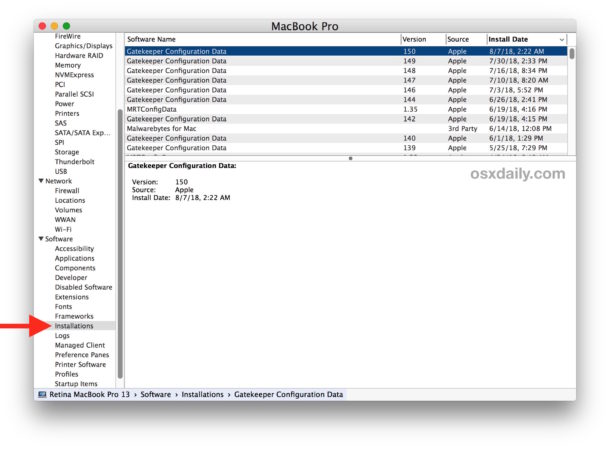
The benefit to this approach using System Information is that it works on every Mac with the “System Information” tool in Mac OS and Mac OS X, which should be all of them by default.
How to Check What Software Updates Have Been Installed with System Preferences
If your Mac OS version supports getting software updates from the Software Update control panel within System Preferences, here is how you can check which updates have been installed:
- Open “System Preferences” from the Apple menu
- Click on “Software Update” control panel
- Choose the “Installed Software” tab to see the list of installed updates
From here you’ll see the precise installed date and time, the software update package name, and the version of each update listed.
Many versions of Mac OS X get updates through the System Preference panel, including any Mac OS X Snow Leopard, Leopard, Tiger, and earlier releases, as well as modern releases like macOS Mojave and moving forward. The interim releases used the Mac App Store instead.
How to Check Software Updates from Command Line
You can review the InstallHistory.plist file by dumping the contents with cat, in the example here we are also piping the output to more for easier reading:
cat /Library/Receipts/InstallHistory.plist |more
In macOS Mojave and MacOS High Sierra, you can also use the softwareupdate command line tool with a history flag to see all installed software updates:
softwareupdate --history
This only works in modern versions of MacOS like MacOS Mojave and MacOS High Sierra, and the –history flag is not available in earlier releases.
However you access it, this list can be helpful to look through for troubleshooting purposes, or if you’ve ignored some updates and plan to install them manually through the command line or by downloading the packages from Apple.
If you know of any other helpful methods of checking for installed software updates on a Mac, share them in the comments below!






recently the latest update to final cut pro x (pro video formats 2.0.1) keeps returning after updating it. The last time, it actually uploaded itself! What the heck kinda problem is this?
I have downloaded 4 of these and there is another one knocking at the door. Please help, tried adobe and no responce yet.
you can use system information to check and confir if that important update is already installed 1st go to launchpad next search for the folder named Other, after that just find system information once opened look for software then installed and finally after that you will be able to check up all the updates installed on your mac
[…] Check What Software Updates Have Been Installed in Mac OS X Check What Software Updates Have Been Installed in Mac OS X… Source: osxdaily.com […]
By the way , the updates that are listed without the version , weren’t downloaded by ” Software Update… ” , the were downloaded from the Apple website/Internet