
Close Desktop Spaces in Mission Control for Mac OS X Quickly
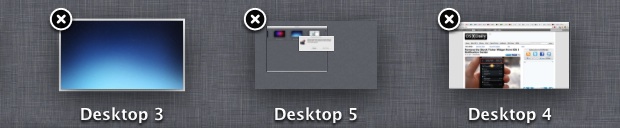
Spaces are the the Virtual Desktop feature in OS X, and it’s part of the Mission Control window management system on the Mac. If you’ve opened a few desktop spaces that you no longer need access to, you can close them.
Perhaps the fastest way and most efficient means of closing a desktop space in Mission Control for Mac OS X is by using the option key. Here’s how it works:
- Enter Mission Control as usual, then hover your mouse over the top where the desktop spaces are contained
- Now hold down the OPTION key to see the (X) close button appear, click that to close the selected space
You can repeat this with all spaces, except the last active one of course.
There are other ways to close the virtual spaces but, remember, you can quickly close desktop spaces in Mac OS X Mission Control by holding down the Option key, this causes the familiar iOS style and Launchpad (X) close symbol to appear over the spaces which can then be rapidly closed.
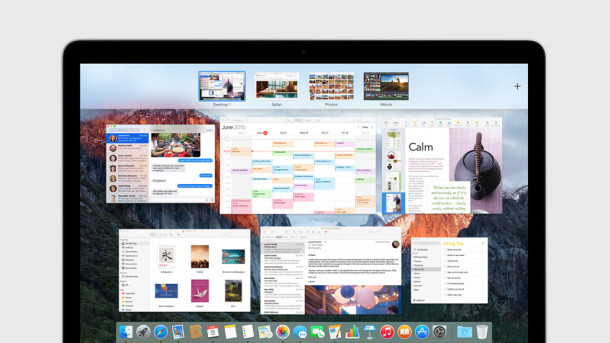
Alternately, you can mouse over spaces and the close button will appear on hover after a second or two, but the option key is immediate. For both approaches, closing a space that contains an app or windows results in those windows being shuffled over to the next desktop.






The big question is how do you enter mission control? I can switch using ctro -> etc. and drag windows to the top of the screen to open it, but I havent found how to open it in order to close a virtual desktopl
Thank you
thank you
Is there any way to close all of the desktops and have nothing up there? Honestly, I liked it better the old way with spaces which I accessed with corners. I wish I had the option to set it that way now.
You can still set up hot corners and access spaces the same way as the old way.
[…] another nice background picture, by request, it’s the blue sky star field wallpaper that was shown in a recent screenshot of Mission […]
[…] Quickly Close Desktop Spaces in Mac OS X Lion’s Mission Control Quickly Close Desktop Spaces in Mac OS X Lion’s Mission Control… Source: osxdaily.com […]
How did you add more Desktops than what is allowed in full screen apps??
Just like Paul mentioned, when in Mission Control press the Option key to make a new desktop appear on the right side of the screen. Just like you use Option key to remove desktops
Hi Paul,
I was wondering since i barely shut down my iMac, is there a possibility to ‘name’ each desktop? I.e., production, design, games etc. etc. instead of seeing Desktop 1, 2, 3 etc. ?
Unfortunately there isn’t a way to change the names of desktops, but if you full screen an app then the desktop will assume the apps name. Hopefully a future version of OS X will allow for this.
Thank you for the quick reply. I kinda suspected that. It doesn’t matter i guess. I mean the visual representation gives the user the ability to identify application running in other desktops.
Where did you get the Background for Desktop 3?
Can you share it?
Sure thing, here it is:
http://bazdesh.deviantart.com/#/d45y40b
They should have a ‘close and merge all’ option